3D Gaussian Splatting (3DGS) Guide
- Overview and features of 3D Gaussian Splatting (3DGS)
- How to create 3DGS spaces
- Usage scenes and examples
- File formats and technical specifications
What is 3D Gaussian Splatting
3D Gaussian Splatting (3DGS) is the latest technology that generates photo-realistic 3D spaces from multiple photos or videos.
Main Features
- Ultra-realistic reproduction: Generate 3D spaces from photos of actual locations that look just like the real thing
- No additional charges: Available with no additional charges on all Threedive AI plans
- Easy creation: Generate 3D space data just by shooting with dedicated app
- Combine with AI customer service: Can place AI Avatars in generated 3D spaces
How to Create 3DGS Spaces
Step 1: Shoot with Scaniverse App
In Threedive AI, use the Scaniverse app to create 3D Gaussian Splatting data.
What is Scaniverse
A 3D scanning app provided by Niantic Labs that easily creates high-quality 3D space data using LiDAR sensors on iPhone and iPad.
- Compatible Devices: iPhone 12 Pro and later, iPad Pro (LiDAR-equipped models)
- Price: Basic features are free
- Download: App Store
Shooting Steps
- Download Scaniverse app from App Store
- Launch app and start "New scan"
- Scan while slowly walking around the subject with device
- After scan completes, check 3D preview in app
How to Use Scaniverse (Video)
- Move slowly: Avoid sudden movements, move camera smoothly
- From various angles: High quality with shooting from top, bottom, left, right, multiple angles
- Sufficient brightness: Accuracy improves when shooting in bright environment
- Maintain constant distance: Optimal distance of about 1-3m from subject
Step 2: Export 3D Data
Export from Scaniverse app in formats usable in Threedive AI.
- After scan completes, select "Export" in app
- Select "Gaussian Splat (.splat)" or "PLY (.ply)" as export format
- Save exported file to device
- Transfer to PC via AirDrop or cloud storage
Scaniverse supports 3D Gaussian Splatting and can directly export in .splat format. See Niantic Labs official announcement for details.
Step 3: Upload to Threedive AI
- Access Media Library
- Upload generated
.splator.plyfile
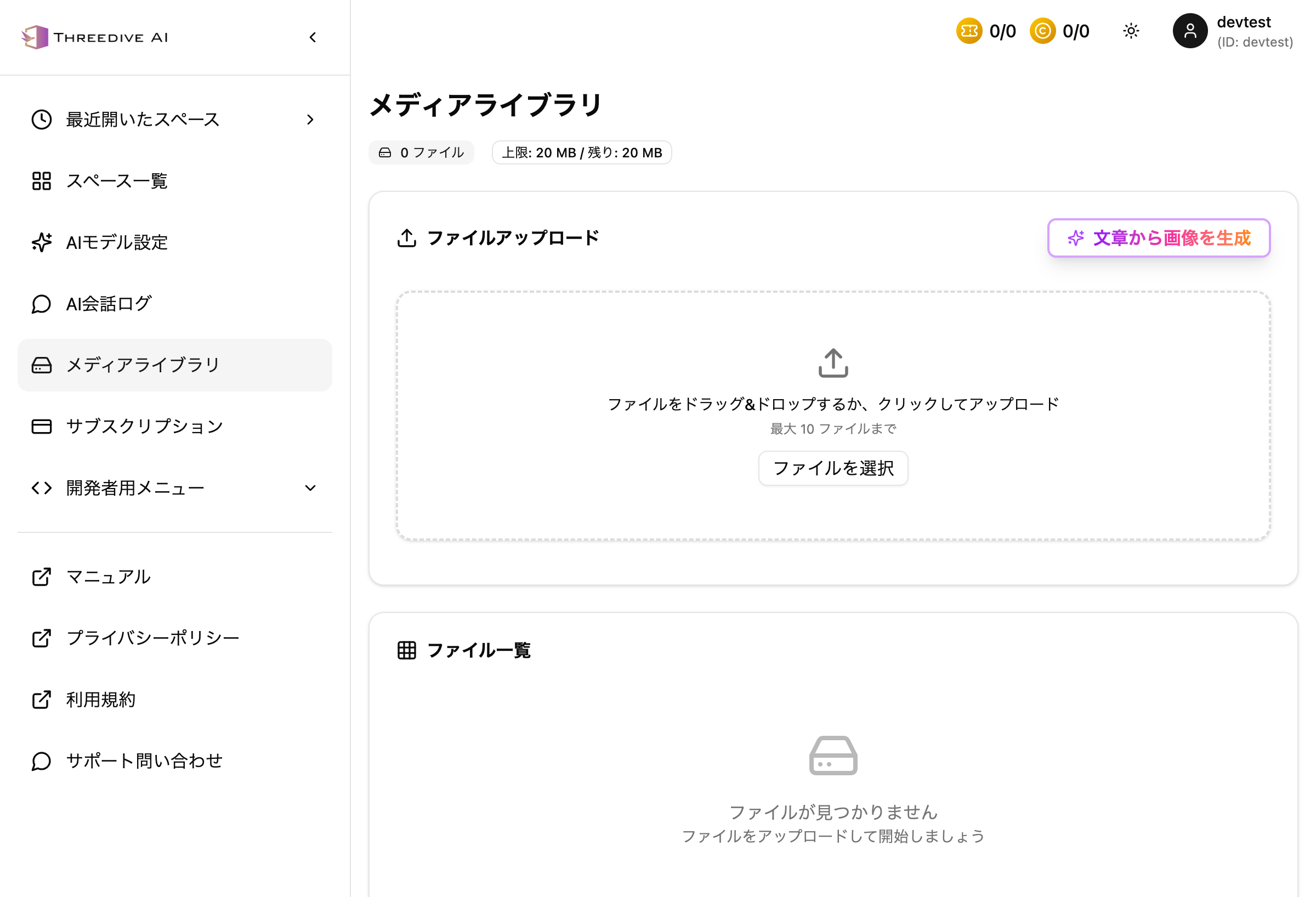 Media Library screen - File upload available
Step 4: Configure to Space
- Open "Advanced Settings" tab in Space Settings
- Select uploaded 3DGS file in "Custom Model URL" section
Supported File Formats:
.splat(3D Gaussian Splatting format).ply(Point Cloud format).rad(3DGS streaming file format, added in v1.17.2. Loads progressively for fast display startup. Since v1.17.11, also selectable and previewable in "Create from 3D Splat" when creating a new space).glb/.gltf(Conventional 3D model format)
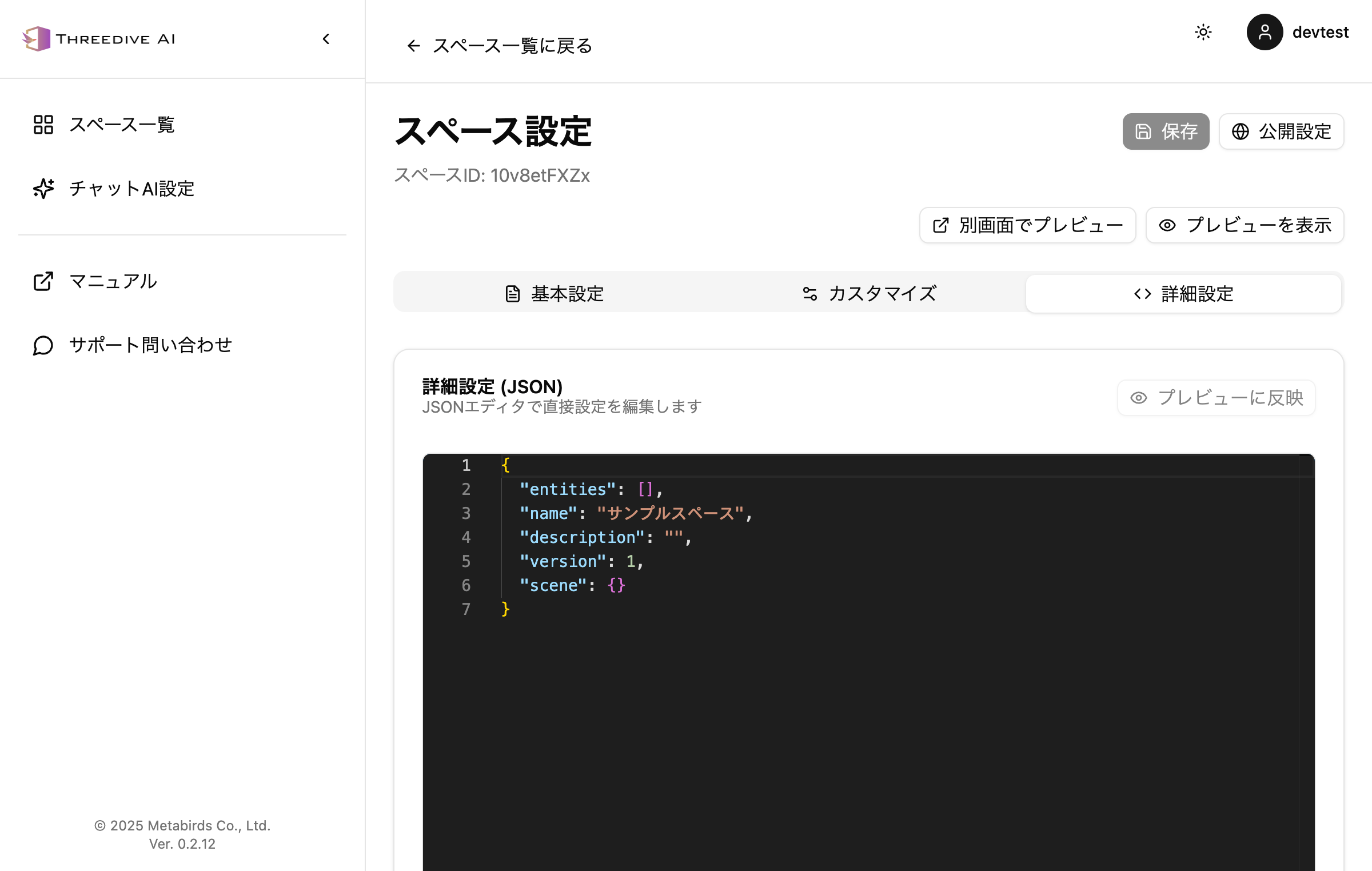 Advanced Settings tab - Can specify 3DGS file in custom model URL
Usage Scenes
Tourism/Cultural Properties
Features:
- Ultra-realistic 3D reproduction of actual tourist spots
- Multilingual AI guide explanations
- Virtual visits possible 24 hours anytime
Examples:
- Virtual tours of historic sites and cultural properties
- Online deployment of tourist information centers
- Tourism experience from remote locations
Real Estate
Features:
- Property viewing experience as if actually visiting
- 24-hour property guidance by AI
- Efficient guidance of multiple properties
Examples:
- Condominium and detached house viewing
- Office and commercial facility tours
- Before and after renovation comparison
Stores/Showrooms
Features:
- 3D reproduction of actual stores as-is
- Product guidance by AI staff
- Integration with EC sites
Examples:
- Apparel store 3D showroom
- Furniture and interior virtual exhibition
- Automobile dealer showroom
Events/Exhibitions
Features:
- Reproduce exhibition venue online
- Product explanation by AI
- Global participant support
Examples:
- Online corporate exhibition booths
- 3D art exhibition
- Virtual product launch
Technical Specifications
Supported File Formats
| Format | Extension | Usage | Features |
|---|---|---|---|
| Gaussian Splatting | .splat | 3DGS space | Photo-realistic, high quality |
| Point Cloud | .ply | 3DGS space | General point cloud data |
| 3DGS Streaming | .rad | 3DGS space | Fast loading. Previewable when creating a new space |
| GLTF/GLB | .gltf, .glb | Conventional 3D models | Standard 3D format |
File Size
- Recommended size: Within plan upper limit capacity
- Optimization: Consider balance of quality and capacity
Coordinate System
- Coordinate system: Right-hand coordinate system (Y-axis is upward)
- Position unit: Meters
- Rotation unit: Radians (Euler angles)
Collision Detection
In 3DGS spaces, you can optionally specify separate GLB file for collision detection:
- Display:
.splator.plyfile (photo-realistic display) - Collision detection:
.glbfile (user movement restriction)
- Separating display and collision detection allows realistic appearance while keeping operation light
- If collision detection GLB is not specified and display model is GLB, it will also be used for collision detection
Combining with AI Avatar Placement
You can place unlimited AI Avatars in 3DGS spaces.
Placement Examples
- Reception AI: Place near entrance to guide visitors
- Product explanation AI: Place in front of each exhibit to explain details
- Multilingual support AI: Place AI in different languages by area
See Space Management for details.
Reference Links
About 3D Gaussian Splatting Technology
Next Steps
- Space Management - Detailed 3DGS space settings
- Media Library - File upload and management
- Developer Guide - Advanced customization with JSON settings
Support
For questions about creating or configuring 3DGS spaces, please contact us from "Support Contact" in Threedive AI Studio.