Activity Logs
What You'll Learn on This Page
- What Activity Logs show
- How to retrieve logs for a specified period
- How to save logs in CSV format
Activity Logs let you check behavioral audit logs such as sign-ins and sign-ups (added in v1.19.2).
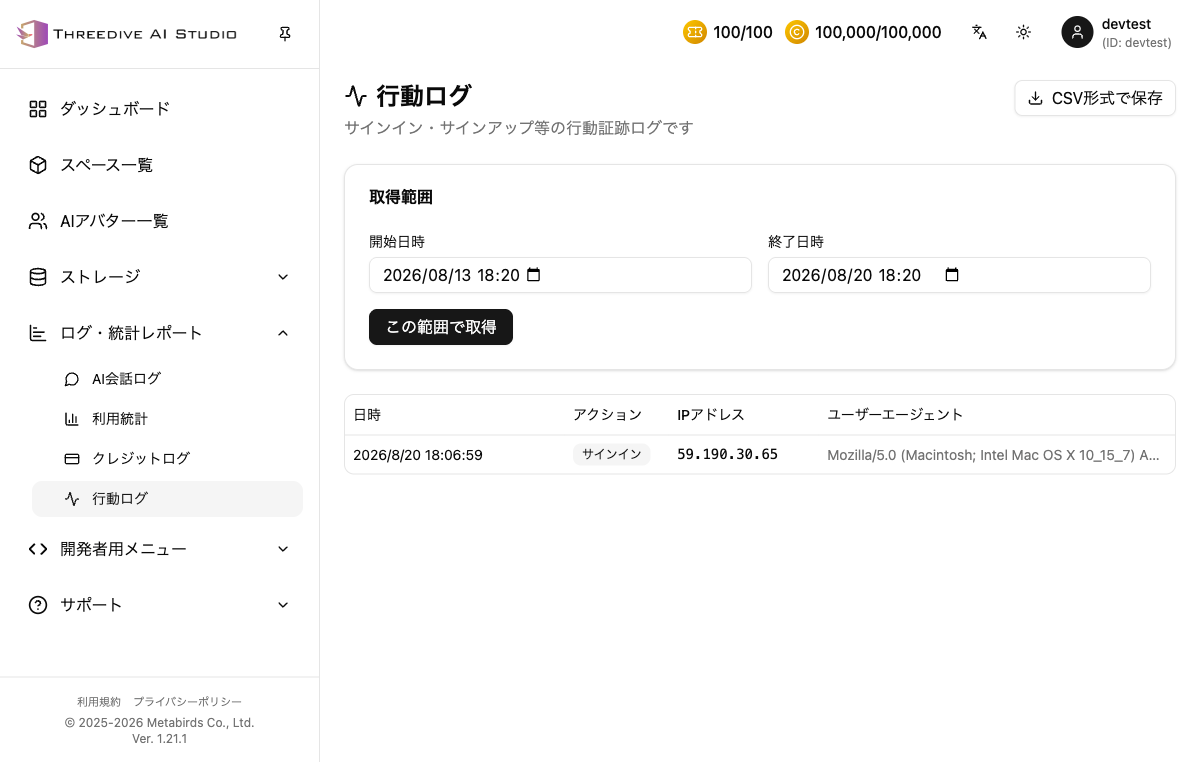 Activity Logs screen - specify a period to retrieve logs and save them as CSV
Overview
Activity Logs let you check the following information:
- Date/Time: When the action occurred
- Action: The type of action, such as sign-in or sign-up
- IP Address: The IP address used when the action occurred
- User Agent: Information about the browser/device used
note
Unlike AI Chat Logs (conversation history), Activity Logs record account-operation audit trails such as sign-ins and sign-ups.
How to Use
- From the Threedive AI Studio left menu "Logs & Statistics Reports", select "Activity Logs"
- In "Retrieval Range", specify the start and end date/time
- Click "Retrieve for this range"
- The activity logs for that period are displayed as a list
Save as CSV
From the "Save as CSV" button at the top right of the screen, you can download the retrieved logs in CSV format.