Quick Start (For Site Administrators)
- Main menus and navigation in Threedive AI Studio
- Basic flow: Create AI → Create Space → Place AI Avatar
- Key points for navigating the latest help documentation
This page is updated based on screens verified in Threedive AI Studio on April 16, 2026 (Footer display: Ver. 1.12.2).
Accessing Threedive AI Studio
- Open your web browser
- Go to https://app.threedive.ai/
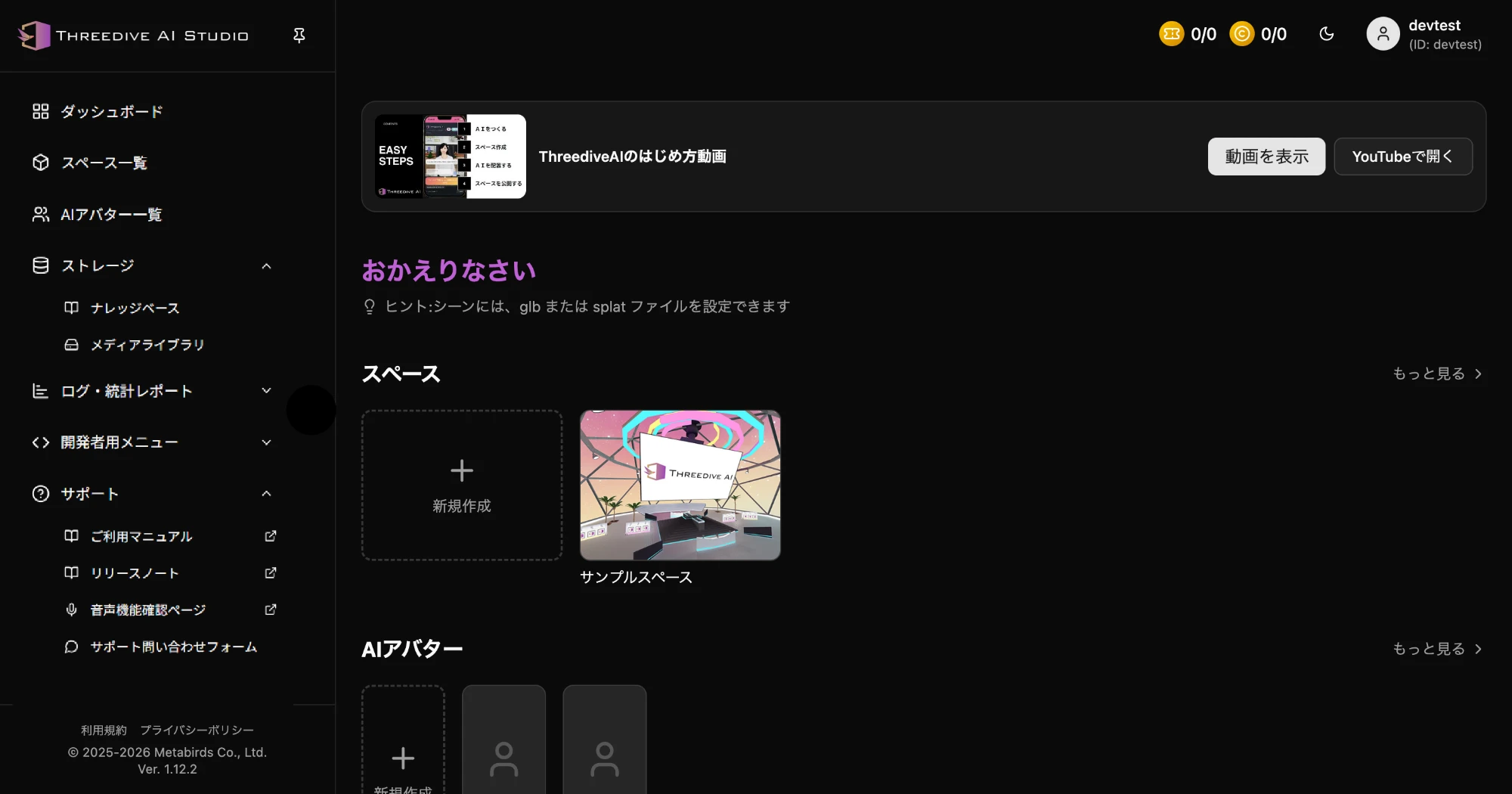 Dashboard screen - Check tutorial videos, recent spaces, and AI Avatar navigation all in one place
Understanding the Latest Basic Flow
- Create AI Avatars for conversations in AI Avatar List
- Create Spaces in Space List
- Place AI Avatars in Space Settings
- The admin screen is called Threedive AI Studio.
- This help guides you through: Create AI → Create Space → Place AI Avatar.
- Name changes and recent features can be found in Latest Updates.
Understanding the Screen Layout
Left Menu (Main Features)
- Dashboard: Check recent status of spaces and AI Avatars
- Space List: Create, edit, and delete spaces
- AI Avatar List: Manage conversation settings and appearance of AI Avatars
- AI Chat Logs: Search and review conversation history
- Media Library: File upload and AI image generation
- Developer Menu: Various provider settings and error logs
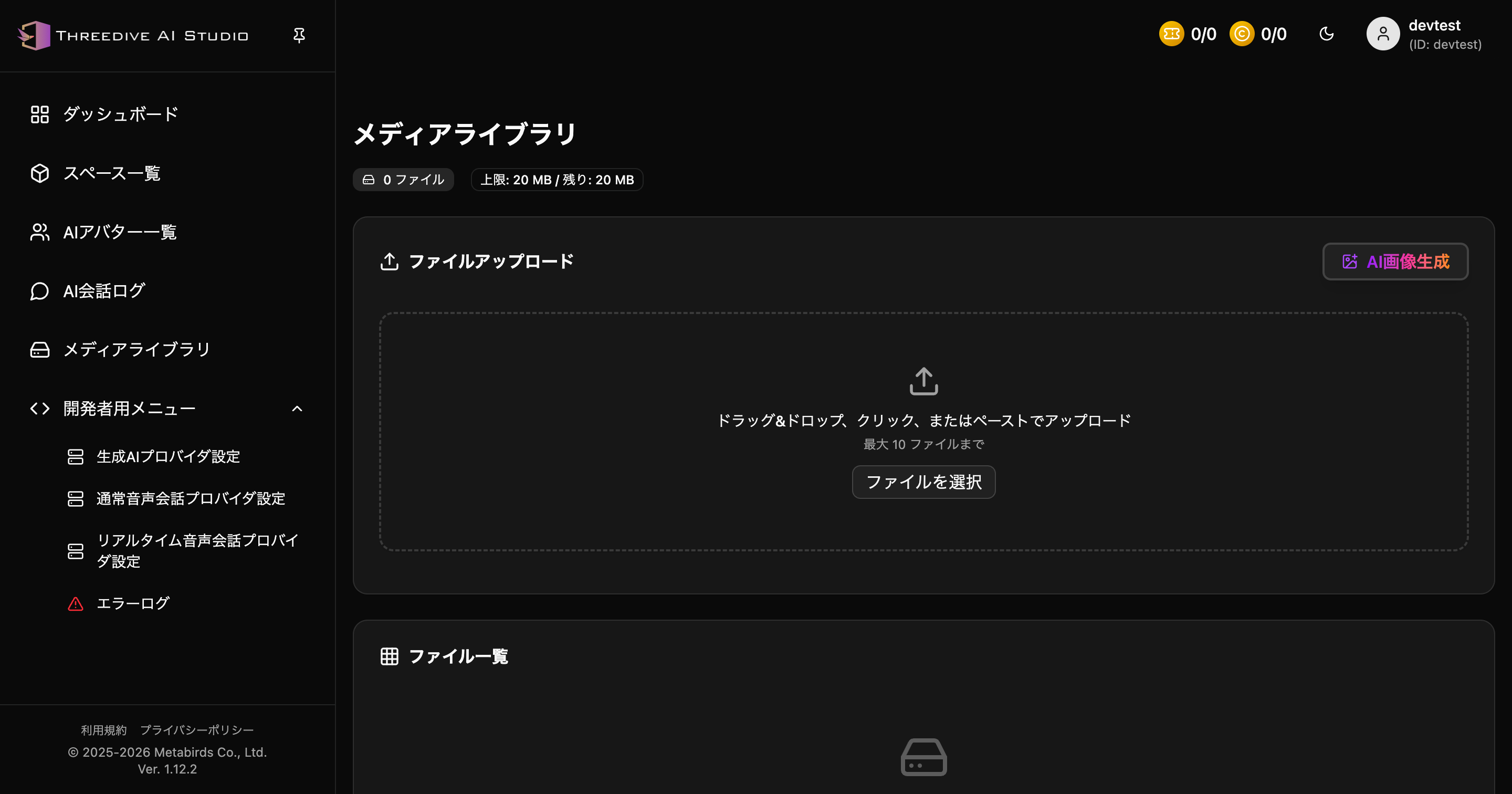 Developer menu expanded
Top Right Menu (Account・Subscription)
- Subscription: Access from ticket/credit display at top right, or from account menu
- Account Menu: Profile, Subscription, Sign Out
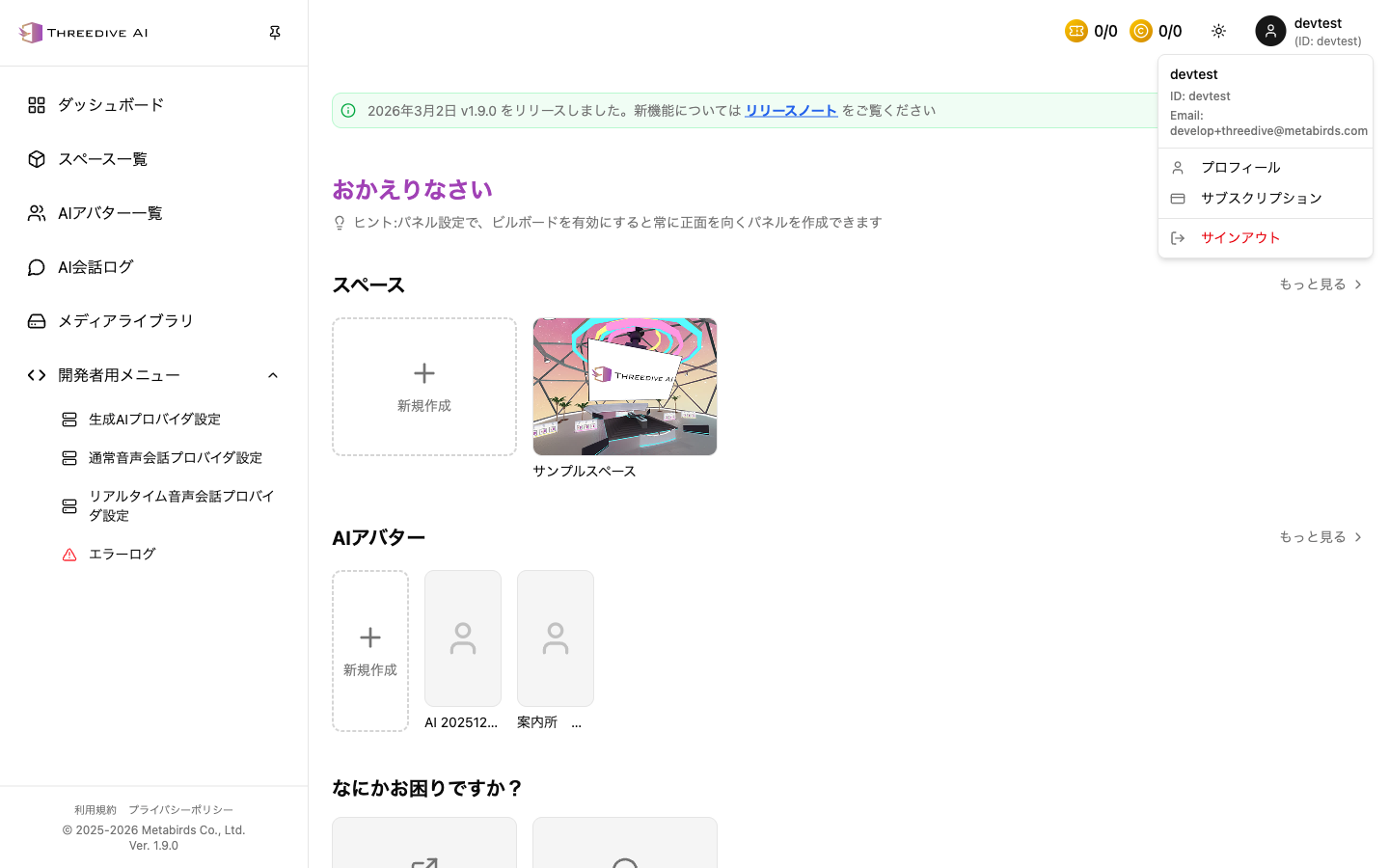 Navigate to "Subscription" from account menu at top right
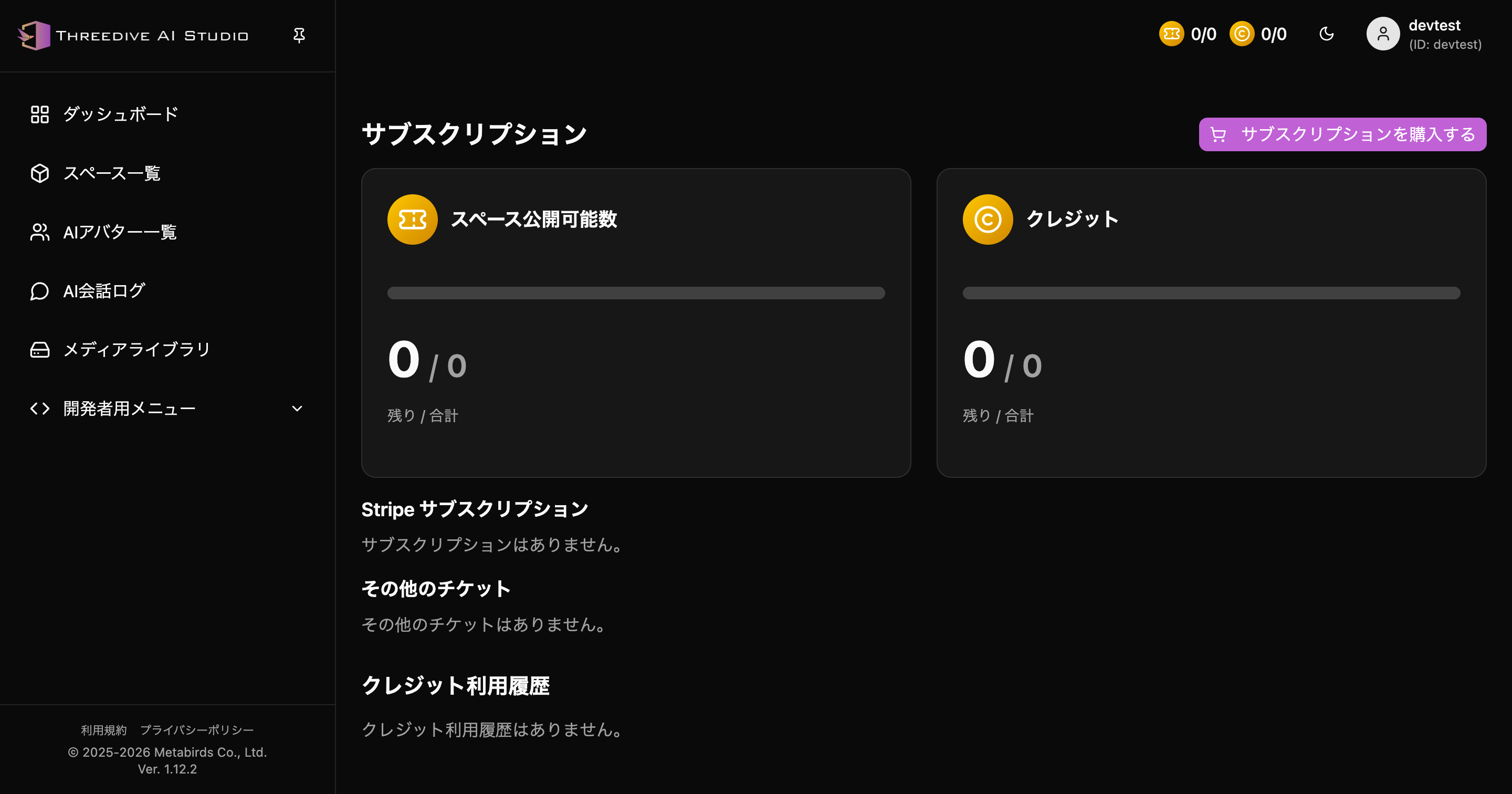 Subscription screen - Check publishable count, credits, purchase options, and usage history
Role of Main Pages
Space List
The entry point for creating new spaces. Start here.
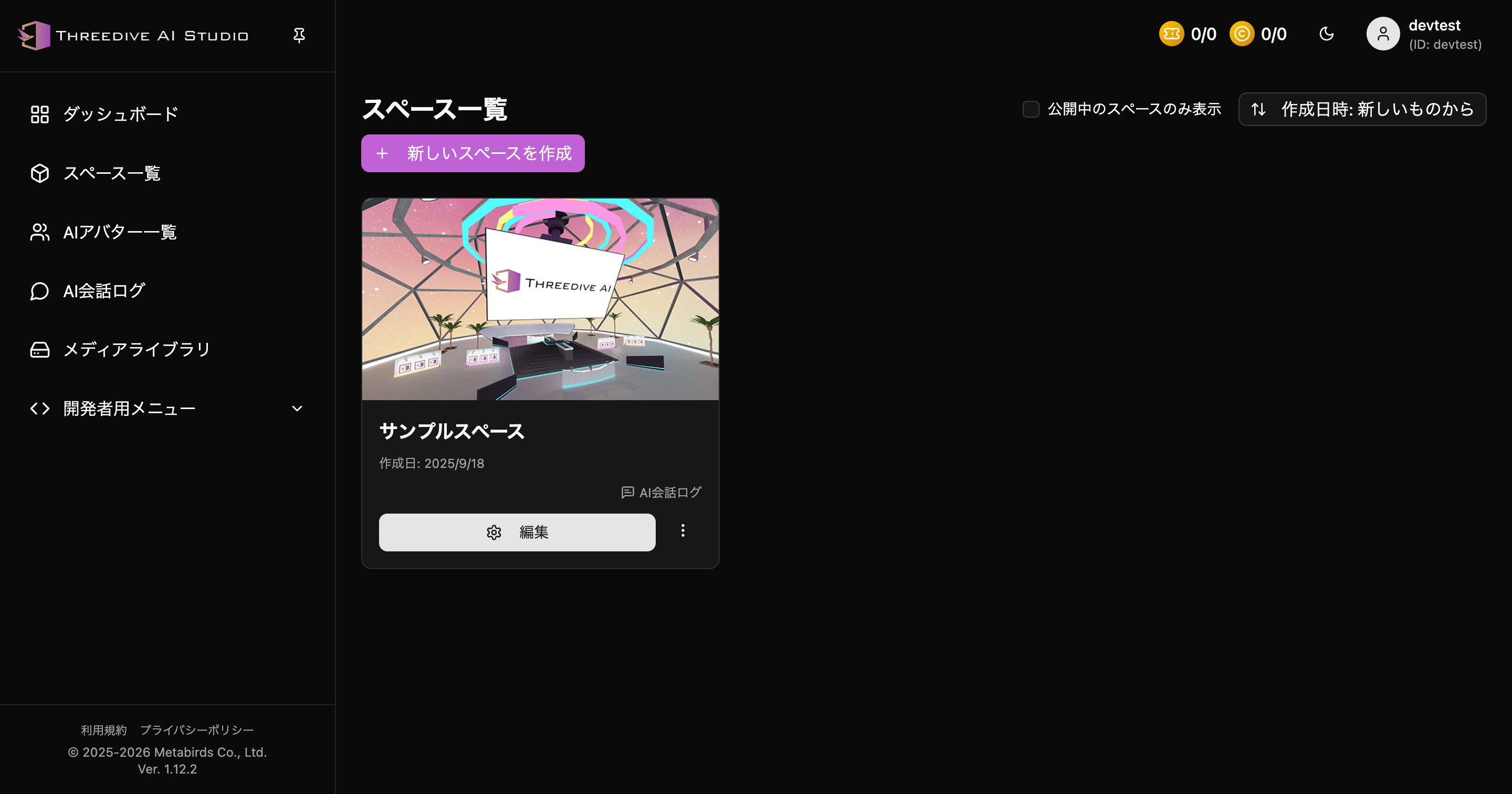 Manage with "Create new Space" button or "Show published spaces only"
AI Avatar List
Add, edit, and test AI Avatars.
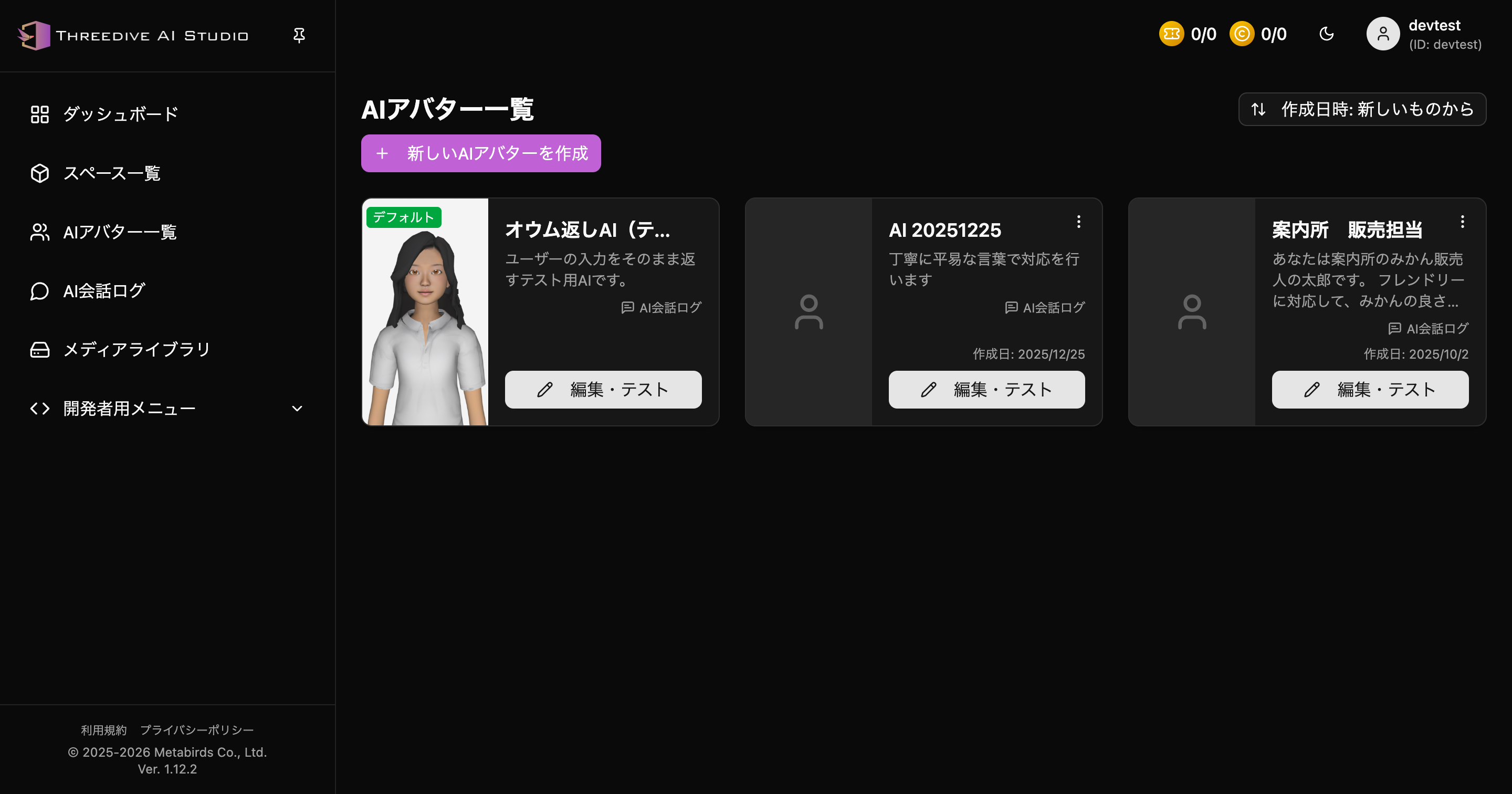 Current list UI for creating, editing, and testing AI Avatars
AI Chat Logs
Filter and review conversation logs by period or ID.
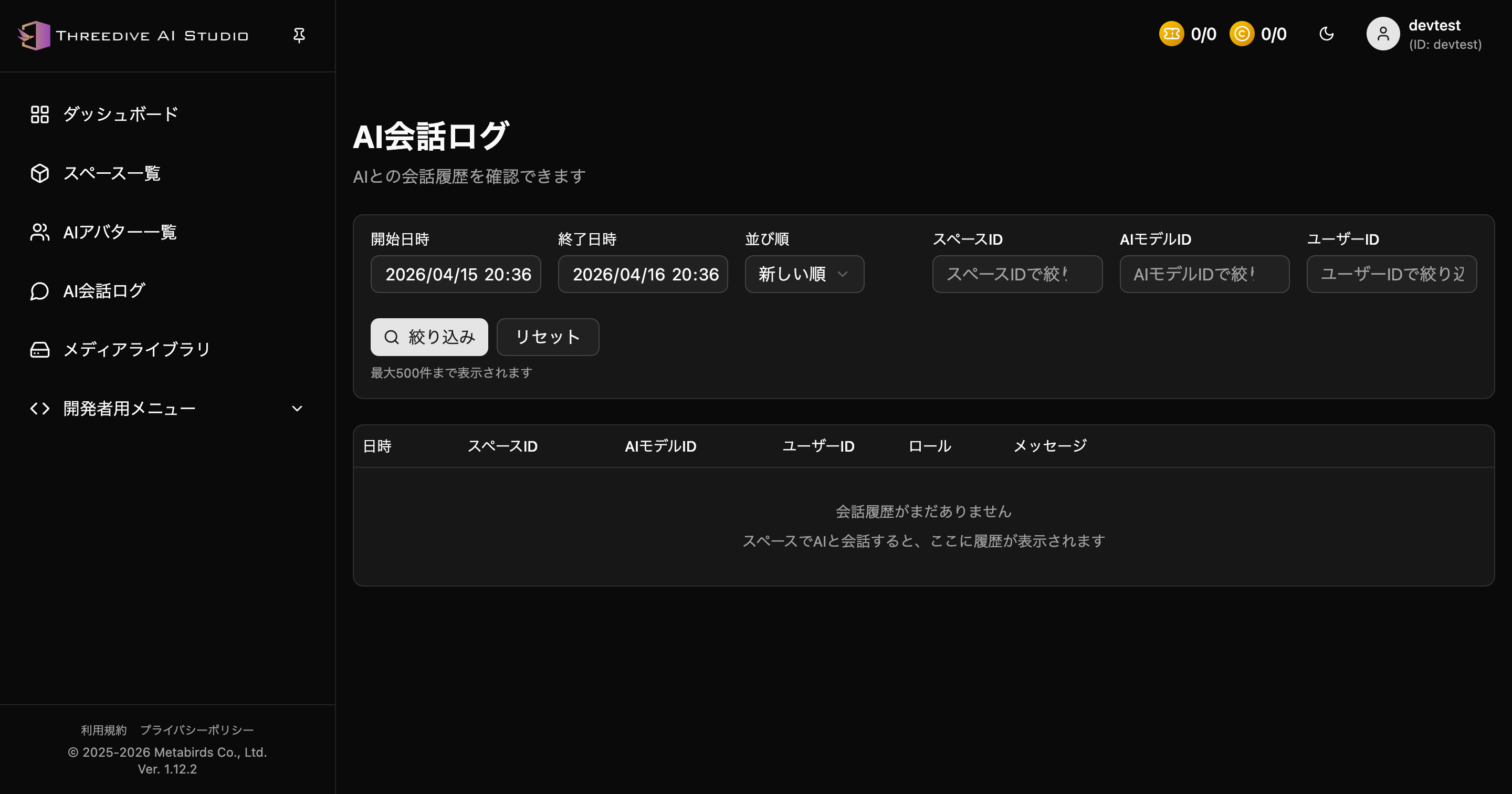 Filter by start date, end date, and various IDs
Media Library
The starting point for file uploads and AI image generation (from text/images).
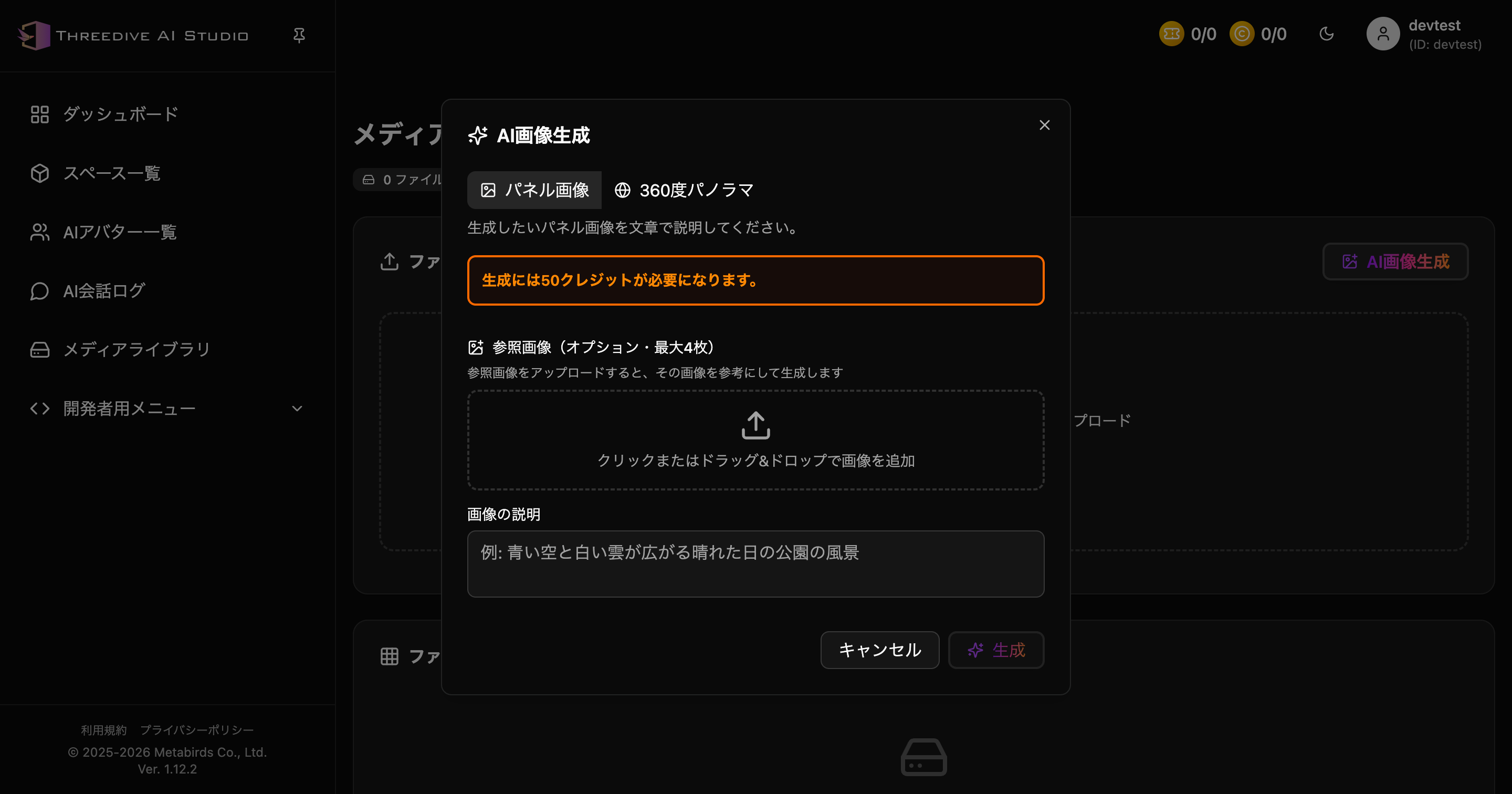 Check file uploads, AI image generation, storage capacity, and file list all together
Shortest Procedure: Create AI → Create Space → Place AI Avatar
- Create conversation settings in AI Avatar List
- Click "Create new Space" in Space List
- After creating space, add to the space in AI Avatar Placement tab
- After preview confirmation, perform Save and Publish Settings
Using Space Settings Tabs
1) AI Avatar Placement
Place avatars created in AI Avatar List into the space.
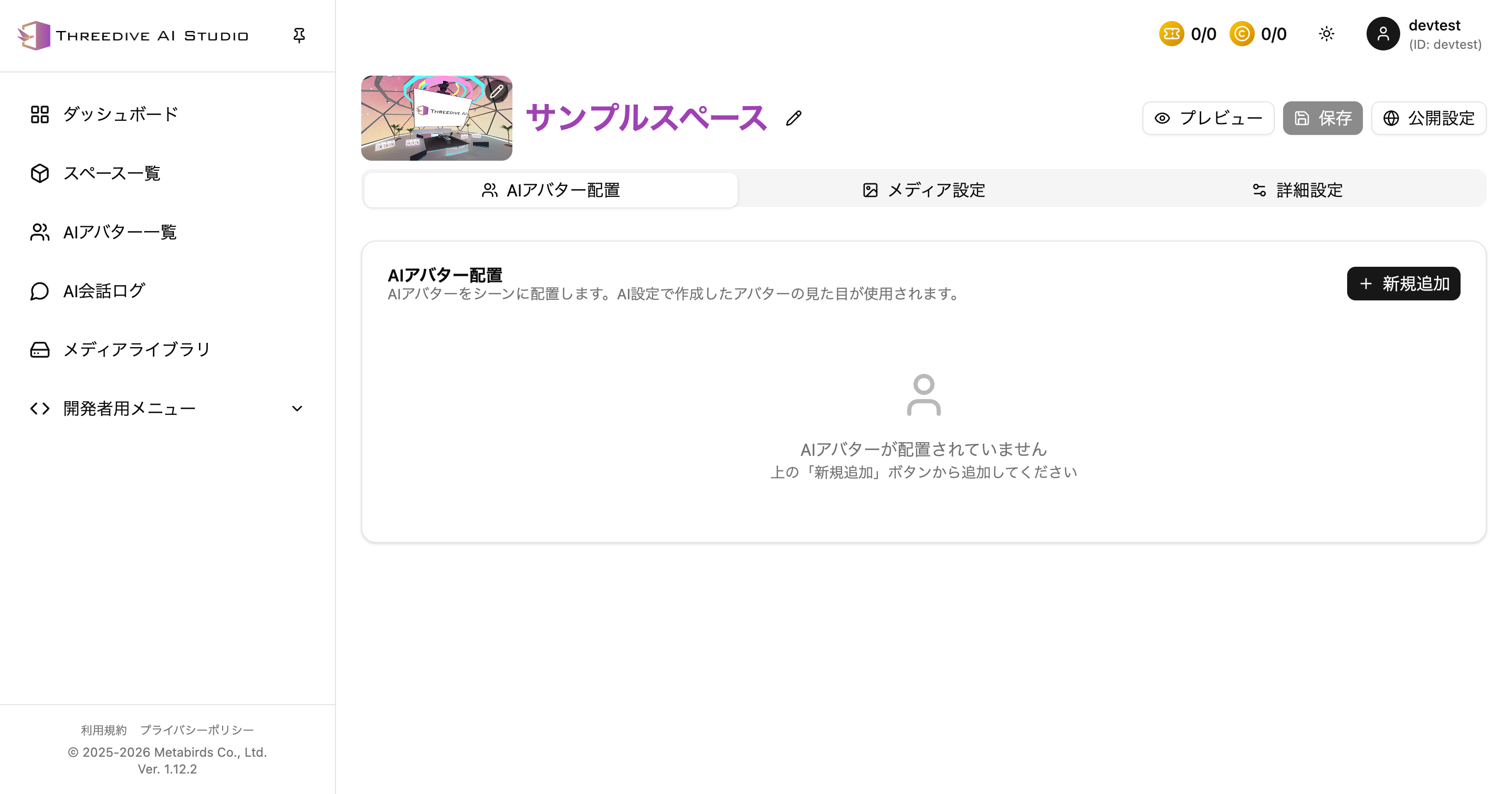 In current UI, place from "Add New"
2) Media Settings
Confirm and edit configured media such as 360-degree panorama and panels.
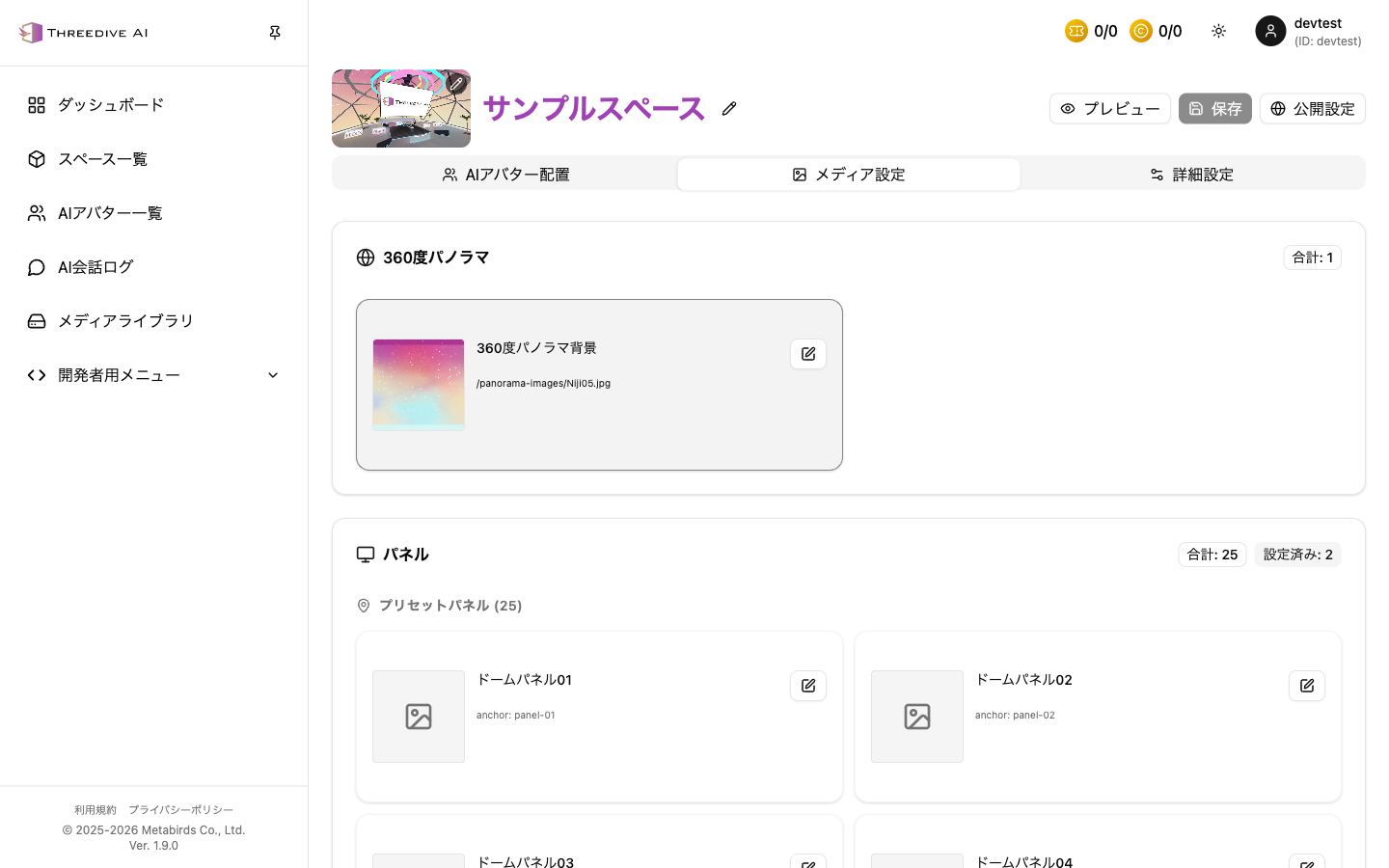 Check panorama and panel configuration status in a list
3) Advanced Settings
Adjust scene and placement information while switching categories.
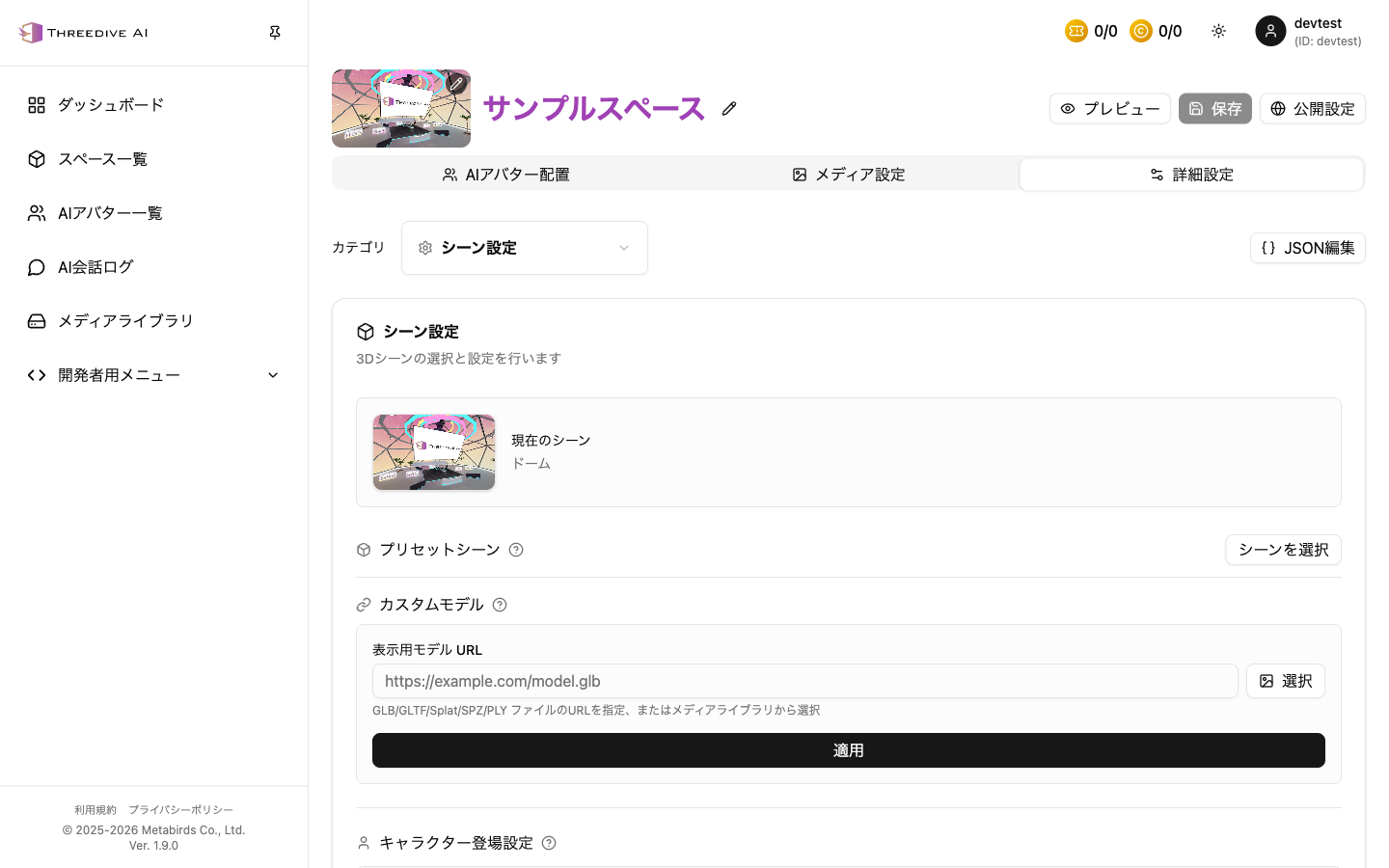 Category "Scene Settings"
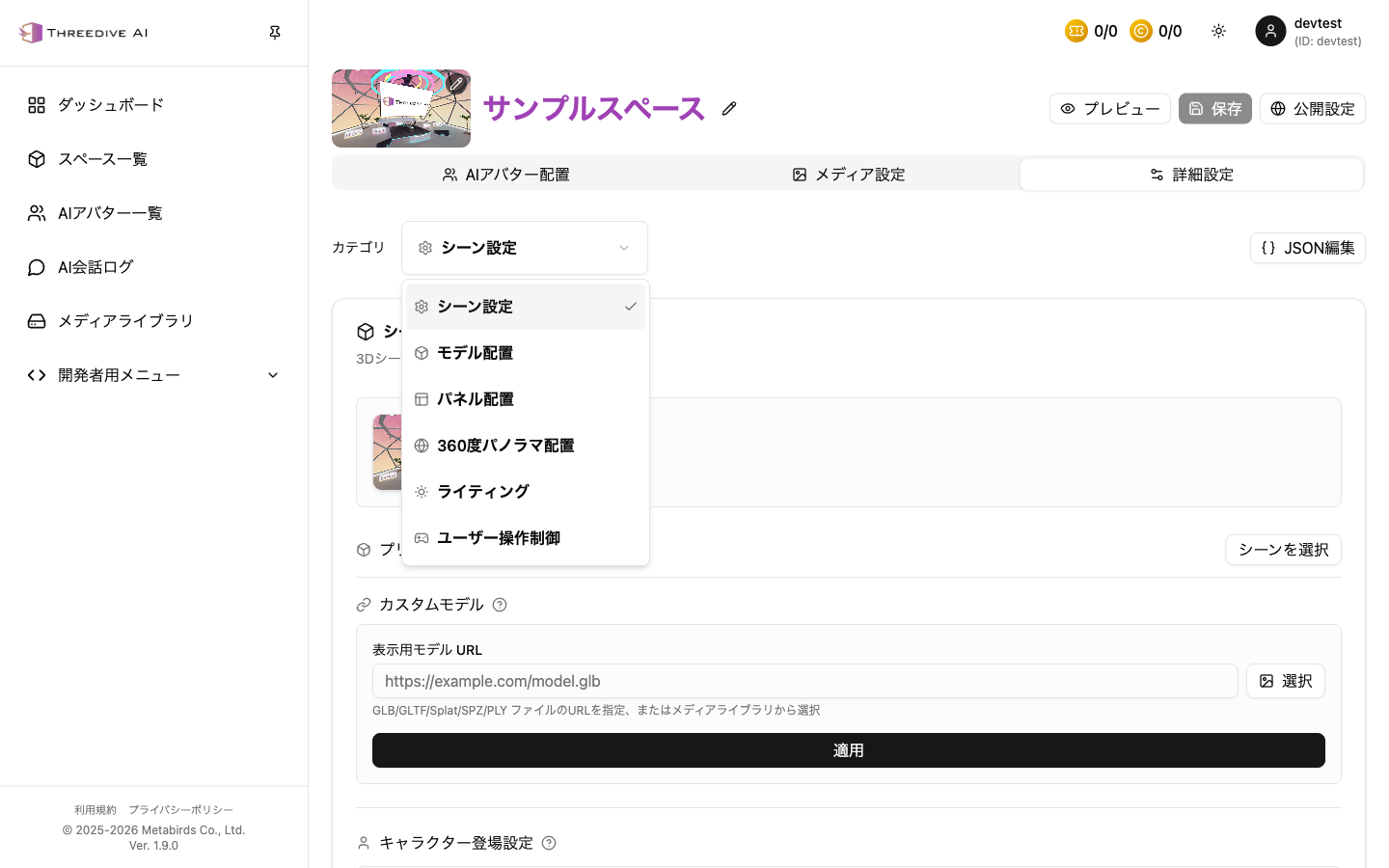 Categories: Scene Settings / Model Placement / Panel Placement / 360-degree Panorama Placement / Lighting / User Control
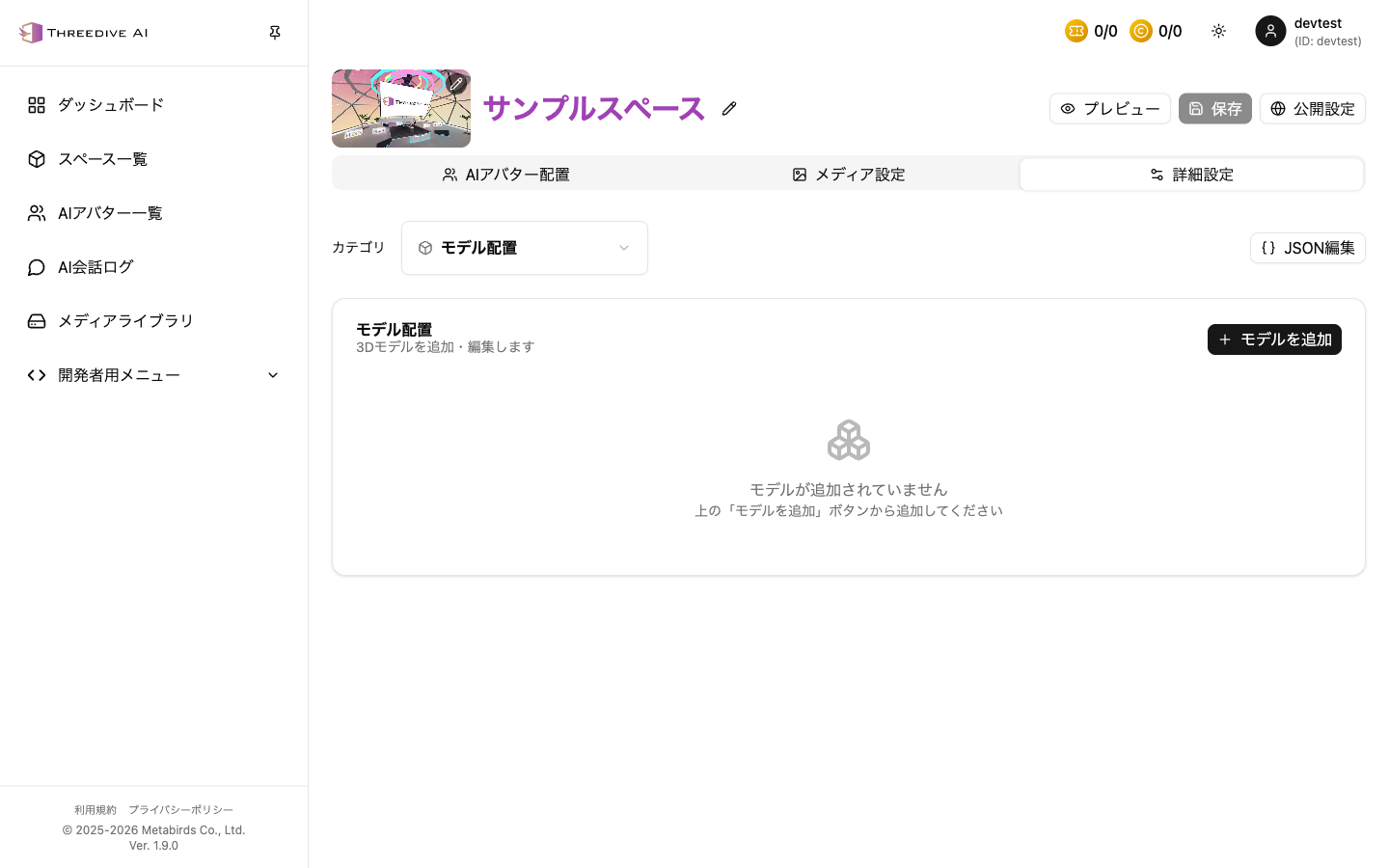 Category "Model Placement"
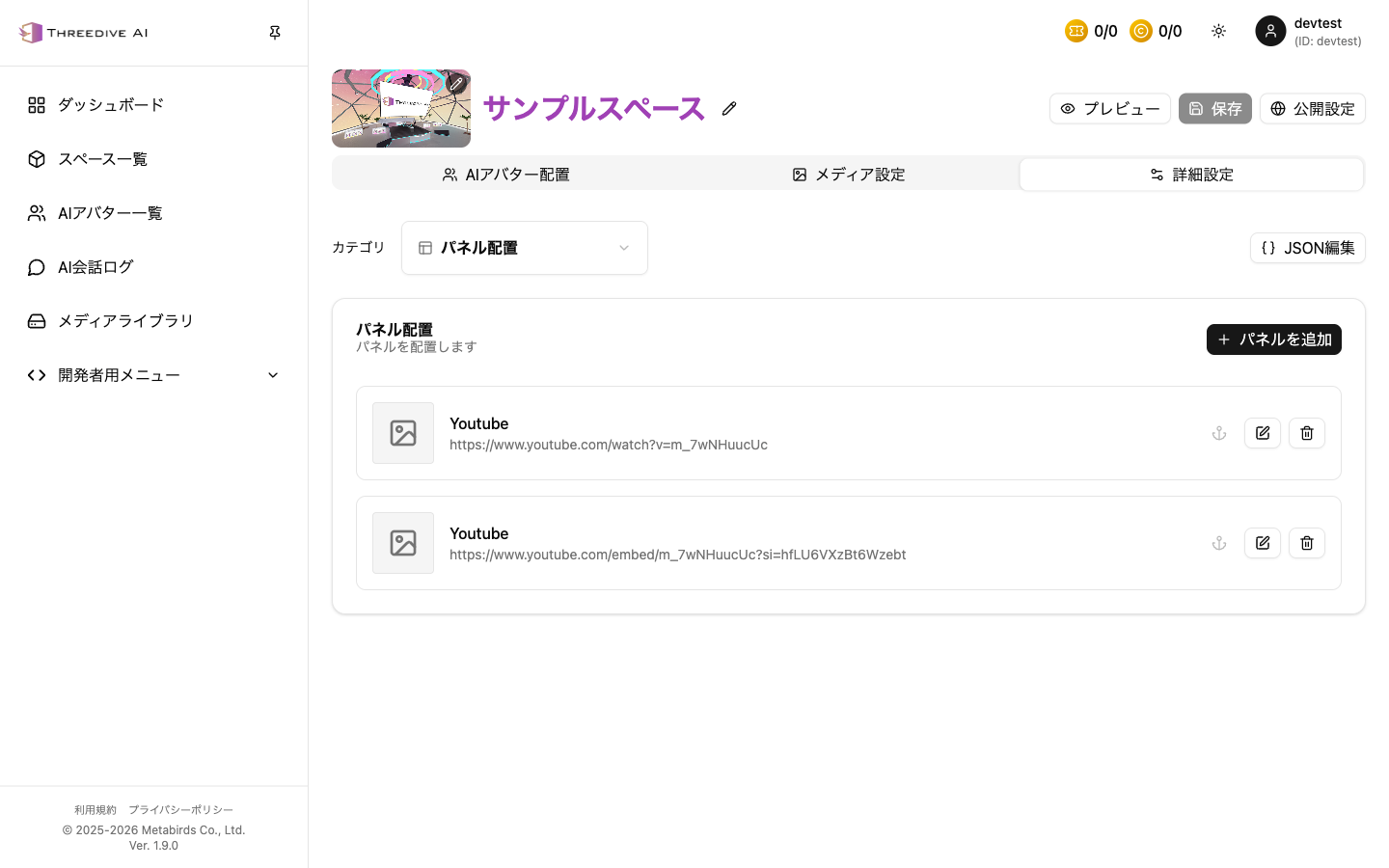 Category "Panel Placement"
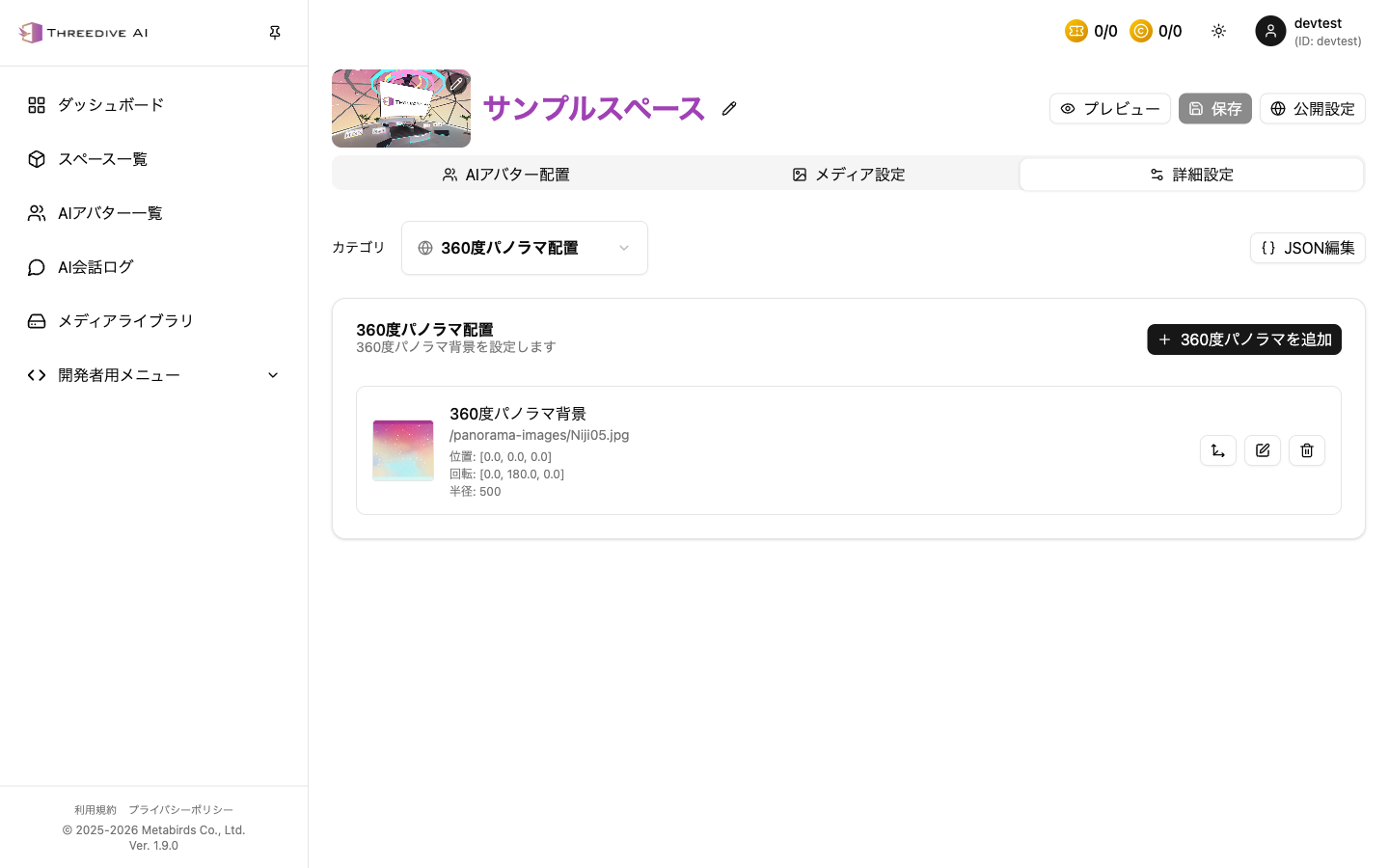 Category "360-degree Panorama Placement"
- Dashboard added to left menu
- AI Model Settings renamed to AI Avatar List
- AI Avatar Placement tab added to Space Settings
- Subscription navigation changed from fixed left menu to mainly top right menu navigation
Next Steps
- Space Management - Review detailed settings categories in detail
- AI Avatar List - Adjust AI Avatar conversation settings and appearance
- AI Creation and Placement Guide - Check the configuration order from AI creation to placement
- Space Settings: AI Avatar Placement Tab - Add and place AI Avatars
- Space Settings: Media Settings Tab - Panorama and panel settings
- Space Settings: Advanced Settings Tab - Detailed adjustment of 6 categories
- Media Library - File upload and URL usage
- AI Image Generation Guide - Practical procedures for image generation
- Developer Guide - Various provider settings