AI Creation and Placement Guide
- Flow of creating AI in AI Avatar List
- Flow from creating spaces to placing AI Avatars
- Important configuration items for Autopilot function
Overall Flow of AI Avatar Creation
AI functions are configured in the following order:
- Create and edit AI in AI Avatar List
- Create spaces in Space List
- Place avatars in Space Settings > AI Avatar Placement
This page summarizes Create AI → Create Space → Place AI Avatar in the basic flow for administrators. Conversation content is managed in "AI Avatar List", and addition to spaces is done in "Space Settings".
1. Create AI in AI Avatar List
- Log in to Threedive AI Studio
- Open "AI Avatar List" from the sidebar
- Select "Create new AI Avatar" or "Edit・Test" on existing card
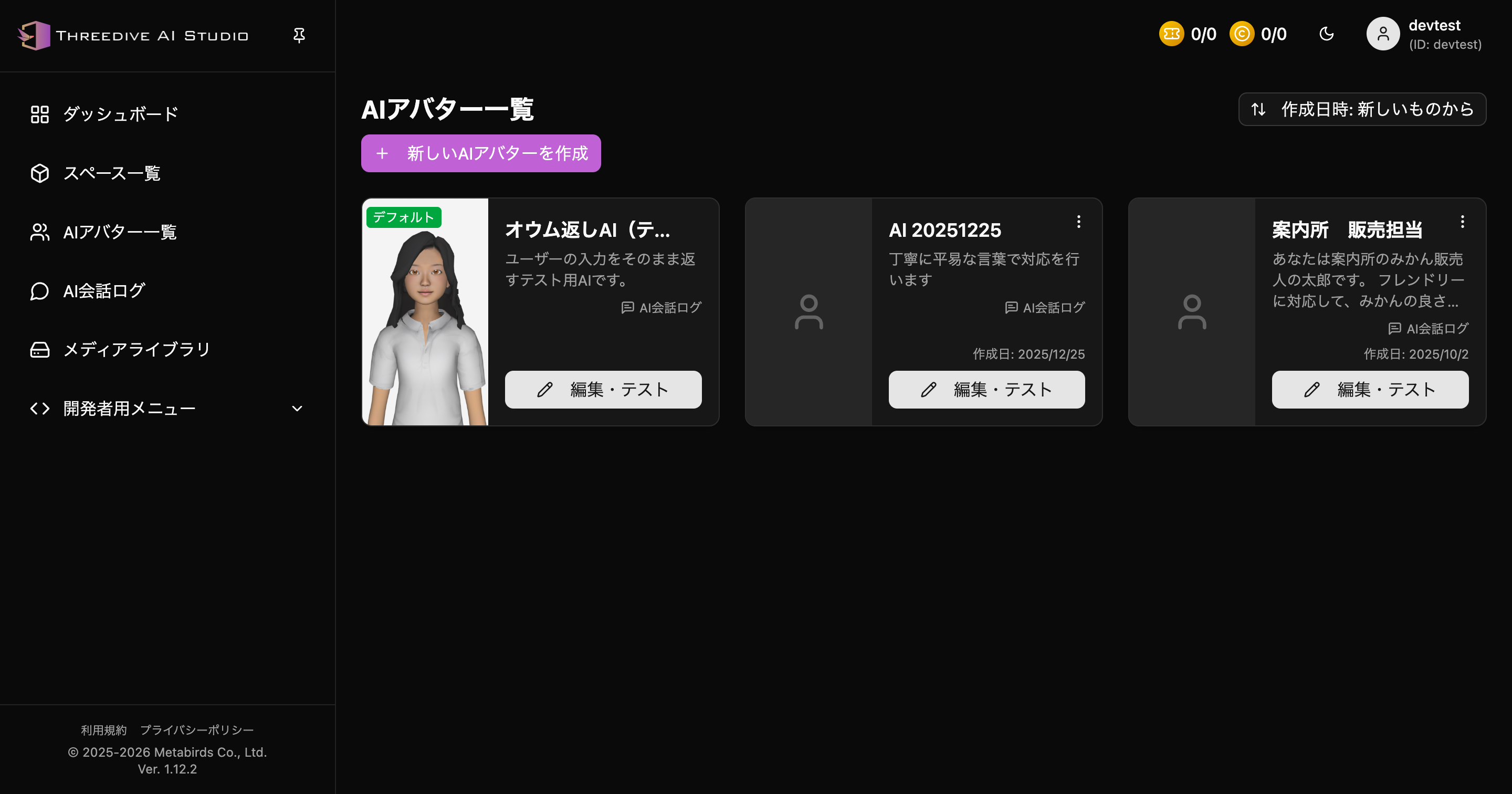 AI Avatar List - Manage AI in current list UI
Main Configuration Items
- Name: Display name of AI
- Description: Brief description of AI usage
- System Prompt: Response policy and role
- Voice Mode: No voice synthesis / Standard voice / Real-time voice
Sign-in is required to use AI Avatar settings. A default AI (echo AI) is provided.
2. Create Space
- Open "Space List" in Threedive AI Studio
- Click "Create new Space"
- Enter space name and basic information to create
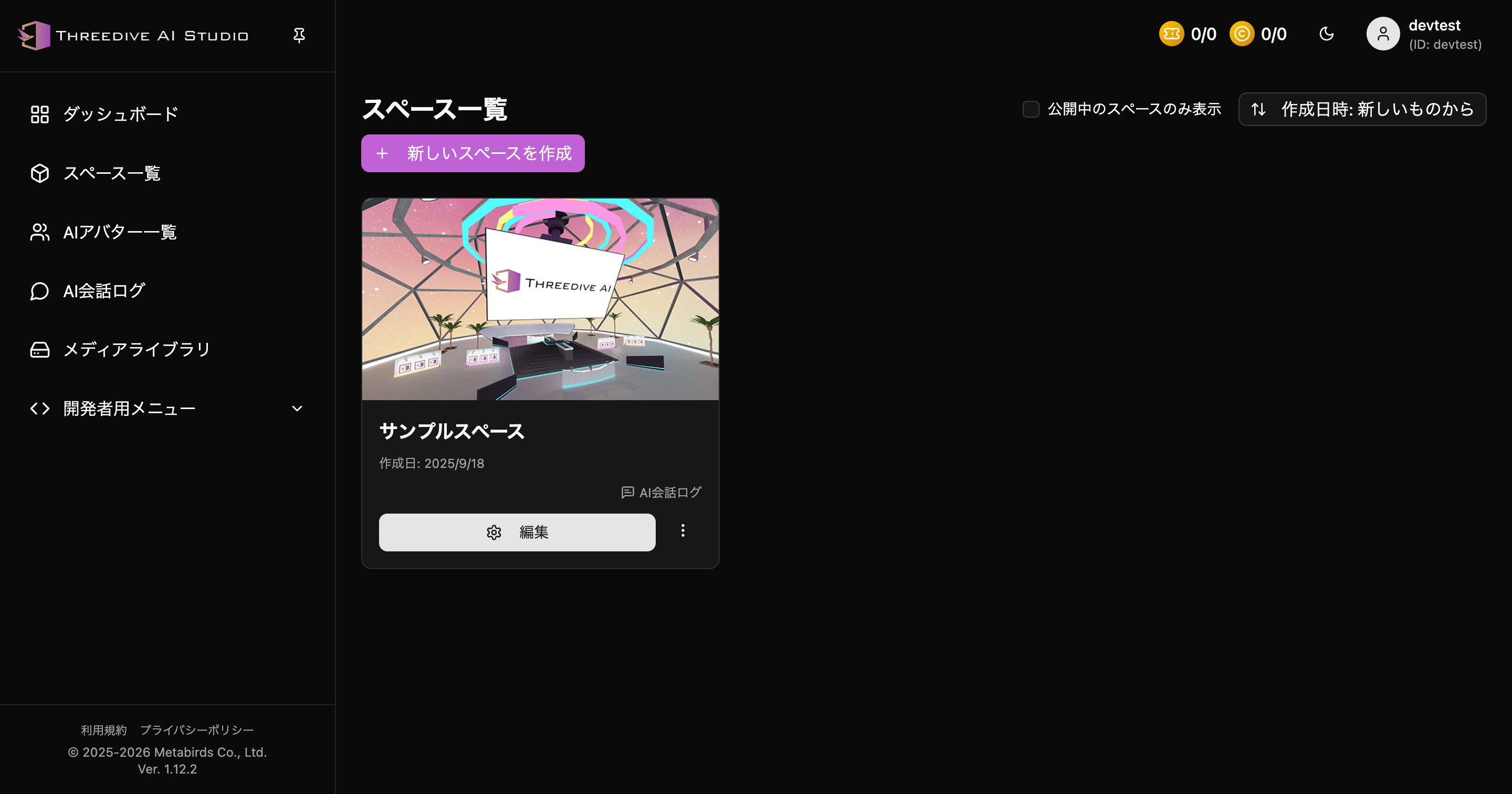 Space List - Entry point for creating new spaces
3. Place AI Avatar in Space
- Open Space Settings screen
- Select "AI Avatar Placement" tab
- Add avatar from "Add New"
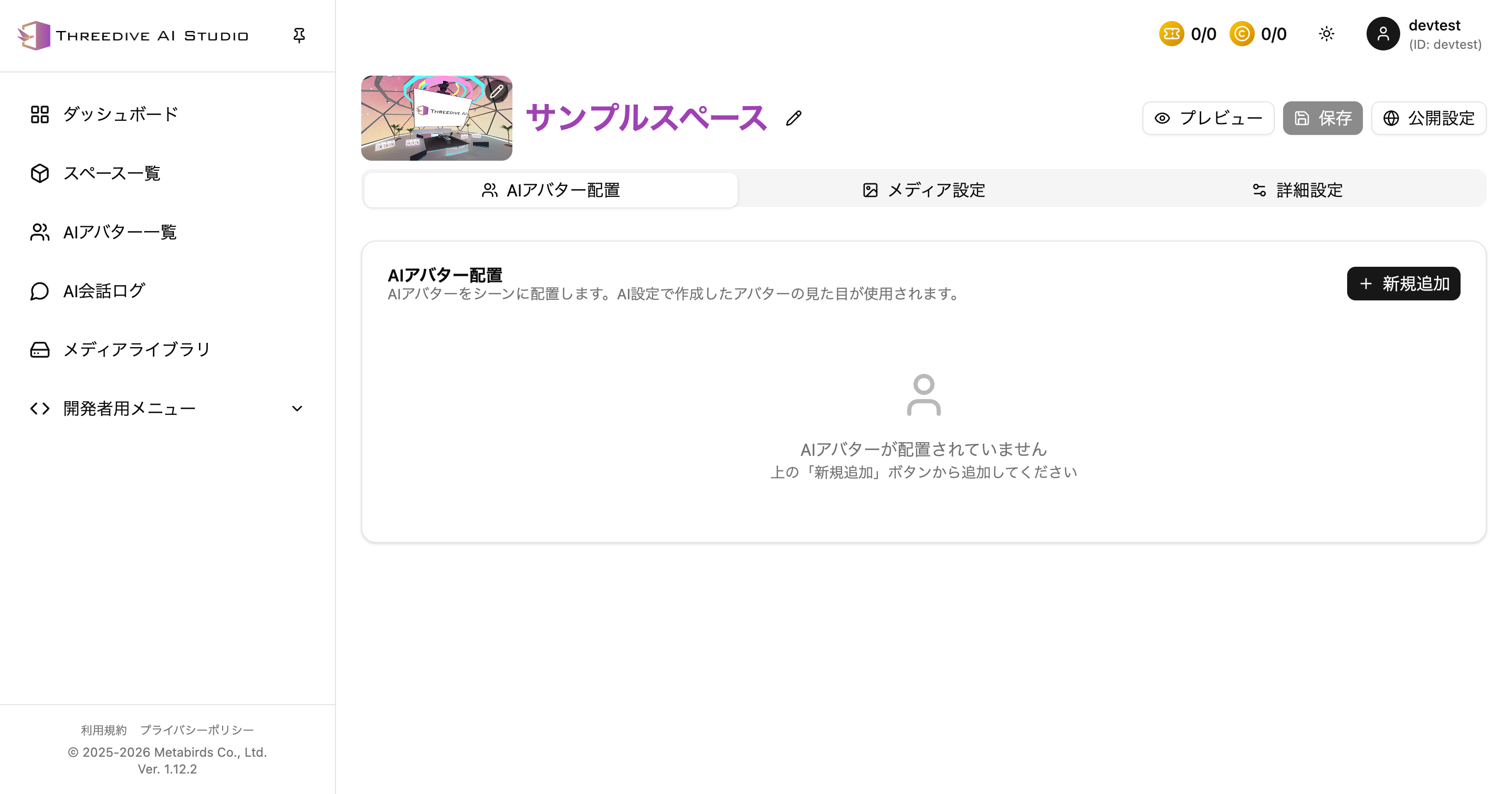 AI Avatar Placement tab - Place AI in space from "Add New"
After placement, you can adjust display position and appearance in Space Settings.
Configuration Points for Autopilot Function
Autopilot judges the destination by referring to the name and description of elements in the space.
Important Items in AI Avatar Placement
- Name: Name with clear role (Example: Resident Certificate Counter, Product Guide)
- Description: Specifically describe scope of response
Important Items in Panel Placement
- Name: Name indicating location or function
- Description: Information or guidance content available at that location
If names and descriptions are ambiguous, the guidance accuracy of Autopilot may decrease.
Configuration Examples
City Hall
- Resident Certificate Counter: Guidance for resident certificate issuance, moving in/out, address change
- Tax Counter: Guidance for city tax, property tax, tax payment certificate
EC Site
- Product Guide: Product comparison, specification explanation
- Purchase Consultation: Guidance for stock, shipping, payment, warranty