AI Image Generation Guide
- Overview of AI image generation feature
- Difference between panel images and 360-degree panorama
- Steps for image generation
- How to use generated images
What is AI Image Generation Feature
Threedive AI's Media Library provides the AI Image Generation feature. You can generate using text input plus up to 4 reference images.
Generatable Image Types
- Panel Image: Flat images to place in 3D space
- 360-degree Panorama: Background images that wrap around the entire space
Panel Image Generation
Usage
- Signboards and posters
- Product panels
- Information displays
- Art exhibition
Generation Steps
- Access Media Library
- Click "AI Image Generation" button
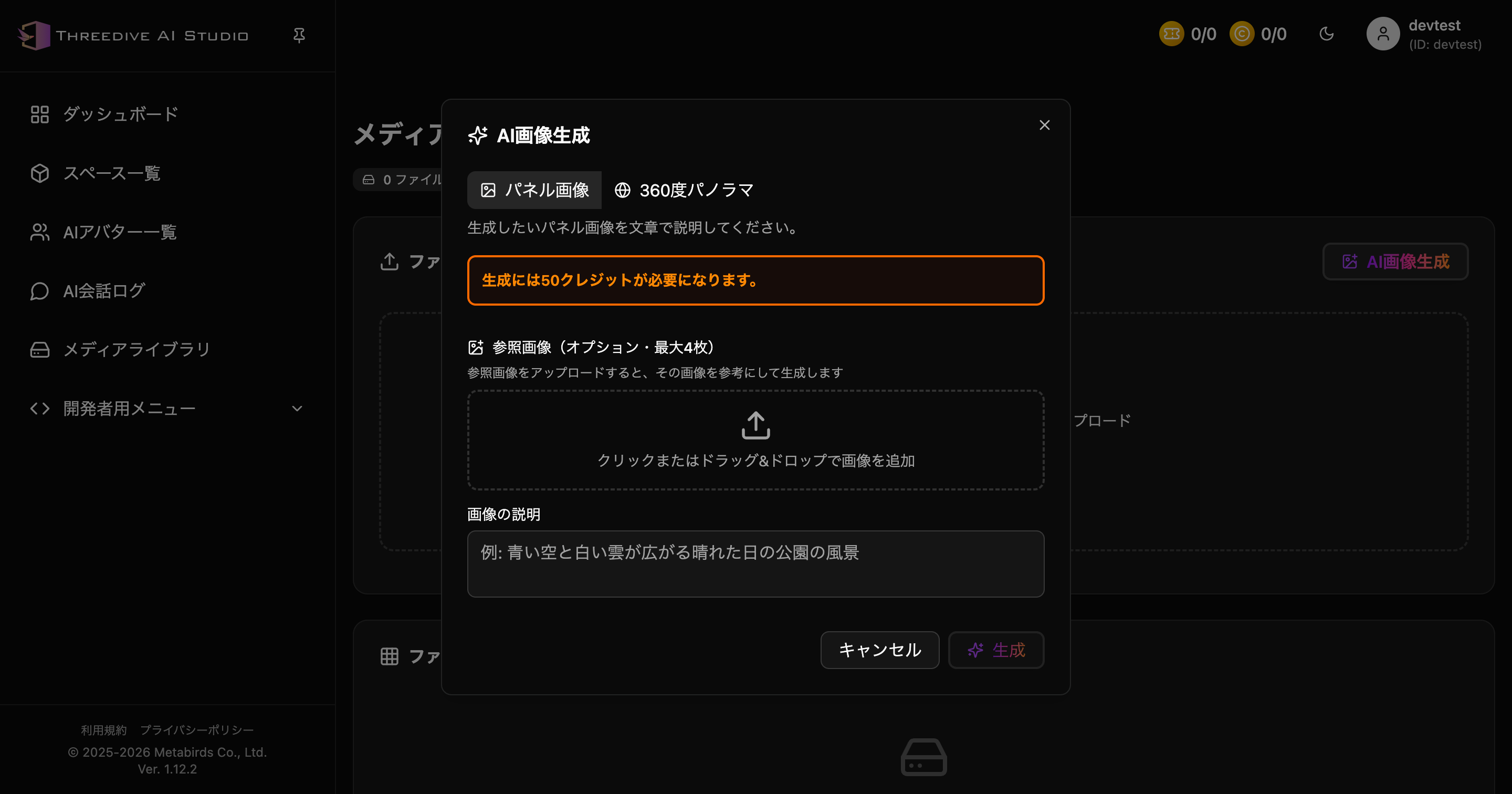 Media Library main screen - Start from "AI Image Generation" button
- Select "Panel Image" (default)
- Enter description of image to generate
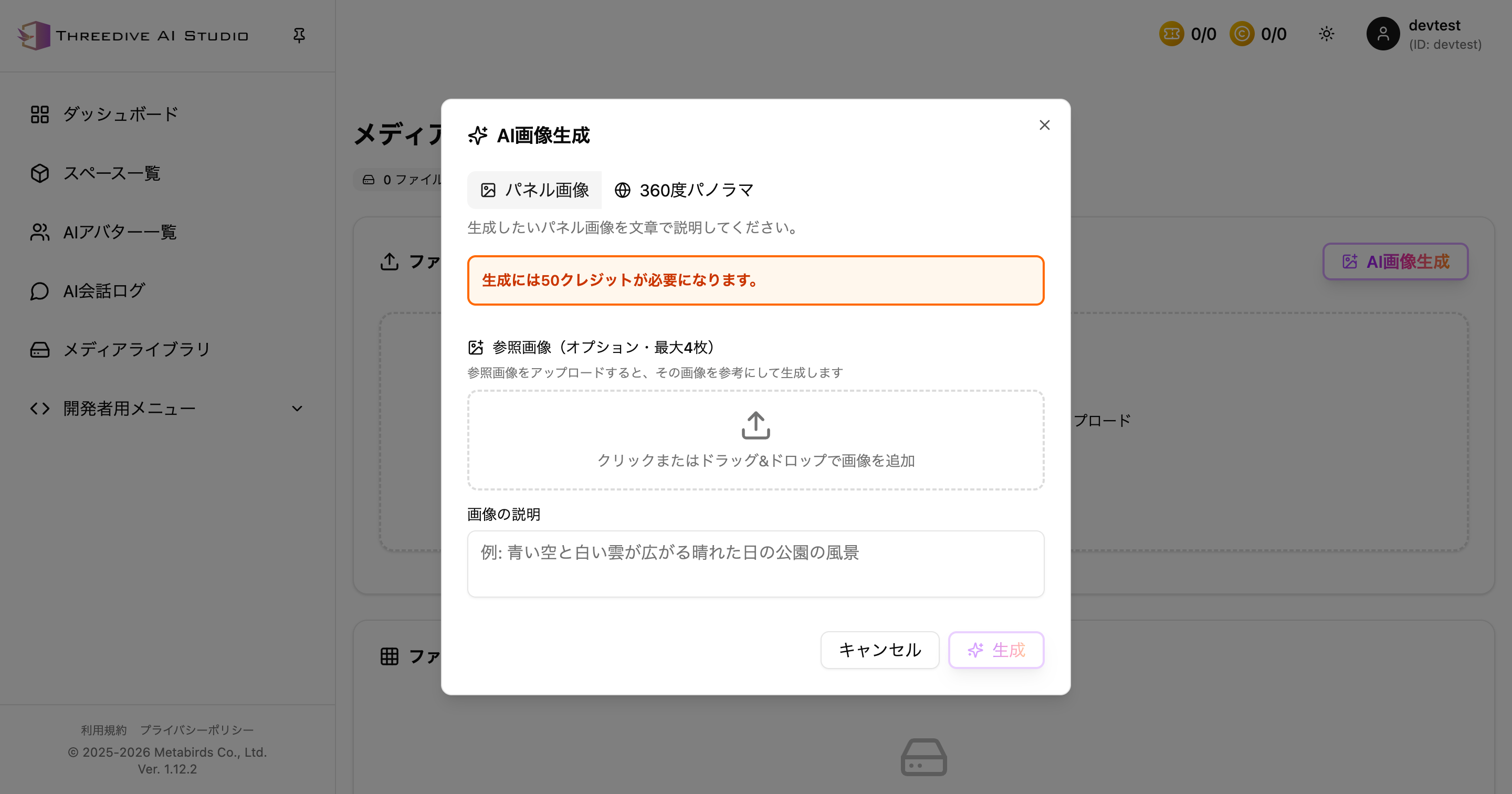 AI Image Generation dialog - Panel image mode. 50 credits required for generation
- Click "Generate" button
Input Example
Example: Park landscape on a sunny day with blue sky and white clouds
Tips for Writing Descriptions
- Be specific: Not just "park", but "green park with benches and cherry trees"
- Specify colors and atmosphere: "Bright" "Warm" "Modern"
- Specify composition: "From front" "Bird's eye view" "Distant view"
360-degree Panorama Generation
Usage
- 3D space background
- Skybox (sky sphere)
- Immersive environment staging
Generation Steps
- Click "AI Image Generation" in Media Library
- Select "360-degree Panorama"
- Enter description of 360-degree space to generate
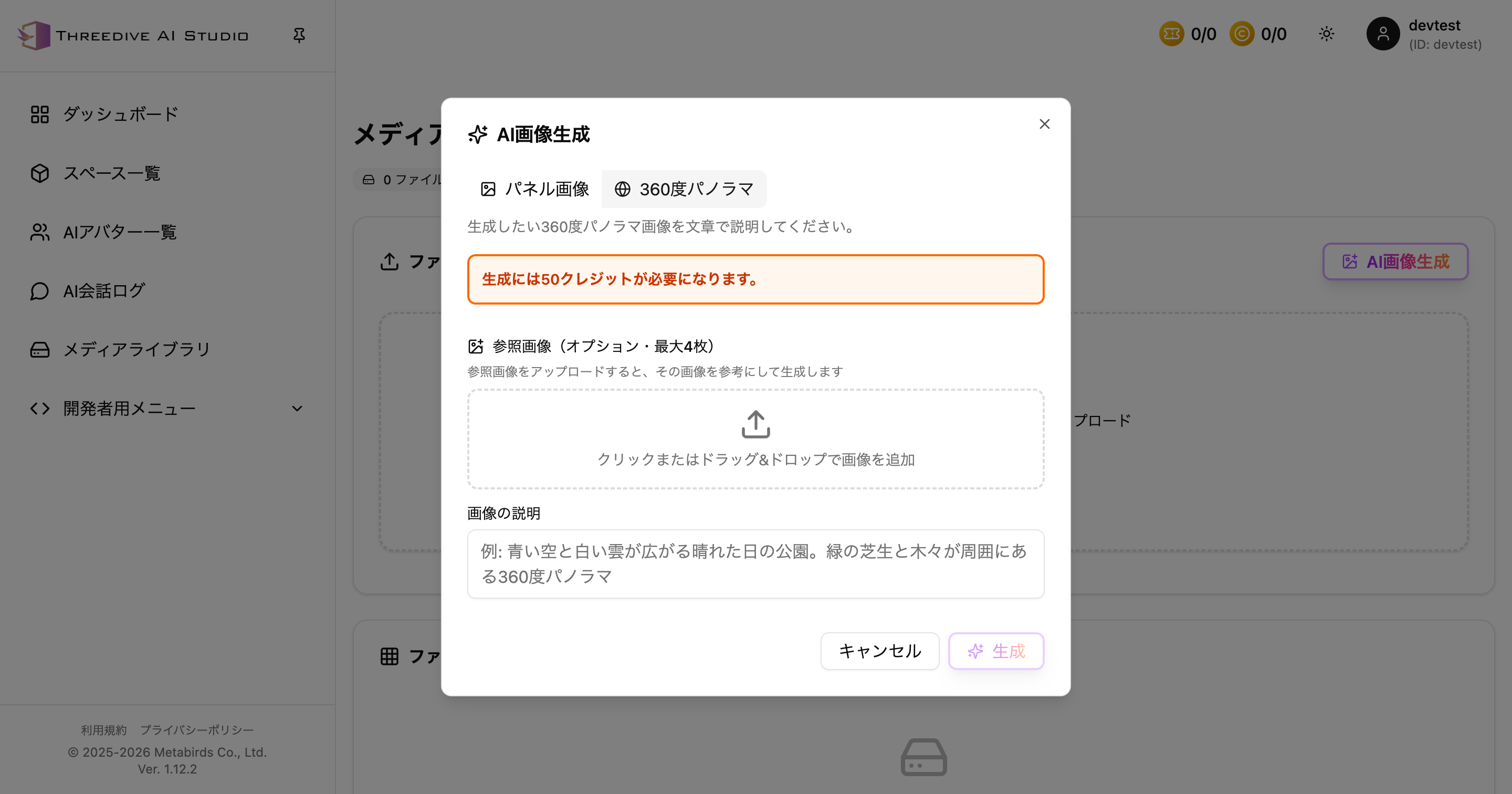 AI Image Generation dialog - 360-degree panorama mode. 50 credits required for generation
- Click "Generate" button
Input Example
Example: Park on a sunny day with blue sky and white clouds. 360-degree panorama with green grass and trees surrounding
Tips for Panorama Generation
- Specify "360 degrees": Inform AI it's an all-around image
- Describe surrounding environment: "Mountains ahead, forests on left and right, lake behind"
- Consistent landscape: Specify natural environment without contradictions
Generation Cost
50 credits are required for image generation.
You can check balance in the credit display at top right of screen.
How to Use Reference Images
- You can add up to 4 reference images
- Effective when you want to match the atmosphere or composition of existing images
- You can generate with only description text, without reference images
Using Generated Images
Placing Panel Images
- Open "Advanced Settings" tab in Space Settings
- Select "Panel Placement" in category
- Set Media Library image URL from "Add panel"
- Adjust position, rotation, scale
Setting 360-degree Panorama
- Open "Advanced Settings" tab in Space Settings
- Add "skyDome" entity in JSON edit or normal edit
- Specify URL of generated 360-degree panorama image
{
  "id": "sky-dome-1",
  "type": "skyDome",
  "url": "/path/to/generated-panorama.jpg",
  "rotation": [0, 3.1416, 0]
}
*rotation in JSON is in radians (UI display is degrees).
See Space Settings JSON Detailed Specifications for details.
AI Image Description Feature
Generated images can be explained by AI Avatars.
Configuration Method
- Place AI Avatar
- Include image description in prompt in AI Avatar List
- When user asks a question, AI explains about the image
Usage Examples
- Product panel: "Tell me about this product" → AI looks at image and explains
- Tourism guide: "Where is this scenery" → AI explains location of background image
- Exhibition artwork: "Tell me about this work" → AI explains art piece
Improving Image Generation Quality
Tips for Generating High-Quality Images
- Detailed description: Include many specific elements
- Specify style: "Photo-realistic" "Illustration style" "Watercolor"
- Specify lighting: "Bright sunlight" "Dusk" "Soft light"
- Specify viewpoint: "From front" "From above" "From distance"
Good and Bad Examples
❌ Bad Example:
Park
✅ Good Example:
Park with green grass spreading under blue sky. Bench in center,
cherry trees lined around. Bright sunlight streaming in,
photo-realistic landscape
Regeneration and Adjustment
If generated image differs from expectations:
- Modify description and generate again
- Add more specific elements
- Remove unnecessary elements
- Don't change many elements at once, adjust gradually
- Convenient to save successful descriptions
Usage Notes
Copyright and Portrait Rights
- Image rights follow terms of use
- Avoid content that imitates specific people or copyrighted works
- Check terms of use for commercial use
Generation Restrictions
- Cannot generate inappropriate content images
- Excessively violent or sexual expressions prohibited
- Discriminatory or offensive content not generated
Troubleshooting
Image Not Generated
- Check credit balance
- Check if description is appropriate (no inappropriate expressions)
- Check network connection
Generated Image Differs from Expectations
- Modify description to be more specific
- Clearly specify style and viewpoint
- Add reference expressions
Use Cases
Tourism Guide
Generation example: "Japanese garden with view of Mt. Fuji. Koi swimming in pond, stone lantern and pine tree.
Sunny afternoon, soft light streaming in, photo-realistic 360-degree panorama"
Commercial Facilities
Generation example: "Modern cafe interior. Wooden tables and chairs,
green plants on walls. Warm lighting characteristic,
stylish space photo from front"
Education/Exhibition
Generation example: "Earth floating in space. Stars shining in dark background.
Scientific and beautiful 360-degree panorama"
Next Steps
- Media Library - File management details
- Space Management - Space settings details
- 3DGS Guide - Creating photo-realistic 3D spaces
Support
For questions about AI image generation, please contact us from "Support Contact" in Threedive AI Studio.