Creating AI Avatars in AI Avatar List
- How to read the AI Avatar List screen
- Steps to create a new AI Avatar
- How to create AI Avatar appearance
- How to use voice modes and preview
- Flow for editing and deleting AI Avatars
- Reply language settings (v1.15.0)
- Speech recognition language settings (v1.15.0)
- First message and error message settings (v1.18.3)
- How to use prompt history (v1.17.11)
Overview
In AI Avatar List, you manage AI Avatar settings used in AI conversations. Here, you create both conversation content and appearance together, then add them to spaces later.
Access Method
- Log in to Threedive AI Studio
- Select "AI Avatar List" from the sidebar
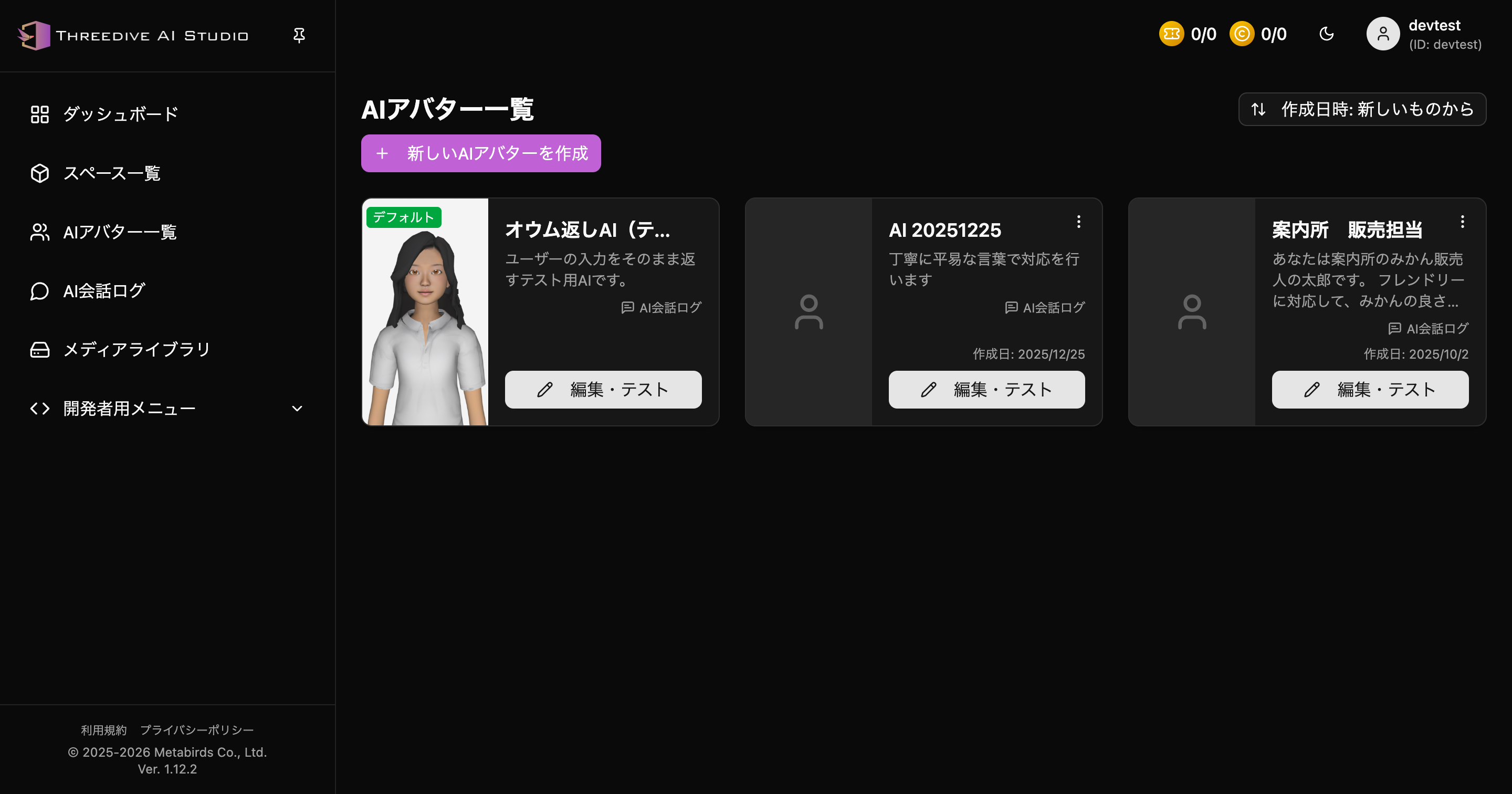 AI Avatar List screen - Manage registered AI Avatars in current list UI
Understanding the Screen
On the AI Avatar List screen, check these 4 main points:
- Create New button at top right
- List of registered AI Avatars
- Edit・Test button on each card
- Delete button to remove unnecessary settings
In the list screen, check name, ID, description, and operation buttons together
Each AI Avatar card displays the following information:
- Name: AI Avatar identifier name
- ID: Unique identifier used internally by the system
- Default Badge: "Default" badge is displayed for default settings
- Description: Summary of AI role and response policy
- Edit・Test: Modify content and test conversations
- Delete: Delete unnecessary settings
- What this AI will be responsible for
- What tone you want it to respond in
- Whether to use text only or also voice
Creating a New AI Avatar
Step 1: Open Create New
- Click "Create new AI Avatar" (or "Create New")
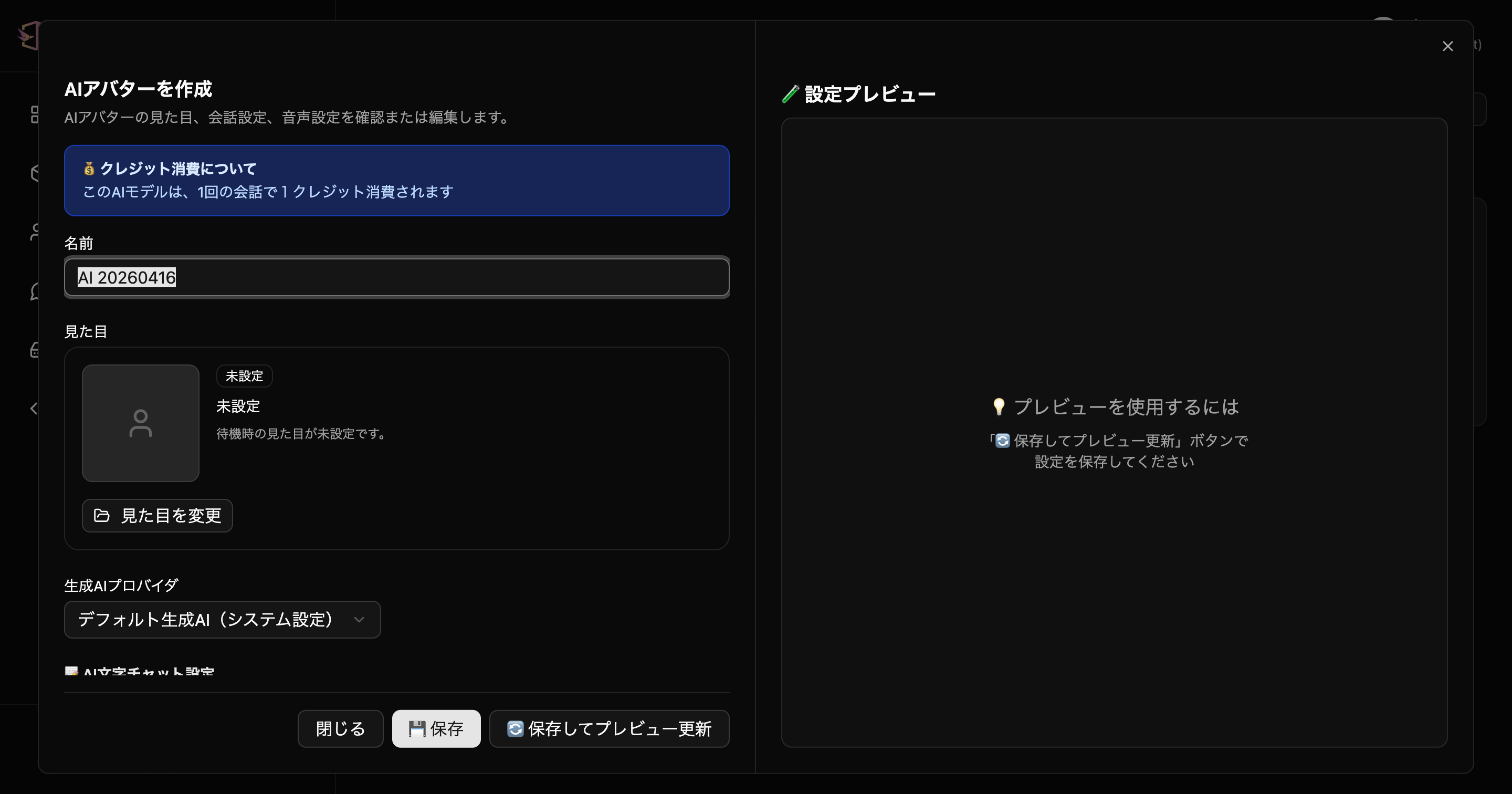 AI Avatar creation dialog - Configure on left, check preview on right
Enter settings on the left side of the screen and check the preview on the right.
Step 2: Enter Basic Information
First, enter the foundational items for the AI Avatar.
Basic Information
Name
- Enter the identifier name for the AI Avatar
- Use a name that's easy to distinguish when adding to spaces
- Example:
Reception AIProduct Guide AIEnglish Conversation Support AI
AI Provider
- Select the AI provider to use
- By default, "Default AI (System Settings)" is selected
- If you have added custom providers, you can select them here
About Credit Consumption
This AI Avatar setting consumes 1 credit per conversation. Credits can be added from Subscription Management.
Step 3: Choose Appearance
In the current UI, you also configure the AI Avatar's appearance in the same dialog.
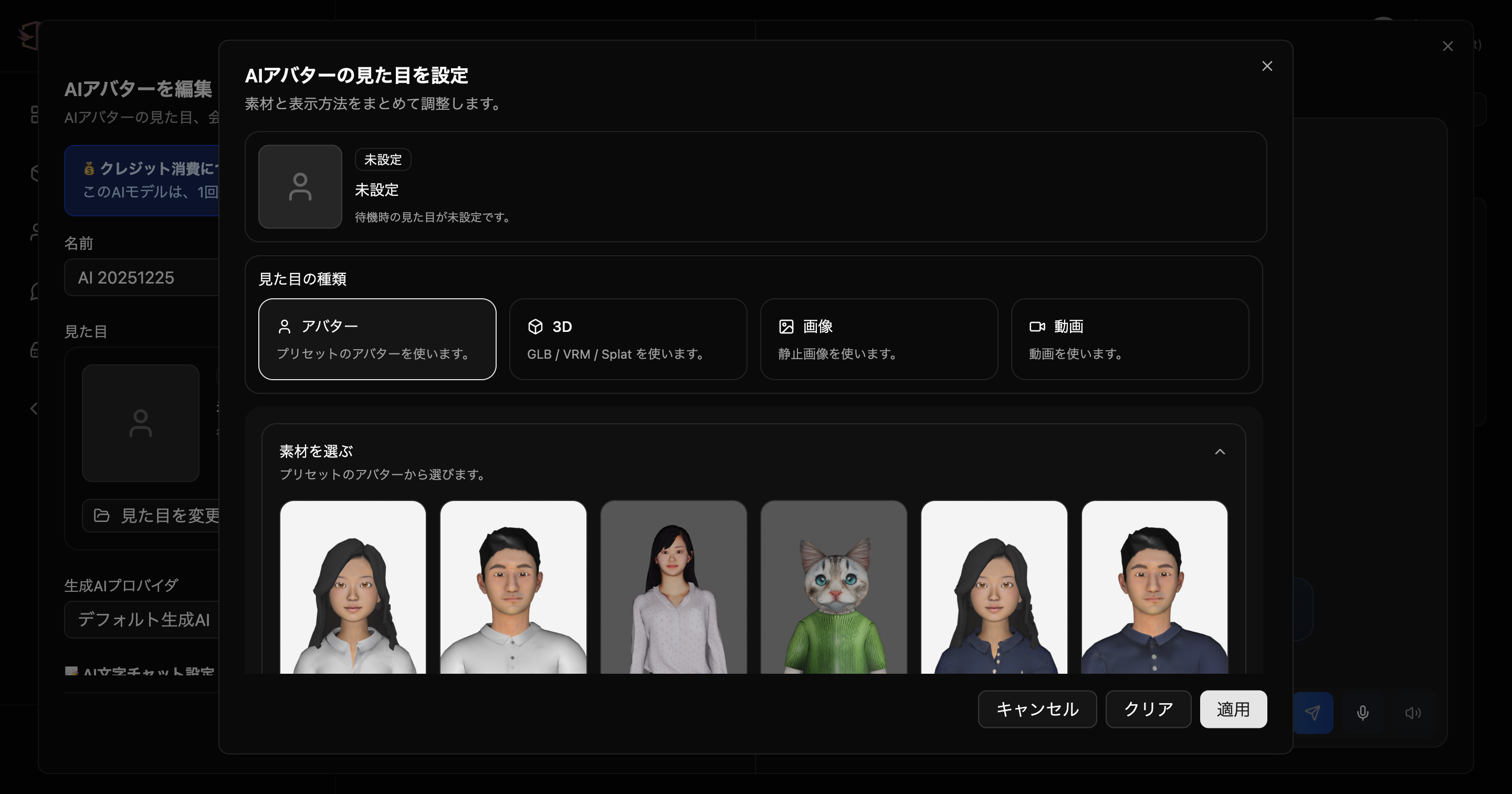 Appearance settings dialog - Choose creation method by type
There are mainly 4 creation methods to choose from:
1. Use Preset Avatar
- Choose from pre-prepared human or animal avatars
- Suitable when you want to test quickly
2. Use 3D Model
- You can use
GLB / VRM / Splatas appearance - Choose from Media Library or specify URL directly
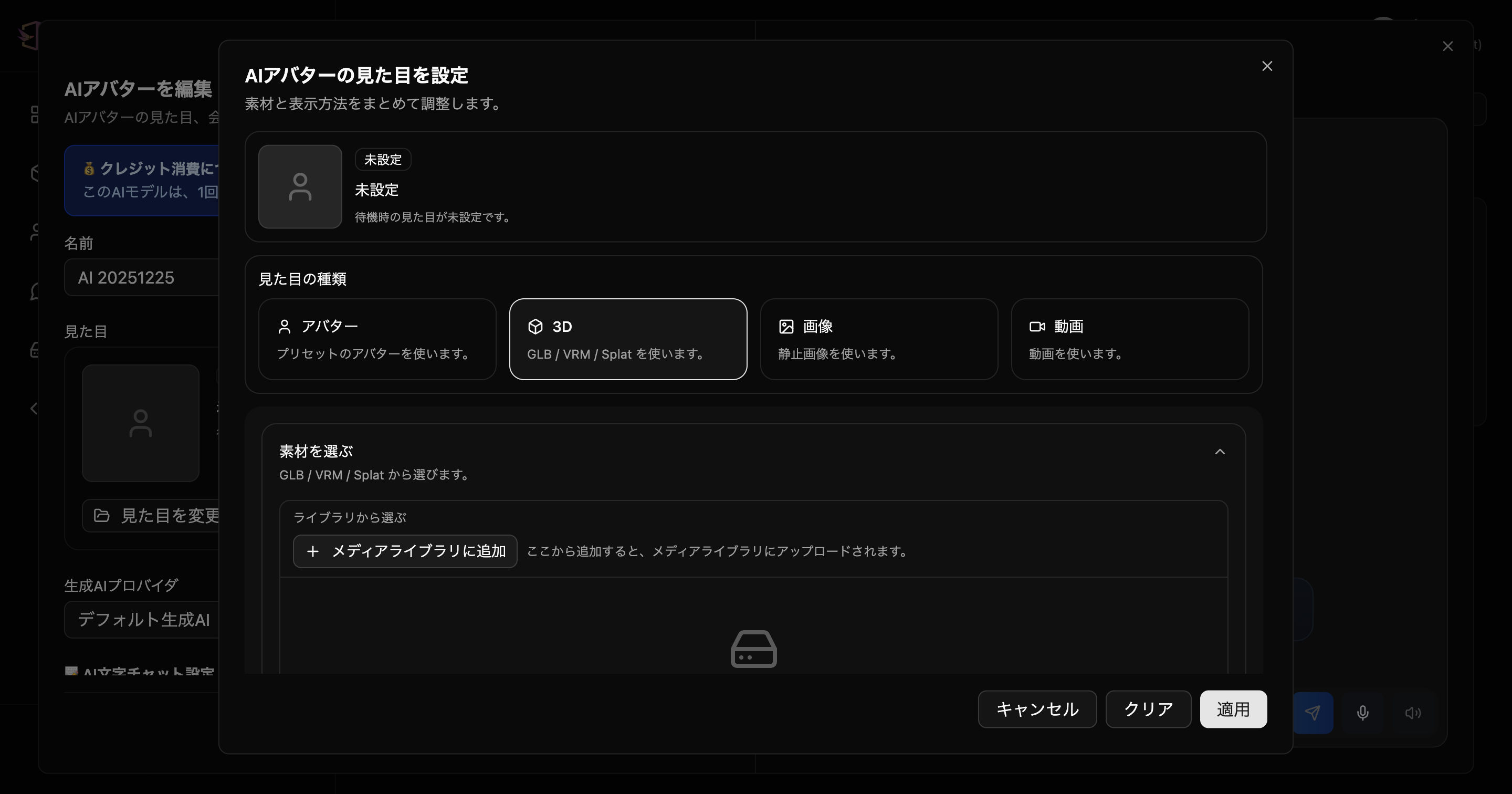 For 3D models, specify GLB / VRM / Splat from library or URL
3. Use Image
- You can use a still image as the AI Avatar's appearance
- Set by library selection or image URL specification
- You can also add image assets to switch during conversation as needed
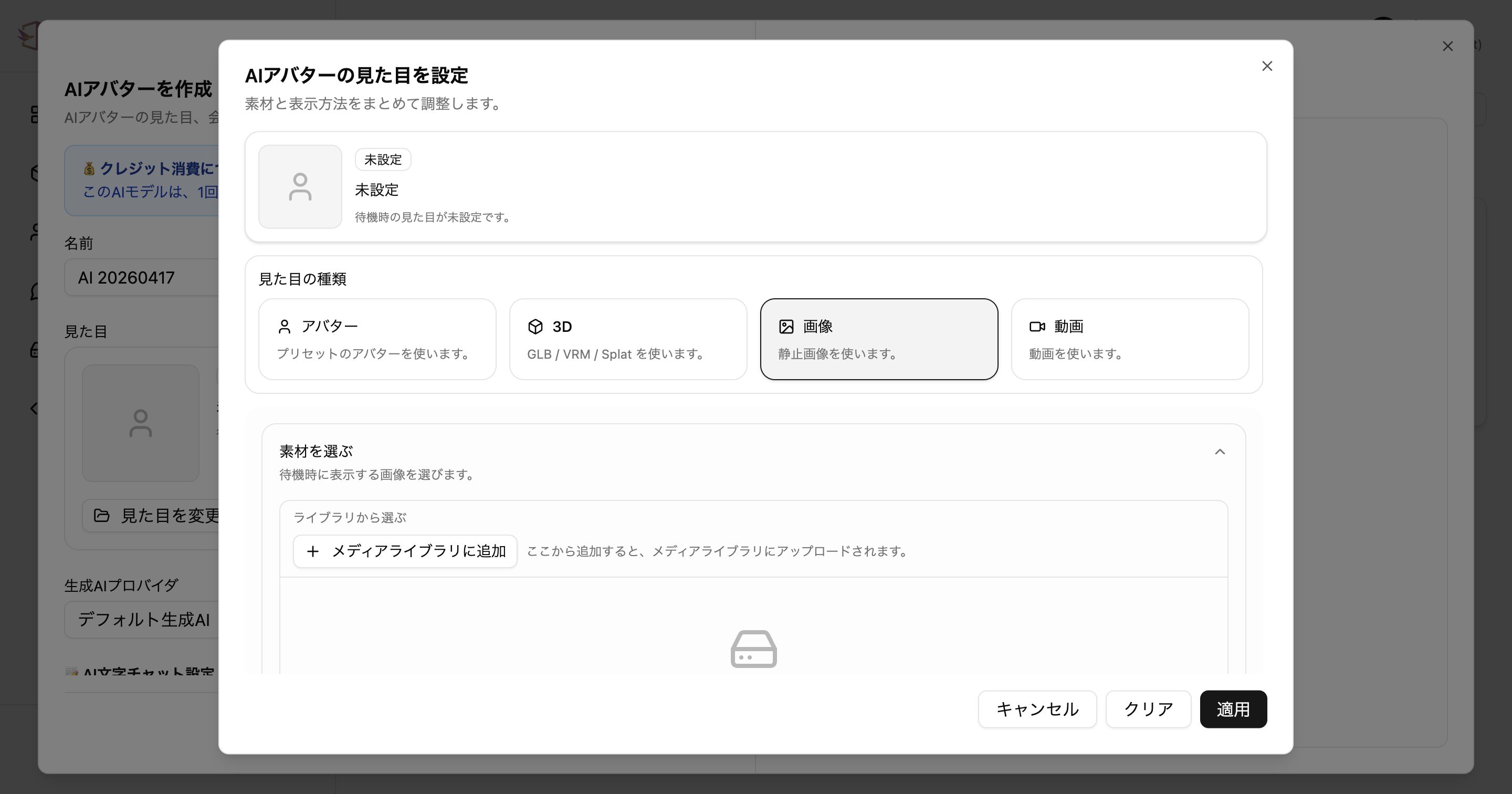 In image mode, you can set assets to use during conversation in addition to idle image
4. Use Video
- You can use a video as the AI Avatar's appearance
- Set by library selection or video URL specification
- Like images, you can add assets to display during conversation and adjust appearance
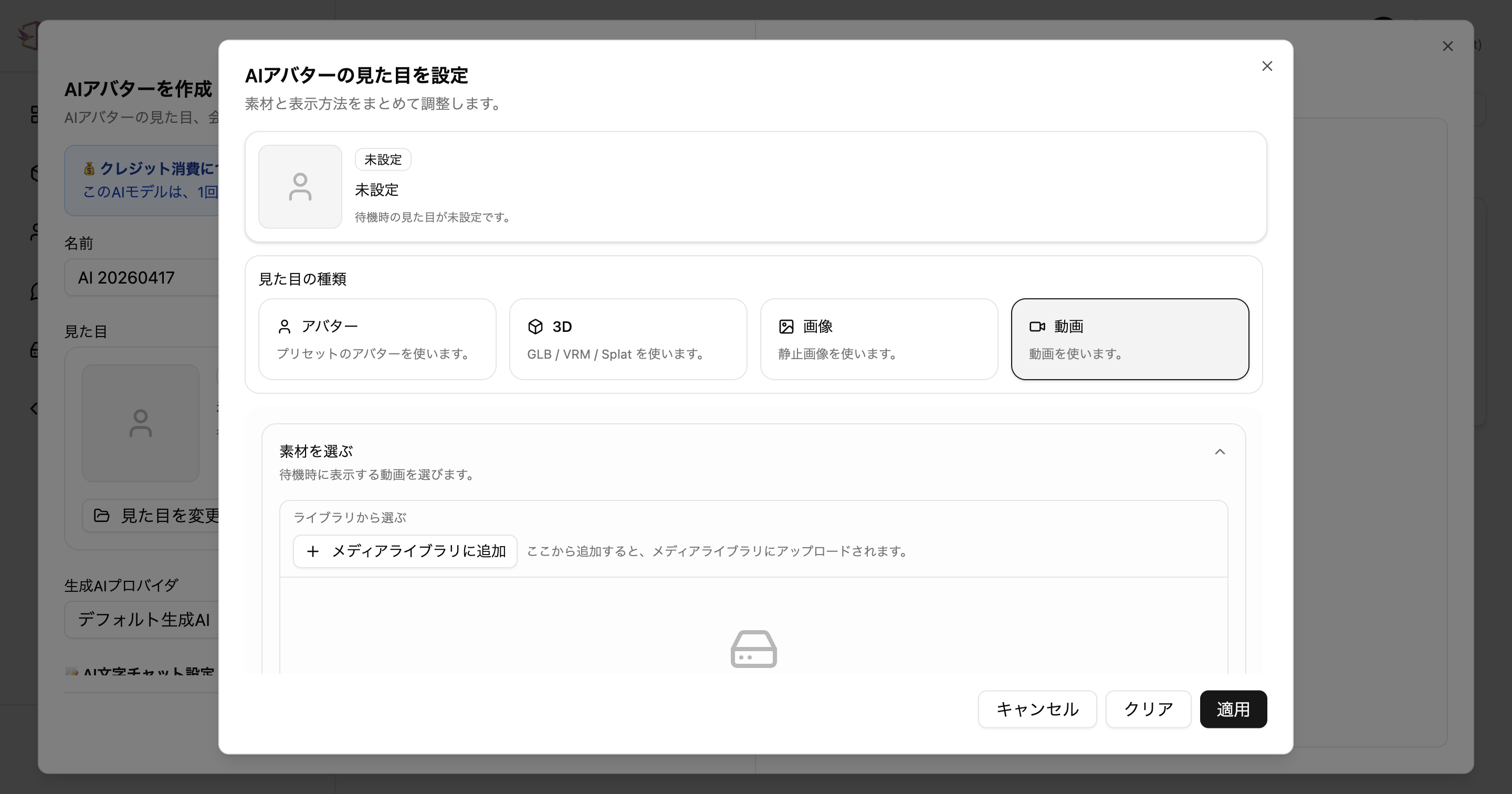 In video mode, you can set the idle video
- If you want to test operation first:
Preset - If you want to use your own 3D avatar:
GLB / VRM / Splat - If you want to show character portraits:
Image - If you want a dynamic presentation:
Video
Step 4: Configure Conversation Content
Once you've decided on the appearance, configure what and how the AI will speak.
📝 AI Text Chat Settings
Reply Language
- Set the language the AI Avatar will reply in (added in v1.15.0)
- Default is "Match user's language" — automatically replies in the language the user spoke
- If you want to fix to a specific language, such as Japanese-only spaces, select the language from the dropdown
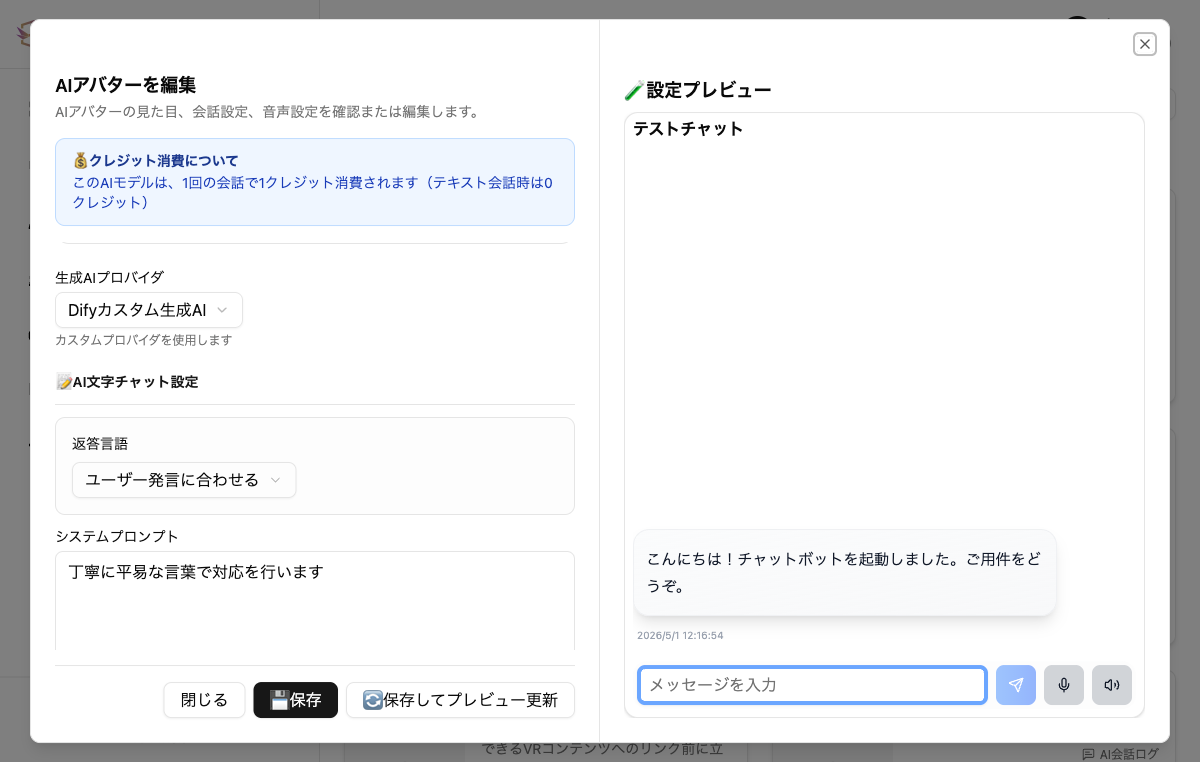 Reply language dropdown in "AI Text Chat Settings"
System Prompt
- Enter a prompt that defines the AI's behavior and personality
- Writing role, speaking style, response scope, and prohibited items makes it more stable
- Example: "You are an information desk staff member. Respond in polite and plain language, and only answer within the scope you can guide without guessing."
- From the "History" button at the top right of the input field, you can recall previously entered prompts (added in v1.17.11. The same History button also appears on the "Supplementary Instructions for RAG" field)
- Write the role first
- Next write the tone
- Finally write "what to guide" and "what not to answer"
First Message (Added in v1.18.3)
- Set a fixed message to display first when a conversation with the AI starts
- If left blank, the AI will auto-generate it (consumes credits)
- Example: "Hello! How can I help you today?"
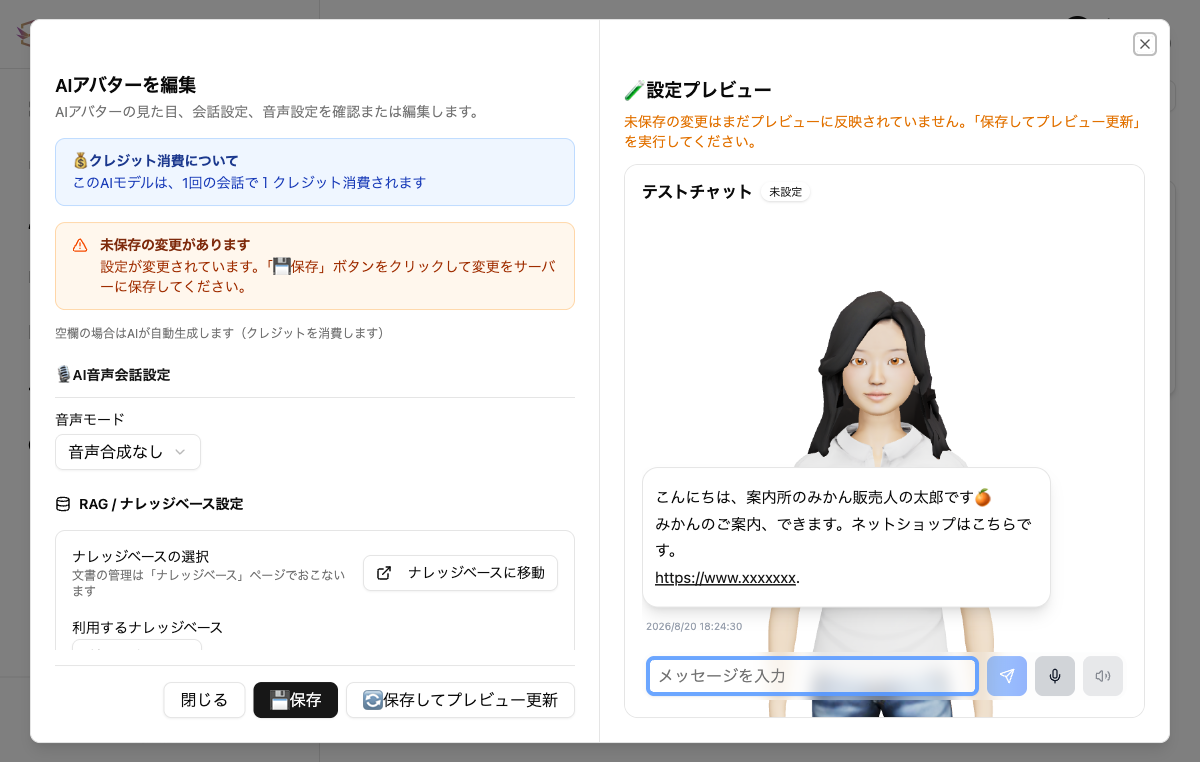 The "History" button on the system prompt and the "First Message" field
Step 5: Choose Voice Mode
🎙️ AI Voice Conversation Settings
Voice Mode
You can choose from the following 3 modes:
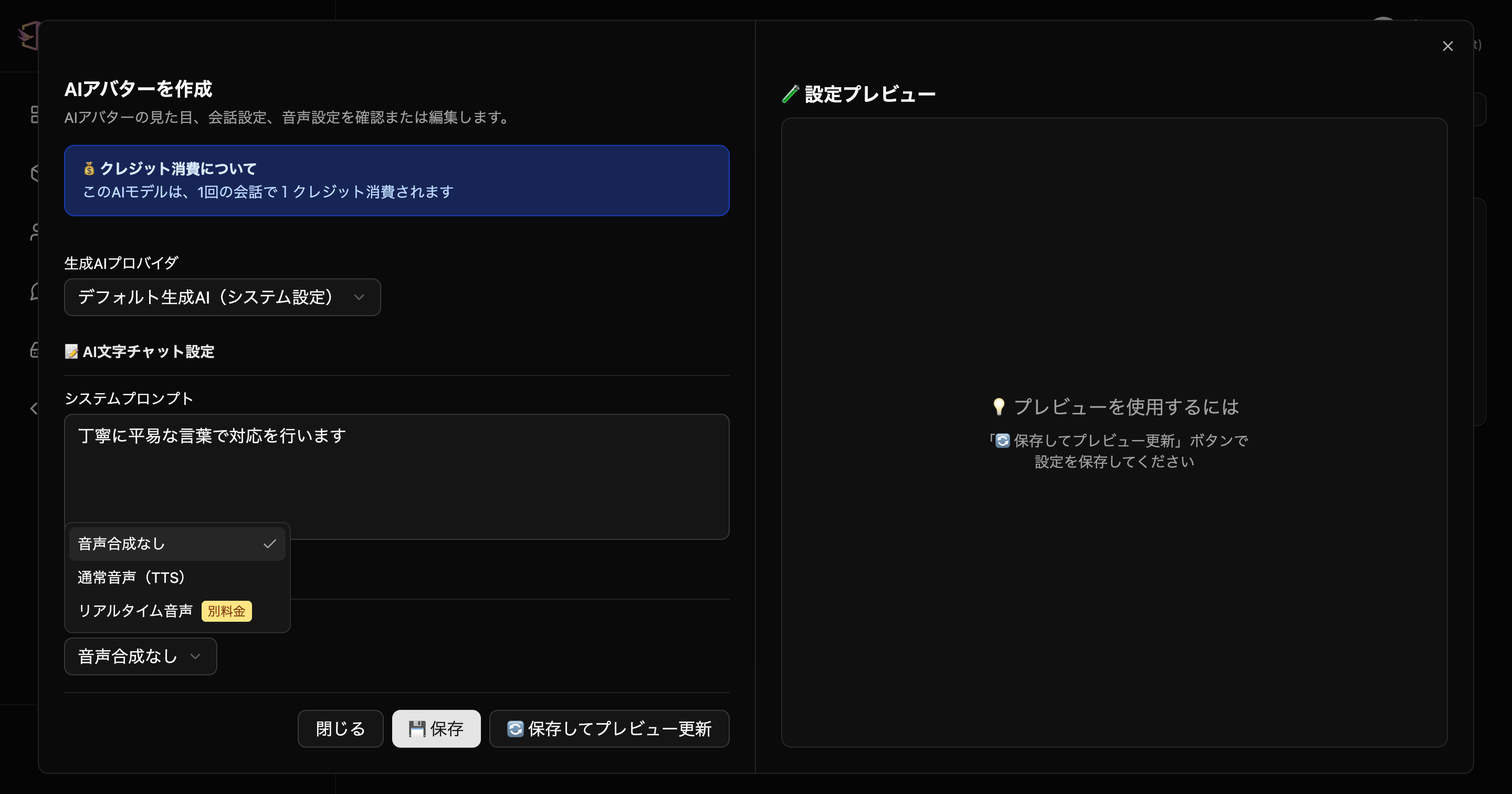 Voice mode selection - Choose type of voice synthesis
- No Voice Synthesis: Text chat only
- Standard Voice (TTS): Text-to-speech voice
- Real-time Voice: Real-time AI voice conversation (separate charge)
- For text-only interaction: "No Voice Synthesis"
- If voice reading is needed: "Standard Voice (TTS)"
- If natural voice conversation is needed: select "Real-time Voice"
Speech Recognition Language
When using voice mode, you can set the language to recognize user speech (added in v1.15.0).
- Default is "Default (follow browser language settings)" — automatically determined according to user's browser settings
- If voice misrecognition occurs or if the language used is determined, you can specify a fixed language code
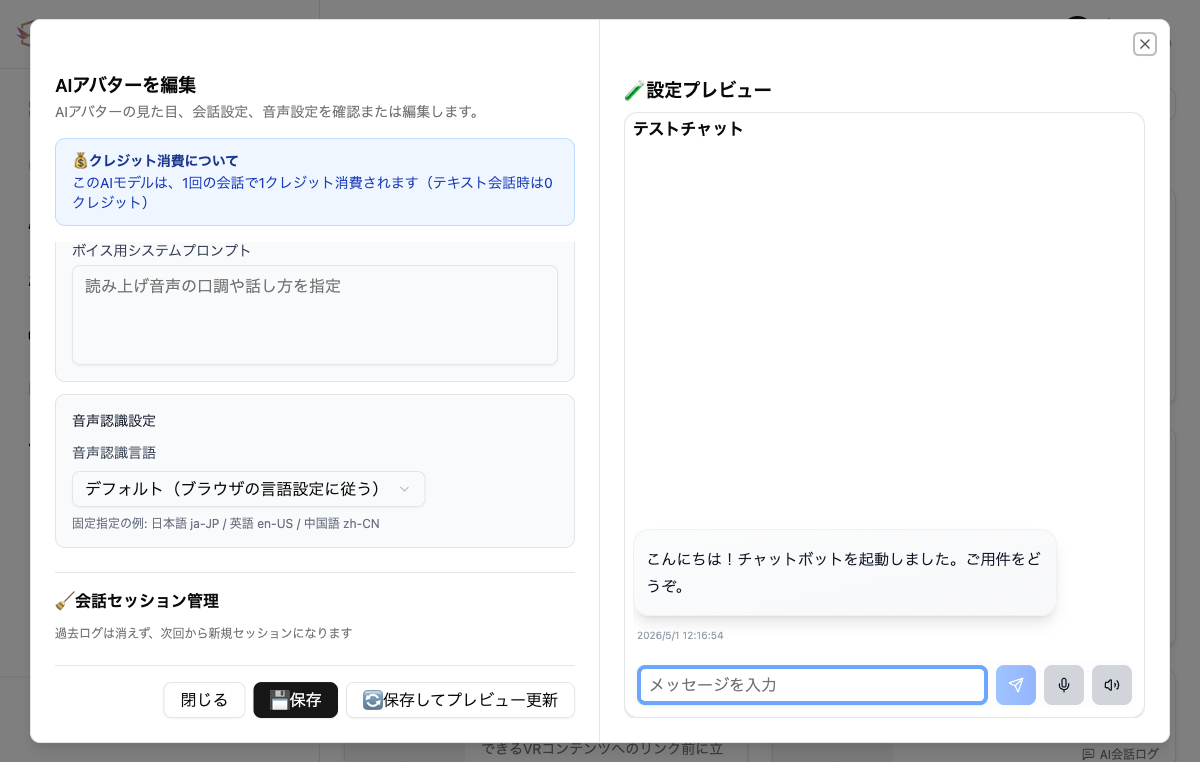 Speech recognition language dropdown in "Speech Recognition Settings"
Examples of Fixed Specification
| Language | Language Code |
|---|---|
| Japanese | ja-JP |
| English (US) | en-US |
| Chinese | zh-CN |
- When English gets mixed in Japanese-only spaces
- When you want to narrow down to a specific language in multilingual spaces
- When you want to explicitly specify the language when voice misrecognition occurs frequently
Step 6: Configure Knowledge Base (Optional)
If you want to reference document files as AI knowledge, link the Knowledge Base in the "RAG / Knowledge Base Settings" section (added in v1.15.0).
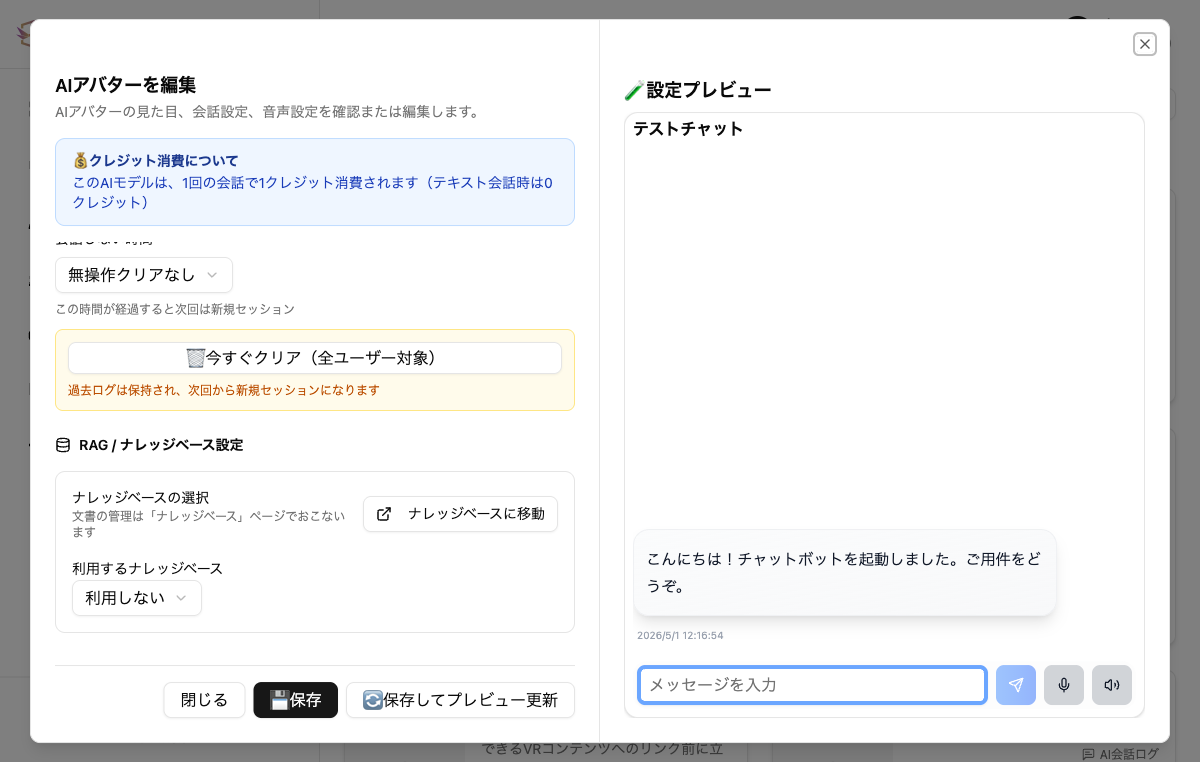 "RAG / Knowledge Base Settings" section in AI Avatar edit screen
- Select the group to use from the "Knowledge Base to use" dropdown
- Enter additional instructions in "Supplementary instructions when using RAG" (optional)
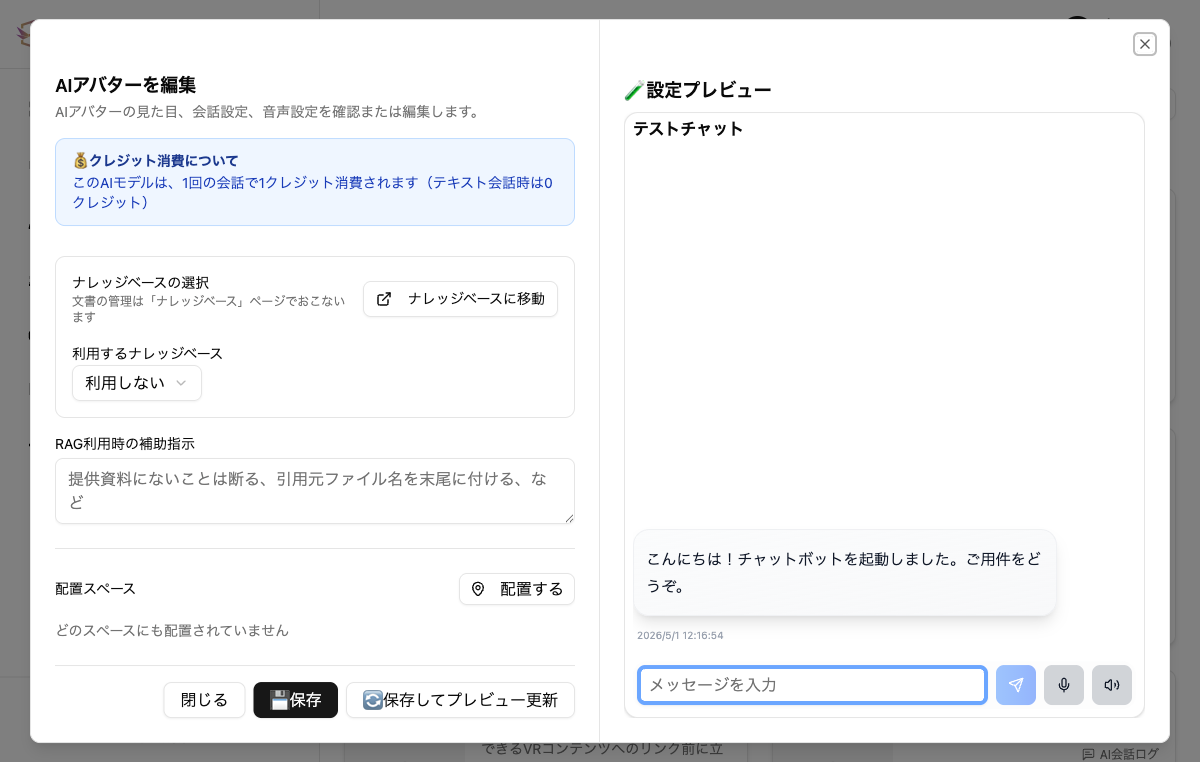 Example supplementary instructions: "Decline if not in provided materials, add source file name at the end"
Knowledge Base group creation and document upload are performed on the "Knowledge Base" page.
Error Message Settings (Added in v1.18.3)
Opening "⚙️Error Message Settings" at the bottom of the edit dialog lets you change the message shown to users when an error occurs, per AI Avatar. If left blank, the default message is displayed.
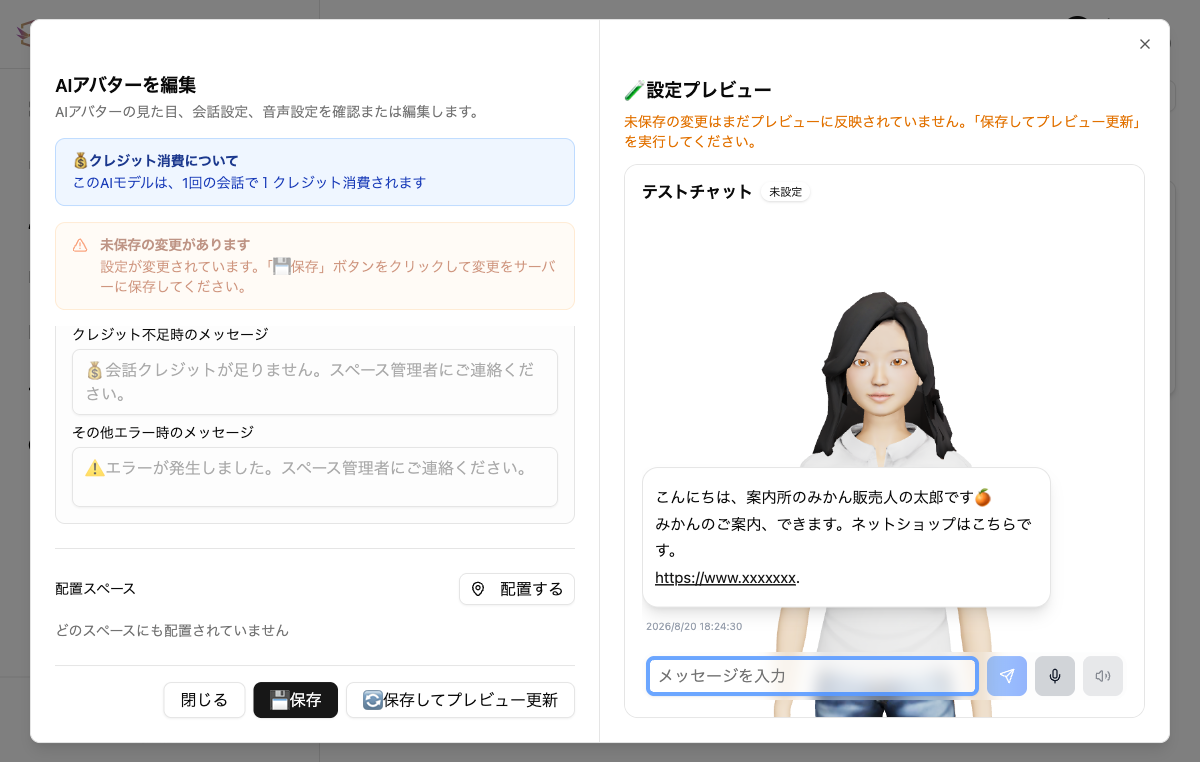 You can individually set "Message when out of credits" and "Message for other errors"
| Item | Default Message |
|---|---|
| Message when out of credits | 💰You don't have enough conversation credits. Please contact the space administrator. |
| Message for other errors | ⚠️An error occurred. Please contact the space administrator. |
Step 7: Confirm Conversation in Preview
You can test the AI Avatar settings being created in the "Settings Preview" section on the right.
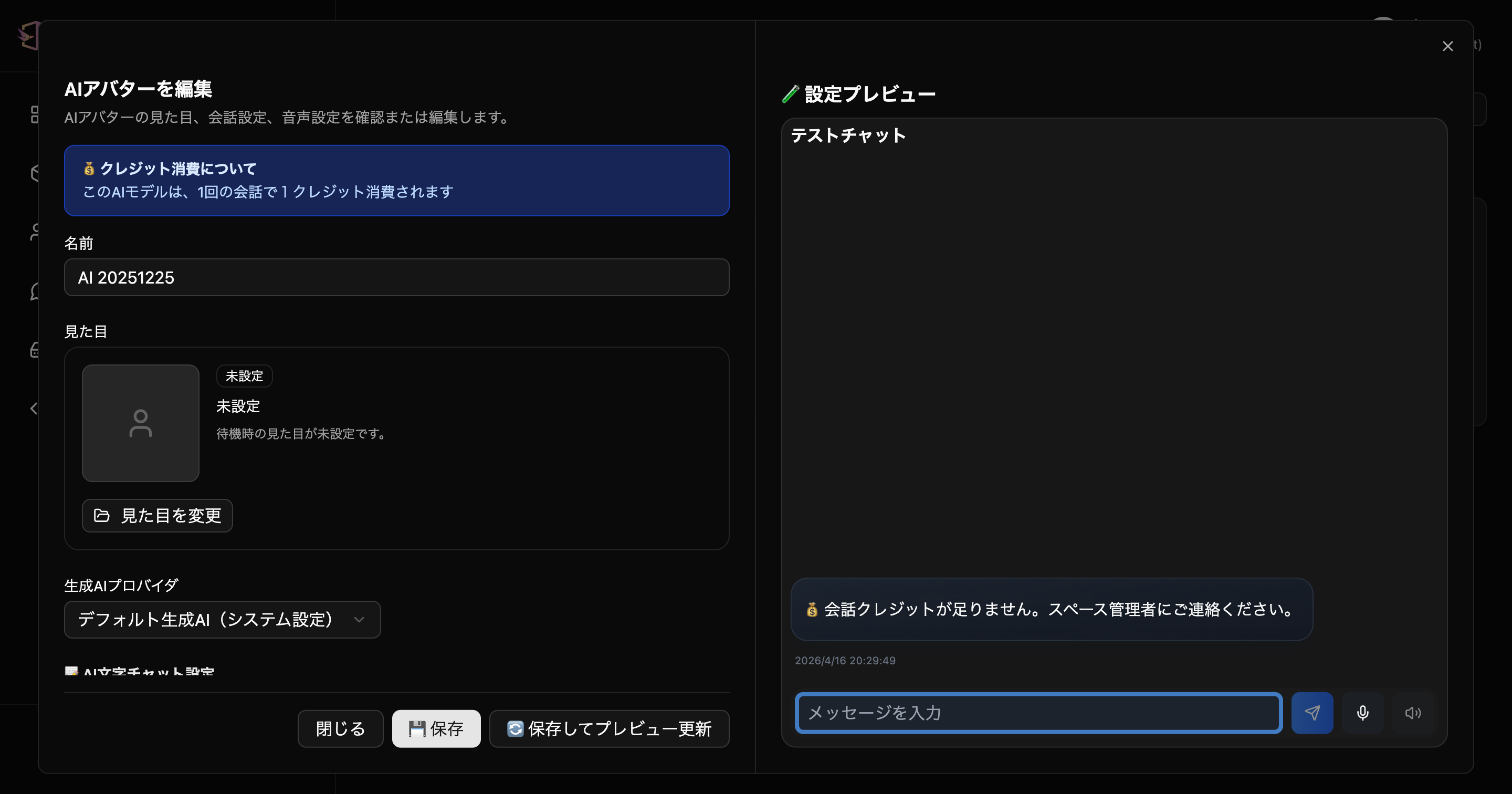 Settings preview - In current UI, you can check test chat on the right
How to Use Preview
- After entering settings, click the "🔄 Save and Update Preview" button
- Test conversation with AI in the test chat screen on the right
- Enter messages and check AI responses
- Adjust settings as needed and check preview again
To use the preview function, conversation credits are required. If you don't have credits, add them from Subscription Management.
Step 8: Save
Once settings are complete, click one of the following buttons:
- 💾 Save: Save settings and close dialog
- 🔄 Save and Update Preview: Save settings and update preview to continue operation verification
Points to Check When Creating
When creating a new AI Avatar, checking in the following order makes it easier:
- Is the role clear from the name?
- Does the appearance suit the purpose?
- Are the tone and scope of responsibility written in the system prompt?
- Is it decided whether voice is needed or not?
- Does the preview give the expected responses?
Editing AI Avatars
Editing Steps
- Click the "Edit・Test" button for the AI Avatar you want to edit
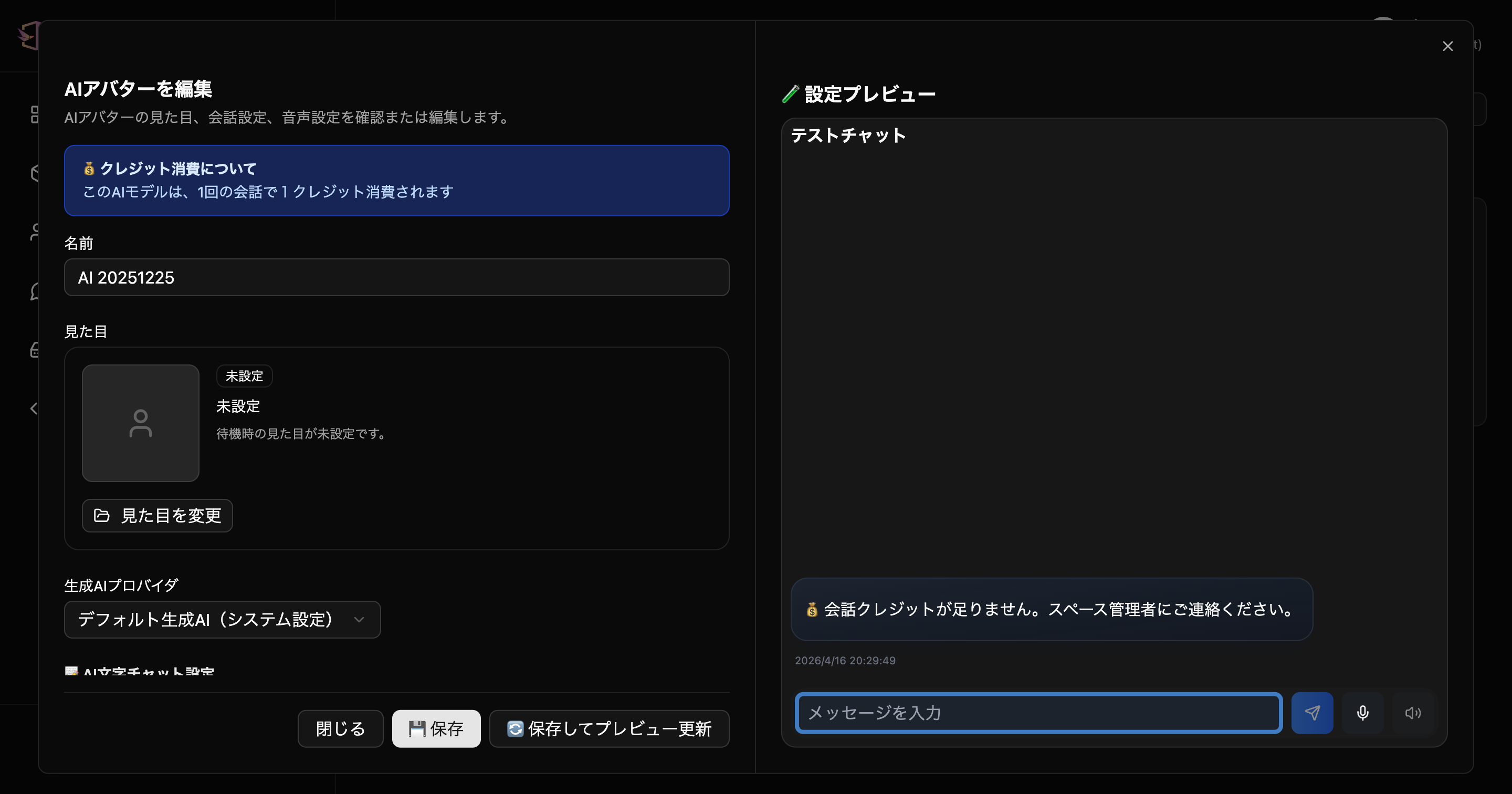 AI Avatar edit dialog - Check appearance, conversation settings, placement status, and preview together
- Change settings
- Click "💾 Save" or "🔄 Save and Update Preview"
When you change settings, a warning "You have unsaved changes" will be displayed. Be sure to click the save button to save your changes.
Deleting AI Avatars
- Click the "Delete" button for the AI Avatar you want to delete
- Confirm "Delete" in the confirmation dialog
AI Avatars set as default cannot be deleted.
Applying to Spaces
To use created AI Avatars in spaces, add them from "AI Avatar Placement" in Space Settings after creating the space.
See AI Creation and Placement Guide for details.
Next Steps
- AI Creation and Placement Guide - Flow from AI creation to placement
- Space Settings: AI Avatar Placement Tab - Add created AI Avatars to spaces
- AI Chat Logs - Check conversation history
- Subscription Management - Add credits
Support
For questions about AI Avatar List, please contact us from "Support Contact" in Threedive AI Studio.