Knowledge Base (RAG)
- What is Knowledge Base
- Steps to upload document files
- How to link Knowledge Base to AI Avatars
- Setting supplementary instructions when using RAG
What is Knowledge Base
Knowledge Base is a feature that allows you to register document files such as PDF and Word as AI Avatar knowledge (added in v1.15.0).
AI Avatars reference Knowledge Base content during conversations (RAG: Retrieval-Augmented Generation) and can provide responses based on registered documents. For example, if you register product manuals, internal regulations, property materials, etc., the AI can answer questions based on that content.
- "I want responses based only on document content"
- "I want the AI to read the latest specifications"
- "I want evidence-based responses, not guesses"
Access Method
- Log in to Threedive AI Studio
- Click "Knowledge Base" in the left sidebar
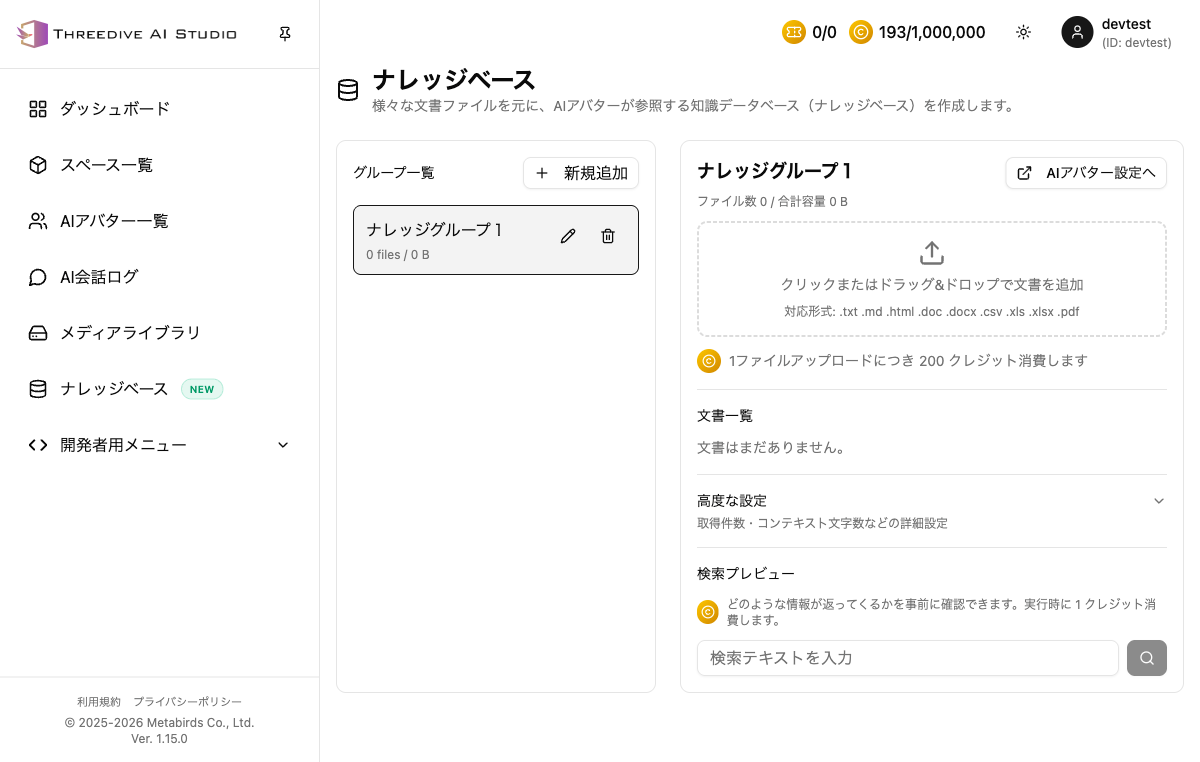 Knowledge Base page — Group list on left, document list on right
Create a Group
Knowledge Base is managed in "Group" units. You can separate groups by usage or project.
- Click "+ Add New" button
- Enter "Group Name" and "Description"
- Click "Create" button
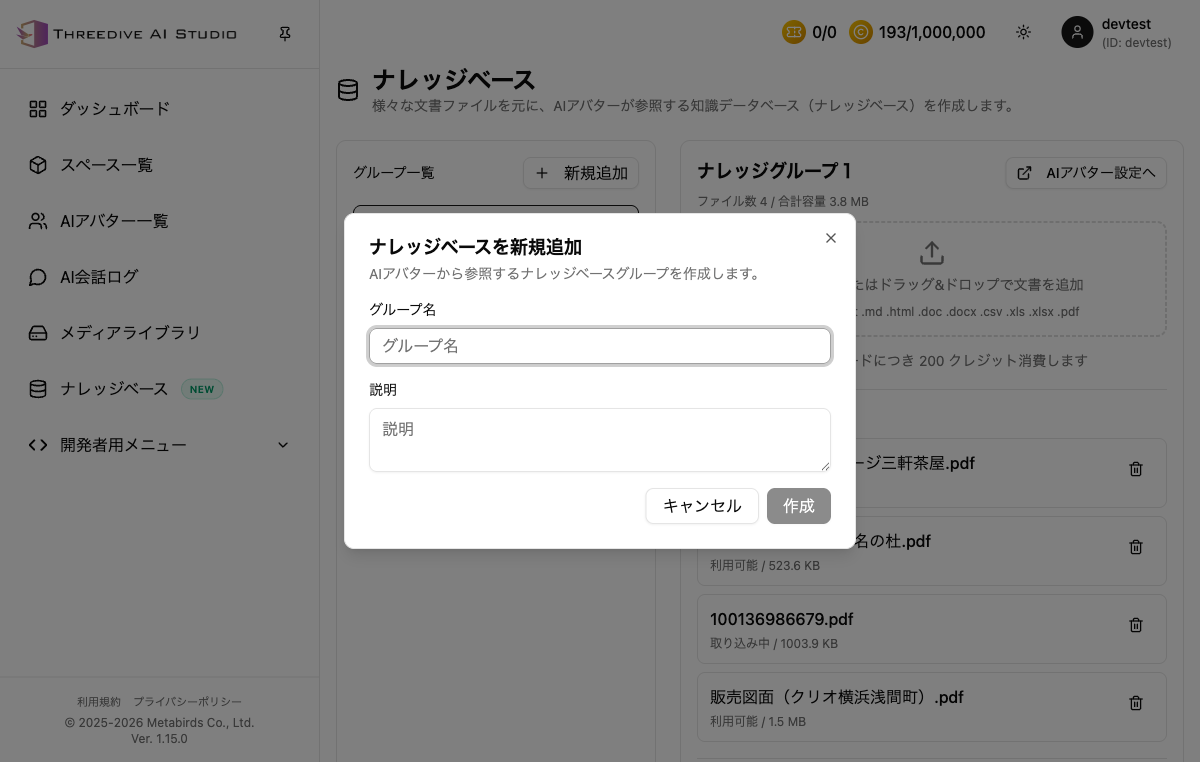 Enter group name and description to create
Upload Documents
With a group selected, add documents to the upload area on the right.
Steps
- Click the target group from "Group List" on the left
- Click or drag & drop files into the upload area on the right
- Select files to upload
Supported File Formats
.txt .md .html .doc .docx .csv .xls .xlsx .pdf
200 credits are consumed per file upload.
File Status
After upload, status is displayed in the document list.
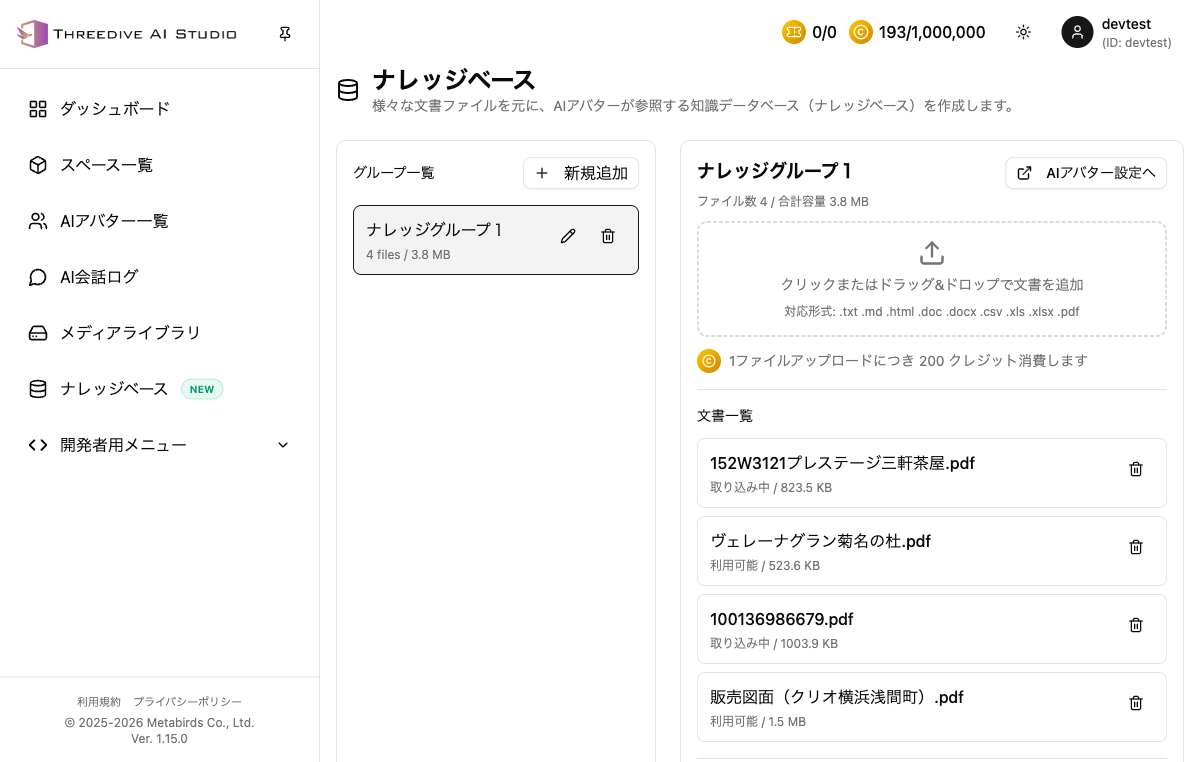 "Importing" means processing. When "Available", AI can reference it
| Status | Meaning |
|---|---|
| Importing | File is being processed. AI cannot reference yet |
| Available | Processing complete. Can be referenced by AI Avatars |
Configure Knowledge Base for AI Avatars
To have AI Avatars reference uploaded documents, link the Knowledge Base in AI Avatar settings.
Steps
Method 1: Navigate from Knowledge Base page
- Click "Go to AI Avatar Settings" button at top right of Knowledge Base page
Method 2: Configure from AI Avatar List
- Open "AI Avatar List" from the sidebar
- Click "Edit・Test" for the target AI Avatar
- Scroll down the edit screen and open the "RAG / Knowledge Base Settings" section
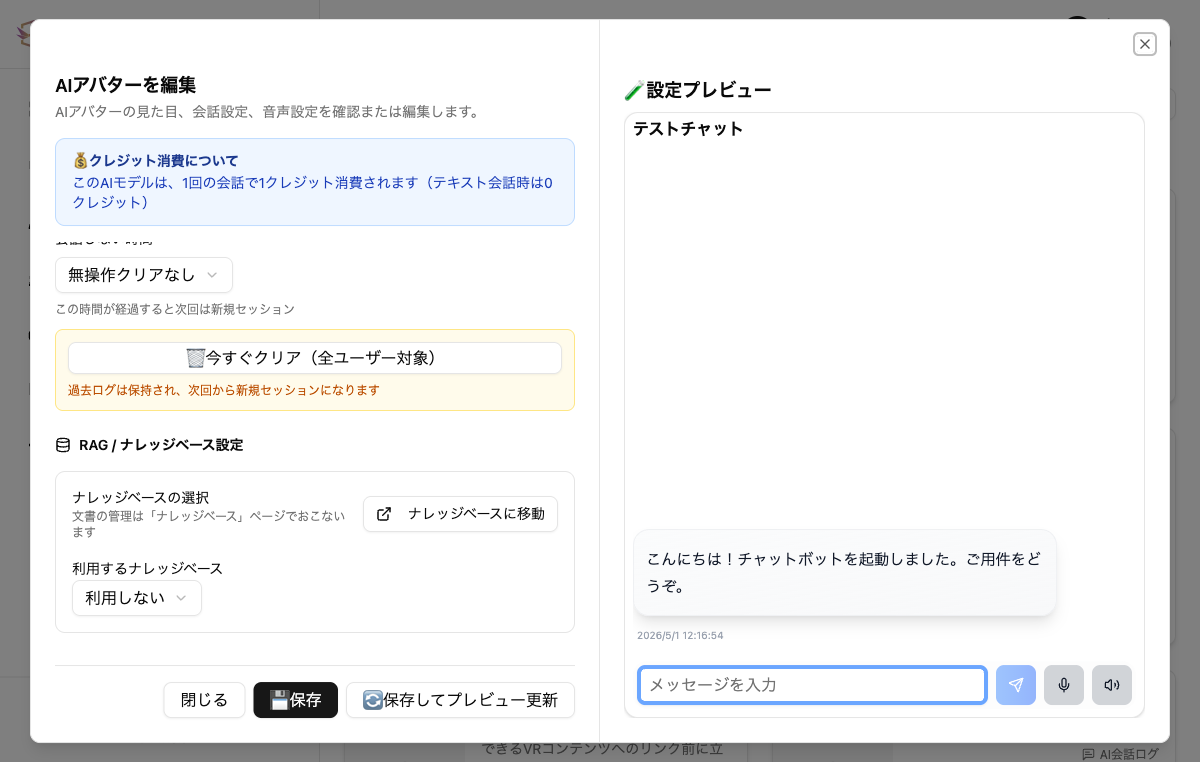 "RAG / Knowledge Base Settings" section in AI Avatar edit screen
-
Select the group to use from the "Knowledge Base to use" dropdown
-
Enter additional instructions in "Supplementary instructions when using RAG" as needed
When you select a Knowledge Base, the supplementary instruction field becomes available. Writing additional instructions for the AI here can provide more accurate responses.
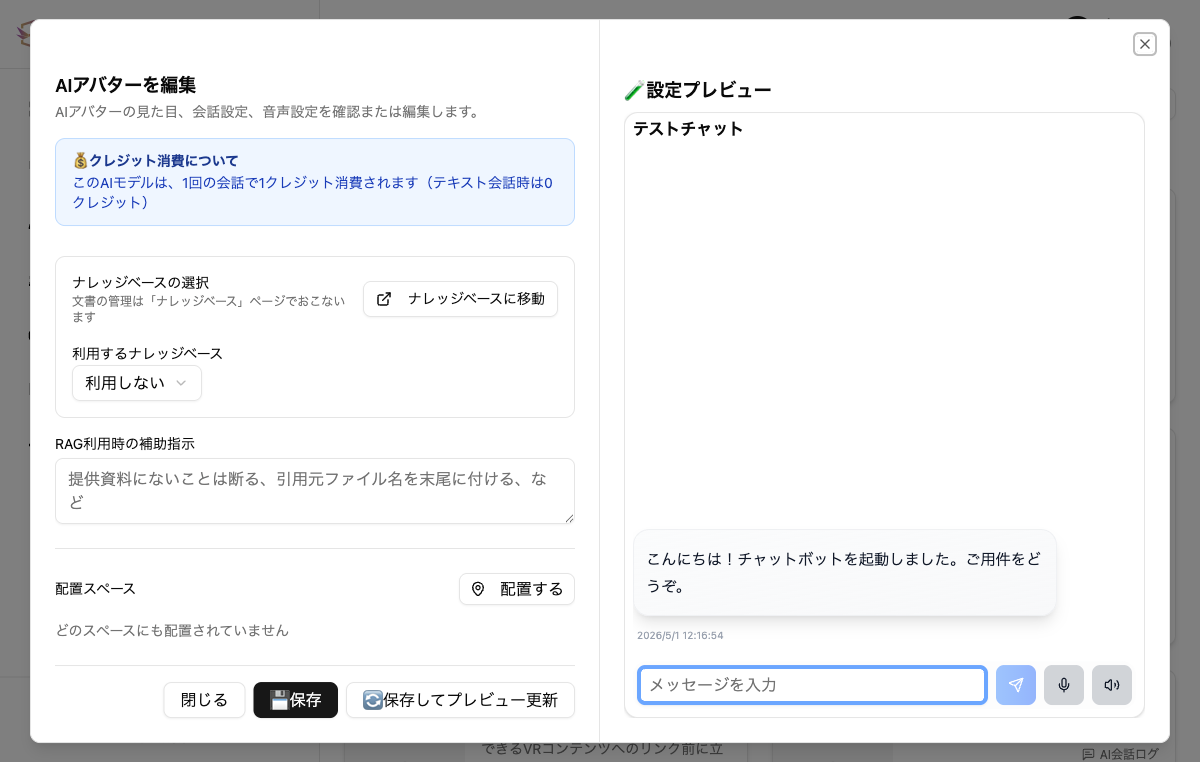 Example supplementary instructions: "Decline if not in provided materials, add source file name at the end", etc.
Example Supplementary Instructions
If not in provided materials, answer "Not documented in materials"Add source file name at the end of response in the format "(Source: XX.pdf)"Reply in Japanese
-
Click "💾 Save" to save settings
After saving, click "🔄 Save and Update Preview" to check responses that reference the Knowledge Base in the test chat on the right.
Notes
- Only one Knowledge Base group can be configured per AI Avatar
- AI cannot reference documents until status becomes "Available"
- Document content is separate from AI training data and is searched/referenced in real-time during conversations
Related Pages
- Creating AI Avatars in AI Avatar List — Creating and editing AI Avatars
- AI Creation and Placement Guide — Flow of placing AI Avatars in spaces
- Subscription Management — Check and add credits