Media Library
- Basic usage of Media Library
- How to upload files
- How to get URLs of uploaded files
- How to use AI image generation and AI 3D model generation
- How to use in Space Settings
Media Library is a feature where you can upload and manage files used in Threedive AI.
 Threedive AI Studio Media Library - Upload and manage files
Feature Overview
The following operations are possible in Media Library:
- File Upload: Upload by drag & drop or file selection
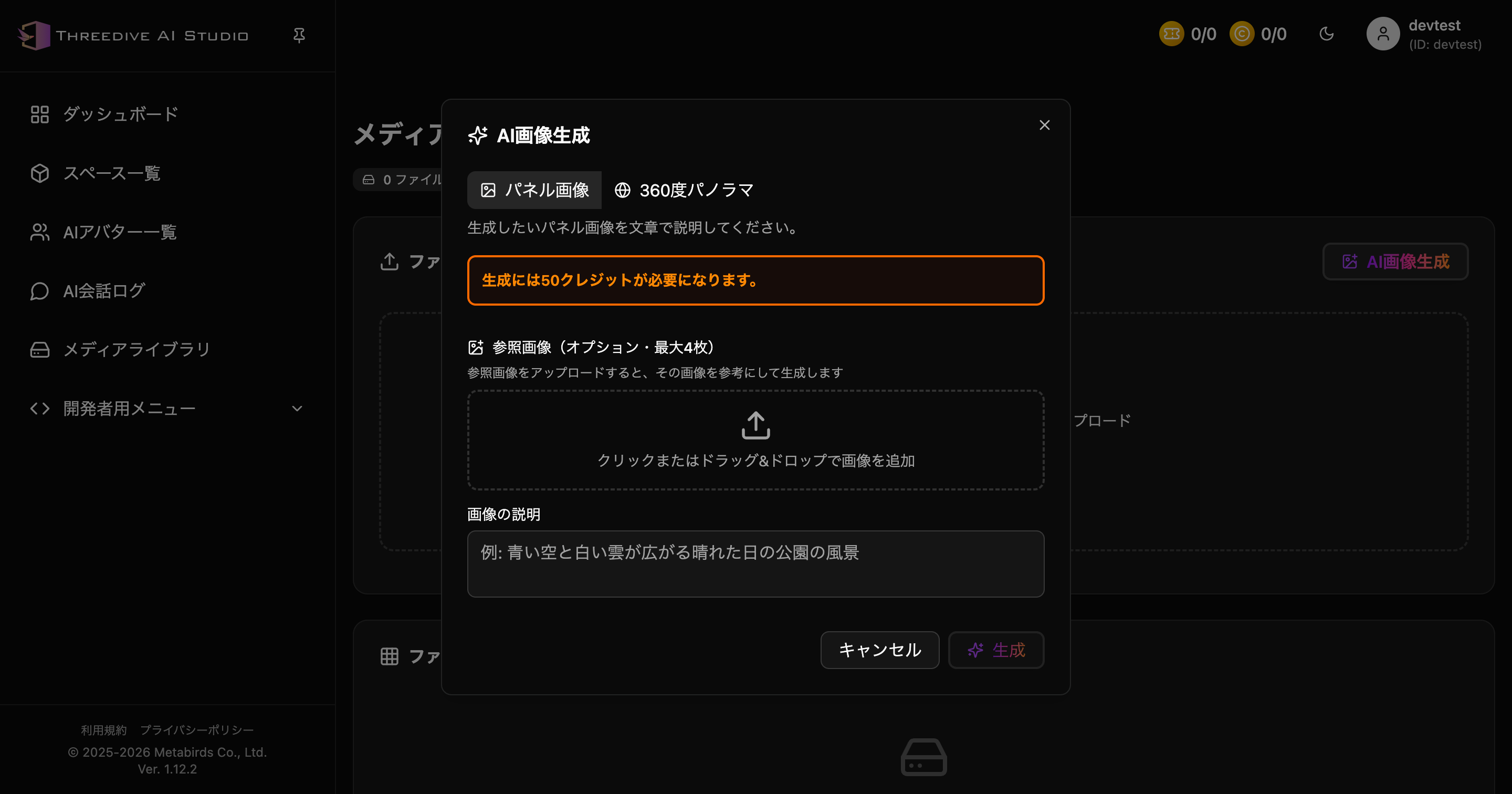
- AI Image Generation: Generate panel images or 360-degree panorama
- File List Display: Check uploaded files
- Get URL: Copy URLs of uploaded files
- File Management: Update and delete files
- Check Storage Capacity: Check used and remaining capacity
Access Method
Select "Media Library" from the Threedive AI Studio sidebar:
Sign-in is required to use Media Library.
Check Storage Capacity
The top of Media Library shows current storage usage:
- Limit: Total capacity available in contract plan (Example: 20 MB)
- Remaining: Current remaining capacity (Example: 20 MB)
- 0 files: Number of currently uploaded files
Storage capacity varies by contract plan. To add capacity, consider upgrading to a higher plan from Subscription Management.
AI Image Generation
You can generate panel images or 360-degree panorama using AI.
How to Use
- Click "AI Image Generation" button on Media Library screen
- Select "Panel Image" or "360-degree Panorama"
- Add reference images as needed
- Enter image description
- Click "Generate"
- Generated image is automatically saved to Media Library
You can add up to 4 reference images.
AI 3D Model Generation (Added in v1.21.0)
You can generate a 3D model (GLB format) from text or images and add it to the Media Library.
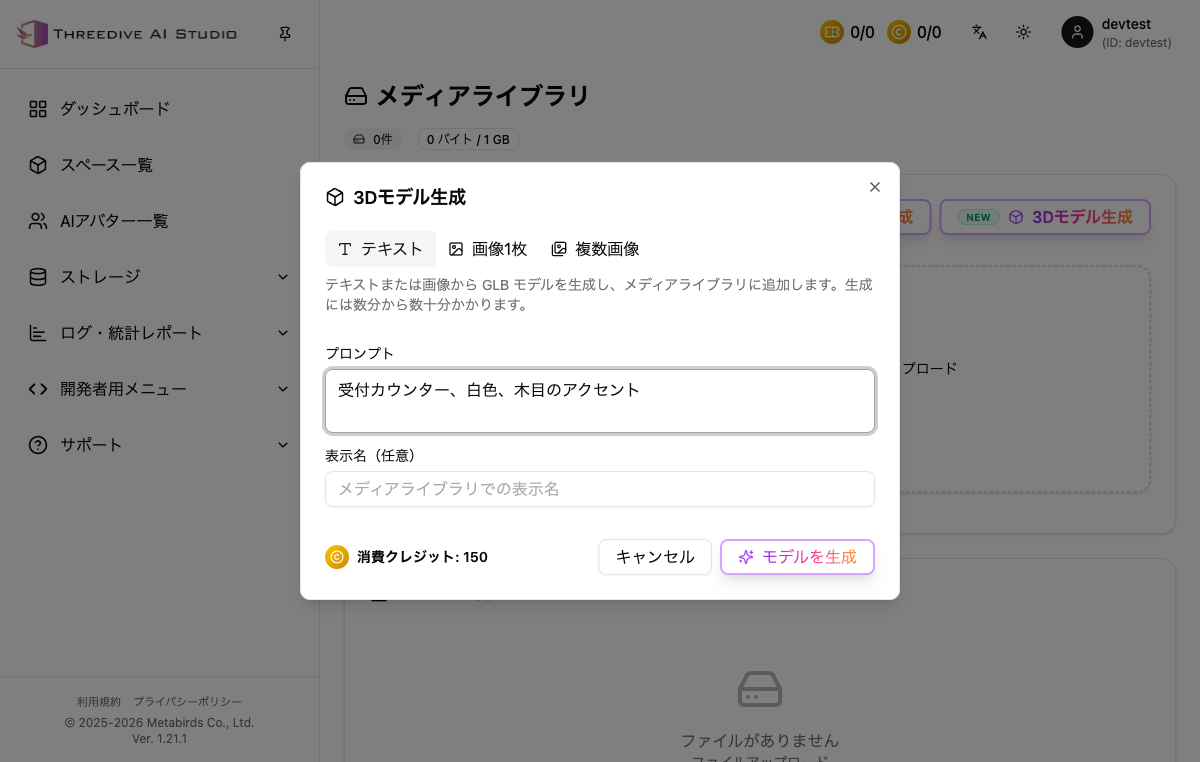 Dialog opened from the "NEW 3D Model Generation" button in Media Library
Generation Methods (3 types)
- Text: Enter a prompt to generate a model (Example: "A round wooden table with 3 legs")
- Single image: Generate a model from 1 reference image
- Multiple images: Generate a model from 2-4 reference images (accuracy improves with images of the same subject from different angles)
How to Use
- Click "NEW 3D Model Generation" button on the Media Library screen
- Select "Text", "Single image", or "Multiple images"
- Enter a prompt or upload reference images
- Enter a display name (optional)
- Click "Generate Model"
Generation takes anywhere from a few minutes to a few dozen minutes. Generation continues even if you navigate to other pages, and the result is automatically added to Media Library upon completion.
Credit cost: 150 credits
File Upload
Upload Screen
Media Library - Upload files by drag & drop, click, or paste
Upload Steps
Method 1: Drag & Drop
- Select files you want to upload
- Drag files to upload area (inside dotted frame)
- Upload starts automatically when dropped
- After upload completes, displayed in file list
Method 2: File Selection
- Click "Select file" button
- File selection dialog is displayed
- Select files to upload
- Upload starts automatically when selected
- After upload completes, displayed in file list
Supported File Formats
-
3D Models:
.glb- AI Avatar models
- Object models
- Custom scene models
-
Images:
.jpg,.jpeg,.png,.webp,.gif- Panel display images
- Texture images
- 360-degree panorama images (for 360-degree panorama placement)
-
Videos: Can be used as material URLs in Studio depending on usage
File Restrictions
- Simultaneous uploads: Up to 10 files maximum
- File size limit: Check in Threedive AI Studio (displayed at top)
- Storage capacity: Check in Threedive AI Studio (displayed as "Remaining: XX MB")
You can upload up to 10 files simultaneously in one operation.
When uploading large files, we recommend doing so in a stable internet connection environment.
File List and Management
Understanding File List
Uploaded files are displayed in the "File List" section.
Displayed information:
- Preview: File thumbnail
- File name: Name of uploaded file
- URL: File access URL
- Upload date/time: When uploaded
- File size: File capacity
- Operation buttons: Actions like copy URL, delete
How to Get URL
You can get the URL of uploaded files with the following steps:
- Find file in file list
- Click "Copy URL" button on right side of file
- URL is copied to clipboard
- Paste and use in Space Settings, etc.
After copying the URL, paste it immediately into the corresponding field in Space Settings.
Deleting Files
You can delete files that are no longer needed:
- Find file you want to delete in file list
- Click "Delete" button (trash icon)
- Confirmation dialog is displayed
- File is permanently deleted when you confirm "Delete"
Deleted files cannot be restored. If you delete a file being used in Space Settings, it will not display correctly in that space.
How to Use in Space Settings
Files uploaded to Media Library can be used in Advanced Settings of Space Settings.
Using 3D Models
Usage:
- 3D models for AI Avatars
- Decorative objects
- Custom scenes
Configuration Steps:
- Upload
.glbfile to Media Library - Copy URL
- Space Settings > Advanced Settings > Model Placement
- Click "Add model"
- Paste copied URL into "Model URL" field
- Configure position, rotation, scale
- Save
See Space Settings: Advanced Settings Tab (Model Placement) for details.
Using 360-degree Panorama Images
Usage:
- 3D space background (sky sphere)
- Immersive environment staging
Configuration Steps:
- Upload 360-degree panorama image to Media Library
- Copy URL
- Space Settings > Advanced Settings > 360-degree Panorama Placement
- Paste copied URL into panorama image URL field
- Adjust rotation and scale
- Save
See Space Settings: Advanced Settings Tab (360-degree Panorama Placement) for details.
Using Image Panels
Usage:
- Information bulletin boards
- Guide panels
- Decorative images
Configuration Steps:
- Upload image to Media Library
- Copy URL
- Space Settings > Advanced Settings > Panel Placement
- Click "Add panel"
- Paste image URL into URL field
- Configure position, rotation, scale
- Save
See Space Settings: Advanced Settings Tab (Panel Placement) for details.
FAQ
Q. Uploaded file is not displayed
Check points:
- Try reloading the page
- Try clearing browser cache
- Confirm upload has completed fully
Q. Space doesn't display even though I copied URL
Check points:
- Confirm URL is pasted correctly
- Confirm you clicked "Save" button in Space Settings
- Confirm file format is supported (3D models are
.glbonly)
Q. Space stopped displaying after deleting file
Solution:
- Deleted files cannot be restored
- Please upload the same file again
- Reset new URL in Space Settings
Related Pages
- Space Management Guide - How to use uploaded files
- AI Creation and Placement Guide - How to create and place AI Avatars
- AI Image Generation Guide - Details of AI image generation