Scene Settings
- Content manageable in Scene Settings
- How to use preset scenes and custom models
- How to configure character spawn position, movement boundaries, ground, and background color
Overview
Scene Settings is one of the categories in the "Advanced Settings" tab of Space Settings. Configure scene selection that forms the foundation of 3D space, character initial position, movement range, ground, and background color.
Access method: Space Settings > Advanced Settings tab > Category "Scene Settings"
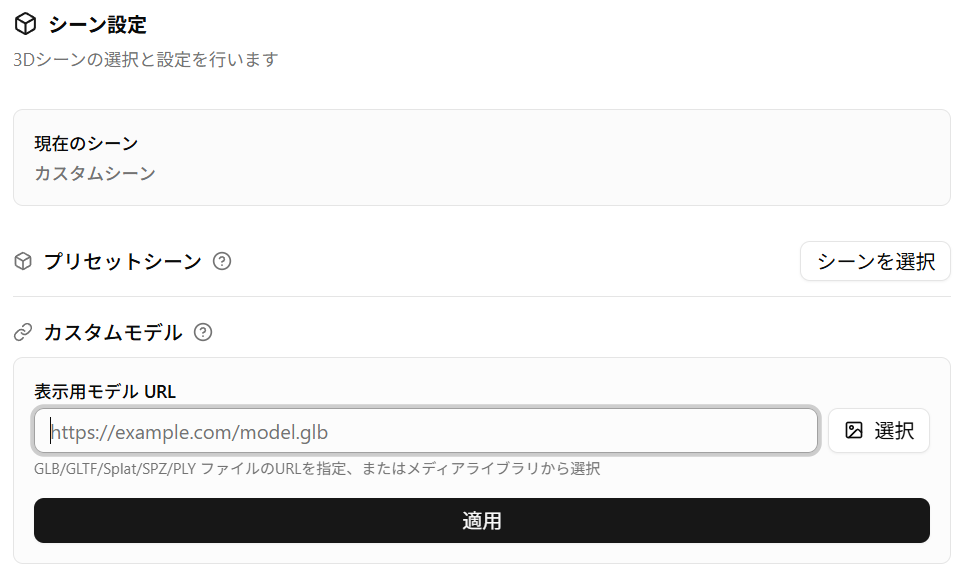
Preset Scenes
You can select from pre-prepared 3D scenes. Scenes include models, lights, and environment settings.
- Clicking the "Select scene" button displays the preset scene list
- Selected scene is applied immediately
Custom Model
Configure when using your own 3D model as a scene.
Display Model URL
| Item | Content |
|---|---|
| Input format | URL input or select from Media Library |
| Supported formats | GLB / GLTF / Splat / SPZ / PLY |
You can also select files uploaded to Media Library from the "Select" button.
Collision GLB URL (Optional)
You can specify a simplified model for physics calculations.
- If specified, collision detection is performed separately from the display model
- Can reduce processing load and improve movement hitches
- If unspecified and display model is GLB, it will also be used for collision detection
Position, Rotation, Scale
Adjust custom model placement.
| Item | Description |
|---|---|
| Edit position in 3D view | You can intuitively adjust placement using gizmo on preview |
| Position | Specify by X, Y, Z coordinates |
| Rotation | Rotation angle of X, Y, Z axes (-180 degrees to 180 degrees) |
| Scale | Specify with slider from 0.1x to 5.0x. Adjust to match avatar size |
Click the "Apply" button after configuration to save.
If you apply a custom model while a preset scene is applied, the preset scene settings will be cleared.
Character Spawn Settings
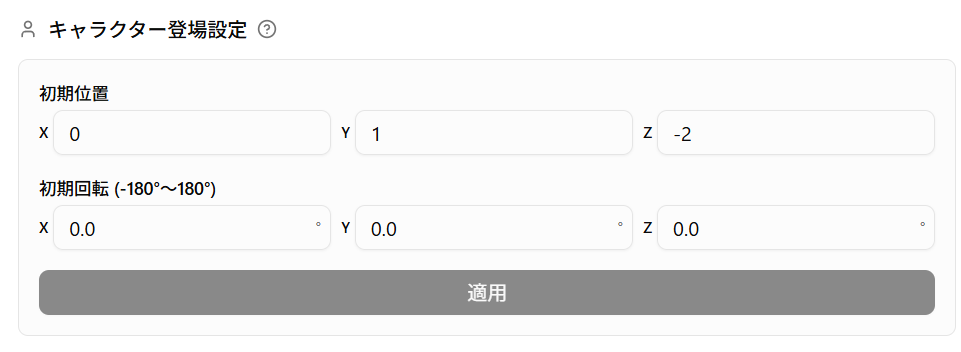
Configure the initial position and orientation where the character appears in the scene.
| Item | Description |
|---|---|
| Initial position | Specify by X, Y, Z coordinates |
| Initial rotation | Rotation angle of X, Y, Z axes (-180 degrees to 180 degrees) |
Click the "Apply" button after configuration to apply.
Movement Boundaries
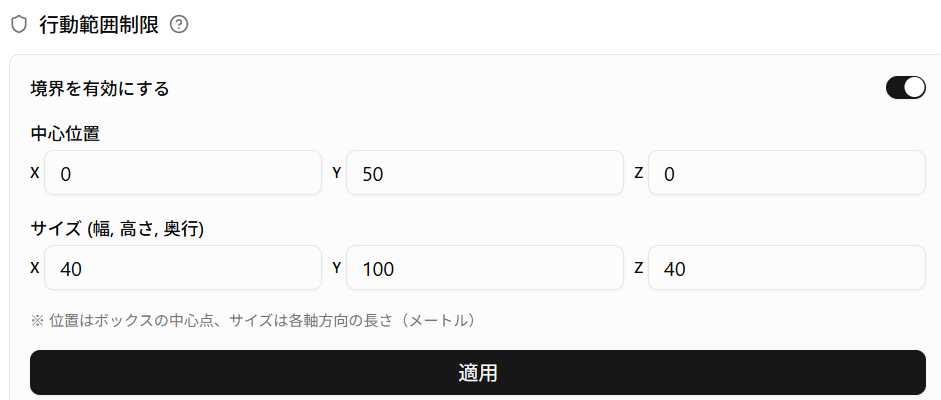
Restrict the range where characters can move in box shape.
| Item | Description |
|---|---|
| Enable boundary | ON/OFF switch. Automatically enabled when scene is not set |
| Center position | X, Y, Z coordinates of box center point |
| Size (width, height, depth) | Length in each axis direction (meters) |
Click the "Apply" button after configuration to apply.
Ground Settings
Configure ground display, range, and color.
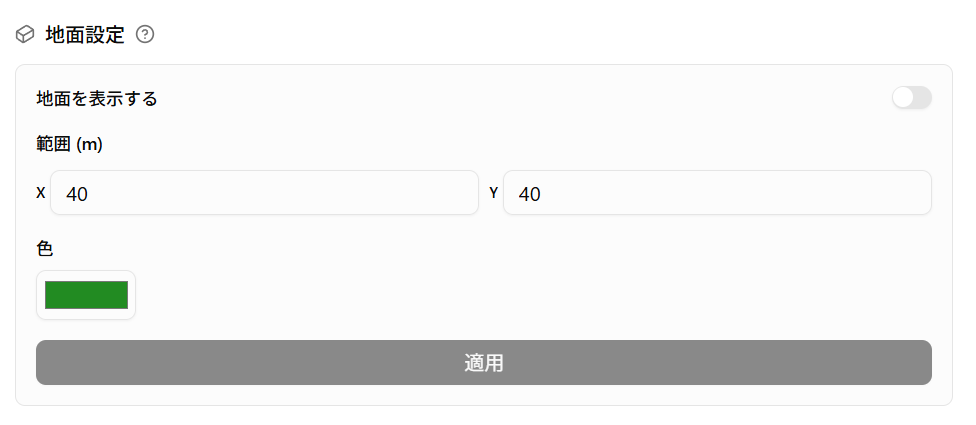
| Item | Description |
|---|---|
| Display ground | ON/OFF switch. Ground is not rendered when OFF |
| Range (m) | Specify X (width), Y (depth) in meters |
| Color | Select ground color with color picker |
Click the "Apply" button after configuration to apply.
Background Color Settings
Configure base background color.

Displayed when 360-degree panorama image is not set and during image loading.
| Item | Description |
|---|---|
| Color | Select background color with color picker |
Click the "Apply" button after configuration to apply.