Space Management Guide
- Overall flow of space management
- Entry to 3 tab-specific guides
- How to use publish settings (publish / temporary publish) and embed settings
- How to use publish settings, preview, and JSON editing
This page contains current UI screens and some screen examples from v1.9.0 for explanatory purposes. If screen names or navigation differ, prioritize the current UI description.
Overall Flow
- Create space in Space List
- Configure content in 3 tabs of Space Settings
- Confirm in preview
- Save and perform publish settings
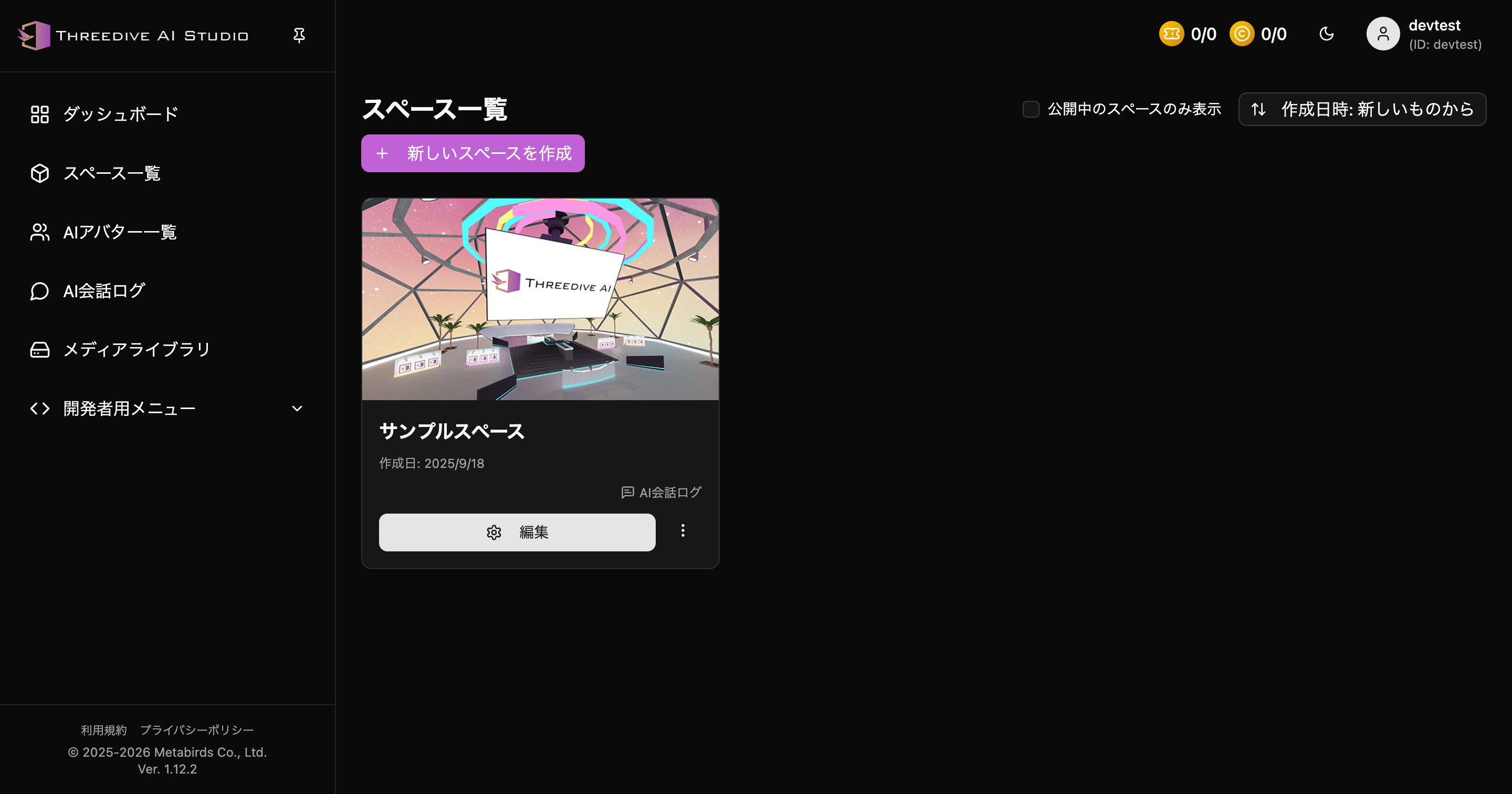 Space List - Start from "Create new Space"
Select Space Creation Method
When you click "Create new Space", the creation method selection screen is displayed.
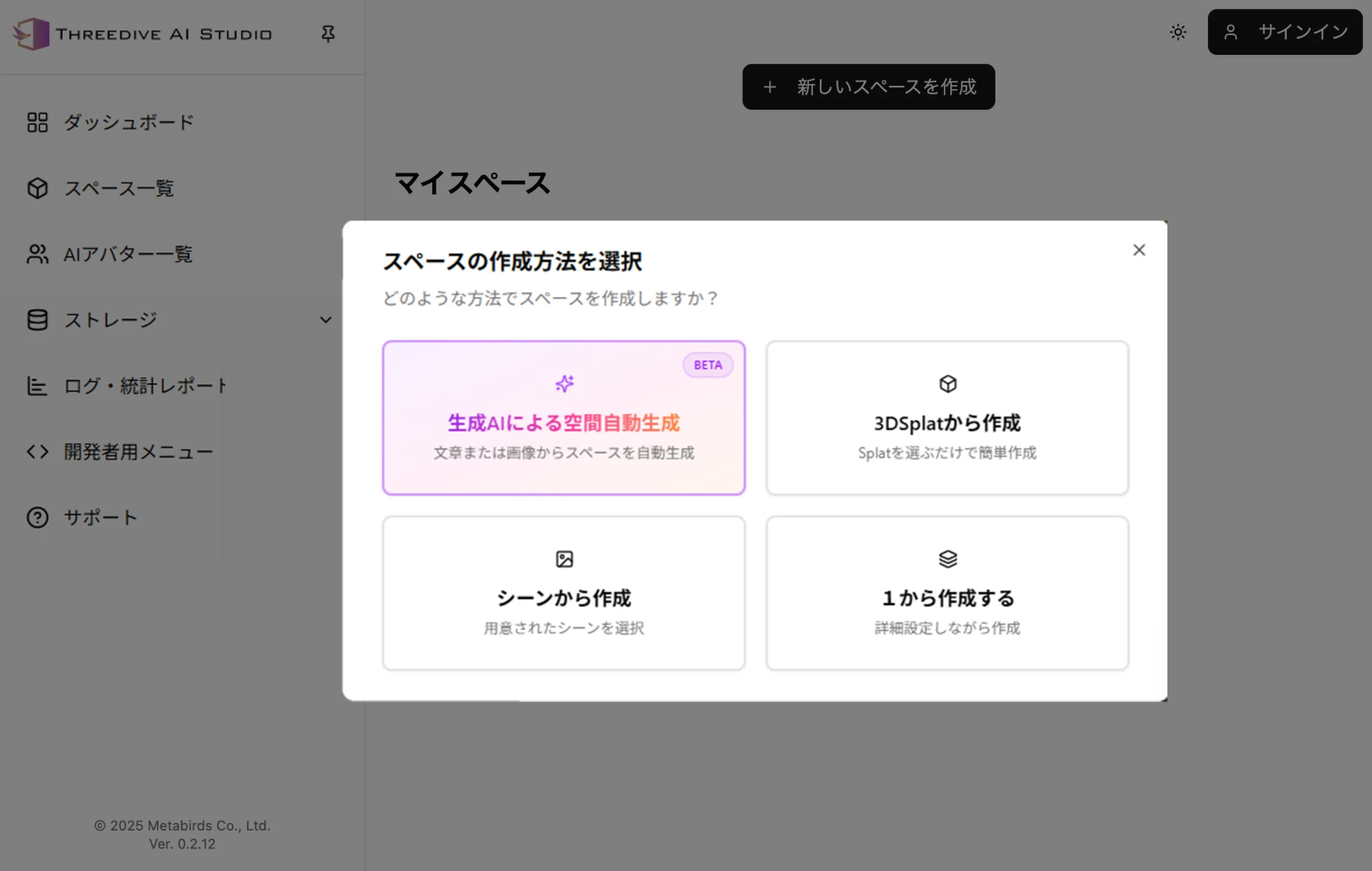 Select space creation method
1. Automatic Space Generation by AI (BETA)
Automatically generate space from text or images.
2. Create from 3D Splat
Easily create by just selecting Splat.
3. Create from Scene
Create by selecting a prepared scene.
4. Create from Scratch
Create while configuring detailed settings.
3 Tabs in Space Settings
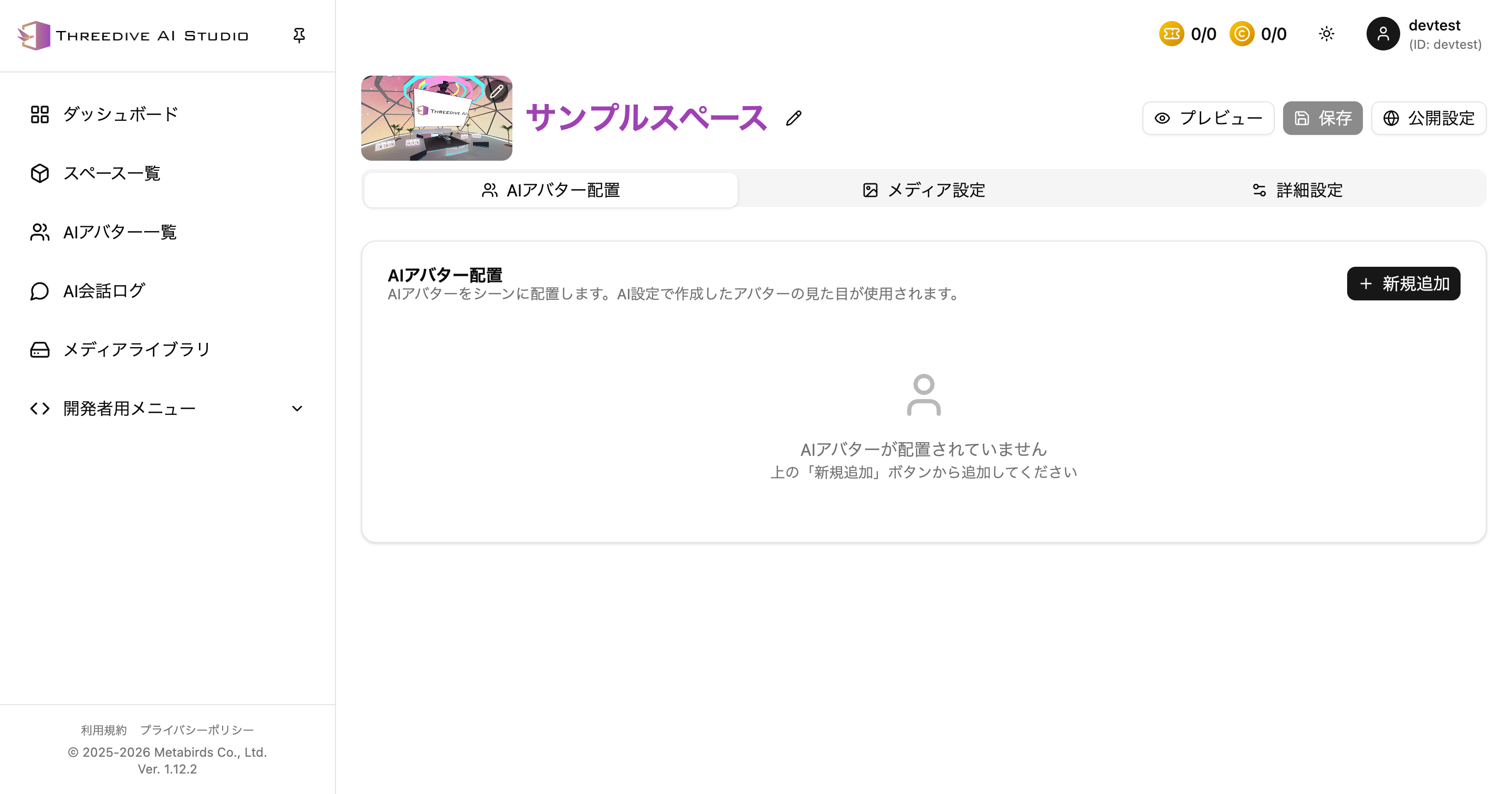 Current AI Avatar Placement tab
1. AI Avatar Placement
- Add and place AI Avatars
- Adjust display name, description, chat radius, anchor position
Details: Space Settings: AI Avatar Placement Tab
2. Media Settings
- Configure 360-degree panorama
- Confirm and edit panel settings
Details: Space Settings: Media Settings Tab
3. Advanced Settings
- Scene settings
- Model placement
- Panel placement
- 360-degree panorama placement
- Lighting
- User control
Details: Space Settings: Advanced Settings Tab
Publish Settings and Preview
- Preview: Confirm display and navigation before saving
- Save: Apply changes
- Publish Settings: Adjust publish status and sharing methods
Publish Methods
From the "Publish Settings" button, you can publish using one of the following methods.
| Method | Description |
|---|---|
| Publish | Allocates 1 space publish ticket and publishes with no time limit |
| Temporary Publish | Doesn't consume a ticket; issues a temporarily valid URL (publish period: 1 hour) |
While published, a "Publish URL" is issued, and you can unpublish at any time from "Unpublish".
Embed Format (Added in v1.18.0/v1.18.2)
After publishing, in addition to sharing the publish URL directly, you can also embed it in an existing web page. There are 2 embed formats to choose from, and the embed code is generated automatically based on your selection.
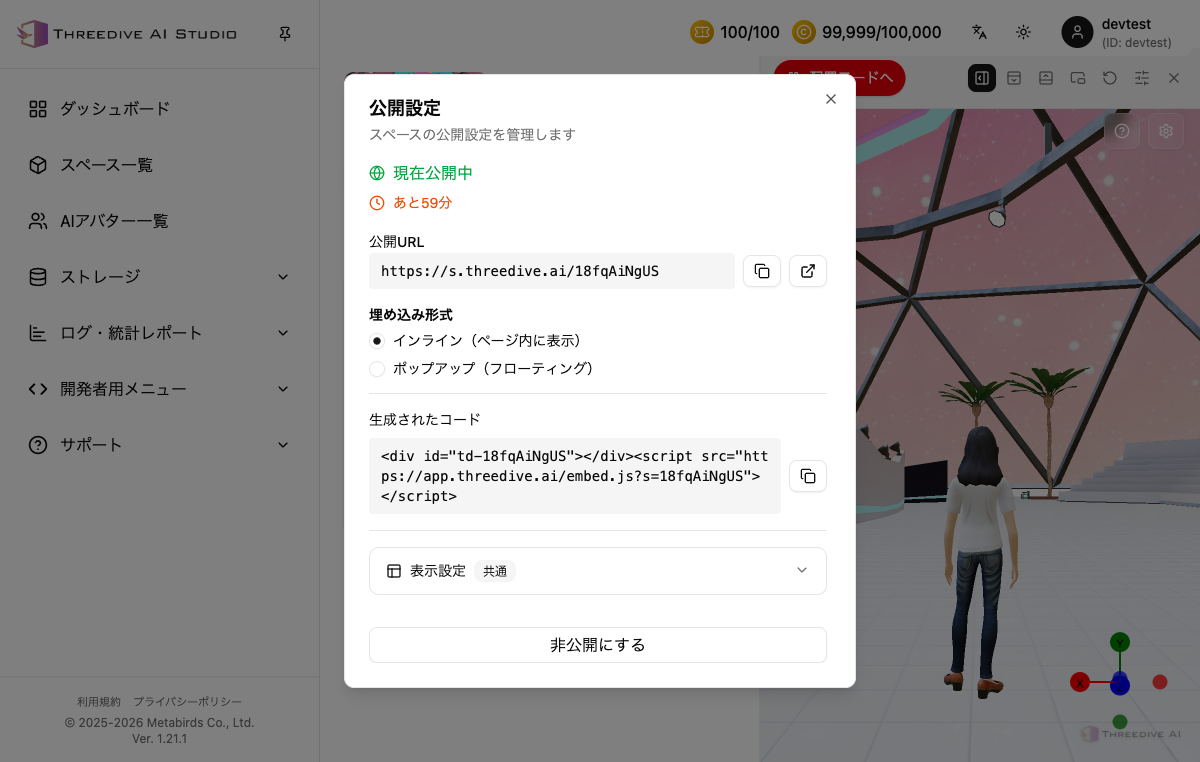 Embed code for inline format
- Inline (display within page): Displays the 3D space at a specified position within the page
- Popup (floating): Displays a launcher on the page, which opens a popup on click
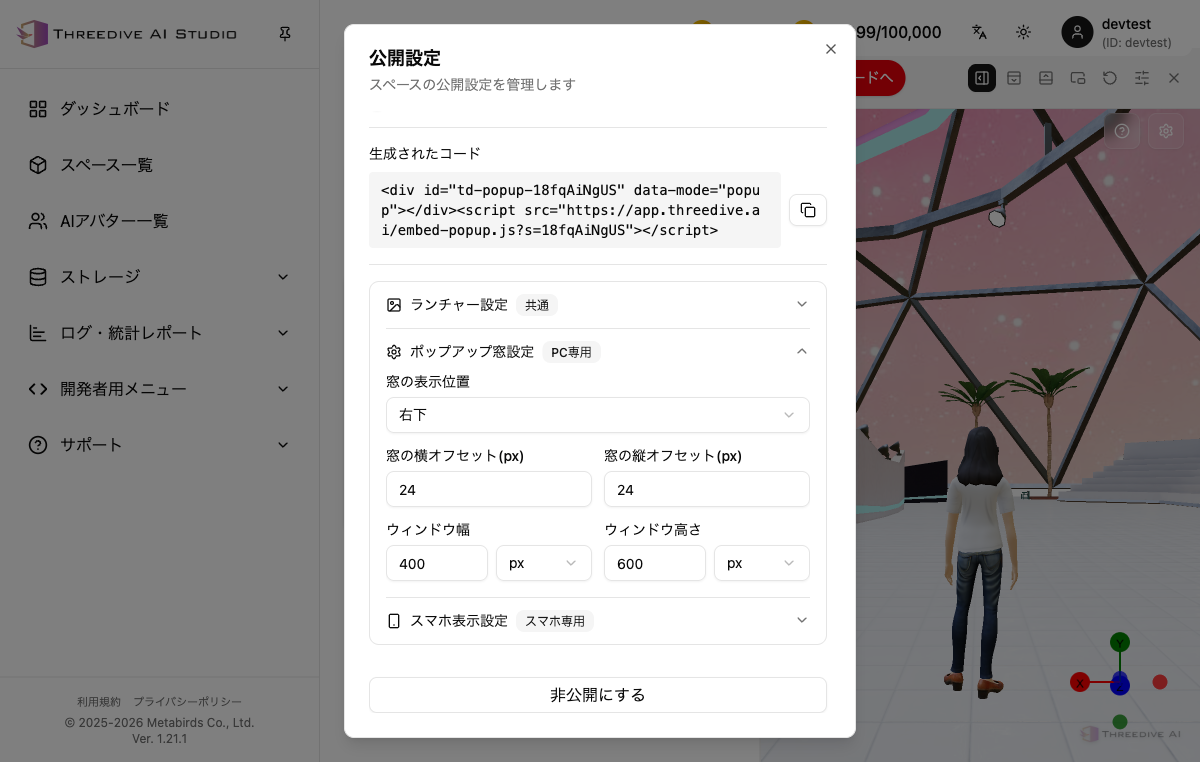 When popup format is selected, Launcher Settings, Popup Window Settings, and Mobile Display Settings are shown
When you choose popup format, you can adjust the following display settings.
| Setting | Content |
|---|---|
| Launcher Settings (Common) | Appearance and position of the button that opens the popup |
| Popup Window Settings (PC only) | Window display position (e.g. bottom right), horizontal/vertical offset (px), window width/height |
| Mobile Display Settings (Mobile only) | Mobile display method (top / bottom / fullscreen / fullscreen (separate window)), height (% of screen) |
The "Fullscreen (separate window)" mobile display method was added in v1.18.4.
For Developers: JSON Editing
You can edit directly from "JSON Edit" at the top right of the Advanced Settings tab.
- Specifications: Space Settings JSON Detailed Specifications