Space Settings: Advanced Settings Tab
- Category structure of Advanced Settings tab
- Usage and configuration points for each category
- Direct manipulation in the 3D view with Placement Mode
- When to use JSON editing
Tab Role
The Advanced Settings tab is for making detailed adjustments to scene, placement, and display behavior.
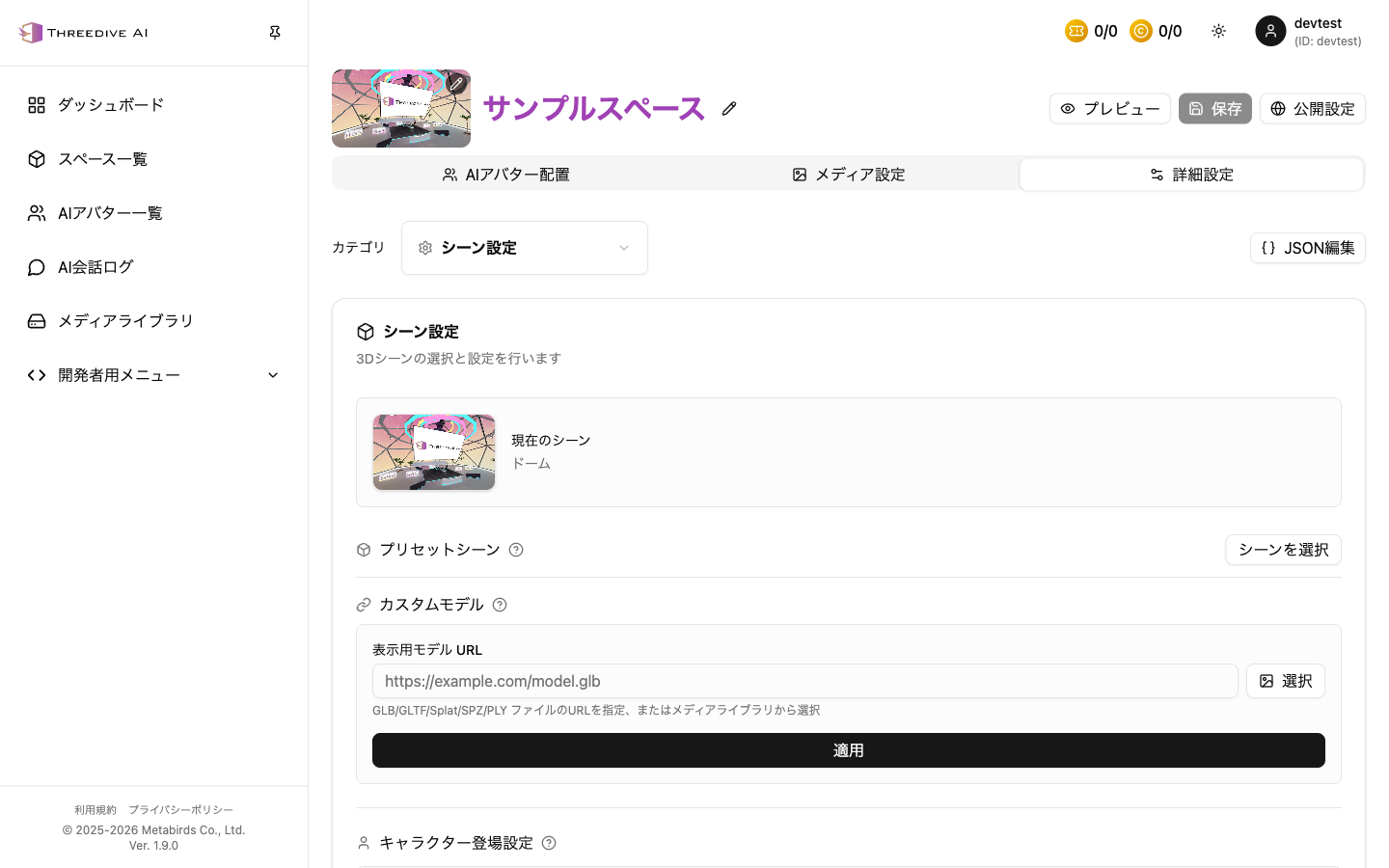 Space Settings > Advanced Settings tab (Scene Settings)
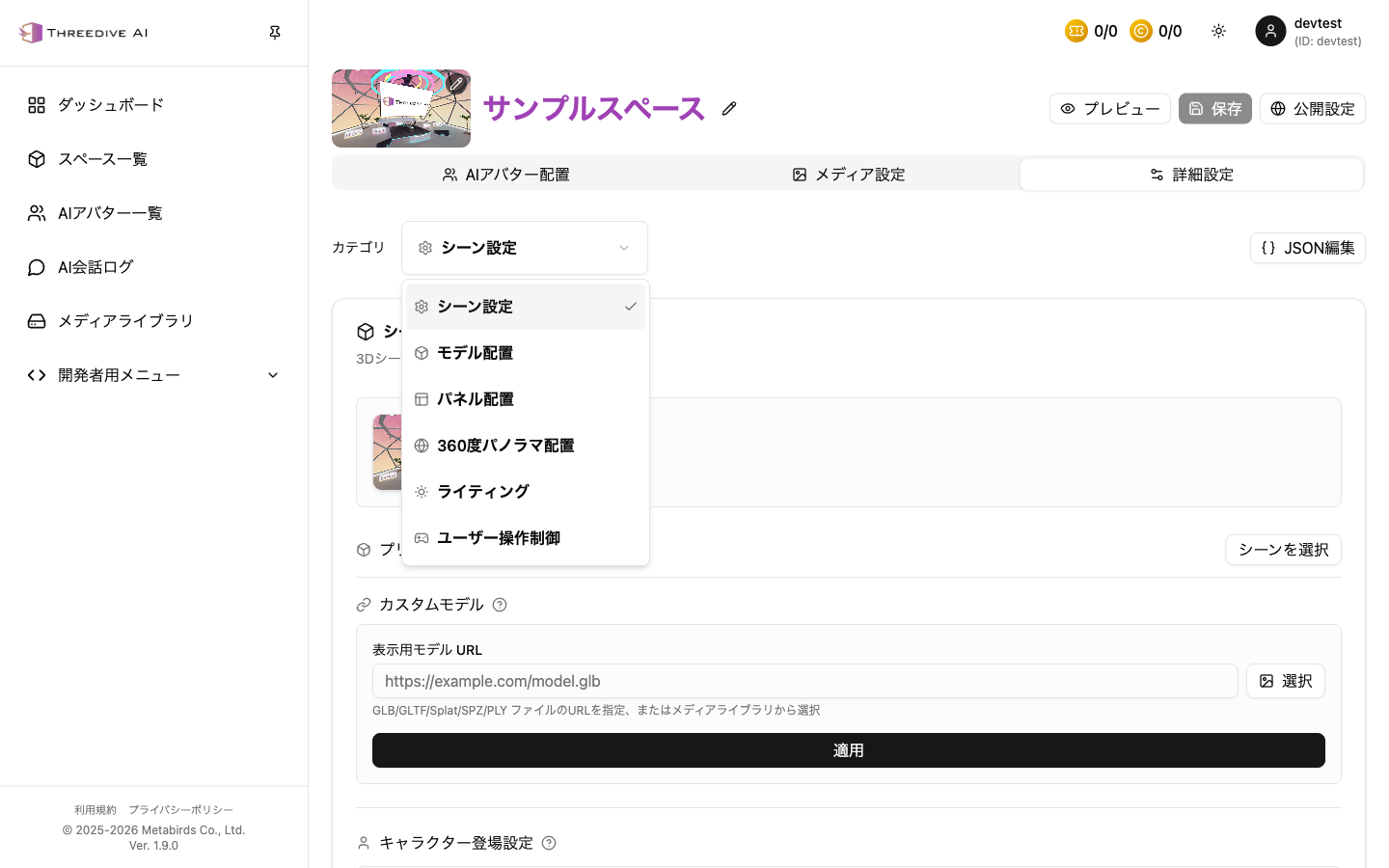 Category dropdown
Category List
- Scene Settings
- Model Placement
- Panel Placement
- Simple Object Creation
- 360-degree Panorama Placement
- Lighting
- User Control
- SEO/AIO/LLMO Settings
Since v1.7.0, 3D Splat placement has been integrated into Model Placement.
Scene Settings
Configure preset scene selection, custom model specification, character spawn position, movement boundaries, ground, and background color.
See Scene Settings for details.
Model Placement
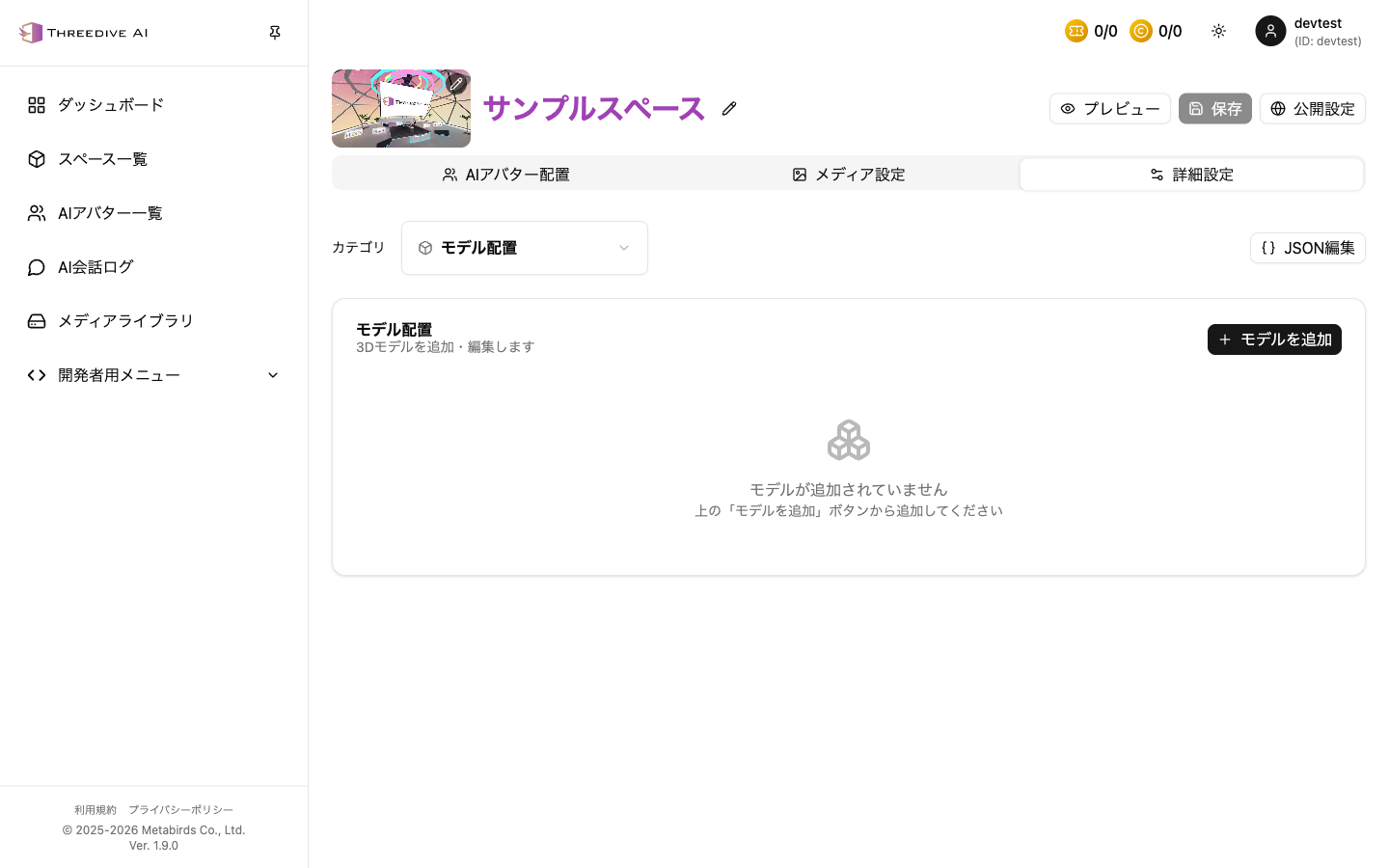 Category: Model Placement
Main Configuration Items
- Name / Description
- Model URL
- Animation Name (specify to play an animation included in the GLB. Example:
CharacterArmature|Idle) - Position, Rotation, Scale
- Chat Radius
Collision and Shadow Settings (Edit Dialog)
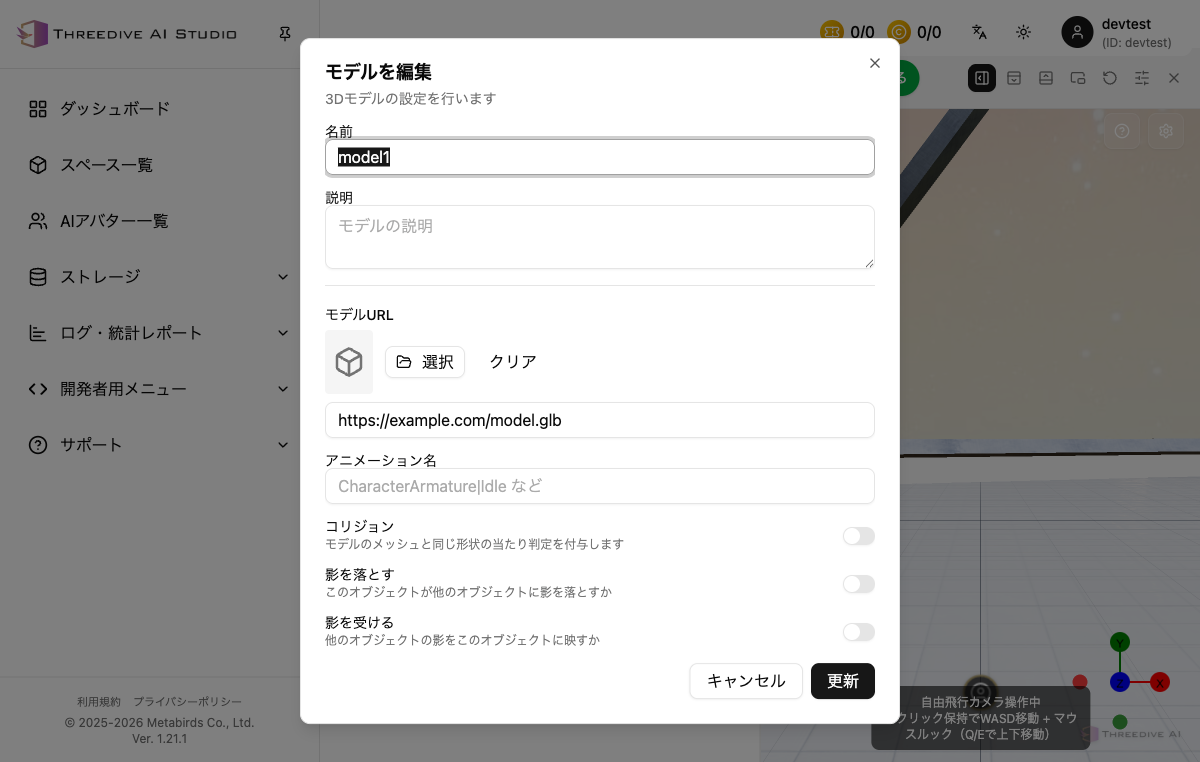 Items configurable from "Edit" in Model Placement
| Item | Description |
|---|---|
| Collision | Adds collision matching the shape of the model's mesh |
| Cast Shadow | Sets whether this object casts shadows on other objects |
| Receive Shadow | Sets whether shadows from other objects appear on this object |
Panel Placement
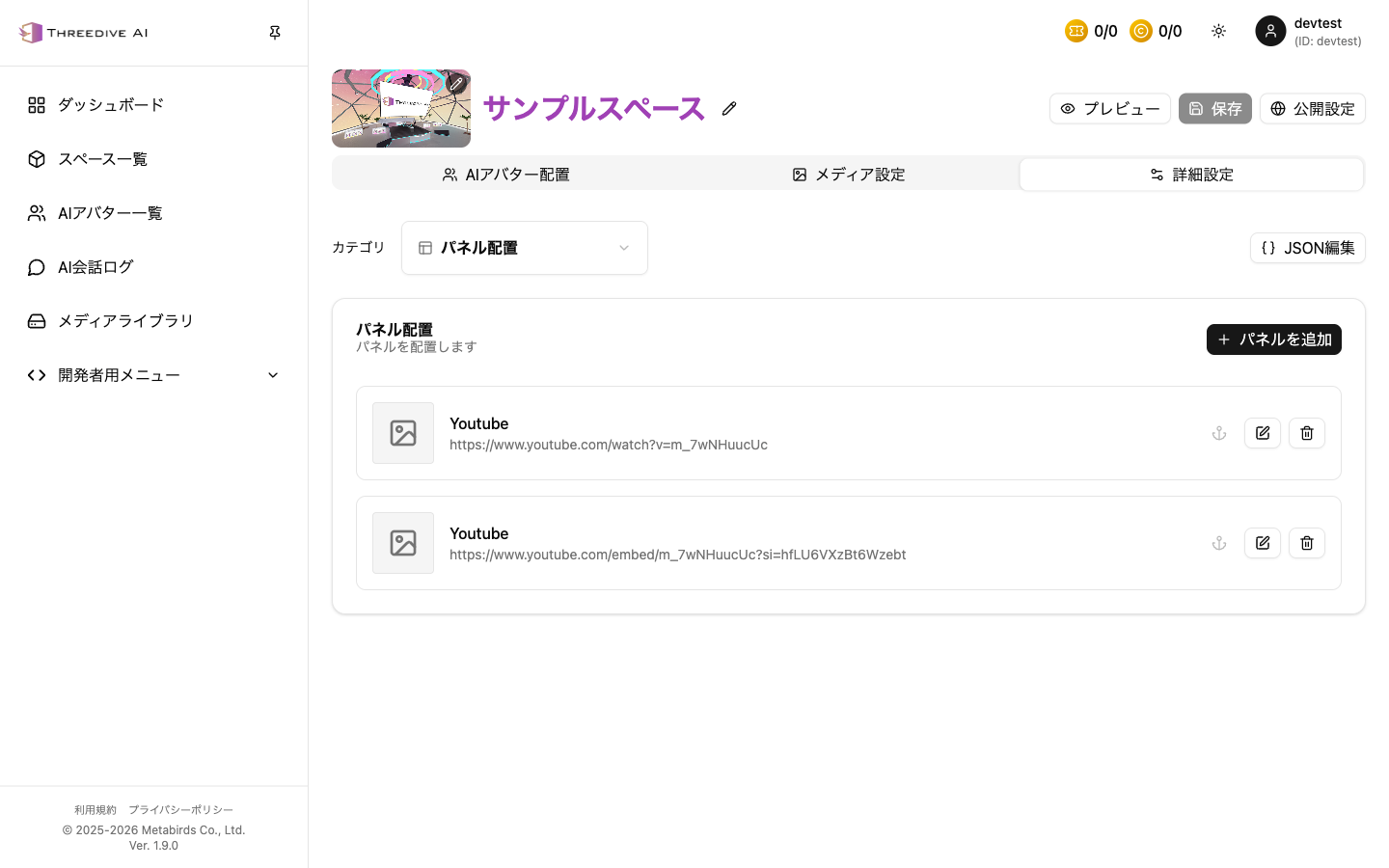 Category: Panel Placement
Main Configuration Items
- Name / Description
- URL (image, video, embed)
- Position, Rotation, Scale
- Billboard / Transparency mode
Simple Object Creation (Added in v1.20.0)
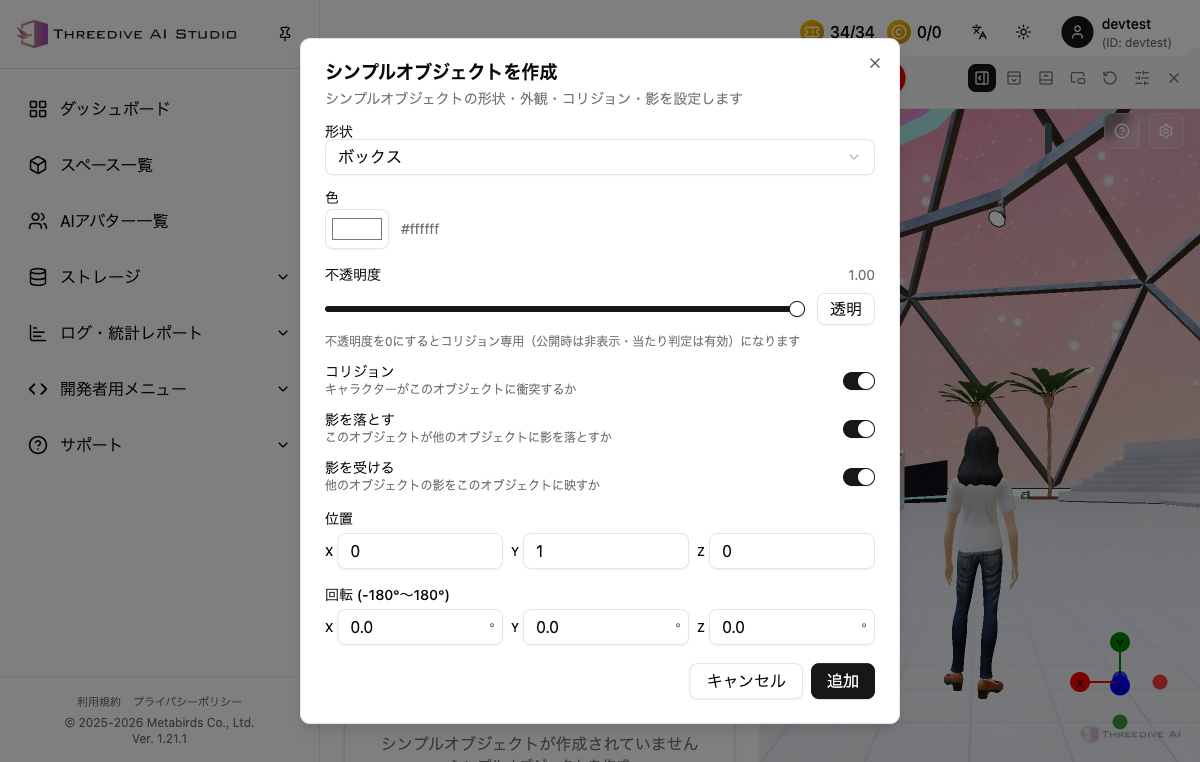 Category: Simple Object Creation (formerly: Simple Mesh Placement)
You can create 3 types of simple objects - box, sphere, and cylinder - directly in Threedive and place them in the scene. This is useful for creating decorations or transparent objects for collision-only purposes without preparing a 3D model file.
Main Configuration Items
| Item | Description |
|---|---|
| Shape | Choose from Box / Sphere / Cylinder |
| Color | Specify with color picker |
| Opacity | Slider from 0 to 1.00 |
| Collision | Sets whether characters collide with this object (default ON) |
| Cast Shadow | Sets whether this object casts shadows on other objects (default ON) |
| Receive Shadow | Sets whether shadows from other objects appear on this object (default ON) |
| Position / Rotation / Scale | Adjust placement |
Setting opacity to 0 creates a "collision-only object" that is hidden when published but still has active collision detection. This is useful in 3DGS spaces to create impassable areas separate from the visual model.
360-degree Panorama Placement
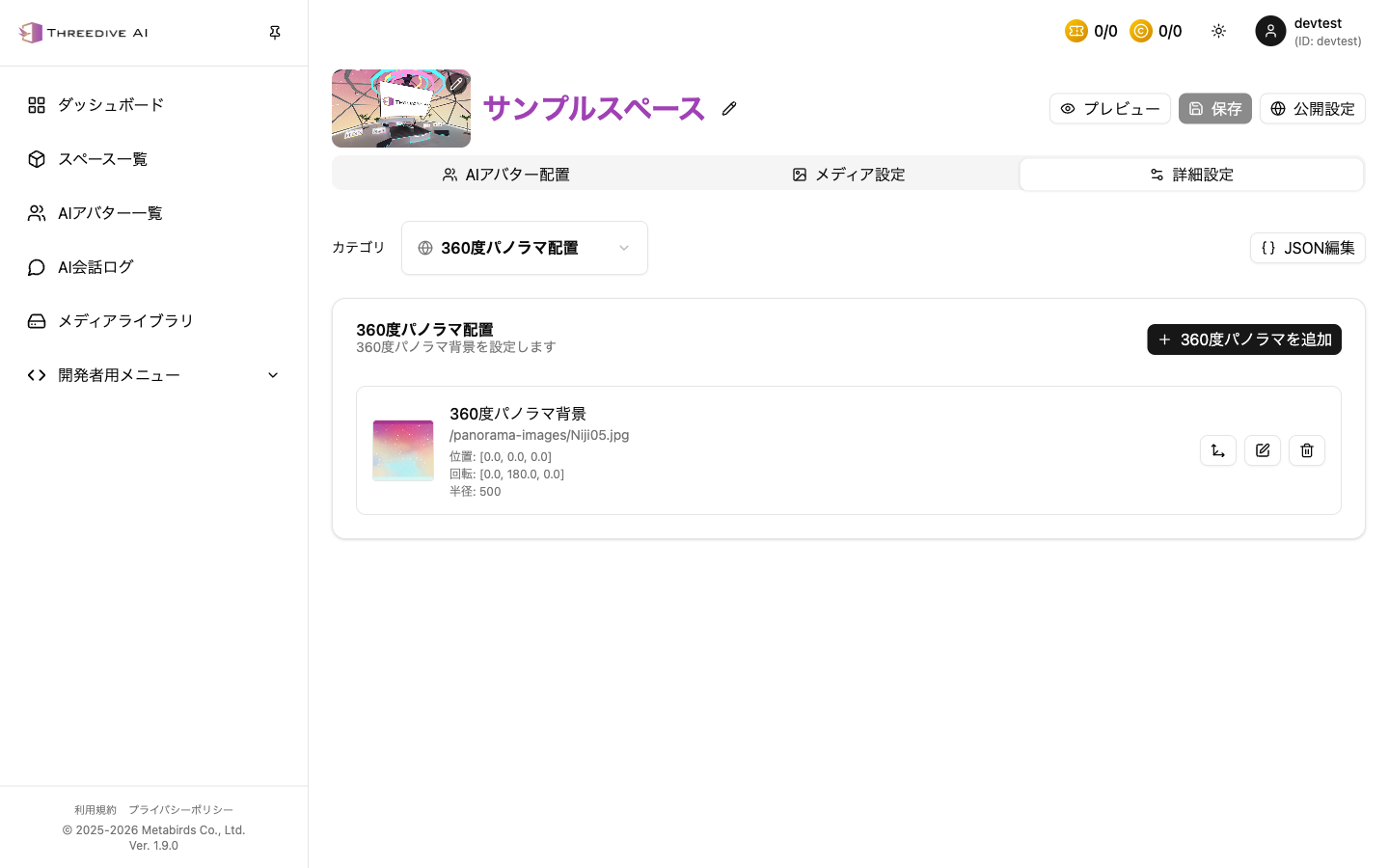 Category: 360-degree Panorama Placement
Main Configuration Items
- Panorama image URL
- Position, Rotation, Radius (or Scale)
Lighting
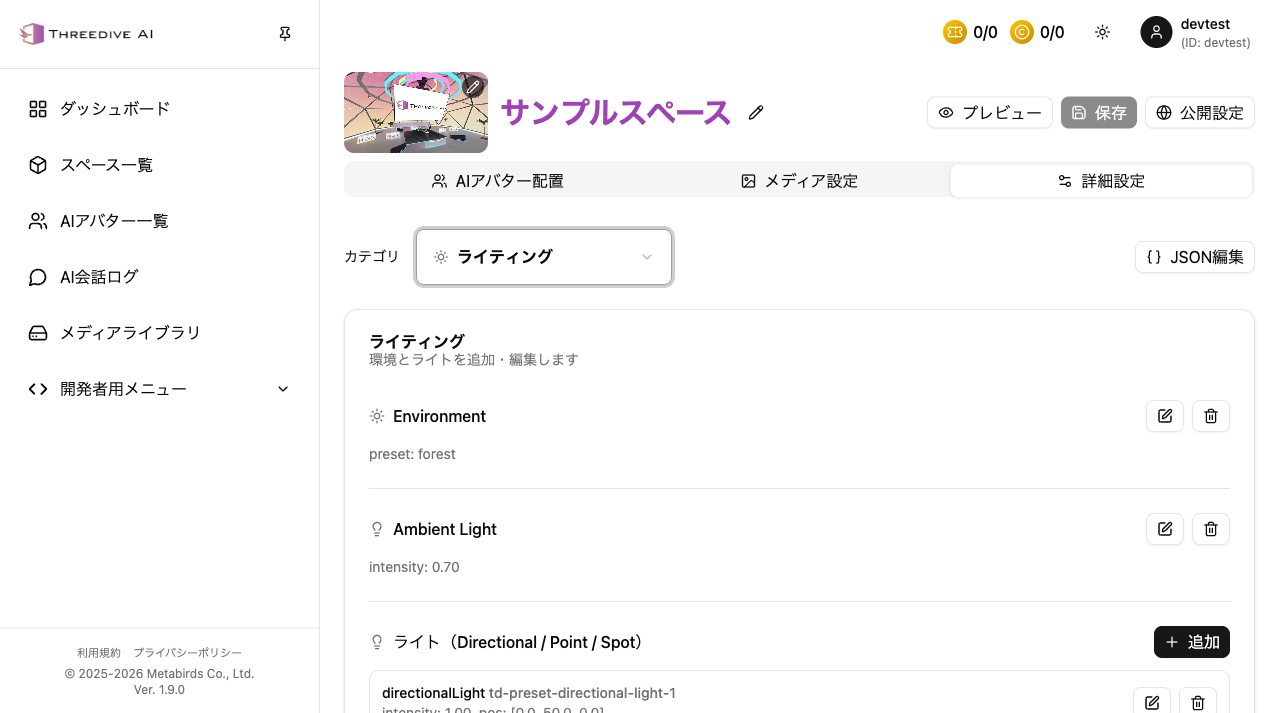 Category: Lighting
Main Configuration Items
- Environment (environment preset)
- Ambient Light (overall lighting)
- Directional / Point / Spot Light
User Control
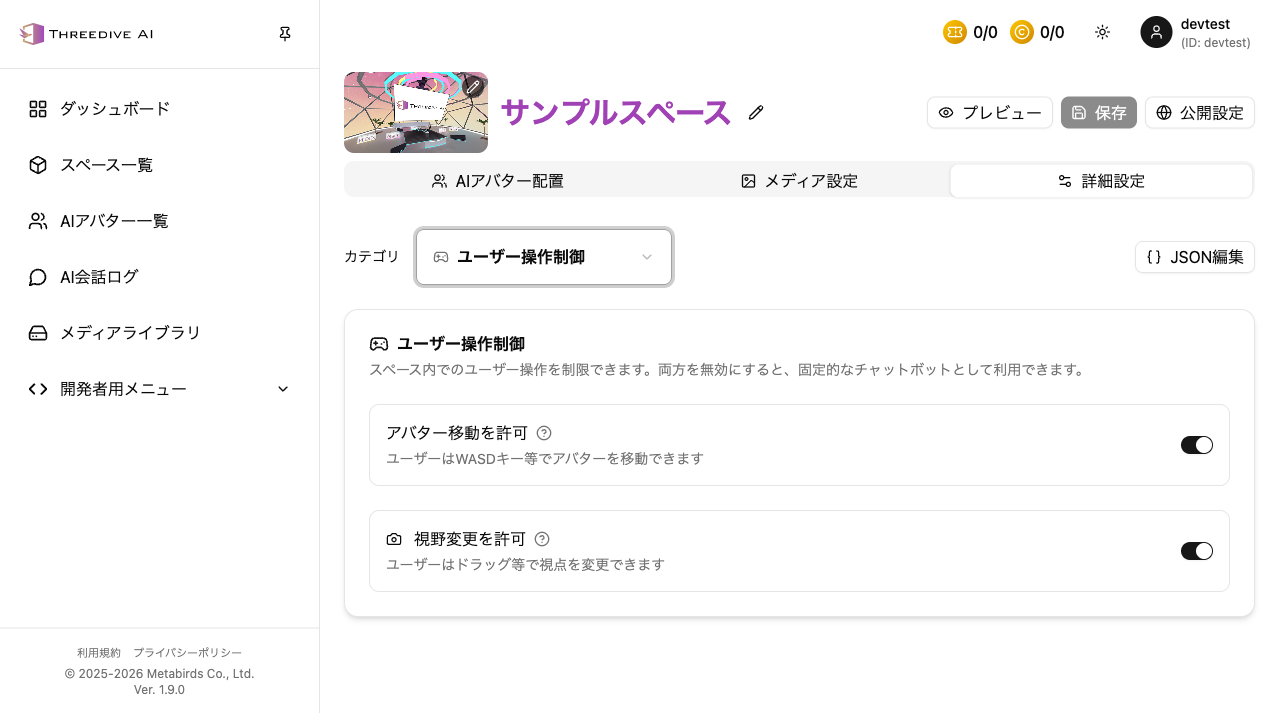 Category: User Control
Main Configuration Items
- Allow avatar movement
- Allow view change
SEO/AIO/LLMO Settings (Added in v1.18.4)
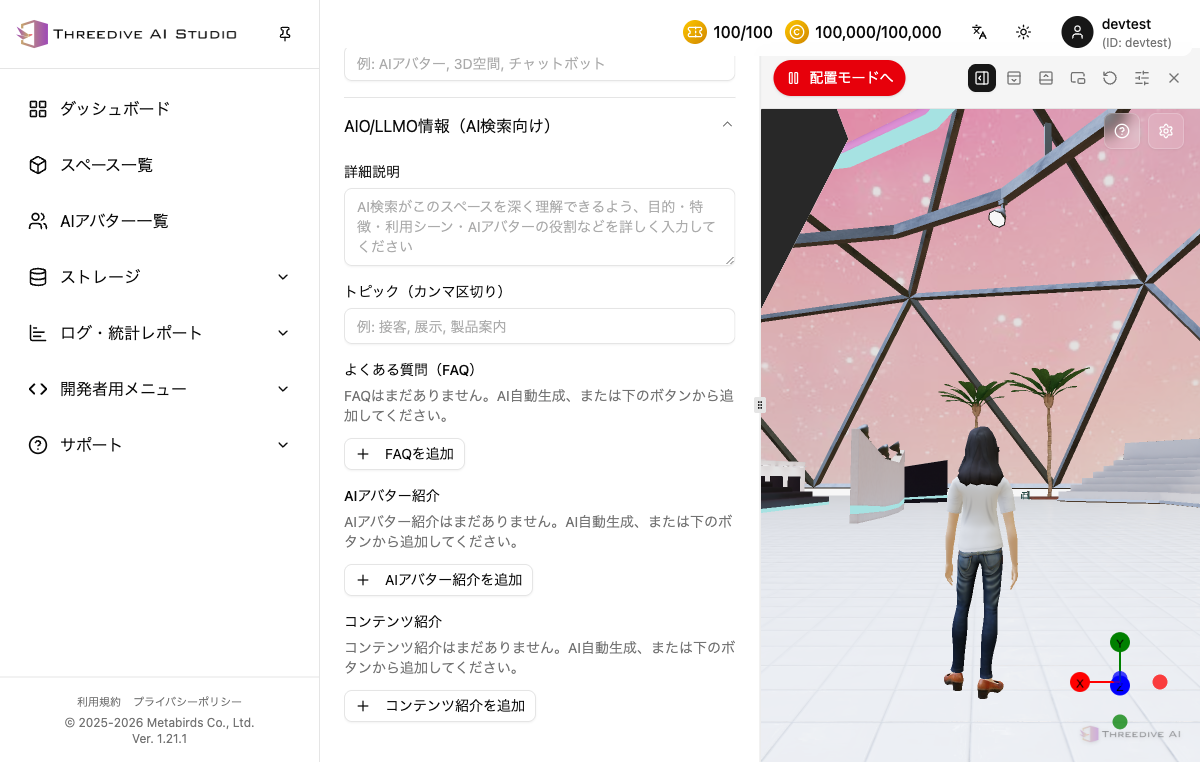 Category: SEO/AIO/LLMO Settings
Configure meta information for search engines, SNS, and AI (ChatGPT, etc.). When enabled, it is reflected in the HTML on publish.
Main Configuration Items
- Enable this feature: If off, the items below are not reflected
- Provide information to search engines: Output meta information for search engines (default ON)
- Provide information to AI: Output meta information for AI (ChatGPT, etc.) (default ON)
- AI Auto-Generate: Retrieves information from sources such as the space, placed AI Avatars, and knowledge base to automatically generate SEO/AIO/LLMO information (consumes 10 credits). Always check the content after generation
- SEO Information (for search engines): Page title (space name is used if left blank), meta description, etc.
- AIO/LLMO Information (for AI search): Detailed description, topics (comma-separated), FAQ, AI Avatar introduction, content introduction
Each item can be entered via "AI Auto-Generate" or the individual "Add" buttons.
Placement Mode (Added in v1.20.0)
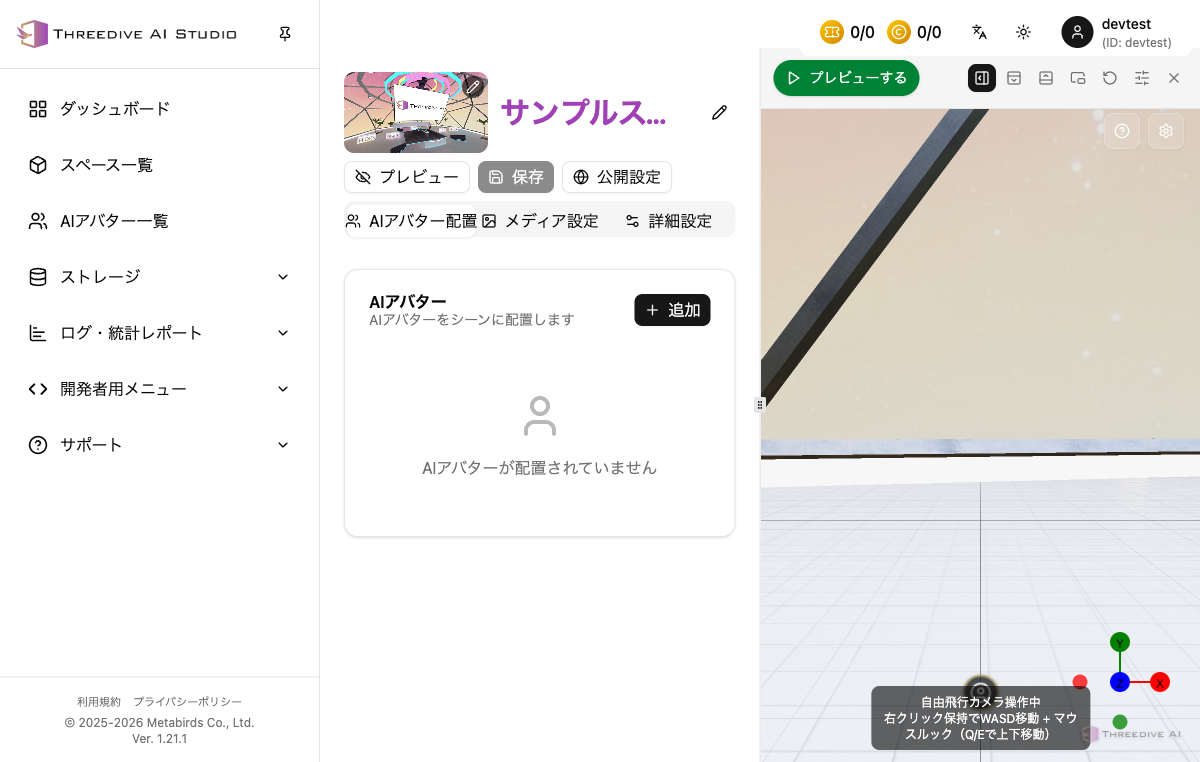 Switch via the "To Placement Mode" button at the top right of the preview screen
The "To Placement Mode" button at the top right of the preview screen lets you switch to a mode where you can directly select and manipulate scene elements (models, panels, simple objects, etc.) in the 3D view. This lets you adjust placement while checking the appearance, without hunting through the category dropdown.
How to Operate
- Free-fly camera control: Hold right-click and move with WASD, look around with the mouse. Move up/down with Q/E
- Anchors configured in the scene (AI recommended positions, dome panels, etc.) are displayed as an overlay
- Click "Preview" to return to normal preview display
JSON Editing
You can edit settings directly from "JSON Edit" at top right.
- UI-difficult detailed difference management
- Reuse of configuration templates
- Easy change review operation
See Space Settings JSON Detailed Specifications for specifications.
Recommended Operation Flow
- Create basic configuration in AI Avatar Placement/Media Settings
- Adjust position, rotation, display behavior in Advanced Settings
- Confirm in preview
- Save and proceed to publish settings