Space Settings: AI Avatar Placement Tab
- Role of AI Avatar Placement tab
- Each item in AI Avatar addition dialog
- Practical configuration points during placement
Tab Role
In the AI Avatar Placement tab, you add and edit AI Avatars to display in the space. Conversation content (prompts and voice modes) is managed on the AI Avatar List side.
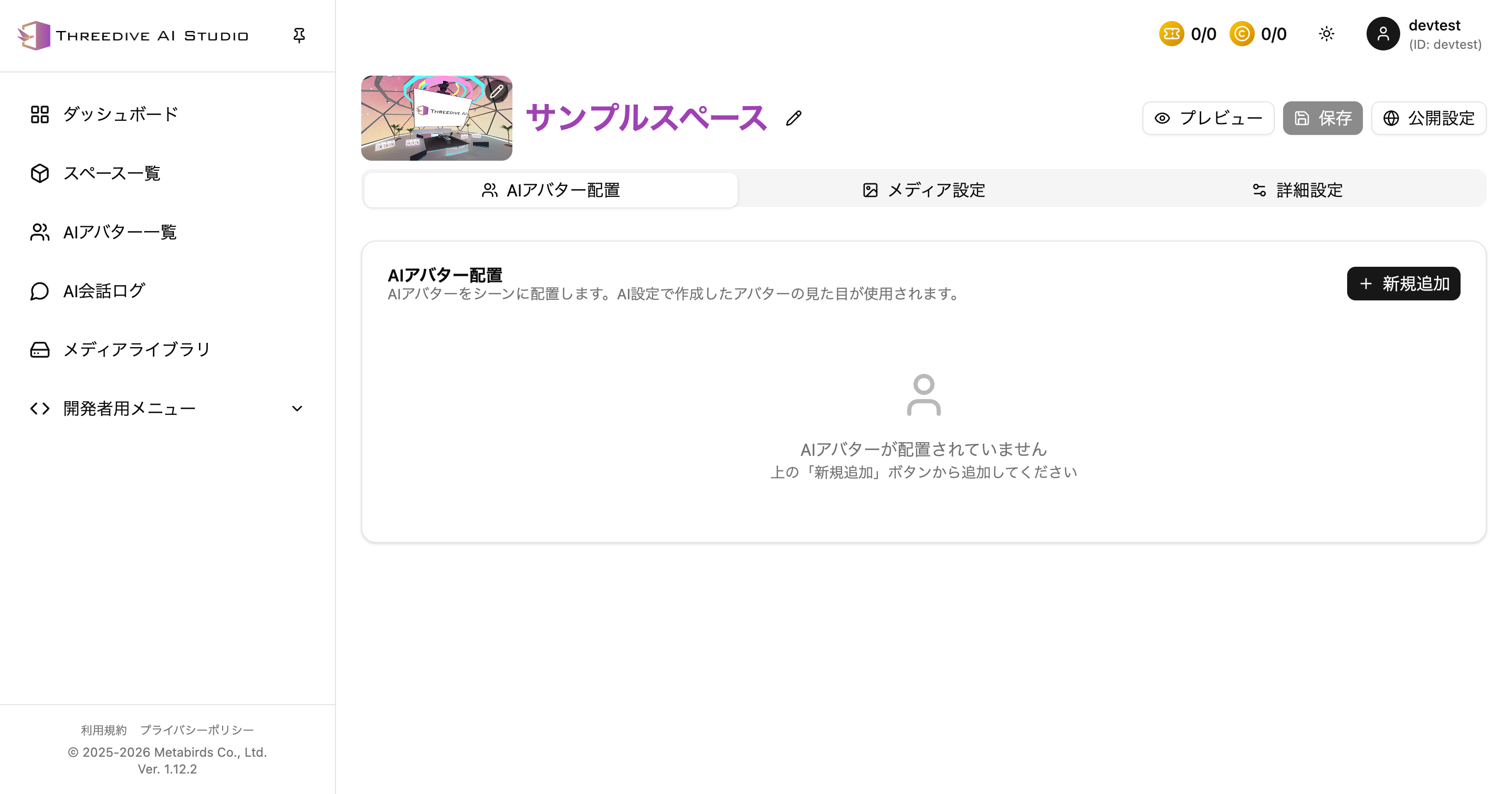 Space Settings > AI Avatar Placement tab as of April 17, 2026
Prerequisites
- Create AI Avatars in AI Avatar List
- Open Space Settings screen
- Select "AI Avatar Placement" tab
Steps to Add AI Avatar
- Click "Add New"
- Configure each item in the addition dialog
- Click "Add"
- Execute "Save" as needed
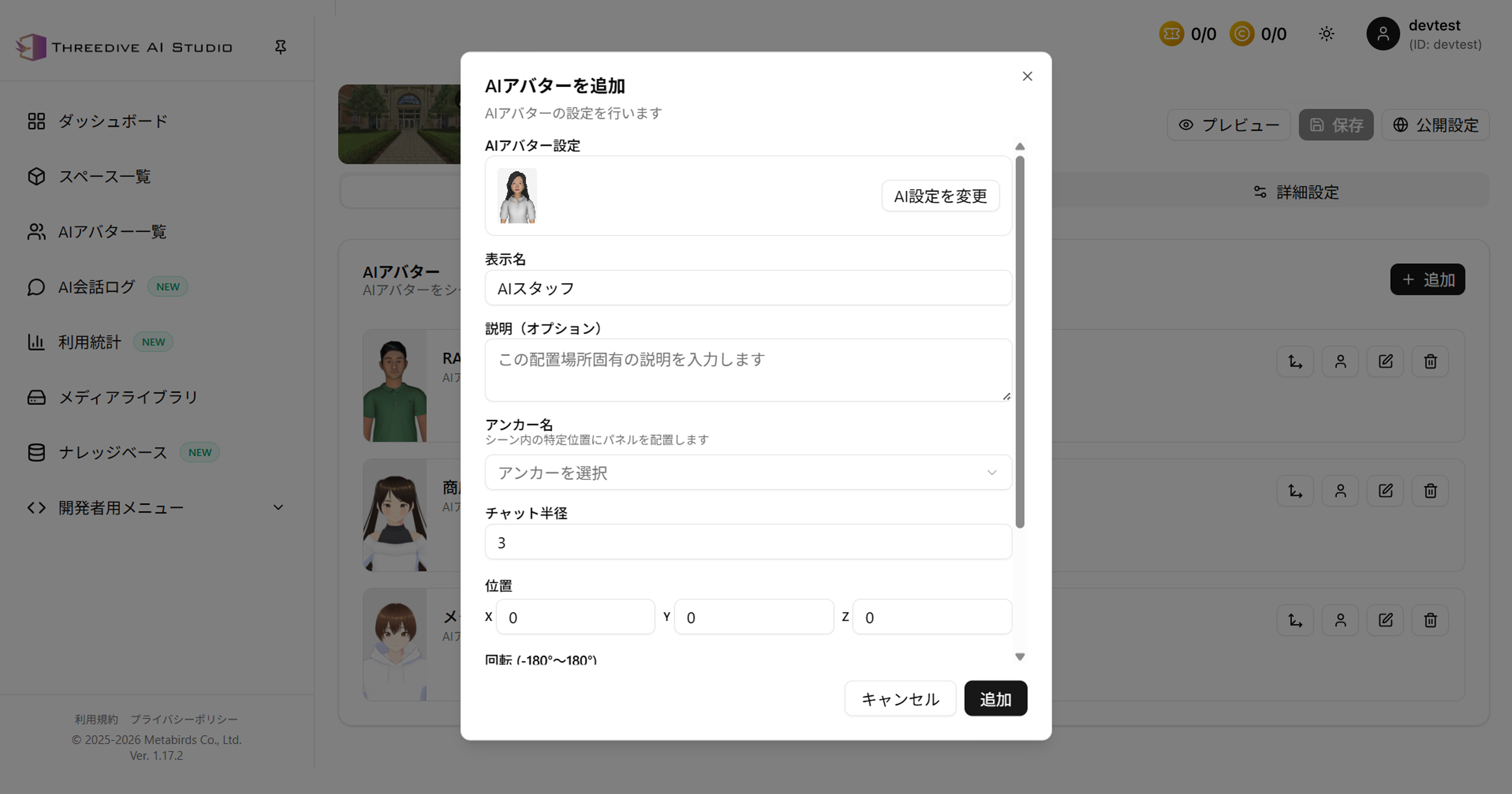 AI Avatar addition dialog as of May 17, 2026
Configuration Items in Addition Dialog
AI Avatar
- Select the AI Avatar to use
- You can switch to another AI from "Change"
Display Name
- Set a name that's easy to identify in the space
- Example:
Reception AI,Product Guide AI,Purchase Consultation AI
Description (Optional)
- Describe the role specific to the placement location
- Effective to write specifically to improve Autopilot guidance accuracy
Anchor Name
Determine the position to place the AI Avatar.
- Select an anchor set as a recommended position in the scene from the pull-down list
- If you want to fix position design, unify anchor names in operation
- If unspecified (manual placement), free placement operation is possible by coordinate specification or on the preview screen *See Points for Manual AI Avatar Placement below for details
Chat Radius (m)
- Specify the distance at which users can start conversation
- In crowded spaces, a smaller radius can reduce false triggers
Operational Points
- When placing multiple AIs in one space, clarify roles with display name and description
- Start with a minimal configuration (1-2 avatars) for publication, then gradually increase while checking logs for safety
- Be sure to preview and save after adding or editing
Points for Manual AI Avatar Placement
- If the AI Avatar anchor is unspecified, there are two methods for manual placement:
- Enter position and rotation in the dialog to place.
*However, position specification may be difficult because the origin (0,0,0) differs depending on the scene. In that case, we recommend checking the information display > display my position from the gear icon at the top right of the preview screen and entering coordinates displayed at the top left as a reference.
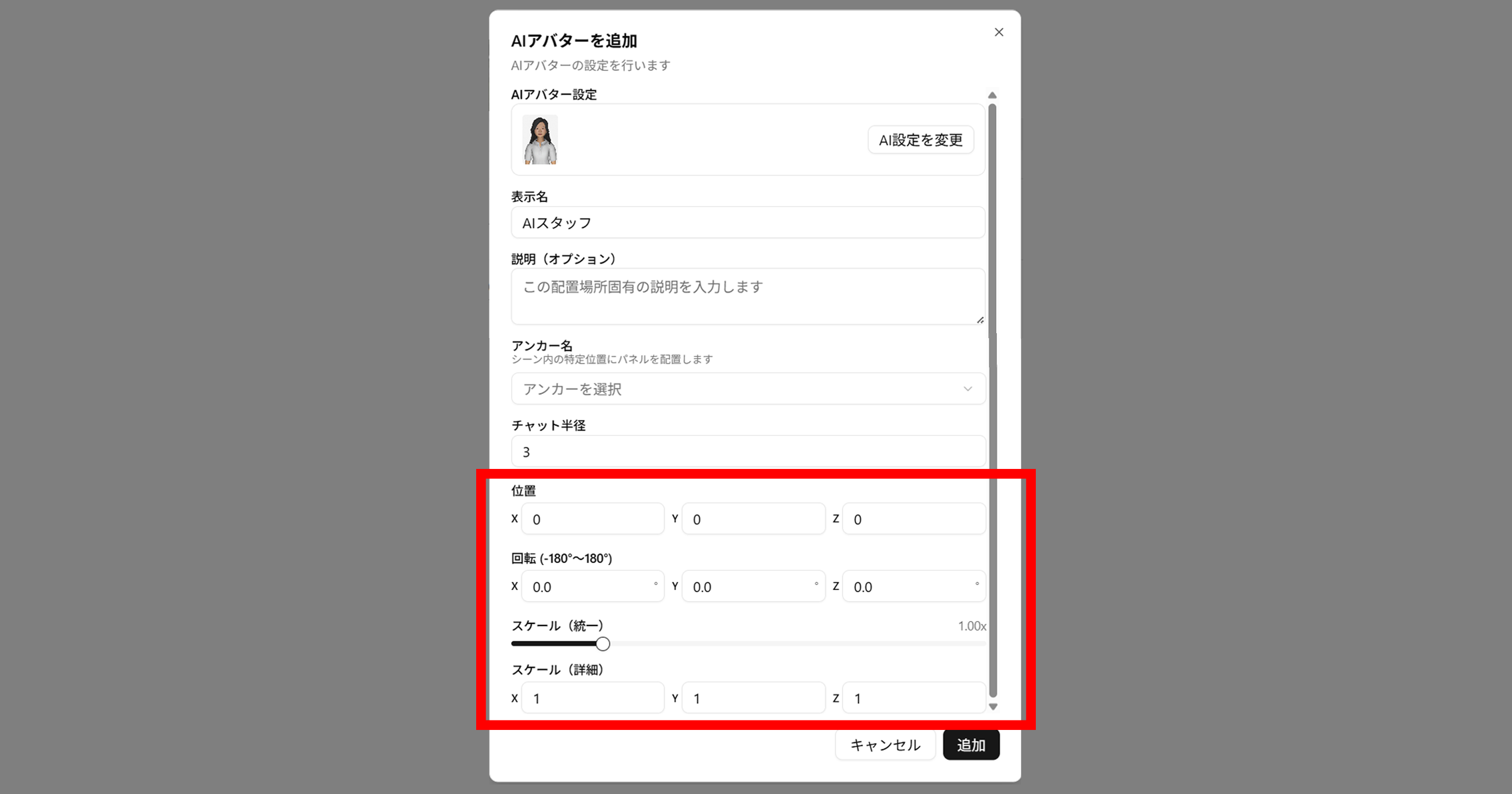 Position, rotation, scale in AI Avatar dialog
- Place at your preferred position on the preview screen.
Adjust to your preferred position by operating the coordinate arrows displayed on the preview screen.
*For preview screen operations, we recommend approaching a position where the AI Avatar is clearly visible by operating mouse right-click, left-click, and wheel to determine the position.
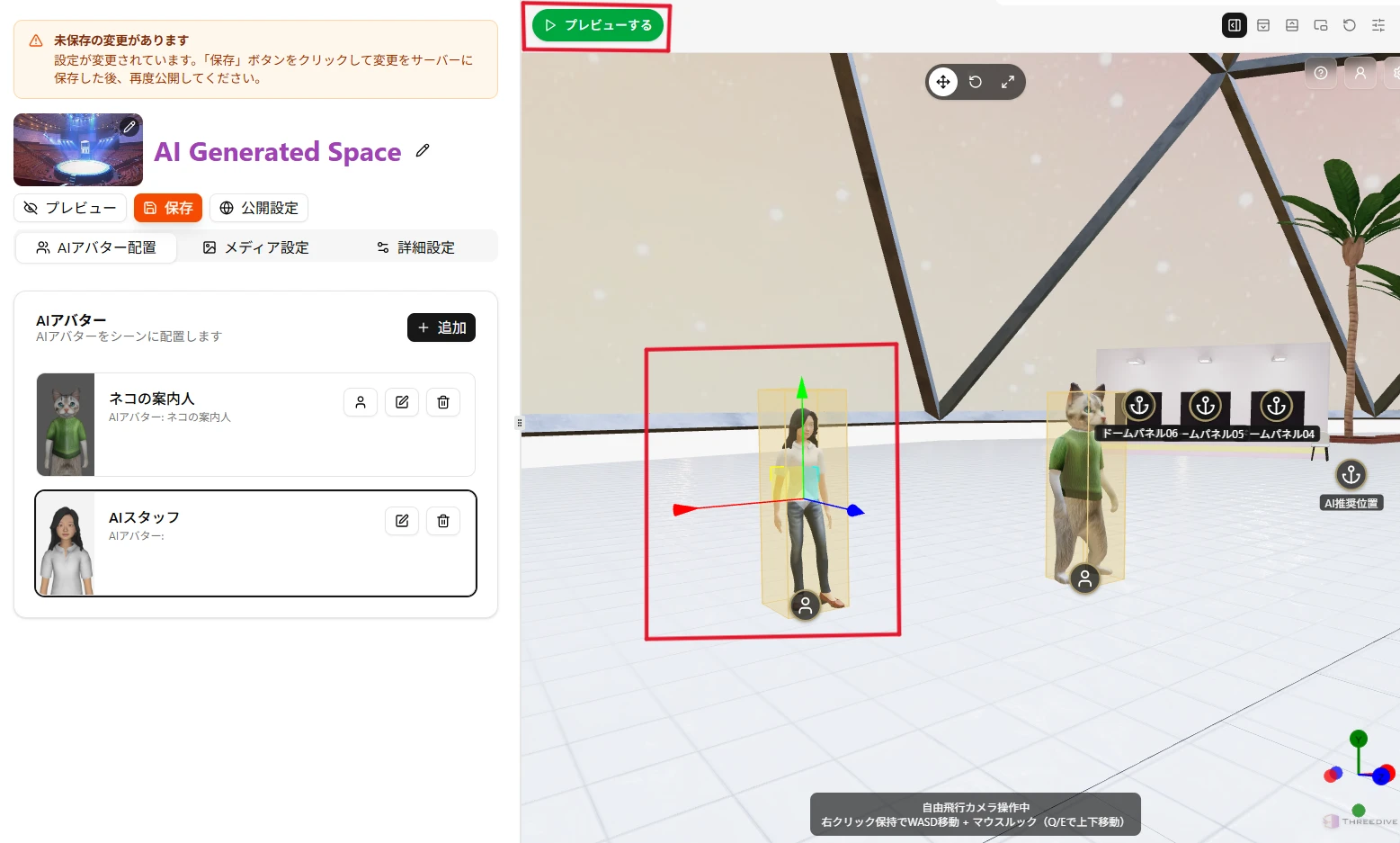 Coordinate AI Avatar addition dialog
In scenes created with 3DGS etc., when placing AI Avatars, they may float in the air or sink into the floor. In this case, you need to correct with this manual placement.