Space Settings: Media Settings Tab
- Content manageable in Media Settings tab
- Steps to change BGM settings
- Steps to change 360-degree panorama settings
- How to proceed with panel settings confirmation and editing
Tab Role
In the Media Settings tab, you manage the following media used in spaces:
- BGM
- 360-degree panorama
- Panels (including presets)
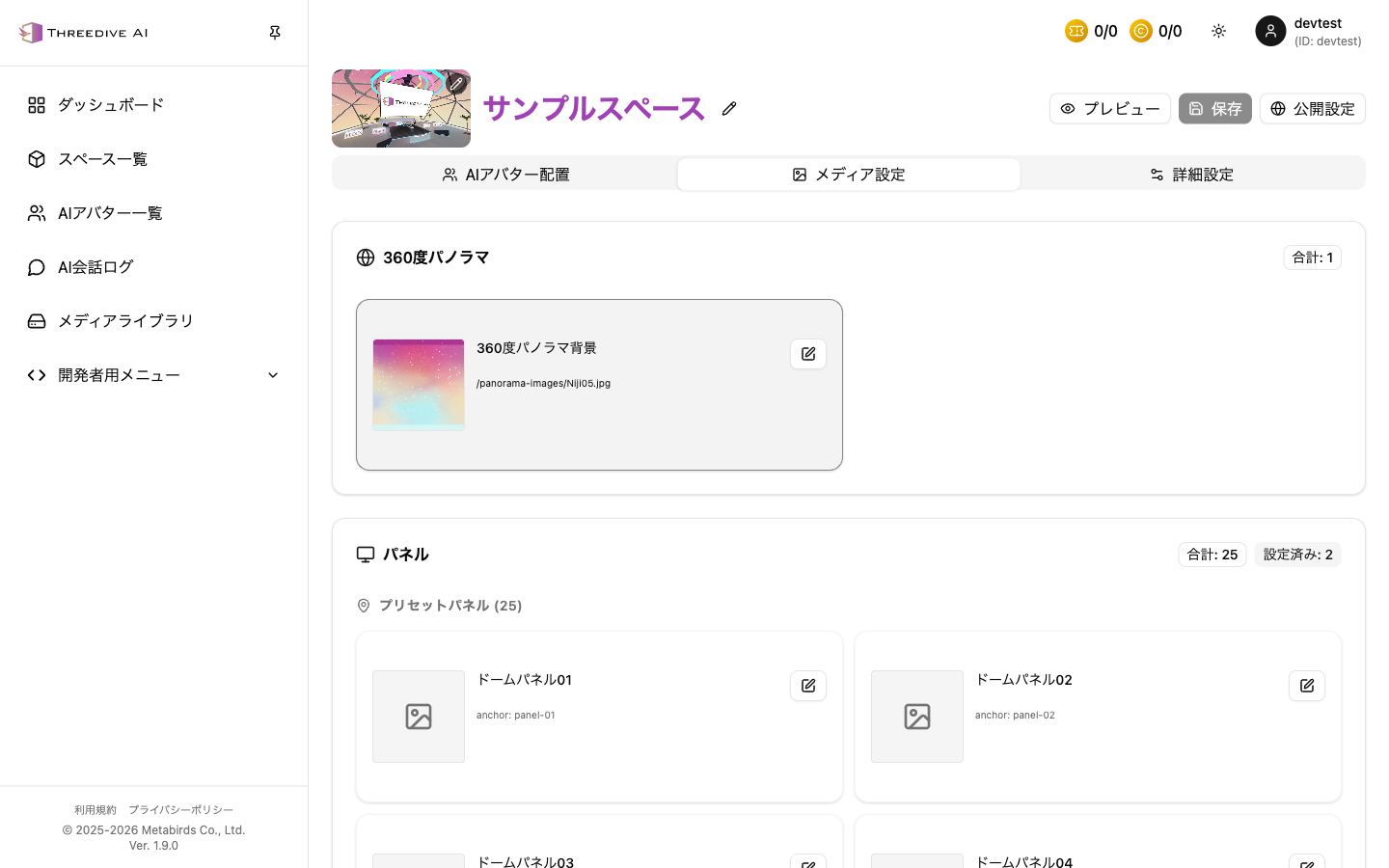 Space Settings > Media Settings tab
BGM Settings
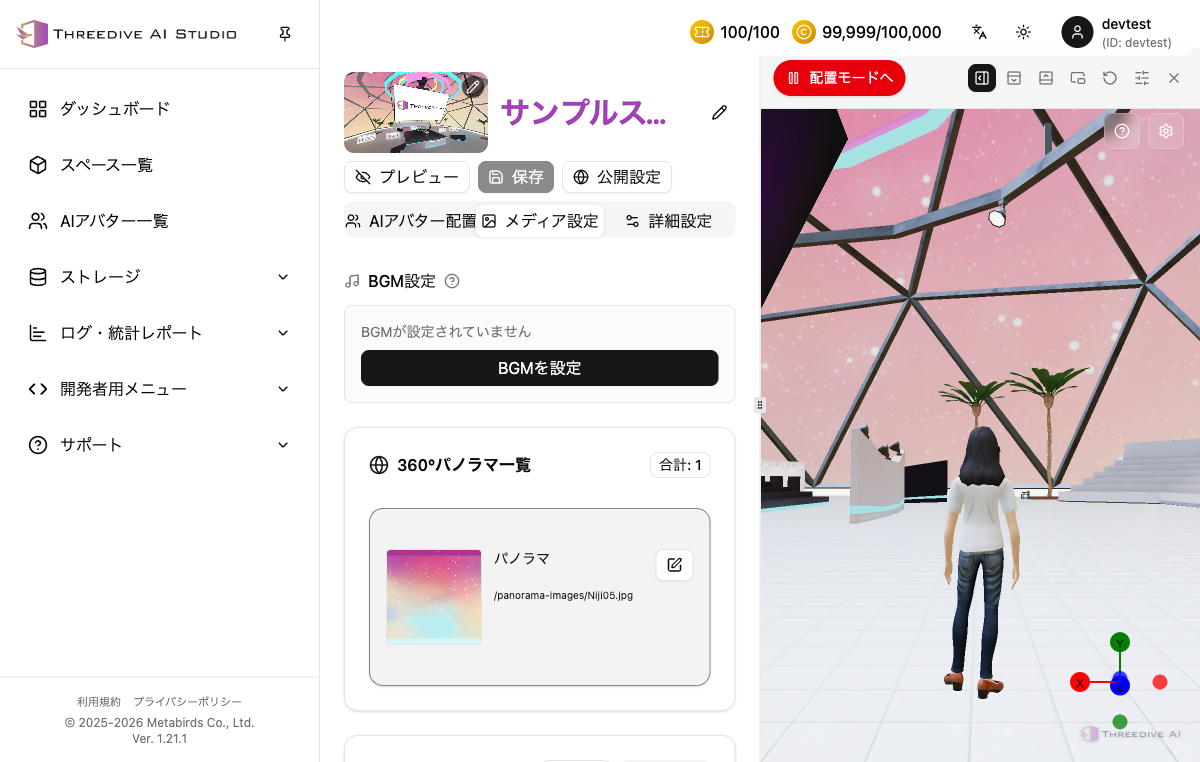 "BGM Settings" at the top of the Media Settings tab
You can set background music to play inside the space. If unset, "No BGM set" is displayed. From the "Set BGM" button, specify an audio file uploaded to Media Library or a URL.
Changing 360-degree Panorama
- Click the edit button in the "360-degree Panorama" section
- Specify image URL (or select from Media Library with "Select")
- Generate new image with "Generate" if needed
- Click "Save"
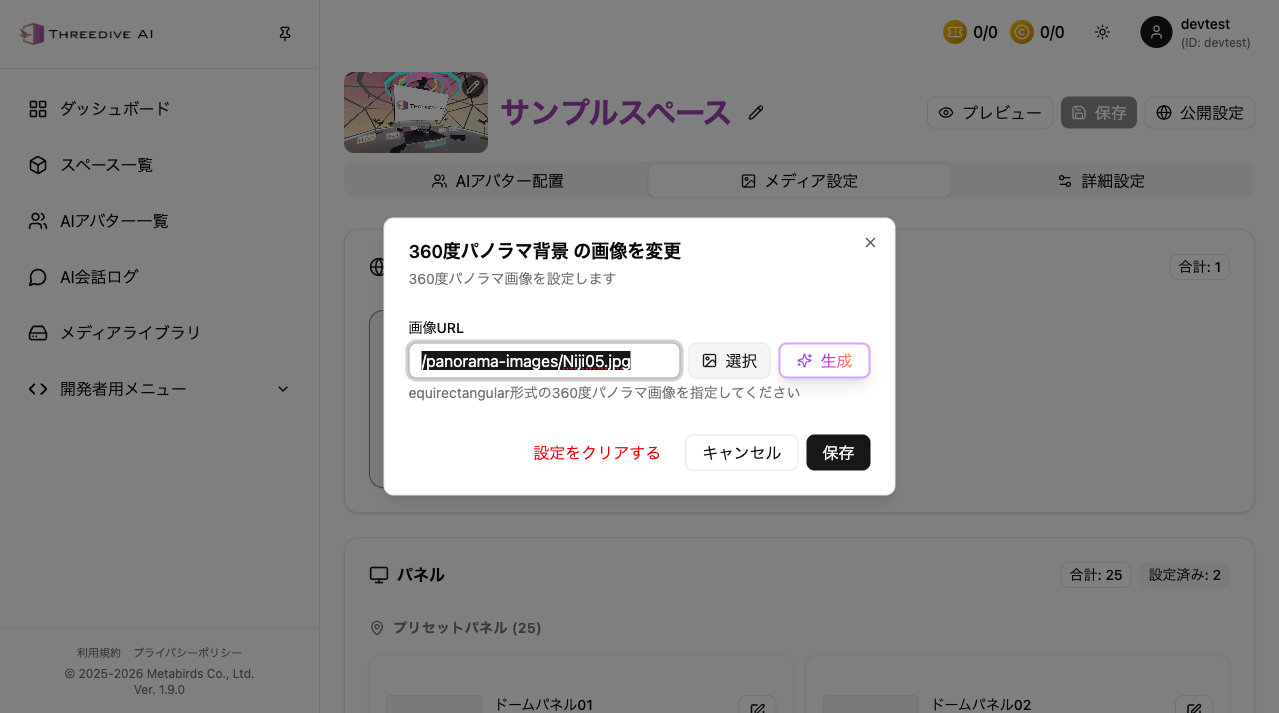 360-degree panorama background image change dialog
The "Reset" button in the edit dialog is not simply an "undo to the previous URL" button (added in v1.18.4).
- If a preset scene is selected: it reverts to the preset's panorama state
- If no preset scene is selected: it deletes all panoramas
For spaces without a preset scene, resetting will remove the panorama you had configured, so use it with care.
Notes on URL Specification
- Use equirectangular format 360-degree images
- After updating URL, check orientation and seams in preview
Panel Confirmation and Editing
- In the panel section, you can check the number and list of configured panels
- From each panel's edit button, you can update content URL and display settings
For panel position, rotation, scale, and detailed control, it's easier to manage by adjusting in the Advanced Settings tab.
Media Library Integration
The stable flow is to first perform addition, generation, and URL management on the Media Library side, then confirm application in this tab.
Frequently Used Work Flow
- Upload/generate in Media Library
- Apply in Media Settings tab
- Adjust position and display behavior in Advanced Settings tab as needed
- Check in preview and save