Quickstart (Developer Guide)
- Overview of developer features
- How to access the Developer Menu in Threedive AI Studio
- JSON configuration basics
- Preparation for API usage
About Developer Features
Threedive AI provides the following developer features through Threedive AI Studio:
Available Features
- Direct JSON Editing: Directly edit and customize Space settings in JSON format
- AI Avatar Configuration Management: Manage conversation settings and appearance of AI avatars
- Media Library API Integration: Programmatic control of file uploads and management
- Advanced 3D Space Customization: Detailed control of entity placement
Developer Menu in Threedive AI Studio
Access Method
Advanced developer settings are available through the "Developer Menu" in Threedive AI Studio:
- Access https://app.threedive.ai/
- Sign-in is required
- Expand "Developer Menu" in the sidebar
- Access the following submenus:
- LLM Provider Settings
- TTS Provider Settings
- Realtime Provider Settings
- Error Log
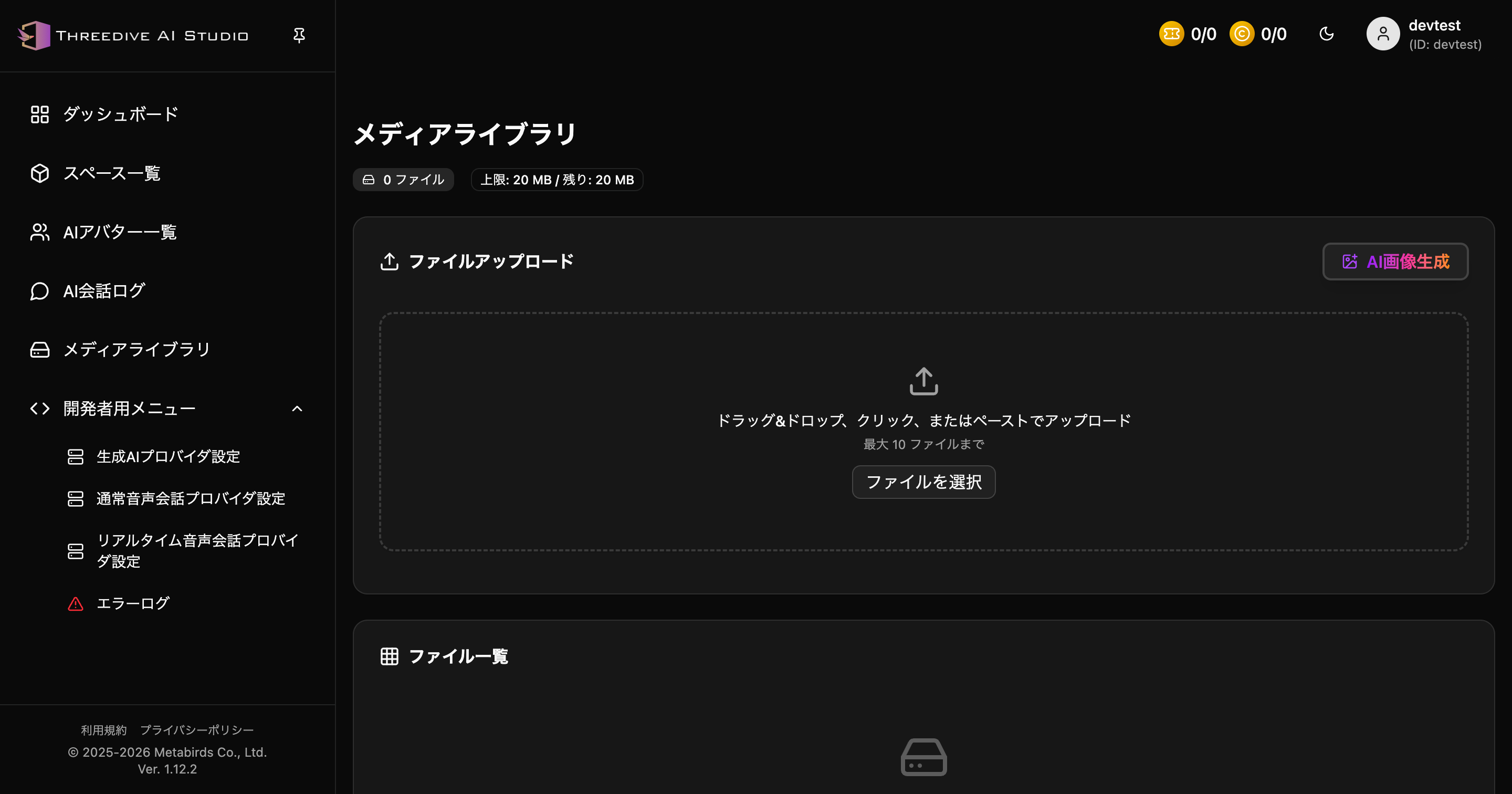 Threedive AI Studio - Developer Menu Expanded
Main Developer Menus
1. Space Settings JSON Editor
You can directly edit 3D Space settings in JSON format from the "Advanced Settings" tab in Space settings in Threedive AI Studio.
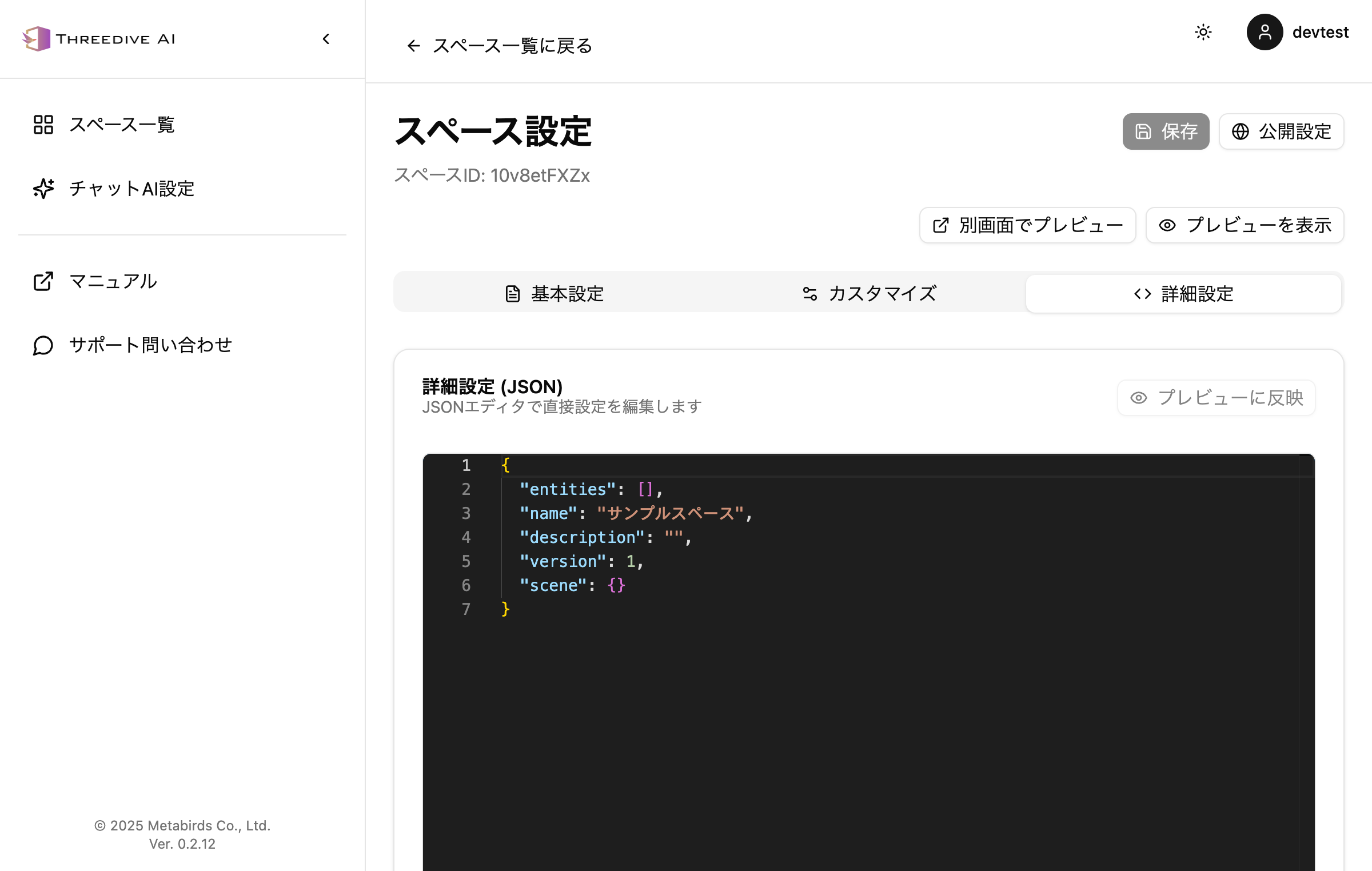 Advanced Settings Tab in Space Settings - Direct editing with JSON editor
For details, see Space JSON Specification.
2. LLM Provider Settings
Detailed configuration of AI generation services from "LLM Provider Settings" in the Developer Menu.
- Provider selection and configuration
- API key management
- Model parameter adjustment
For details, see LLM Provider Settings.
3. Voice Conversation Provider Settings
Detailed settings for voice conversation features:
- TTS Provider Settings: Configuration for standard voice conversation features - Details
- Realtime Provider Settings: Configuration for real-time voice interaction - Details
4. Error Log
System error checking and debugging:
- Check error history
- Retrieve debug information
- Troubleshooting
For details, see Error Log Guide.
5. AI Avatar Configuration Management
You can configure appearance, prompts, voice modes, etc. from the AI Avatar list screen.
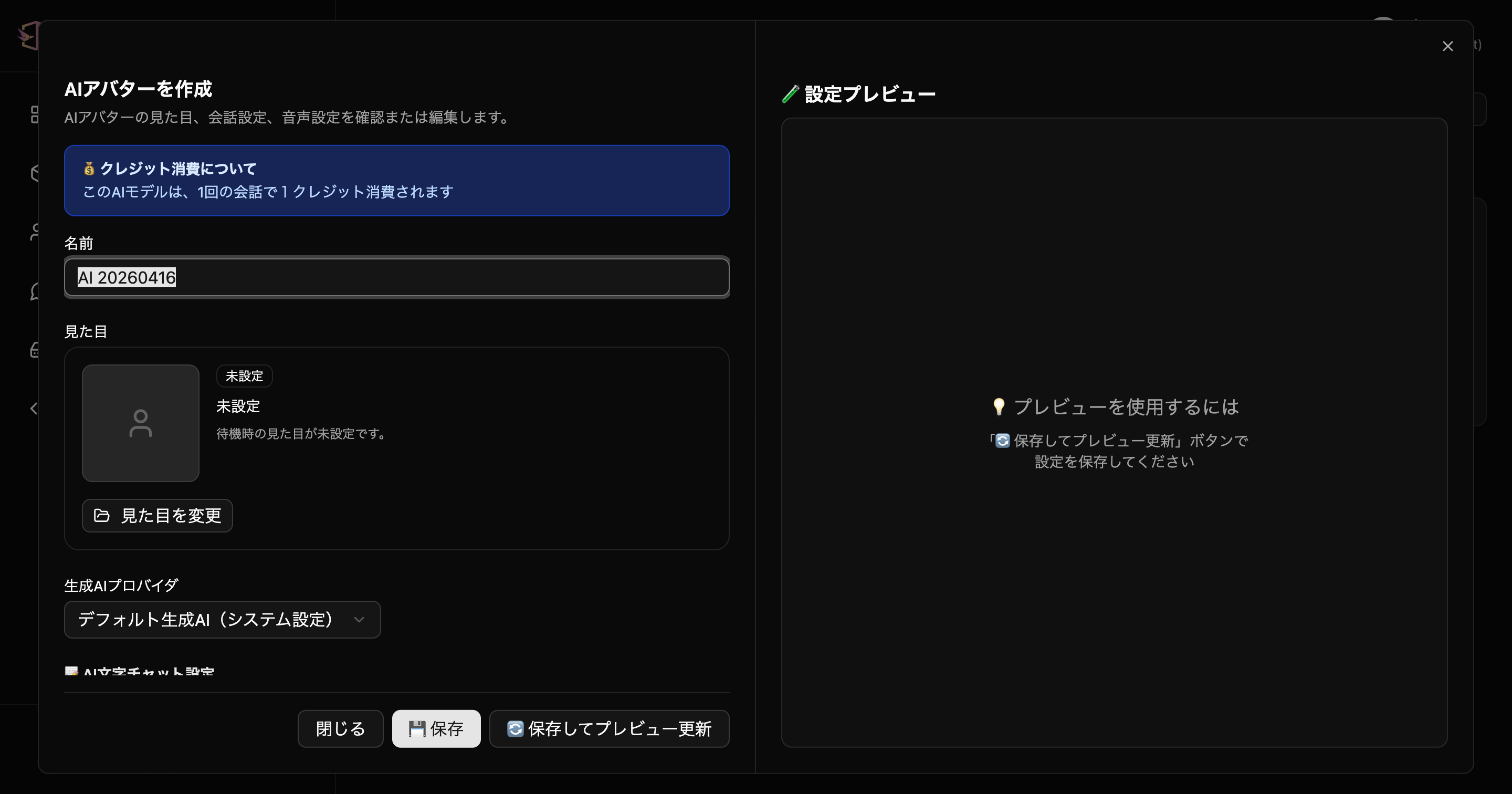 AI Avatar Creation Dialog - You can check appearance, conversation settings, and voice settings
6. Media Library Management
Upload and manage files for use within 3D spaces.
Development Flow
Step 1: Understanding Basic Configuration
First, perform basic Space and AI Avatar configuration using the Threedive AI Studio UI:
- Create a Space
- Create an AI Avatar
- Place the AI Avatar from the "AI Avatar Placement" tab in the Space
Step 2: Customization with JSON Configuration
For more advanced customization, use the JSON editing feature:
- Open the "Advanced Settings" tab in Space settings
- Edit the configuration in the JSON editor
- Save and verify the behavior
Step 3: Full-Scale Development
Understand the JSON specifications and manage configurations programmatically:
- Refer to Space JSON Specification
- Define entity placement and behavior
- Integrate with AI Avatar and Space settings
Technical Specifications
Coordinate System
- Coordinate System: Right-handed coordinate system (Y-axis is up)
- Position Unit: Meters
- Rotation Unit: Degrees in UI display, radians (Euler angles) in JSON specification
File Formats
- 3D Models: GLB format (recommended)
- Textures: PNG, JPG
- Audio: MP3, WAV
Limitations
For current limitations, please check Threedive AI Studio.
Next Steps
- Space JSON Specification - Learn JSON configuration details
- Site Administrator Guide - Learn basic management features
Support
For questions about development, please contact us through "Support Inquiry" in Threedive AI Studio.