Error Log Guide
What You'll Learn
- How to check error logs
- How to read logs
- How to utilize them for debugging
Overview
Error Log allows you to check detailed logs of errors that occurred during AI chat (for developers).
Access Method
- Log in to Threedive AI Studio
- Click and expand "Developer Menu" in the sidebar
- Select Error Log
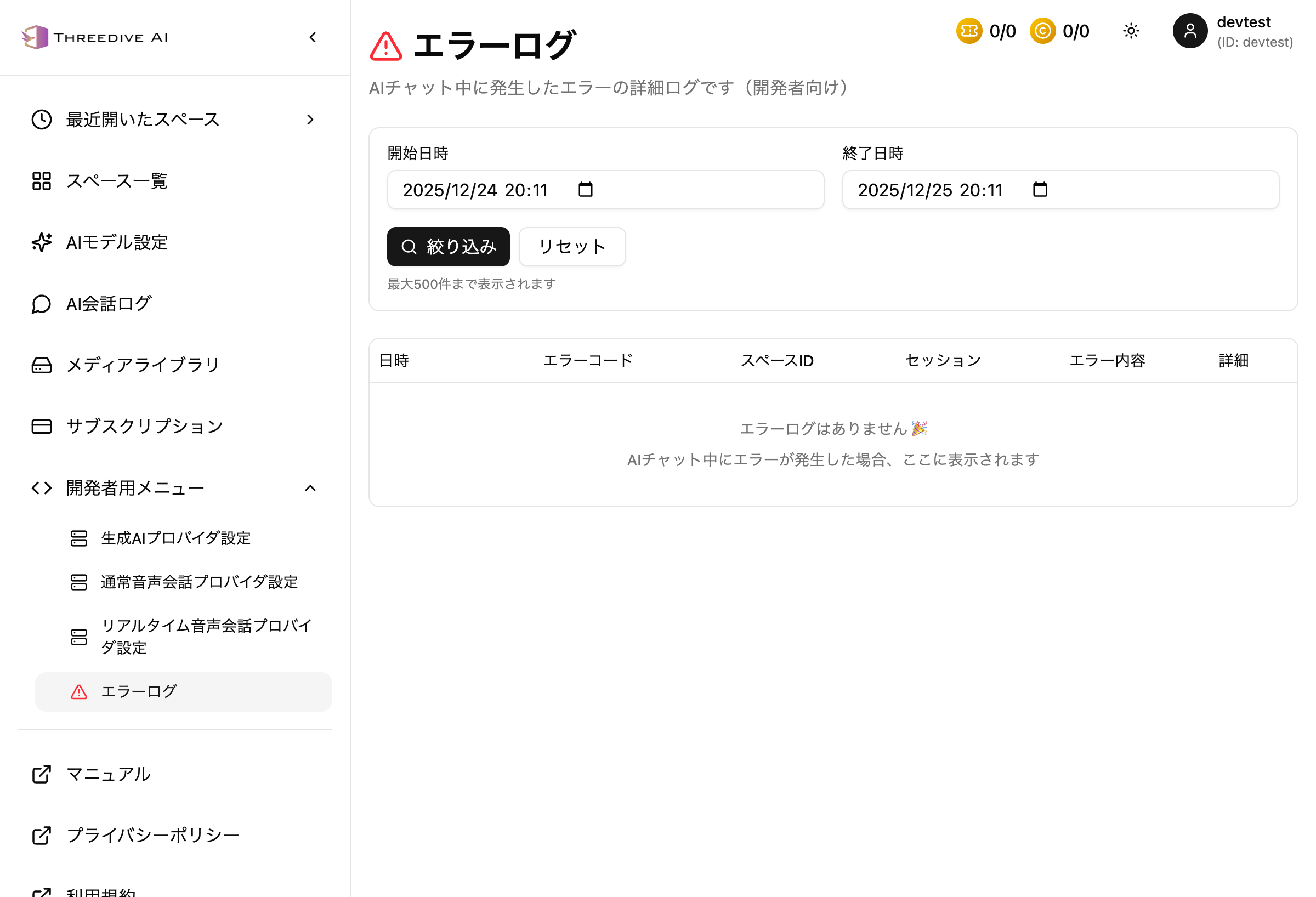 Error Log screen - You can check errors during AI chat
How to Check Logs
Period Specification
- Specify Start Date/Time and End Date/Time
- Click the "Filter" button
Display Items
The following information is displayed in error logs:
| Item | Description |
|---|---|
| Date/Time | Error occurrence date/time |
| Error Code | Code indicating the type of error |
| Space ID | ID of the Space where the error occurred |
| Session | Chat session identification information |
| Error Content | Error summary |
| Details | Detailed error information |
Display Limit
- Up to 500 items are displayed
When There Are No Errors
When there are no error logs, the following message is displayed:
エラーログはありません 🎉
AIチャット中にエラーが発生した場合、ここに表示されます
Utilizing for Debugging
Confirmation Procedure When Errors Occur
- Access the Error Log screen
- Identify the error by occurrence date/time
- Check error code and error content
- Identify related information by Space ID and session
- Investigate error cause with detailed information
Regular Checks
Regularly checking error logs helps with early detection and improvement of problems.
Next Steps
- LLM Provider Settings - Check and change provider settings
- Space JSON Specification - Debug 3D Space settings
- Site Administrator Guide - Basic management features
Support
If you have trouble checking error logs or solving problems, please contact us through "Support Inquiry" in Threedive AI Studio. Attaching error log screenshots or error messages enables faster support.