Realtime Provider Settings
- How to navigate Realtime Provider Settings
- Configuration items for OpenAI Realtime API
- How to select conversation models and speech recognition models
Overview
Realtime Provider Settings manages the connection destinations for Realtime API used in Studio's bidirectional voice conversations.
As of 2026-04-17, the Realtime provider that can be configured in Studio is OpenAI Realtime API.
Access Method
- Log in to Threedive AI Studio
- Open the Developer Menu in the left menu
- Select Realtime Provider Settings
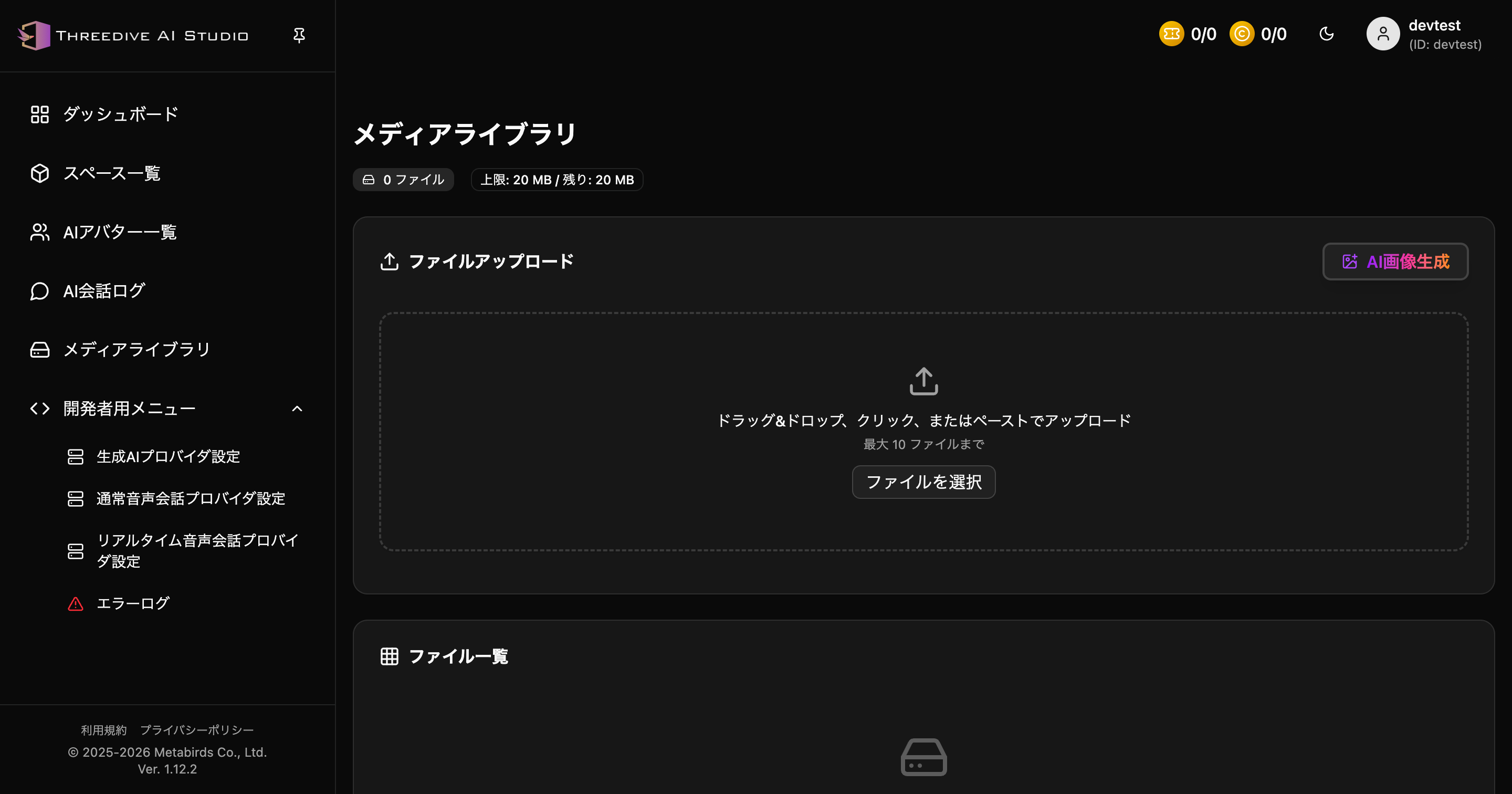 You can access Realtime settings from the Developer Menu
Settings Screen
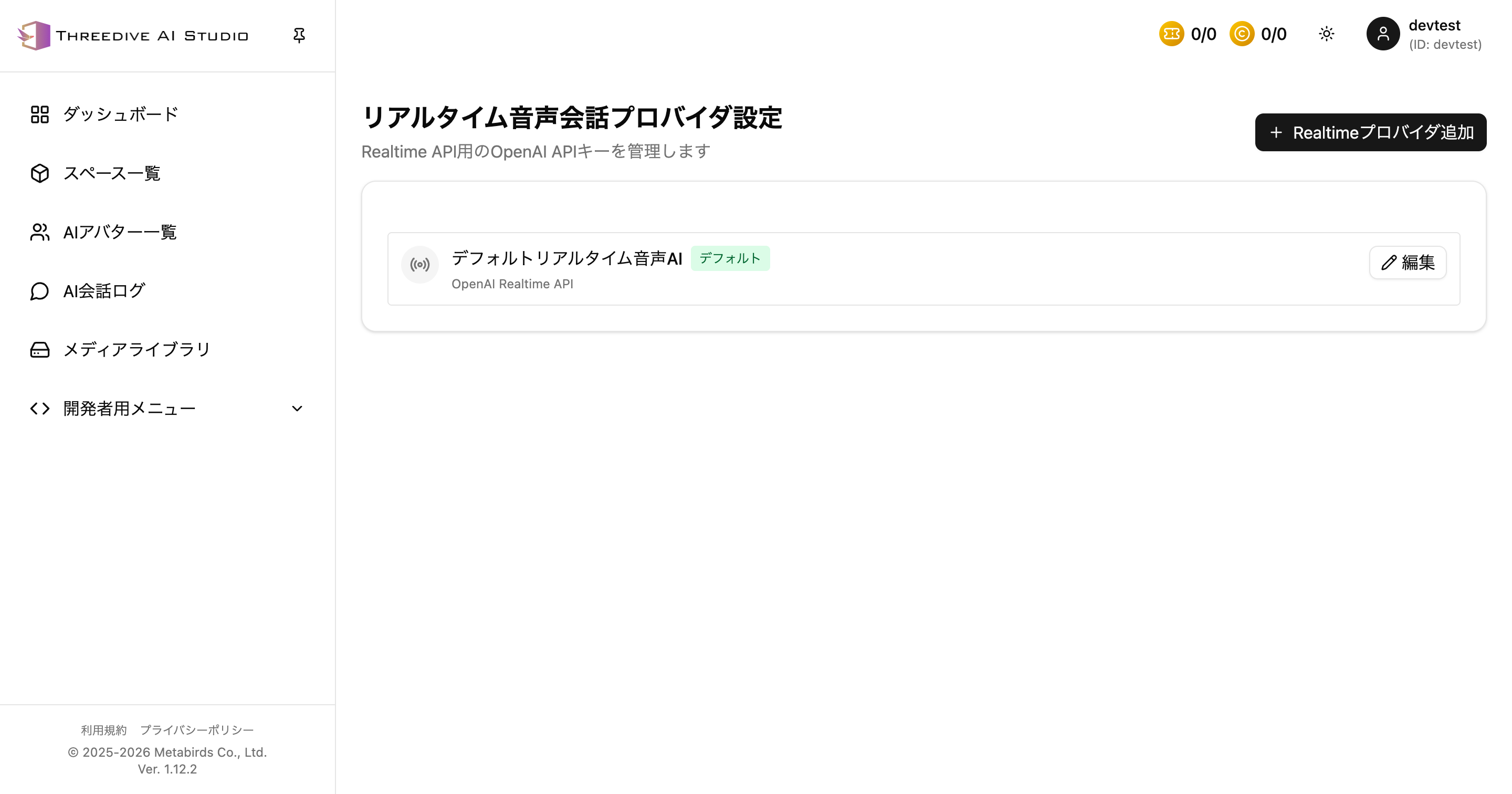 Realtime Provider Settings screen as of 2026-04-17
By default, Default Realtime Voice AI is displayed with the description OpenAI Realtime API.
Adding Realtime Providers
Add from Add Realtime Provider in the upper right.
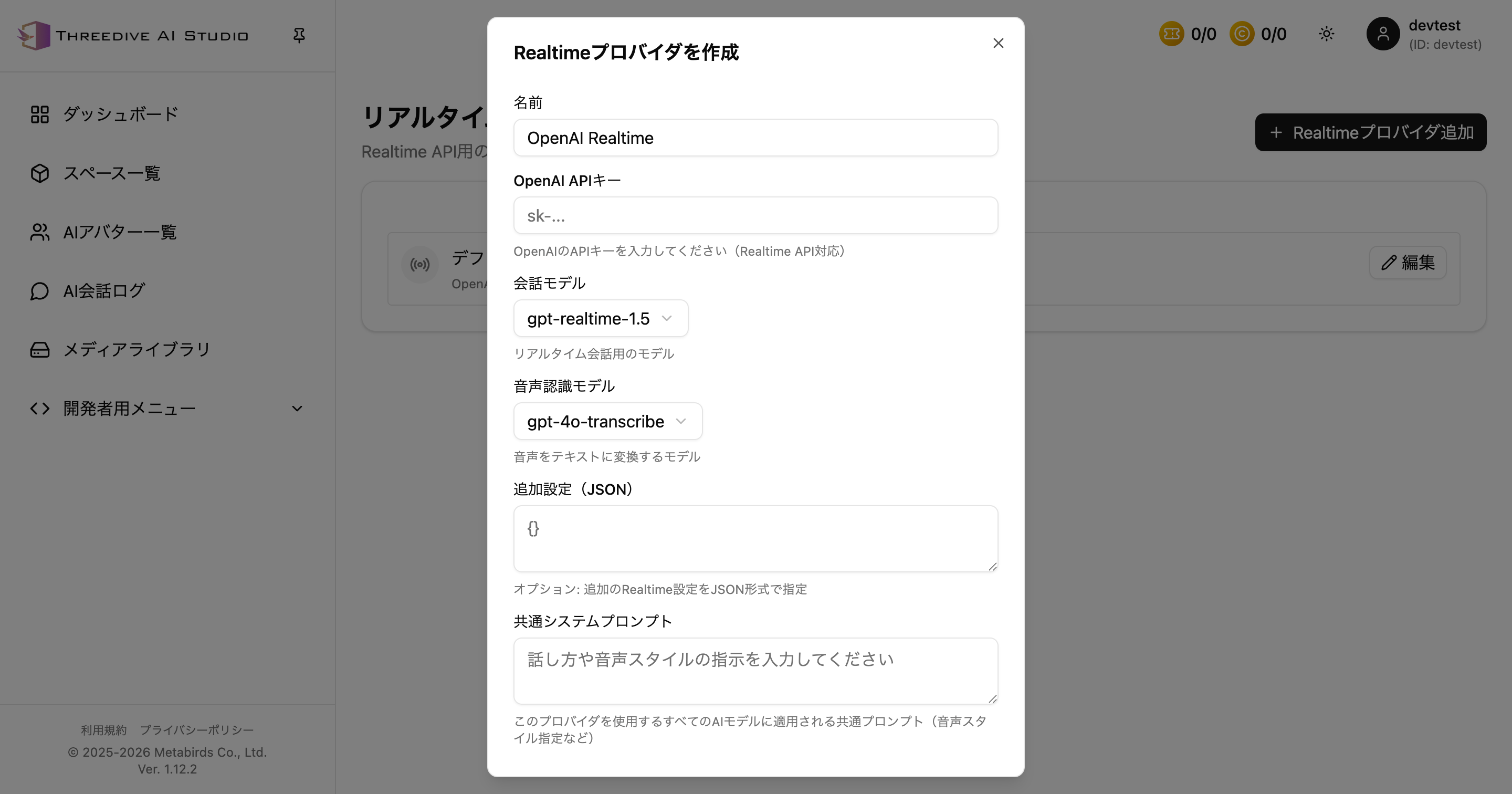 Connection settings dialog for OpenAI Realtime API
Configuration Items
Name
The configuration name to display in the list. The default value is OpenAI Realtime.
OpenAI API Key
Enter an OpenAI API key that can use the Realtime API.
Conversation Model
The Realtime model used for the voice conversation itself. As of 2026-04-17, the selectable candidates are:
gpt-realtime-1.5gpt-realtimegpt-realtime-mini
The default display is gpt-realtime-1.5.
Speech Recognition Model
The model that transcribes user speech. The selectable candidates are:
gpt-4o-transcribegpt-4o-transcribe-mini
The default display is gpt-4o-transcribe.
Additional Settings (JSON)
Specify additional settings to pass to the Realtime API in JSON. Use only when you want to adjust detailed parameters.
Common System Prompt
A system prompt commonly applied to all AI models using this Realtime provider.
Use when you want to unify voice tone and response policies.
Adding Procedure
- Click Add Realtime Provider
- Enter name and OpenAI API key
- Select conversation model and speech recognition model
- Enter JSON and common system prompt as needed
- Click Save
After saving, it will be added to the list, and you can update API keys and models from Edit.
Differences from TTS Provider
| Item | TTS Provider | Realtime Provider |
|---|---|---|
| Use Case | Text-to-speech focused | Bidirectional real-time conversation |
| Main Support | OpenAI / ElevenLabs | OpenAI Realtime API |
| Typical Settings | Voice model, language, voice settings | Conversation model, speech recognition model |
Operational Notes
- Manage API keys securely
- Re-enter from the edit screen when replacing keys
- Check Realtime usage according to your contract and API usage status