TTS Provider Settings
- How to configure TTS Provider settings
- Configuration items for OpenAI / ElevenLabs
- How to manage API keys for TTS (Text-to-Speech)
- How to add TTS providers
Overview
Manages provider settings for TTS (Text-to-Speech). As of April 17, 2026, Studio supports OpenAI and ElevenLabs.
Access Method
- Log in to Threedive AI Studio
- Click and expand "Developer Menu" in the sidebar
- Select TTS Provider Settings
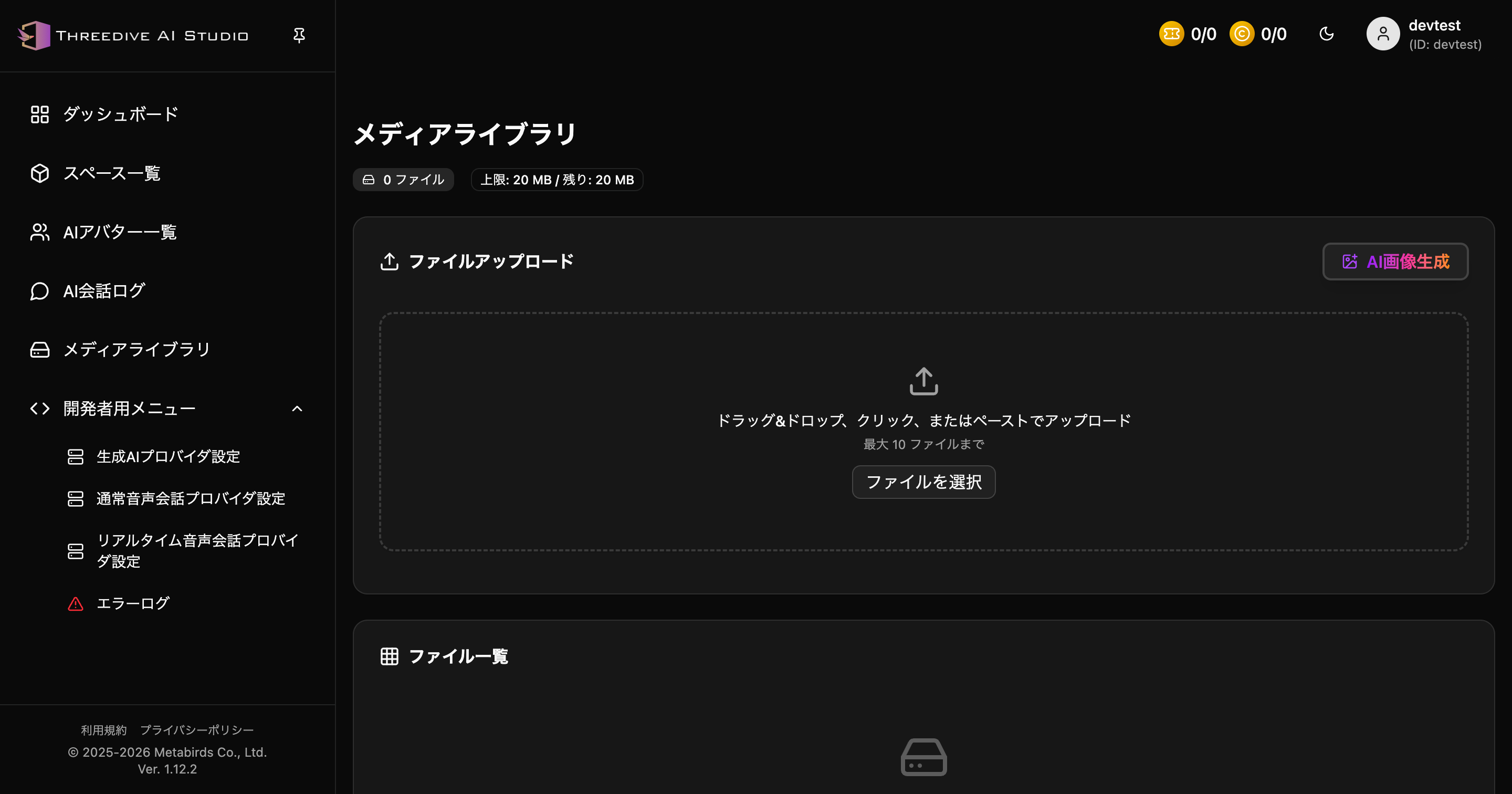 Developer Menu expanded
Settings Screen
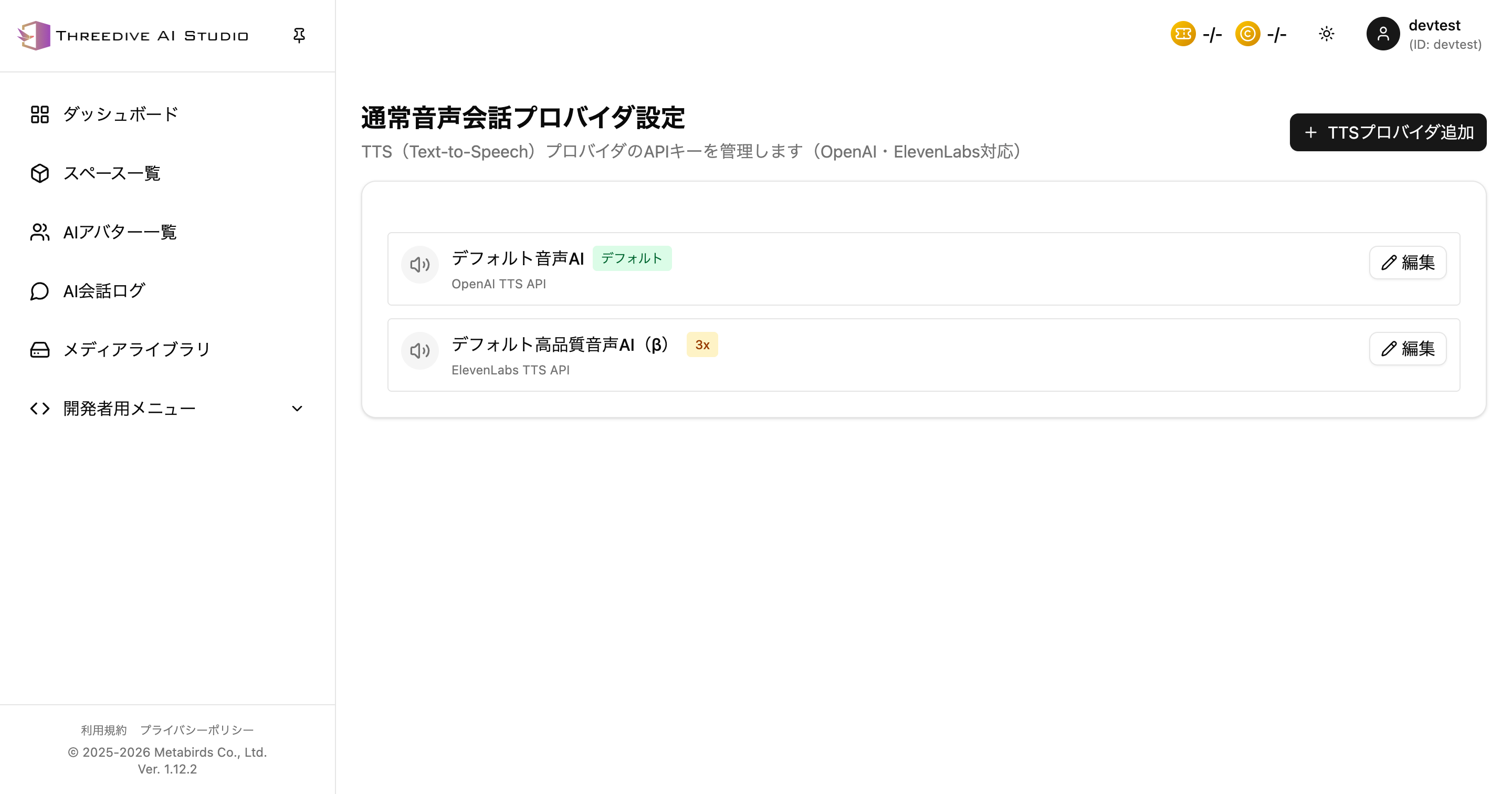 TTS Provider Settings screen - Manage API keys for TTS
Default Settings
The system has the following default settings:
- Default TTS AI: OpenAI TTS API (Default)
- Default High-Quality TTS AI (β): ElevenLabs TTS API
On the list screen, you can check the service name and "Edit" button for each provider.
Adding TTS Providers
You can configure additional TTS providers from the "Add TTS Provider" button. In the add dialog, first select the Provider Type.
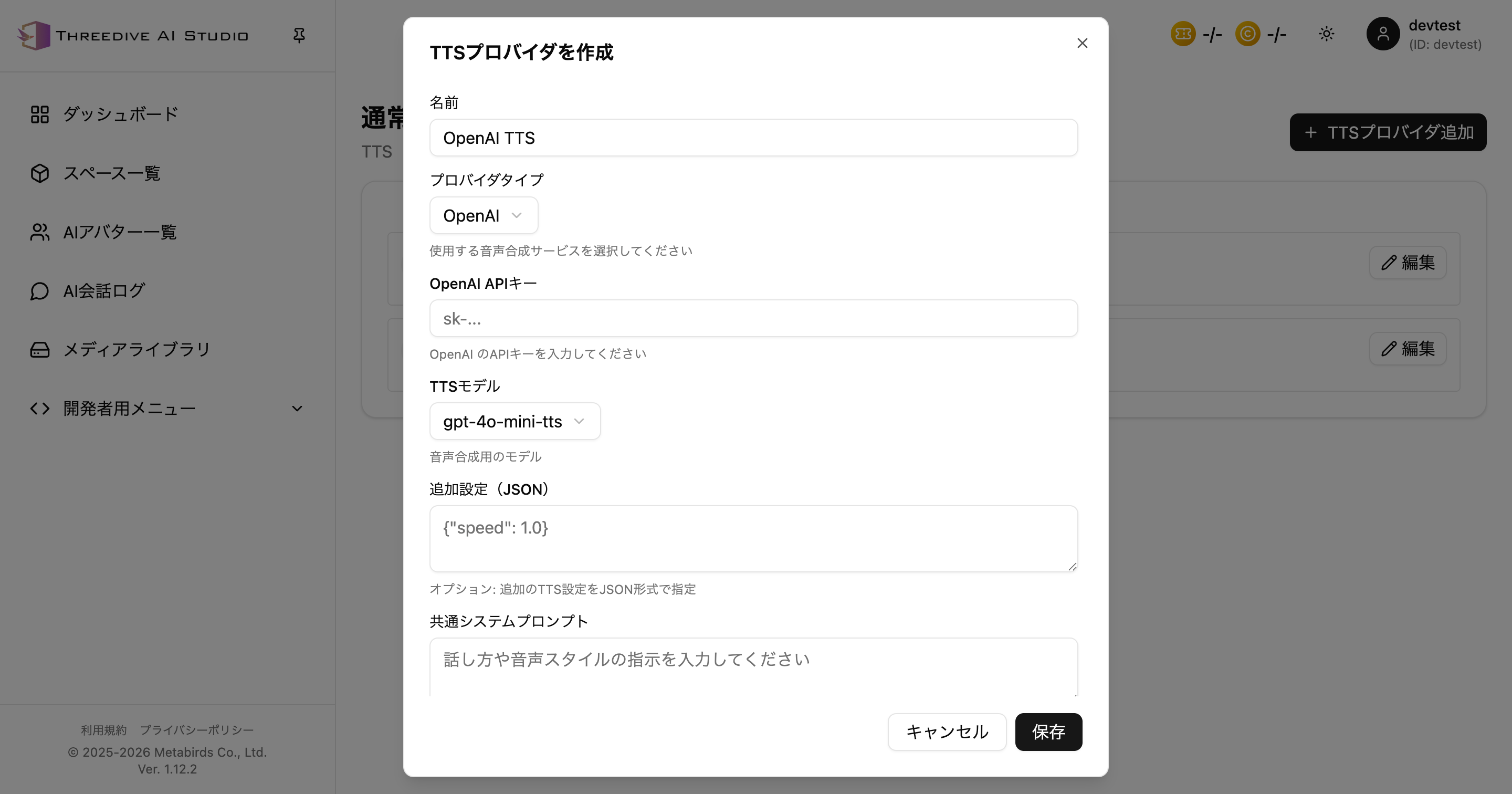 TTS Provider Add Dialog - OpenAI selected
Common Configuration Items
Name
- Provider identification name
- Set a name that is easy to distinguish on the list screen
Provider Type
- OpenAI
- ElevenLabs
Switch according to the voice synthesis service you use.
OpenAI Configuration Items
When selecting OpenAI, configure the following items:
OpenAI API Key
- Enter your OpenAI API key
- Used for standard voice (TTS) functionality
TTS Model
- Select a model for voice synthesis
- Default as of April 17, 2026 is
gpt-4o-mini-tts
Additional Settings (JSON)
- Optional: Specify additional TTS settings in JSON format
Common System Prompt
- A common prompt applied to all AI avatars using this provider
- Can be used for voice style specification, etc.
ElevenLabs Configuration Items
When selecting ElevenLabs, different items are displayed than OpenAI.
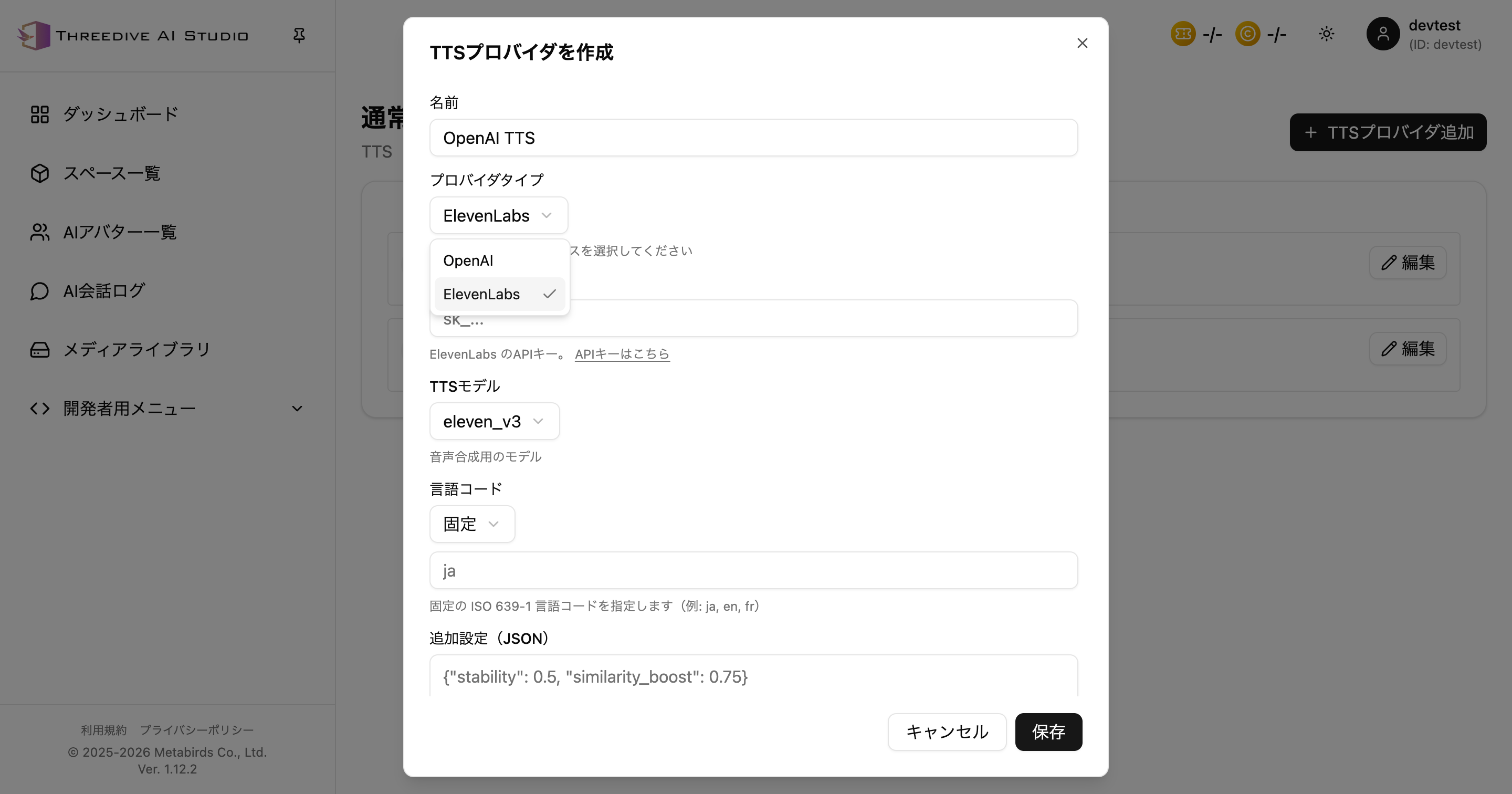 TTS Provider Add Dialog - ElevenLabs selected
ElevenLabs API Key
- Enter your ElevenLabs API key
- A link to obtain the API key is displayed in the dialog
TTS Model
- Select a model for voice synthesis
- As of April 17, 2026, the following models were selectable in the UI:
eleven_v3eleven_multilingual_v2eleven_turbo_v2_5eleven_flash_v2_5eleven_monolingual_v1
Language Code
- Not specified: Does not send
language_code, leaving it to ElevenLabs' default behavior - Browser language: Matches the user's browser language
- Fixed: Specifies a fixed ISO 639-1 language code
- Example:
ja,en,fr
- Example:
Additional Settings (JSON)
- Specify ElevenLabs'
voice_settingsin JSON - The following keys are indicated in the UI explanation:
stabilitysimilarity_booststyleuse_speaker_boost
Common System Prompt
- The input field is disabled when ElevenLabs is selected
- The UI displays "High-quality voice does not use freeform TTS prompts"
Adding Procedure
- Click the "Add TTS Provider" button
- Select provider type
- Enter provider information
- Name
- API Key
- TTS Model
- Language code if necessary
- Additional settings (JSON)
- Common system prompt (OpenAI only)
- Click the "Save" button
Editing API Keys
You can update API keys from the "Edit" button of existing providers.
Editing Procedure
- Click the "Edit" button for the provider you want to edit
- Enter or update the API key
- Save the settings
- Store API keys securely
- It is recommended to rotate keys regularly
- Delete keys that are no longer needed
Differences Between OpenAI and ElevenLabs
| Item | OpenAI | ElevenLabs |
|---|---|---|
| API Key Field | OpenAI API Key | ElevenLabs API Key |
| Representative Model | gpt-4o-mini-tts | eleven_v3, etc. |
| Language Code | None | Not specified / Browser language / Fixed |
| Additional Settings | Generic JSON | voice_settings JSON |
| Common System Prompt | Available | Disabled |
Differences from Realtime Voice Conversation
| Item | TTS Provider | Realtime Provider |
|---|---|---|
| API | OpenAI TTS API / ElevenLabs TTS API | OpenAI Realtime API, etc. |
| Processing Method | Text-to-speech conversion | Real-time bidirectional communication |
| Use Case | Voice synthesis | Real-time conversation |
Next Steps
- LLM Provider Settings - Configure custom LLM endpoints
- Realtime Provider Settings - Configure providers for Realtime API
- Error Log Guide - Check and debug errors
Support
For questions about TTS Provider Settings, please contact us through "Support Inquiry" in Threedive AI Studio.