Quick Start (for Guests)
- How to access Threedive AI
- How to start your first conversation with AI Avatars
- How to use the system by following guidance through conversation
- When you need to use movement controls
- Common issues for first-time users
Threedive AI is a 3D spatial AI platform accessible directly from your web browser. No registration required—you can start right away.
Access Methods
Access via Web Browser
Access the Threedive AI deployment page provided by each site.
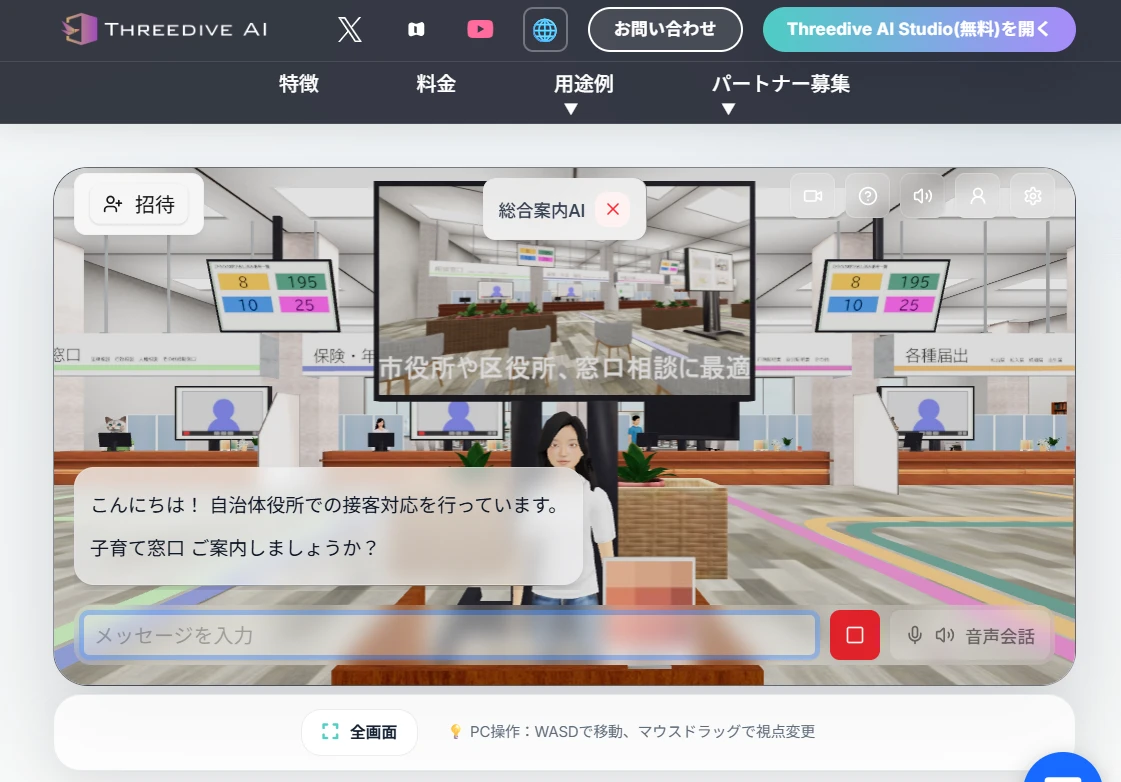 Threedive AI - Interact with AI Avatars in 3D space
Recommended Environment
- Browser: Google Chrome, Microsoft Edge, Firefox (latest version recommended)
- Connection: Stable internet connection
- For details, see Recommended Environment.
🚀 Get Started in 5 Minutes!
Step 1: Open the Page and Start Talking to AI
- When you access the URL, loading of the 3D space will begin
- Once loading is complete, the 3D space will be displayed
- If the AI conversation field is focused, you can start talking right away
With Threedive AI, instead of operating the 3D space in detail from the start, the basic usage is to first talk to the AI and receive guidance.
Step 2: Converse via Voice or Text
 With Threedive AI, starting with AI conversation is recommended
The chat window offers two input methods:
🎤 Speaking with Voice
- Click the Microphone button
- Speak your question or inquiry
- AI responds in real-time
⌨️ Typing Text
- Click the text input field
- Type your question or inquiry
- Press Enter key or click the send button
- AI will respond
- "Hello, what can you do?"
- "Tell me about this Space"
- "I'd like to consult about ○○"
Step 3: Get Guided to the Right AI Based on Conversation
- Multiple AI Avatars are placed within the Space
- With the Autopilot feature, you may be automatically guided to the appropriate AI based on conversation content
- Even if you don't know which AI to talk to, start by asking and you'll be connected to the right AI through the conversation flow
For details, see Autopilot Feature.
Step 4: Use Manual Controls Only When Movement is Needed
When the screen opens, if the AI conversation field is focused and you can chat right away, start talking first. Movement and guidance may occur automatically based on conversation content.
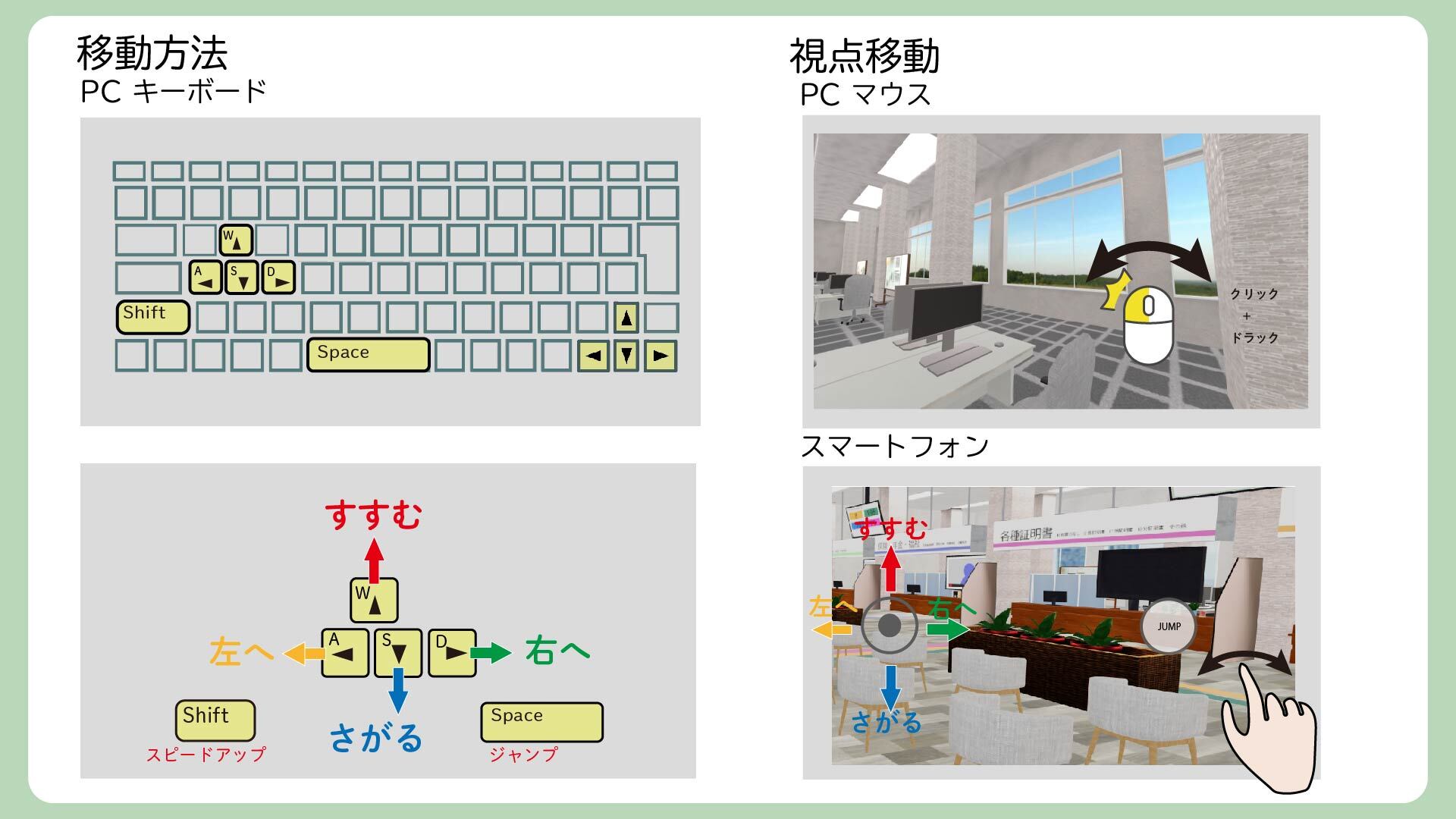
On the other hand, only if the conversation field is not initially focused, you can move with the following keys:
WASDArrow Keys
When you move close to an AI Avatar, a chat window will appear and you can start a conversation.
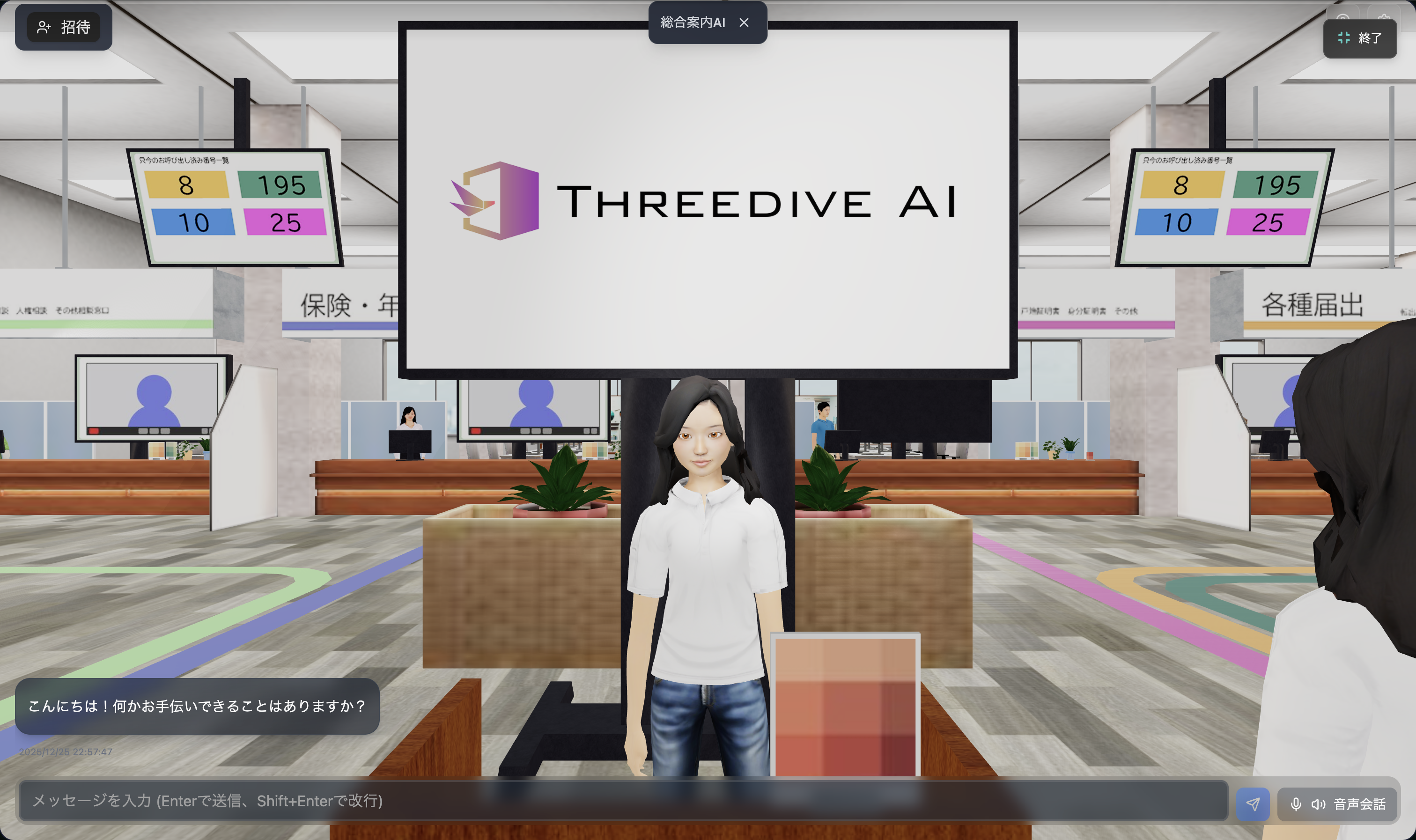 Once conversation with AI begins, you can receive guidance and movement support as needed
💡 Common Issues for First-Time Users
Q. Keys don't work when I press them
Check Points:
- Is the AI chat input field focused?
- If you're in a state where you can converse, it's fine to just talk to the AI first
- If you want to move, click outside the chat input field and then use
WASDorArrow Keys
Q. Chat doesn't appear when I approach an AI Avatar
Check Points:
- Are you very close to the AI Avatar (about 1-2m)?
- Has the screen finished loading completely?
Q. I can't hear audio
Check Points:
- Is the browser volume turned on?
- Check your PC or smartphone volume settings
- If the browser is requesting access permission for Microphone/Speaker, please "Allow"
Q. The 3D space is stuttering
Solutions:
- Try closing other tabs or applications
- Update your browser to the latest version
- Use a recommended browser (Chrome, Edge)
For details, see Troubleshooting.
🌟 Next Steps
If you'd like to expand your use of Threedive AI, check out the following:
Service Features
- No Registration Required: Start using immediately without user registration
- Easy to Start with AI-First: Designed to easily receive guidance by simply talking first
- Natural Conversations with Multiple AIs: Use specialized AIs according to your purpose
- Guidance Based on Conversation: Connect to the appropriate AI or location as needed
- Instant Access from Web Browser: No installation required, just access the URL