3D Space Controls
What you'll learn on this page
- Basic controls with keyboard and mouse
- How to start dialogue with AI
- How to invite other Guest Users
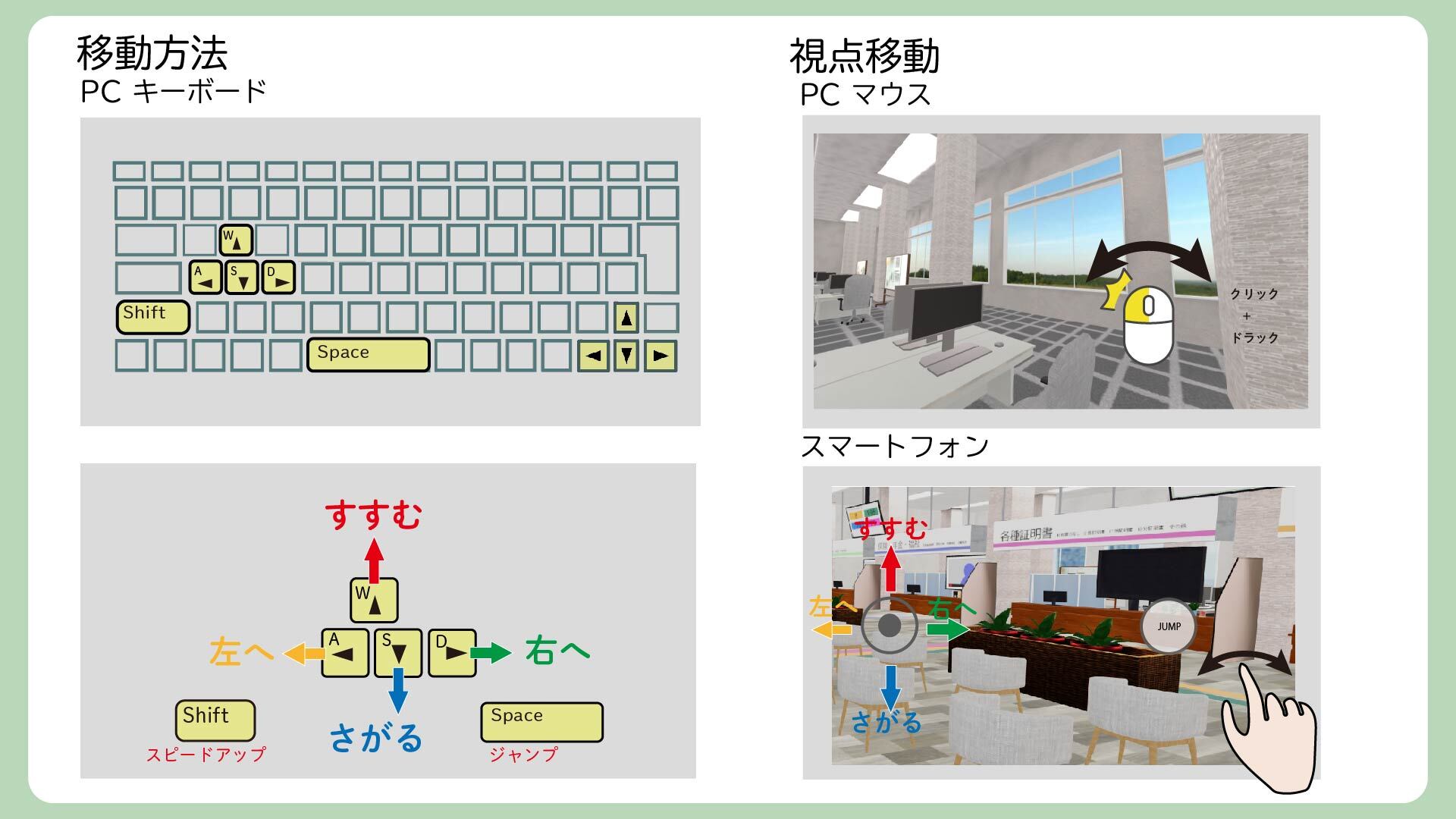 Complete guide to movement and viewpoint controls - PC and smartphone compatible
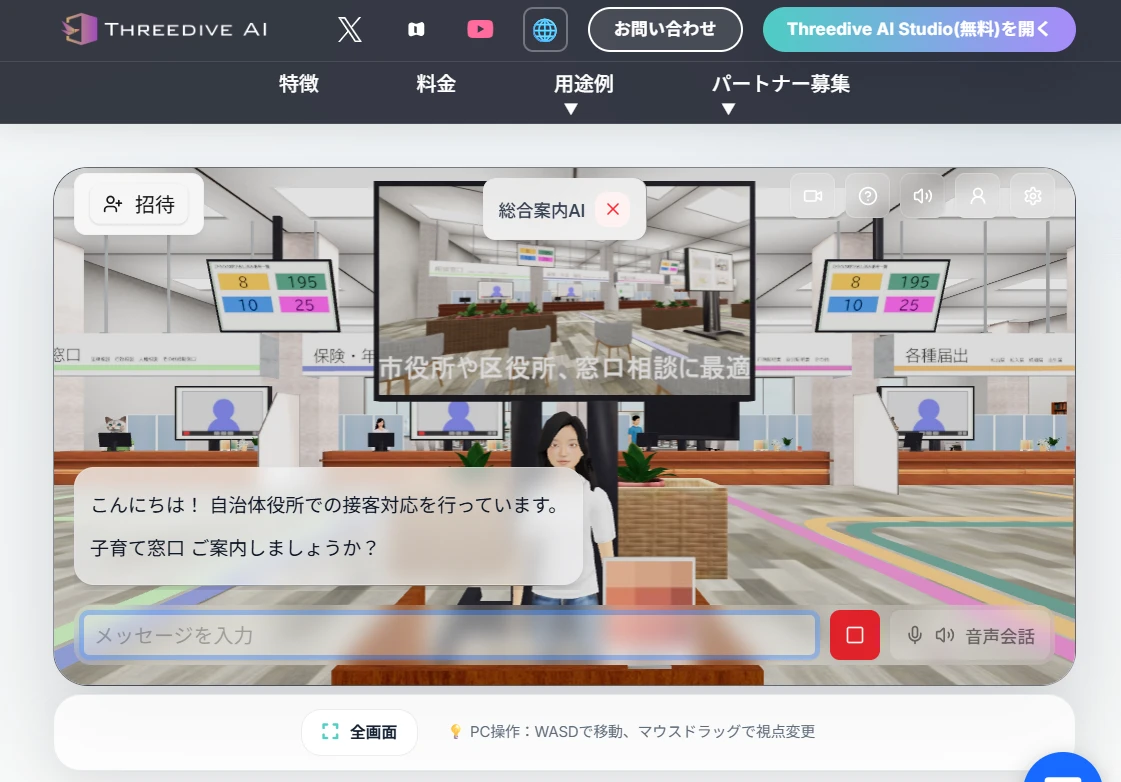 Threedive AI - Chatting with AI Avatars in 3D space
Basic Controls (PC)
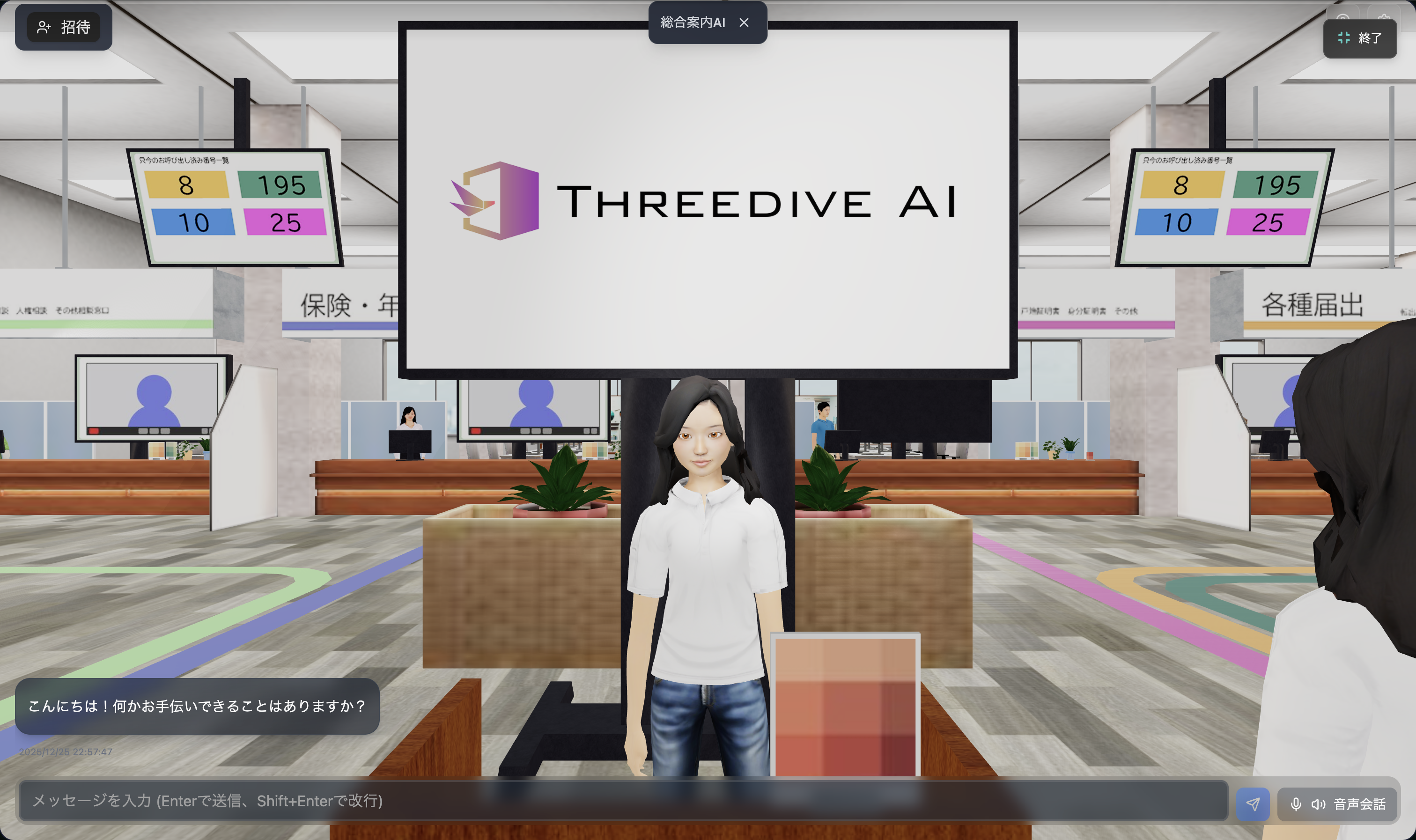 Actual operating screen in 3D space - Move with arrow keys or WASD keys
Step 1: Move Forward, Backward, Left, and Right
You can move freely with the keyboard WASD keys or arrow keys:
Movement with WASD Keys
      W
      ↑
   Forward

A ←   → D
Left   Right

      S
      ↓
  Backward
Movement with Arrow Keys
     ↑
  Forward

←      →
Left  Right

     ↓
 Backward
For First-Time Users
First, try pressing the W key or ↑ key to move forward! When you approach an AI Avatar, you'll be able to have a conversation.
Step 2: Change Viewpoint
- Drag Mouse: Hold down the left mouse button and move to change the viewpoint direction
- 360-degree Look-Around: You can look in any direction—up, down, left, or right
Tip
Moving while changing your viewpoint allows you to explore the 3D space more freely!
Step 3: Zoom In and Out
- Mouse Wheel Up: Zoom in (get closer)
- Mouse Wheel Down: Zoom out (move away)
Useful when you want to see details or get an overview.
Touch Controls (Smartphone/Tablet)
On mobile devices, you can operate intuitively with screen touches:
- Swipe: Swipe the screen with your finger to move
- Pinch In/Out: Spread or pinch with two fingers to zoom
Dialogue with AI
- When you approach an AI, a chat window will appear.
- You can ask questions or converse via voice or text.
- AI responds in real-time.
Inviting Other Guest Users
- You can invite other Guest Users within the 3D space.
- Click the [Invite] button and share the invitation link.