Settings Screen
- How to open the settings screen
- Switching themes (Light Mode/Dark Mode)
- How to change display name and Avatar
- How to adjust frame rate and rendering settings
Click the gear icon in the upper right of the 3D space to open the settings screen. You can configure appearance settings, toggle display of development information, change rendering options, and more.

Theme Settings
Display Theme
Switch the page display theme.
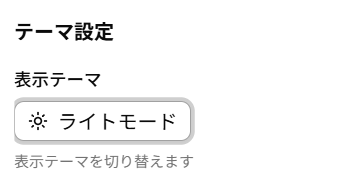
- Light Mode: Display with bright color scheme
- Dark Mode: Display with dark color scheme
Click the button to switch themes.
User Settings
Display Name
You can set the name displayed in chat (up to 20 characters).
Enter the desired name in the input field.
Avatar Settings
Avatar to Use
You can change the Avatar displayed for you in the 3D space.
Click the "Select Avatar" button to choose the Avatar to use.
Information Display
Toggle whether to display development/debugging information on screen.
| Item | Description |
|---|---|
| Show FPS | Display frame rate (number of renders per second) in the upper left of the screen |
| Show My Position | Display your coordinates in the 3D space |
| Show Grid | Display grid lines on the ground |
| Show Axis Helper | Display XYZ axis guide |
| Show AI Model Conversation Range | Display the range where conversation with AI Avatars is possible 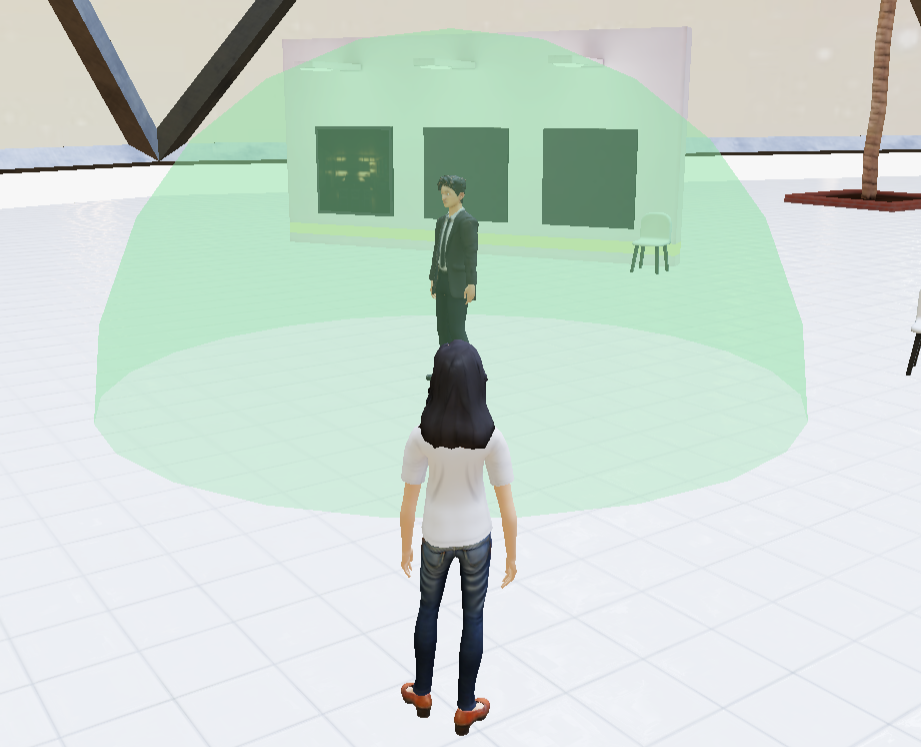 |
Toggle each item by turning its checkbox on/off.
Chat
Re-display Chat TIPS
Click the "Re-display Chat TIPS" button to re-display the guide balloon the next time you open chat.
Frame Rate Settings
Enable Frame Rate Limit
When checked, you can set an upper limit on the rendering frame rate. (Default: Enabled)
Maximum Frame Rate
When frame rate limit is enabled, you can select the upper limit value.
- 30 FPS (PC recommended)
- 15 FPS (Mobile recommended)
If you experience issues such as choppy operation/rendering or excessive device heat, try lowering the value.
This setting value is not reflected in the number displayed by the "Show FPS" feature
Rendering Settings
Enable Anti-aliasing
When checked, 3D rendering edges become smoother. (Default: Disabled) This may affect performance, so turn it off if operation is sluggish.
When performing 3DGS (Splat) rendering, enabling anti-aliasing increases processing load and may make operation sluggish.