v1.18.4
🎉 新機能
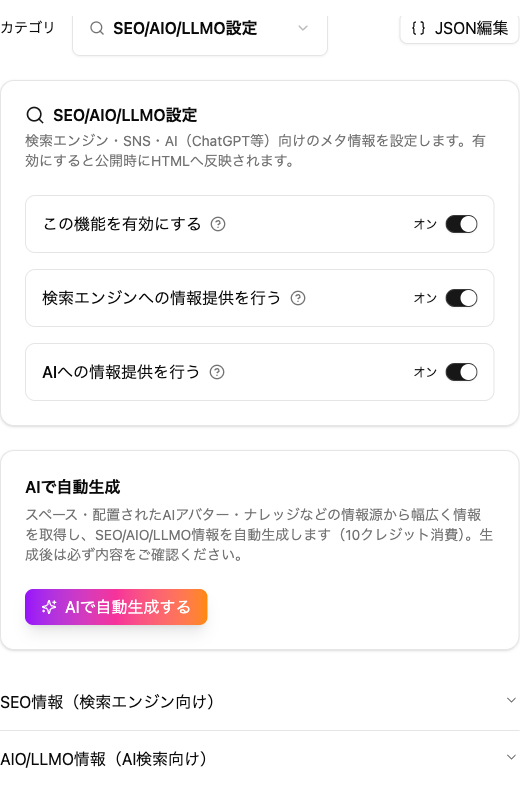
スペースにSEO/AIO/LLMO設定を追加しました
スペースの詳細設定に「SEO/AIO/LLMO設定」を追加しました。検索エンジンやSNS、AI(ChatGPT等)向けのメタ情報を設定できます。有効にすると、公開時にHTMLへ反映されます。
- 検索エンジンへの情報提供、AIへの情報提供をそれぞれオン・オフできます
- 「AIで自動生成」ボタンから、スペースや配置されたAIアバター、ナレッジの内容をもとにSEO/AIO/LLMO情報を自動生成できます(クレジット消費)
- SEO情報(ページタイトル・説明文・キーワード)とAIO/LLMO情報(詳細説明・トピック・FAQ・AIアバター紹介・コンテンツ紹介)を個別に編集できます
設定手順
スペースの「詳細設定」タブ →カテゴリから「SEO/AIO/LLMO設定」を選択します。
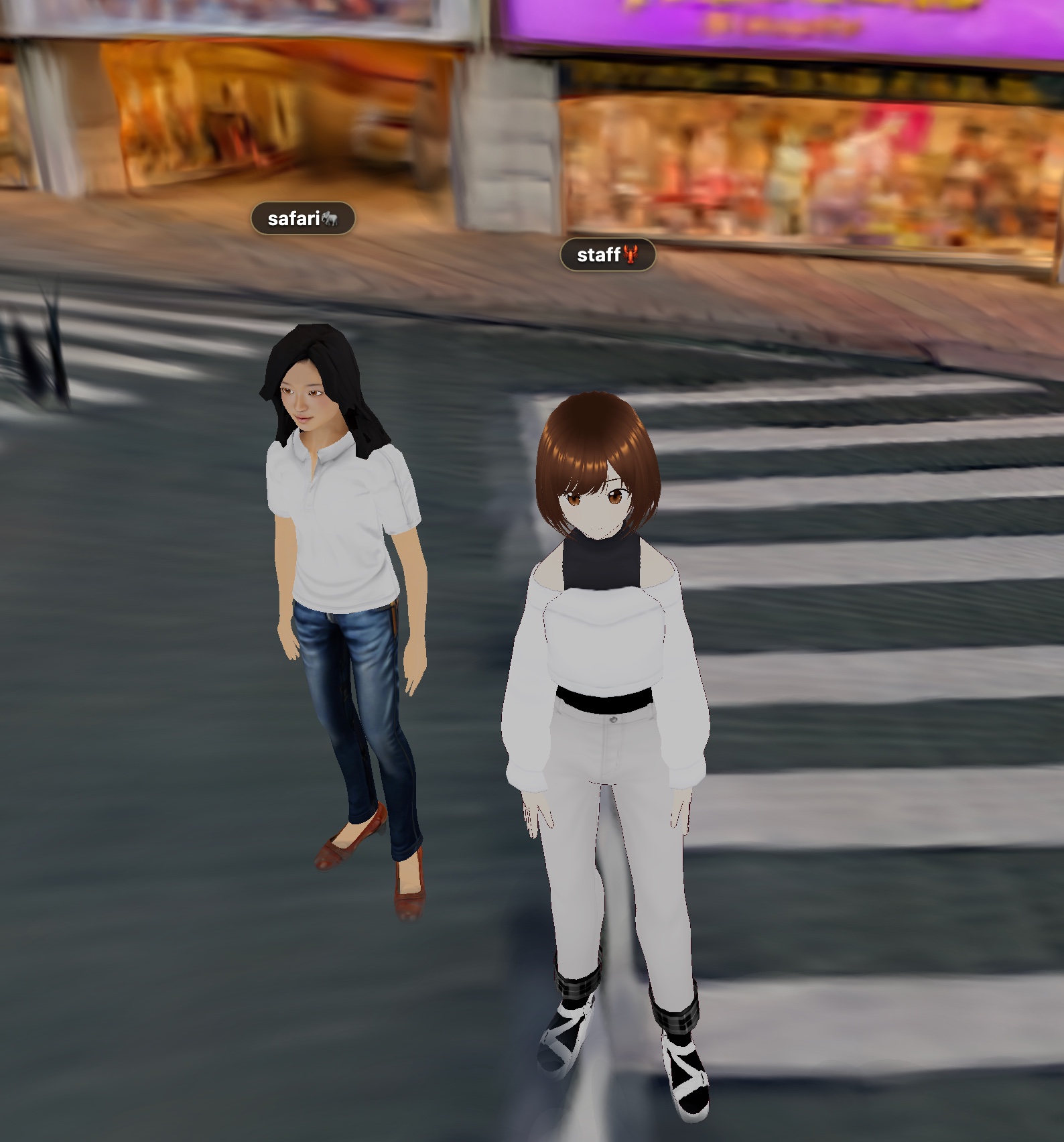
アバターの頭上にユーザー名が表示されるようになりました
招待URLで複数人が同じスペースに入室した際、自分と他のユーザーのアバターの頭上に名前が表示されるようになりました。
音声機能確認ページを追加しました。
ヘルプメニューに「音声機能確認ページ」を追加しました。
このページではマイクやスピーカーの動作確認、音声入力のテストができます。
音声機能がうまく使えないという場合、まずはこちらのページで動作確認を行ってみてください。
🔧 機能強化
メディアライブラリの容量上限を拡大しました
メディアライブラリの容量上限を拡大しました。現在の使用量は、メディアライブラリ画面上部で確認できます。
サポート問い合わせページの案内を追加しました
サポート問い合わせページに、対応内容の案内や、問い合わせ時にご共有いただきたい情報のリストを追加しました。
360°パノラマ配置にリセットボタンを追加しました
スペースの360°パノラマ配置に「リセット」ボタンを追加しました。プリセットシーンを選択している場合はプリセットの状態に戻し、選択していない場合はすべてのパノラマを削除します。
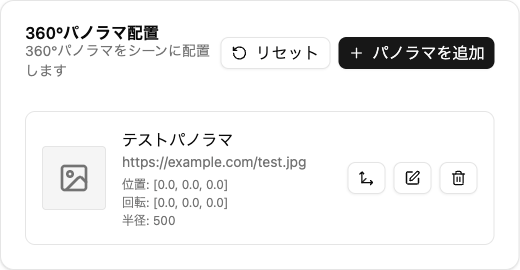
「メディア設定」タブの360°パノラマ一覧からパノラマを編集する画面にも、同様の「リセット」ボタンを追加しました。
🐛 不具合修正
- スペース公開設定で「会話チケットがありません」と誤表示されていたのを「スペース公開チケットがありません」に修正しました
- 公開期限が24時間以上の場合、残り時間を表示しないようにしました
- BGM設定のファイル選択ボタンのラベルを「コピー」から「ファイル選択」に修正しました
- 招待URLで満室・URL無効などにより入室できなかった場合、再試行または一人での利用継続を選べる案内を表示するようにしました
- フローティングプレビュー表示時に、ダイアログがプレビューの背面に回ってしまう問題を修正しました
v1.18.3
🎉 新機能
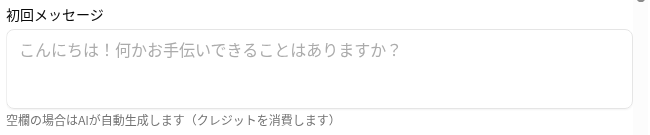
AIアバターの初回メッセージを設定できるようになりました
AIアバターが会話開始時に表示する初回メッセージを、固定の文言で設定できるようになりました。
- 初回メッセージを設定すると、その内容が会話開始時に表示されます
- 空欄の場合は、これまでどおりAIが初回メッセージを自動生成します(クレジットを消費します)
- 設定した初回メッセージは会話ログにも記録されます
設定手順
AIアバターを選択し「編集・テスト」を開く →「📝 AI文字チャット設定」内の「初回メッセージ」欄に入力します。
AIアバターのカスタムエラーメッセージを設定できるようになりました
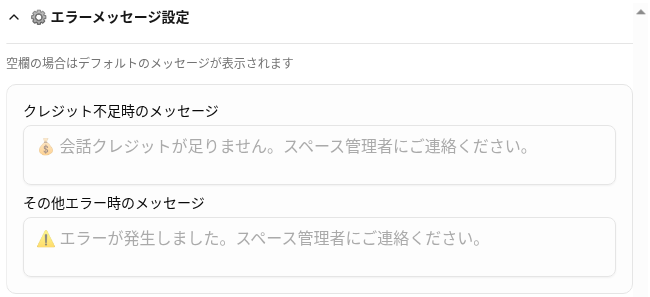
クレジット不足時やその他のエラー発生時に表示するメッセージを、AIアバターごとに自由に設定できるようになりました。
- 「クレジット不足時のメッセージ」と「その他エラー時のメッセージ」をそれぞれ設定できます
- 空欄の場合は、デフォルトのメッセージが表示されます
設定手順
AIアバターを選択し「編集・テスト」を開く →「⚙️ エラーメッセージ設定」を開いて各メッセージを入力します。
v1.18.2
🔧 機能強化
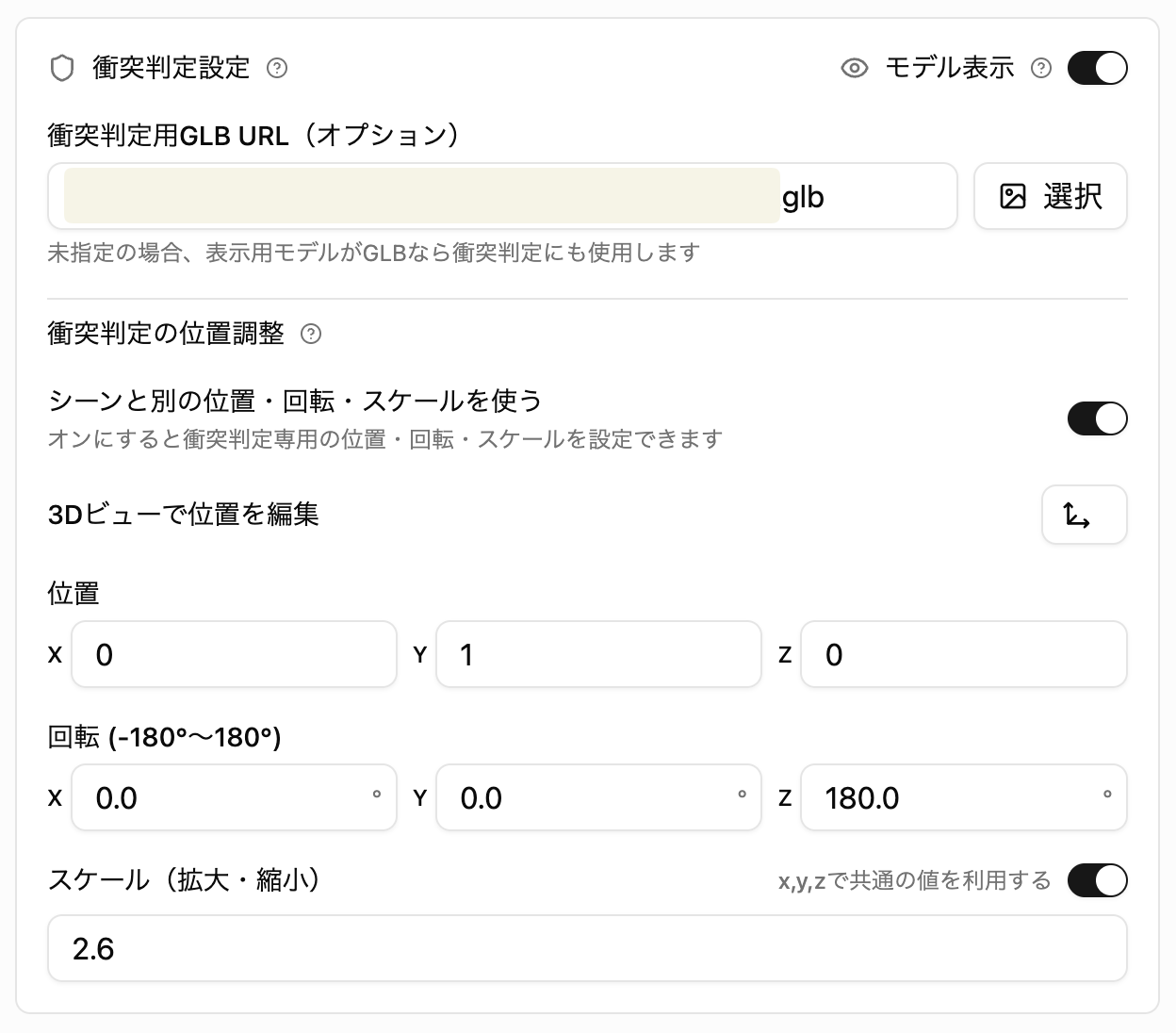
衝突判定(コリジョン)設定を強化しました
シーン設定の衝突判定まわりを見直し、より細かく調整できるようにしました。
- 衝突判定モデルの位置・回転・スケールを、表示モデルとは独立して設定できるようになりました
- 衝突判定モデルをプレビュー画面にワイヤフレームで表示できるようになりました(プレビューでのみ反映され、公開後のスペースには影響しません)
- スケールの指定をスライダーから数値入力に変更しました
サブスクリプション利用履歴の検索・絞り込みに対応しました
サブスクリプション利用履歴(クレジットログ)で、期間を指定して検索できるようになりました。
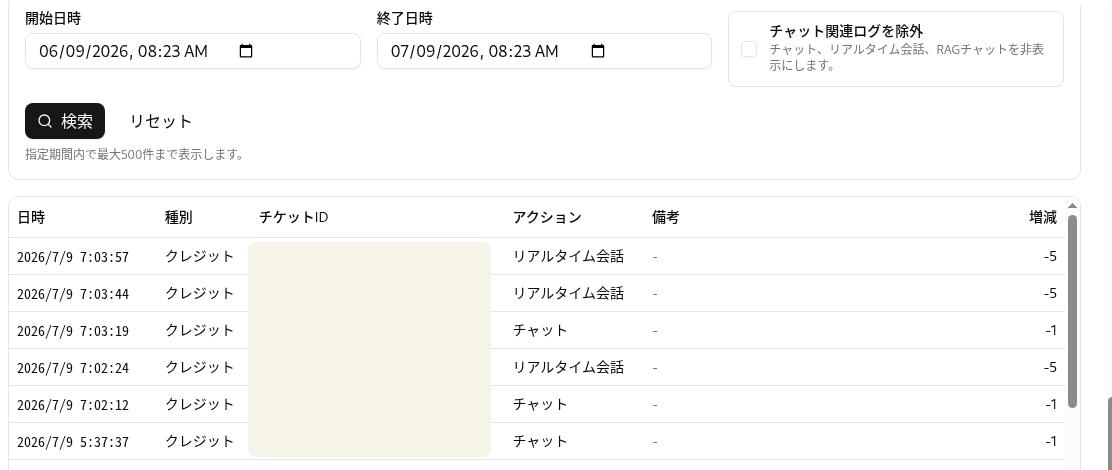
- 開始日時・終了日時を指定して検索・リセットできます
- 指定期間内の表示件数の上限は500件です。超過時は期間を狭めて再検索をお願いします
音声認識モードの表記をわかりやすくしました
リアルタイム音声設定の音声認識モードについて、それぞれの特性がわかるように表記を改善しました。
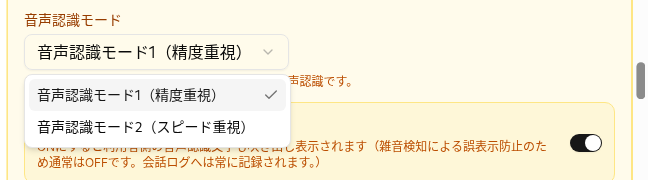
- 音声認識モード1(精度重視)
- 音声認識モード2(スピード重視)
ポップアップ埋め込みにスマホ向け表示方法を追加しました
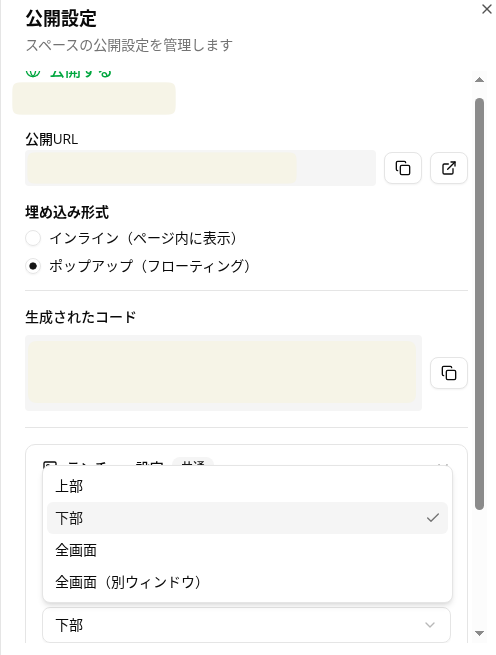
ポップアップ形式の埋め込みで、スマートフォン表示方法に「全画面(別ウィンドウ)」を追加しました。
🐛 不具合修正
- 2Dチャットボットで、アバター切り替えボタンが表示されないことがあった問題を修正しました
- 2Dチャットボットの描画負荷を改善し、ストリーミング表示中のスクロール動作を最適化しました
- ポップアップ埋め込みで、スマホの中央表示時にレイアウトが崩れることがあった問題を修正しました
- プレビュー表示中に、言語選択メニューがプレビューの背面に隠れてしまう問題を修正しました
- AIアバター設定で、APIパラメータの入力欄が横に広がりダイアログの表示が崩れる問題を修正しました
v1.18.0
🎉 新機能
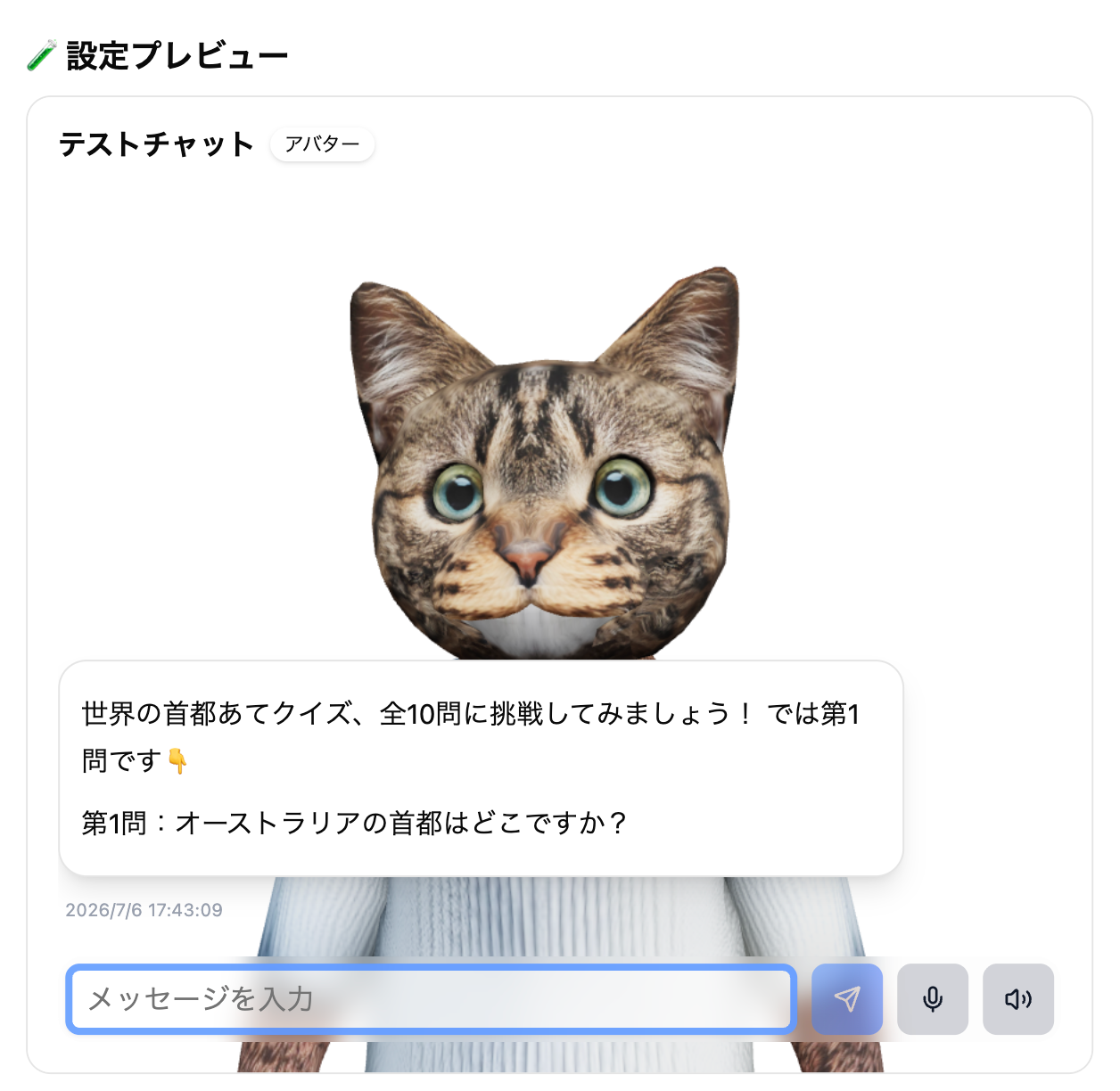
🖼️ AIアバター設定のプレビューを刷新しました
AIアバター設定画面のプレビューで、実際のアバターモデルも一緒に確認できるようになりました。
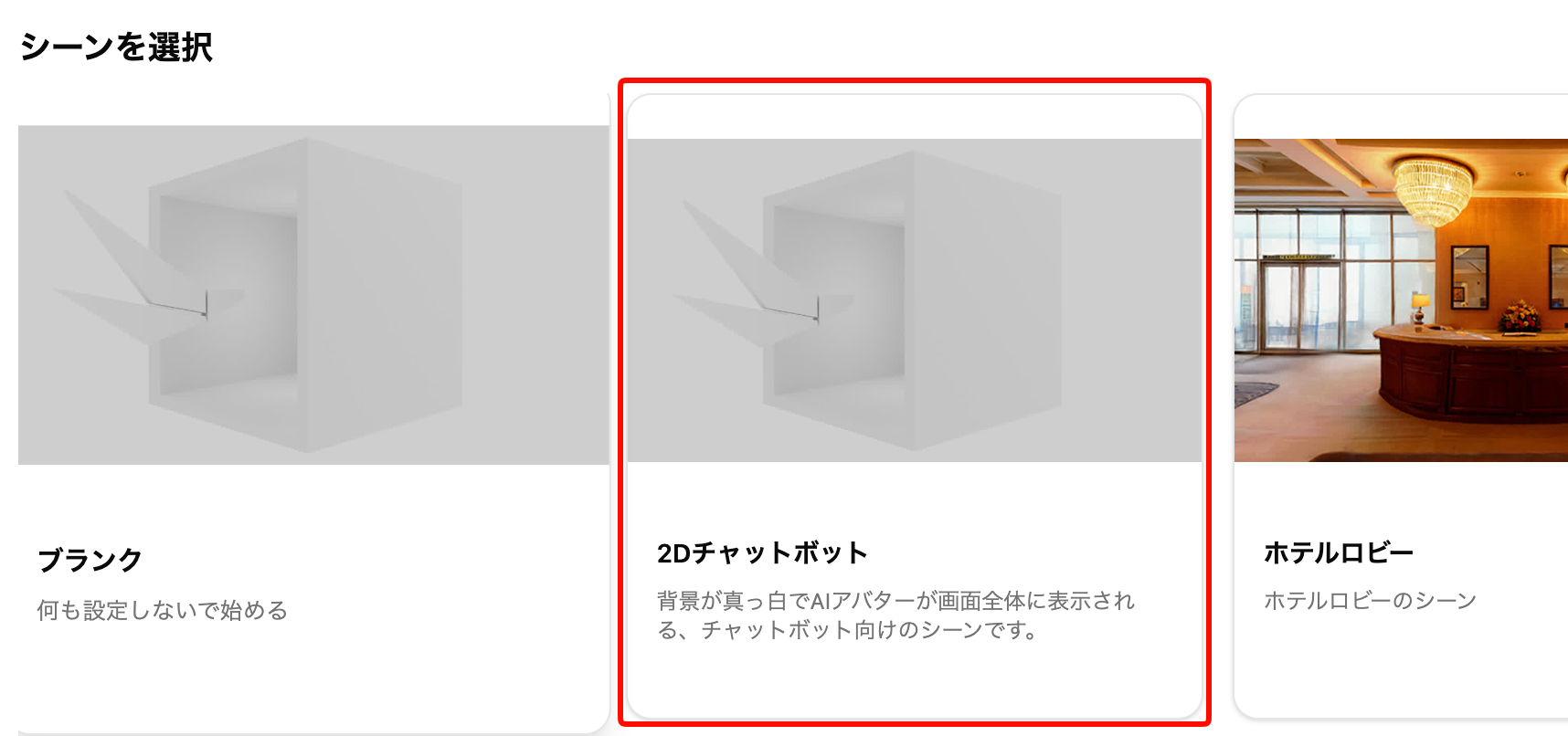
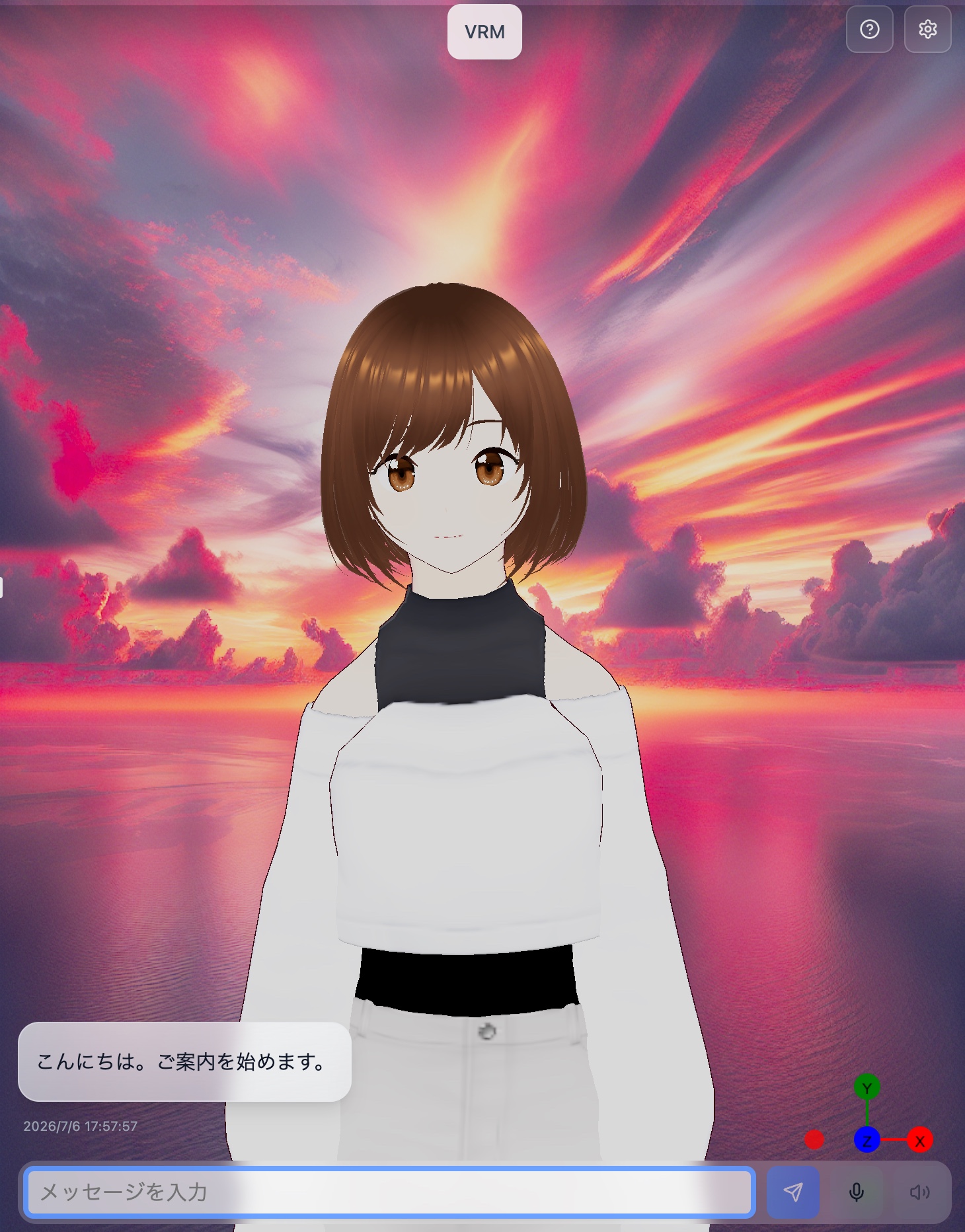
🤖 2Dチャットボットシーンを追加しました
AIアバターが画面全体に表示される、チャットボット向けのプリセットシーンを追加しました。背景には好きな画像を貼ることができます。Webサイトへの埋め込みに適した、シンプルな2D表示のシーンです。
操作方法
新規作成時のシーン選択で「2Dチャットボット」を選択します。
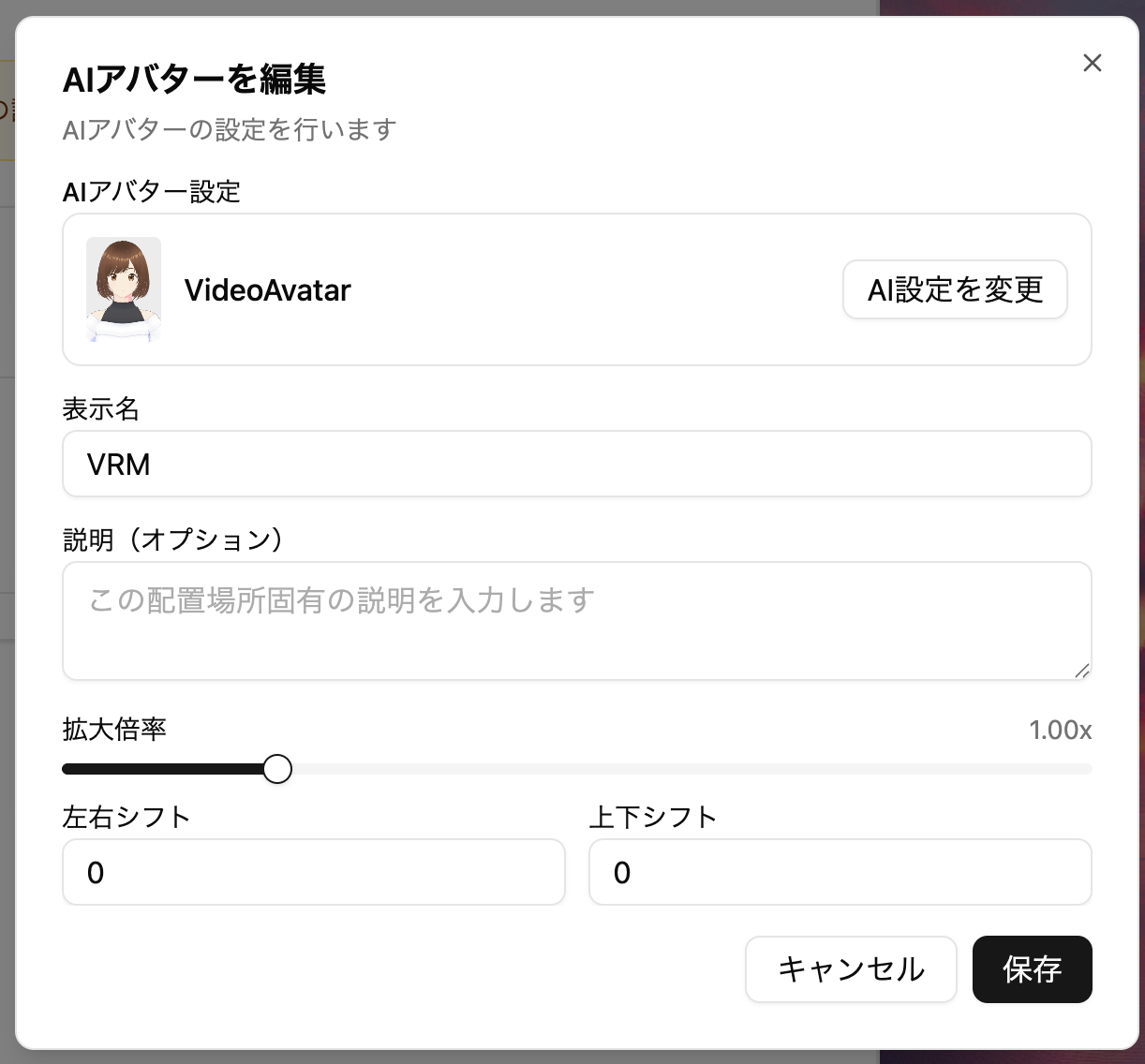
2Dチャットボットシーンでは、AIアバターの表示に合わせて、拡大倍率と上下左右のシフトを配置ごとに調整できます。
2Dチャットボットシーンは2D表示に特化したプリセットのため、一部の設定のみご利用いただけます。
🔗 埋め込み設定UIを刷新しました
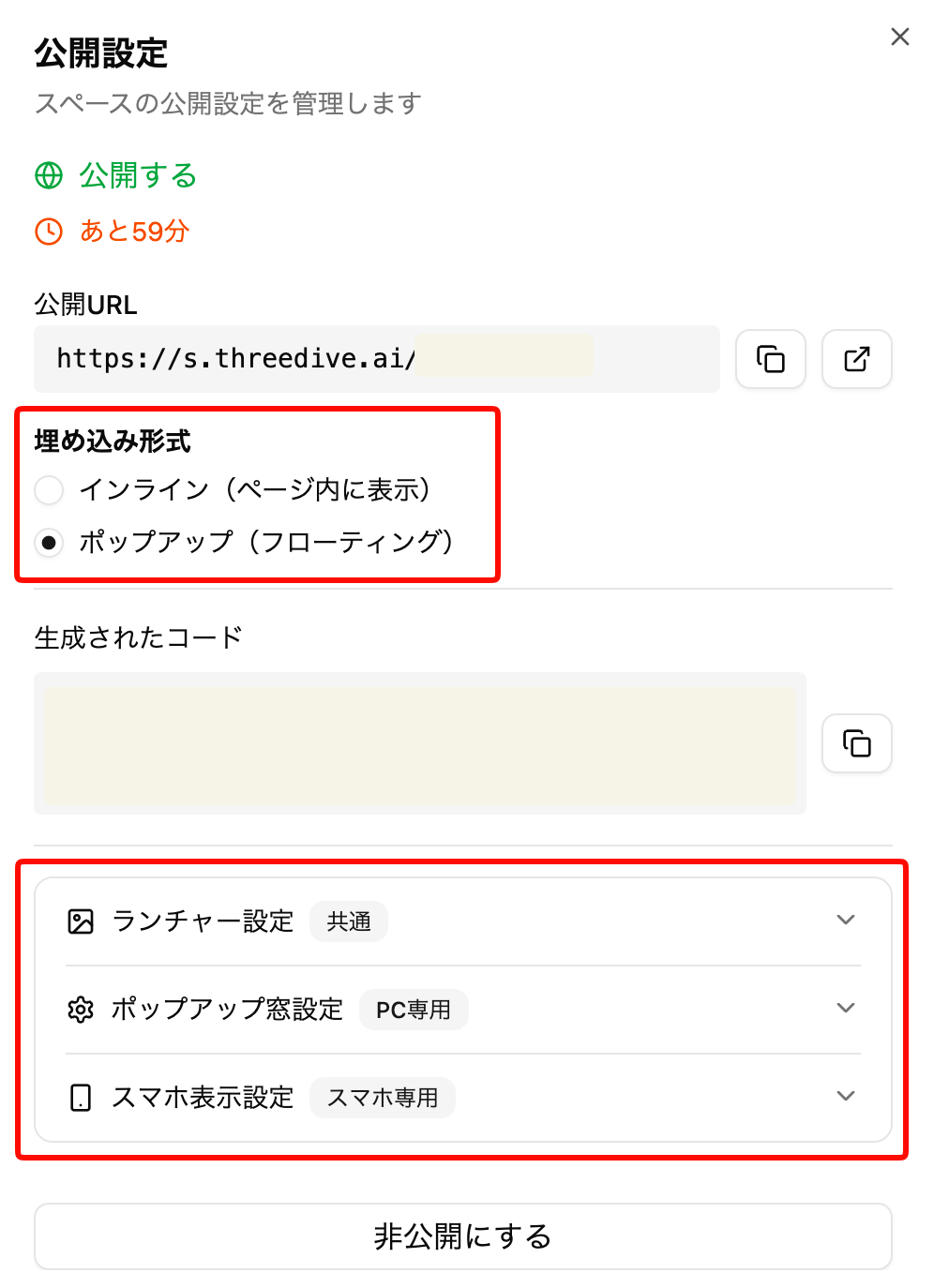
公開ダイアログの埋め込みコード設定を刷新し、「インライン(ページ内に表示)」と「ポップアップ(フローティング)」の2つの埋め込み形式を選べるようになりました。
これまでコードを手で編集する必要があったサイズや位置の指定を、画面上のUIから設定できます。ポップアップ形式では、ランチャーアイコンと窓の位置をそれぞれ配置でき、窓の中央表示にも対応しています。
操作方法
公開ダイアログの「埋め込みコード」から、埋め込み形式を選択して設定できます。
🔧 機能強化・不具合修正
🌐 シーン名の多言語対応
シーン選択に表示されるシーン名・説明を、表示言語に合わせて切り替えられるようにしました。
不具合修正
- 会話ログに、AIの発言と同じ内容が利用者の発言としても重複して記録・表示されることがあった問題を修正しました
v1.17.12
🎉 New Features and Enhancements
🎙️ Speech Recognition Language Can Now Be Selected from a List
The specification of speech recognition language, which previously required direct input of language codes, can now be selected from a searchable list. You can also select multiple languages.
How to Use
You can select the speech recognition language from "Speech Recognition Settings" in the AI Avatar settings screen.
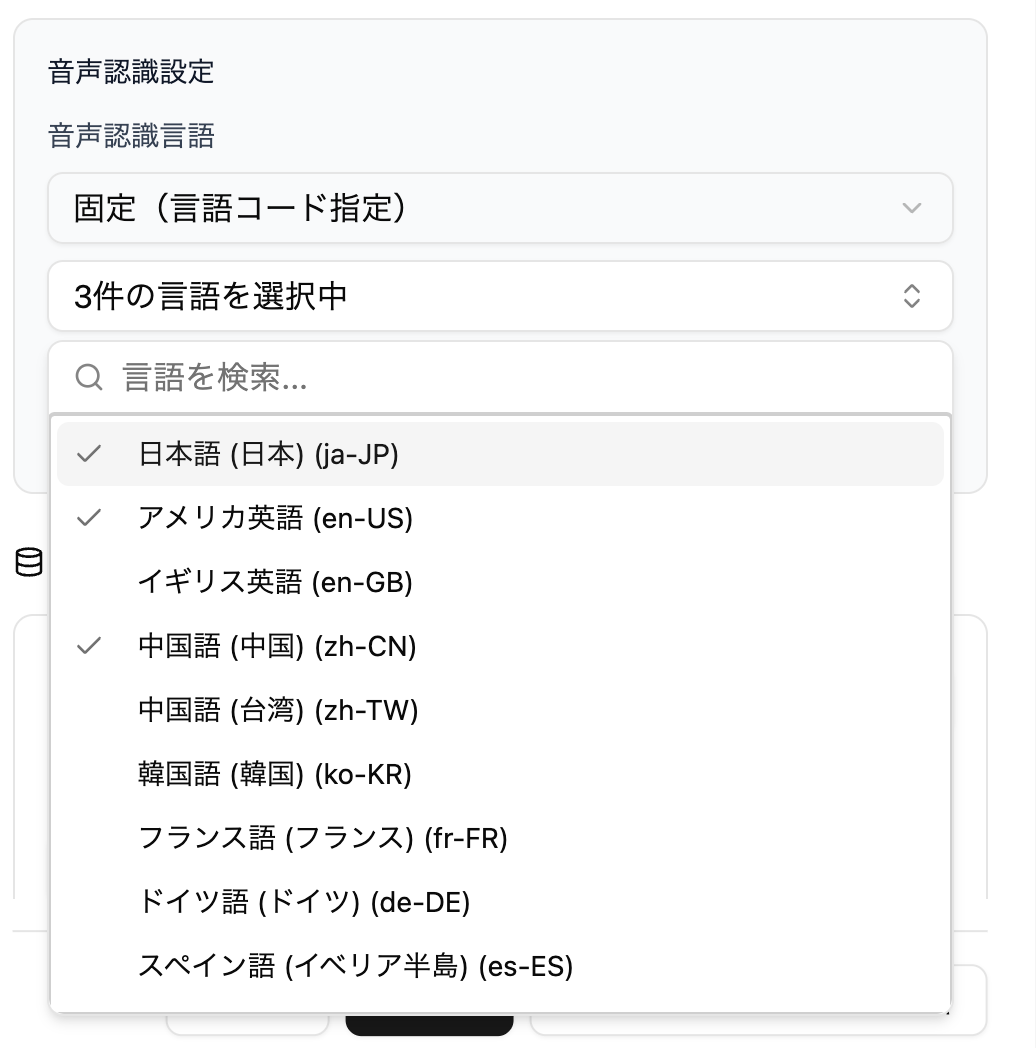
Also, if you select multiple languages, you can switch the speech recognition language from the toolbar menu during normal voice conversation.
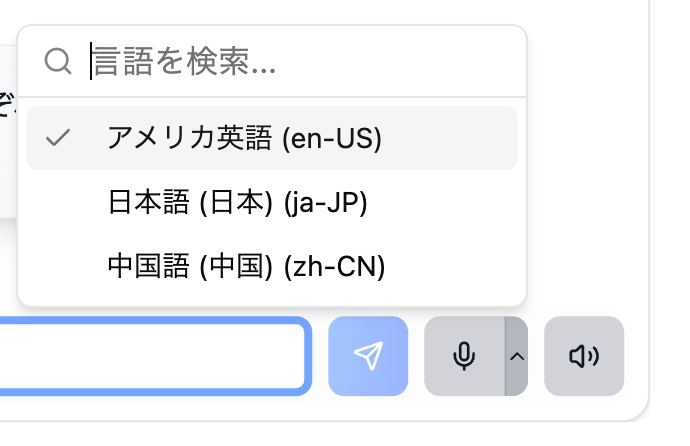
Recognizable languages differ depending on your usage environment (browser/OS), so selected languages may not work in all environments.
🗨️ Reviewed User-Side Transcription Display in Realtime Voice
In realtime voice conversations, user (your own) speech transcription bubbles are now hidden by default. This is a measure against the problem of text different from actual speech being displayed due to misrecognition or noise.
AI Avatar speech transcriptions will continue to be displayed as before.
How to Use
You can toggle the user-side transcription display ON/OFF from the Realtime settings in the AI Avatar settings screen.
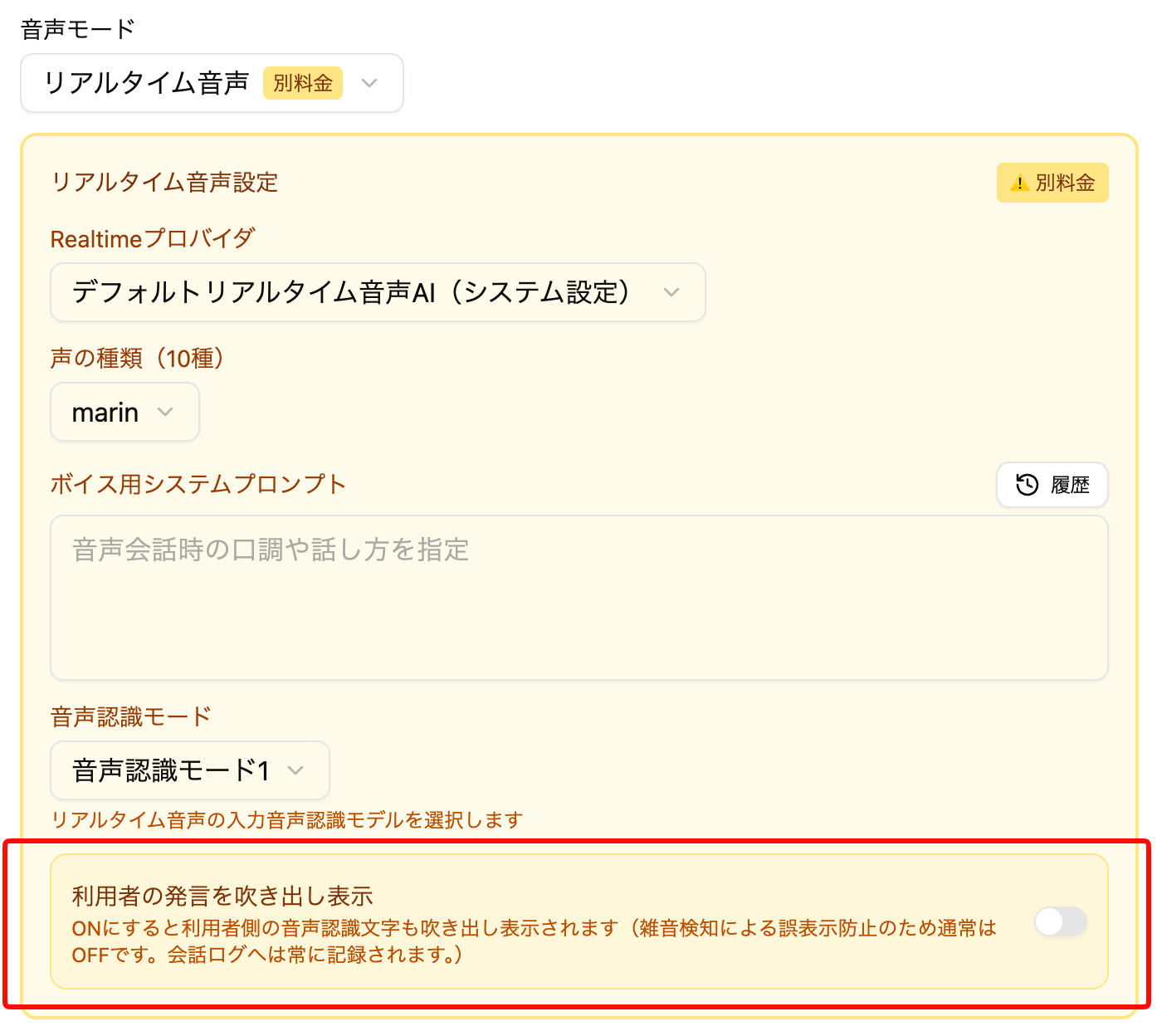
Already created AI Avatars will continue to display user-side transcriptions as before. For newly created AI Avatars, they will be hidden by default.
🔧 Other Adjustments
- Made adjustments to AI Avatar thinking logic
v1.17.11
🎉 New Features
📝 Prompt History Feature
History is now kept each time you change and save AI Avatar prompts.
You can easily roll back to past prompts from the list, so please use this when adjusting prompt content, etc.
How to Use
You can call it from the "History" button in the upper right of each prompt in the AI Avatar settings screen.
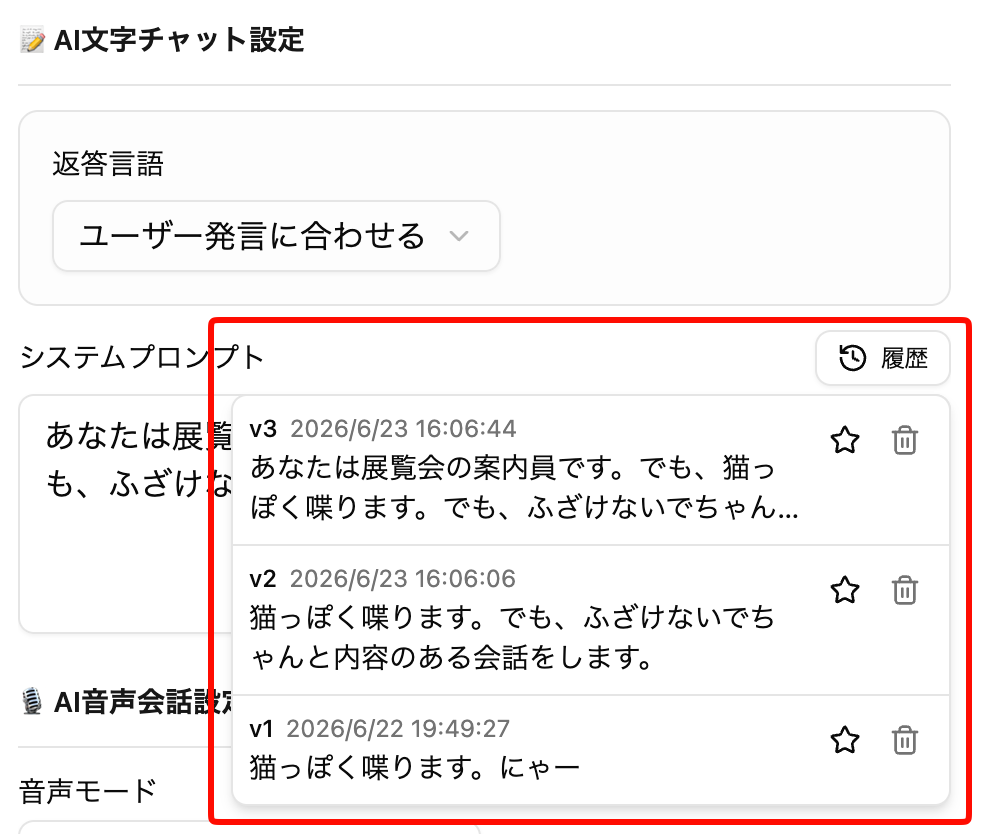
Clicking a history item will reflect it in the current prompt (it will not be saved).
- History is saved for up to 25 items, and when full, old ones are automatically deleted
- If you favorite with the ⭐ button, it will not be automatically deleted
- You can also manually delete from the 🗑 button
🔧 Feature Enhancements and Bug Fixes
.rad File (3DGS Streaming File) Related
- .rad files can now be selected when creating from New Creation > Create from 3D Splat
- .rad files can now be previewed in the Media Library
- Sped up loading and display of .rad files
v1.17.10
🎉 New Features
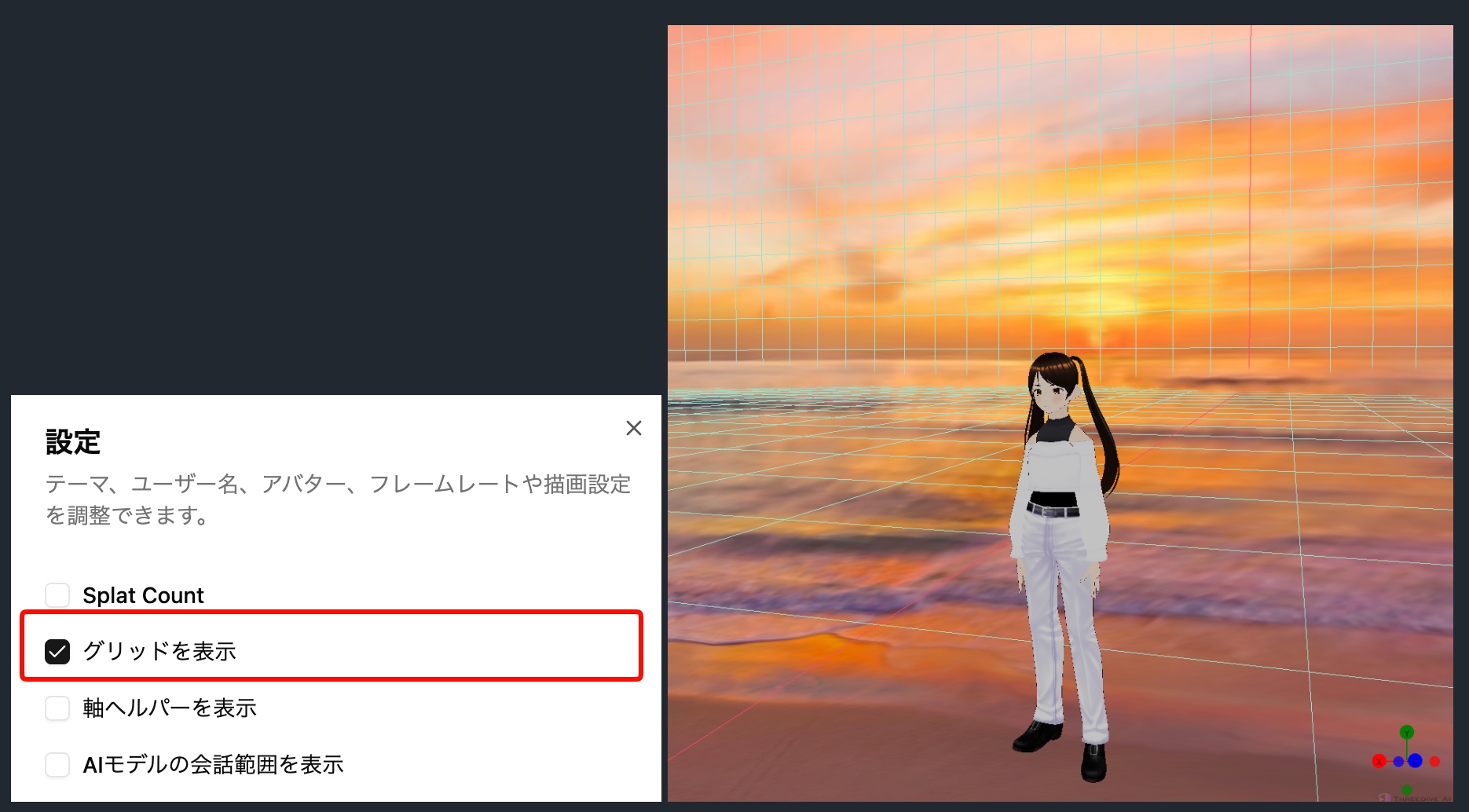
Movement Range Restriction Display Feature Added (When Grid Display is Enabled)
The range set in "Movement Range Restriction" in Scene Settings can now be visually confirmed as a grid in 3D space.
You can switch it with the "Show Grid" option in 3D screen > Settings dialog ⚙️.
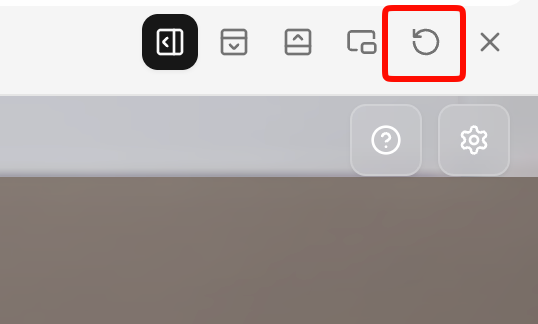
Reload Feature Added to Preview
Added a button to reload only the preview to the toolbar at the top of the preview screen.
You can quickly refresh the preview without reloading the entire page.
🔧 Bug Fixes
- Fixed an issue where the camera could clip into your own avatar during conversation with AI Avatars
- Fixed an issue where automatic movement from conversation with one AI Avatar to another AI Avatar might not reach the intended position
- Fixed an issue where the virtual stick could block the top buttons during mobile use
- Fixed an issue where the profile dialog would not scroll vertically
- Fixed an issue where the other party's VRM avatar would not display correctly when invited
- Fixed an issue where media display could occur based on incomplete URLs during realtime chat
v1.17.6
🎉 New Features
"Speech Recognition Language" Setting Added
Until now, the recognition language when performing voice input in Threedive AI was automatically determined by your browser's language settings (*unless explicitly specified in the AI Avatar). Therefore, when the language you actually speak and the browser language are different, speech might not be recognized properly.
With this update, Space users can now select and set their own spoken language. The configured content is saved and will continue to be used in the future.
You can configure it with the following operations.
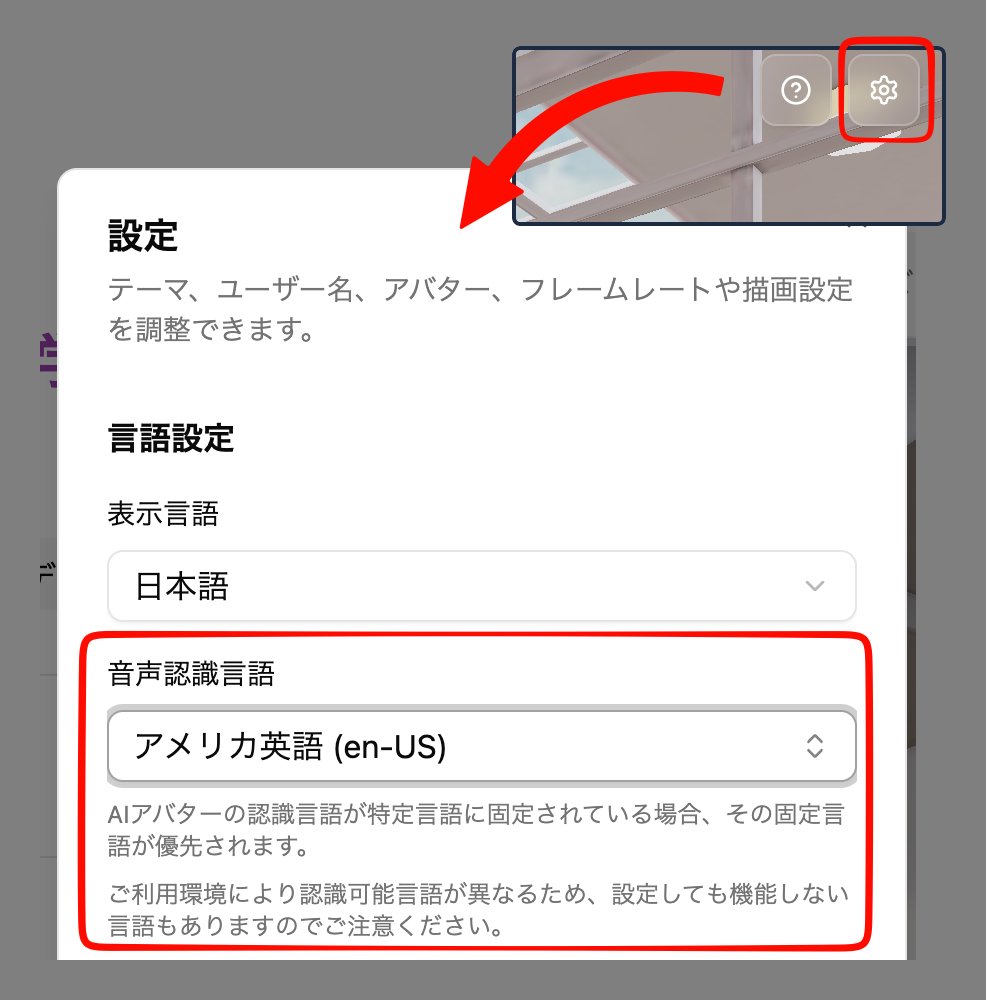
- Open the settings dialog from the gear ⚙ icon in the upper right corner of the 3D screen
- Select the language to use in "Speech Recognition Language"
Please note the following points when configuring:
- If the AI Avatar's recognition language is fixed to a specific language, that fixed language takes priority.
- Please note that recognizable languages differ depending on your usage environment, so some languages may not function even if configured.
v1.17.3
🔧 Adjustments
- Reviewed the order and hierarchy of the left-side menu
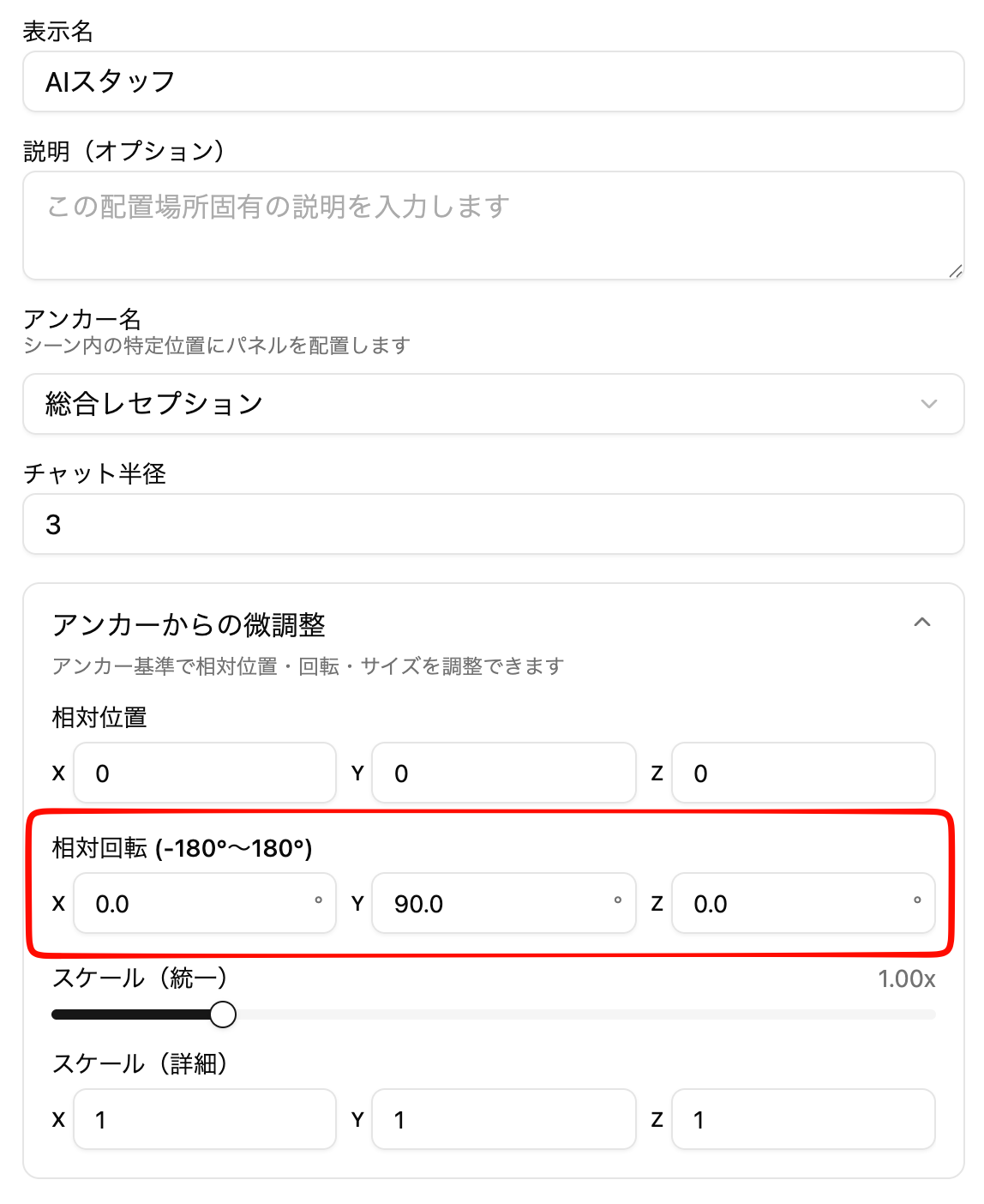
- Added rotation information fine-tuning feature
- When placing AI Avatars/3D models/2D panels at anchor positions, you can now also change rotation information
- Use this when you need to adjust the orientation of AI Avatars, etc. Basically, you do not need to change values other than Y Rotation
🐛 Bug Fixes
- Fixed an issue where Spaces might not be displayed in the Space list when there are more than 100 created Spaces