v1.17.2

ยท 2 min read
Threedive AI
Development Team

๐ŸŽ‰ New Featuresโ€‹

3DGS File LoD Support (Lighter Rendering)โ€‹

When configuring 3D Gaussian Splatting (3DGS) files in Threedive AI Studio, you can now use the LoD (Level of Detail) option.
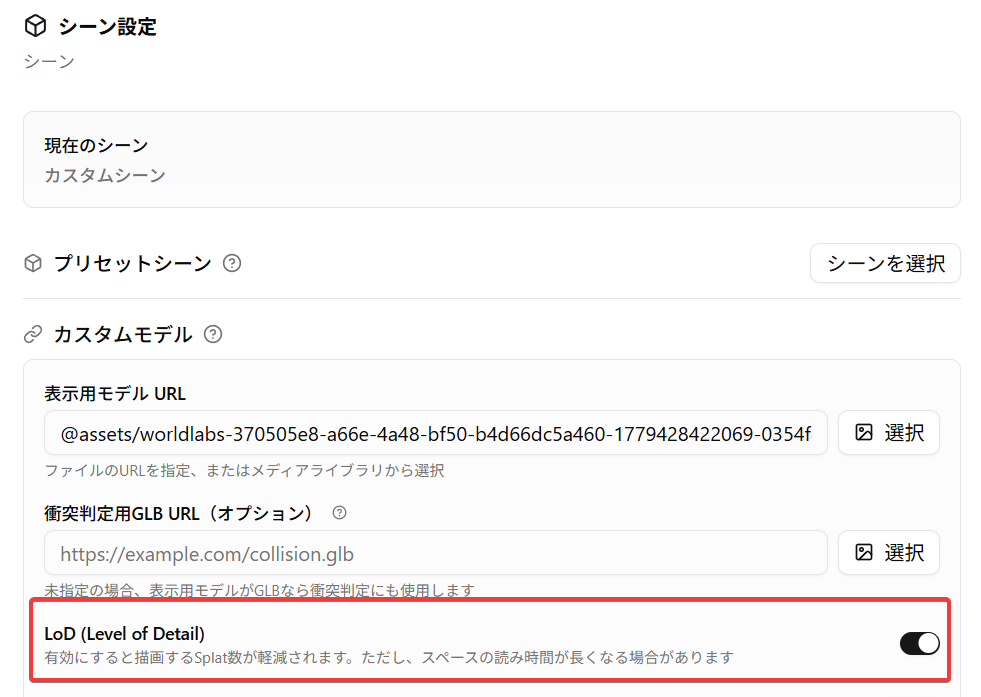
When this option is enabled, the following behavior occurs.

  • Rendering processing may become lighter
    • Splats (elliptical plates) closer to the camera position will be displayed in more detail, while distant ones will be omitted. Especially for large 3DGS files, a reduction in processing load can be expected
  • Loading time may become longer
    • Pre-calculation is performed after loading 3DGS files (excluding .rad files), so especially for large 3DGS files, loading time may be longer than usual

3DGS File Streaming Support (Faster Display Time for Spaces)โ€‹

We now support loading the .rad format as a 3DGS file.

If you convert existing 3DGS files to this format in advance, "streaming" of 3DGS becomes possible. When streaming is enabled, similar to streaming video playback like YouTube, files are gradually read while displaying, so display start becomes faster.

For more information about rad files, please see the following page

https://sparkjs.dev/docs/lod-getting-started/

Reference video: Loading time comparison

๐Ÿ”ง Adjustments and Bug Fixesโ€‹

  • Fixed an issue where AI reports being created would disappear when the page was reloaded (the report creation itself was still completed)
  • Fixed an issue where some text was not displayed correctly
  • Fixed an issue where 3D models created from AI Avatar placement in Space editing would not be saved correctly in some cases

v1.17.0

ยท 2 min read
Threedive AI
Development Team

(English below)

๐ŸŽ‰ New Featuresโ€‹

English Display Now Supportedโ€‹

You can change the language using the following operations.

Threedive AI Studioโ€‹

Click the "ๆ–‡A" icon in the upper right corner of Threedive AI Studio to switch languages.

Threedive AIโ€‹

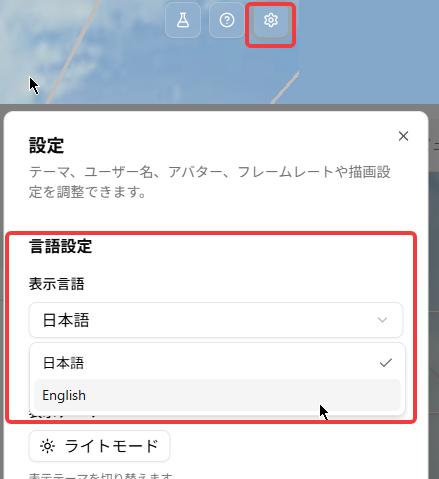
  1. Open the settings dialog from the gear โš™ icon in the upper right corner of the 3D screen.
  2. Switch under Language Settings.

๐Ÿ”ง Adjustments and Bug Fixesโ€‹

  • Fixed an issue where the layout of the "Usage Statistics" feature could appear broken.

๐ŸŽ‰ New Featuresโ€‹

English language support addedโ€‹

You can switch the language using the steps below.

Threedive AI Studioโ€‹

Click the "ๆ–‡A" icon in the upper right corner of Threedive AI Studio to switch languages.

Threedive AIโ€‹

  1. Open the settings dialog from the gear โš™ icon in the upper right corner of the 3D view.
  2. Switch the language under Language Settings.

๐Ÿ”ง Fixes & Adjustmentsโ€‹

  • Fixed an issue where the layout of the "Usage Statistics" feature could appear broken.

v1.16.0

ยท One min read
Threedive AI
Development Team

๐ŸŽ‰ New Featuresโ€‹

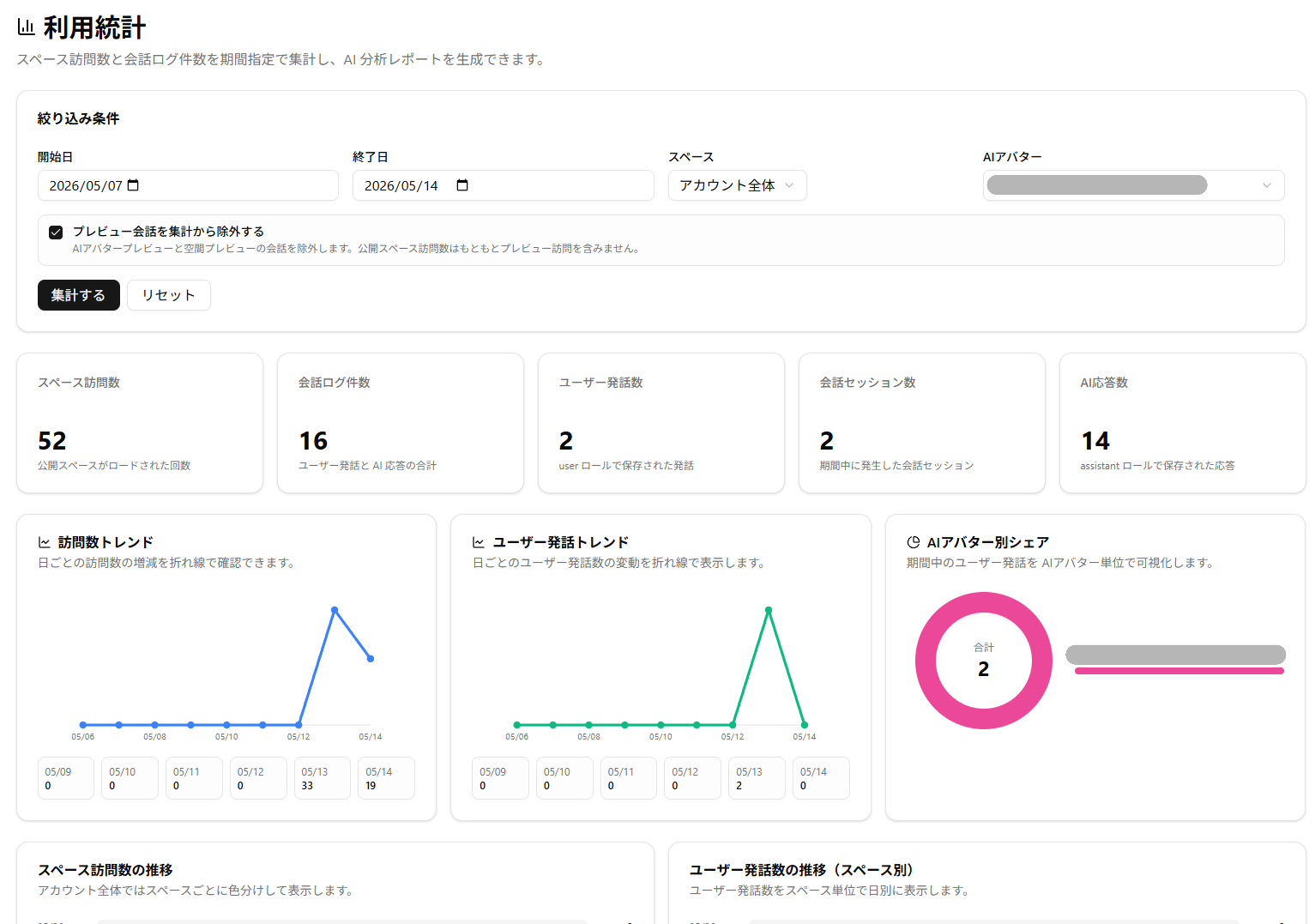
Usage Statistics Feature Addedโ€‹

  • You can now check Space and AI Avatar usage in Threedive AI Studio
  • Using the AI Analysis Report Creation feature, you can analyze visit counts and conversation logs for a specified period with generative AI and create a report (credits required)

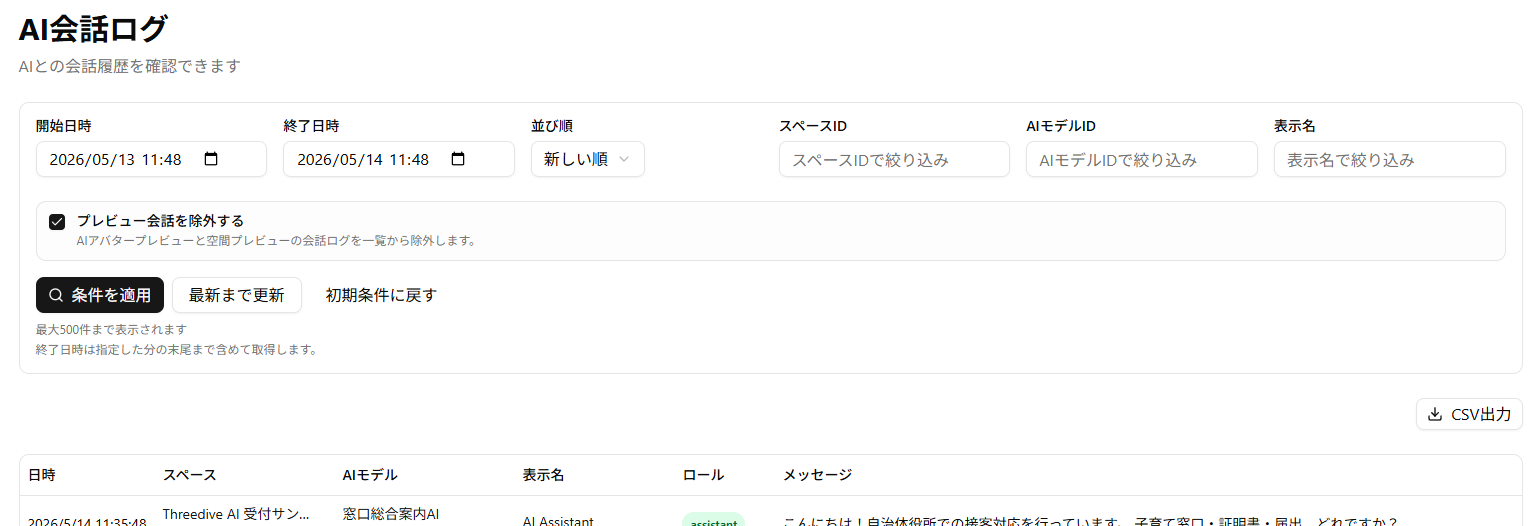
AI Conversation Log Feature Enhancementโ€‹

  • Enhanced filtering conditions
  • Added "Display Name" column
    • Contains the display name that users set in the Space screen settings dialog
    • Please note that logs saved before this update contain the Threedive AI Studio username instead of the display name
  • Added CSV export

AI Avatarโ€‹

  • Upgraded the internal model for Realtime TTS. You can now enjoy higher quality voice conversations

๐Ÿ”ง Adjustments and Bug Fixesโ€‹

  • Fixed an issue where AI conversation logs would only display up to 100 entries
  • Reduced the rendering load of 3DGS scenes
  • Added "Rendering Settings" > "Enable Anti-aliasing" to the Space screen settings dialog
    • Default is off
    • Enabling anti-aliasing will make the display look cleaner, but may increase the load when rendering 3DGS (Splat)

v1.15.0

ยท 2 min read
Threedive AI
Development Team

๐ŸŽ‰ New Featuresโ€‹

RAG/Knowledge Base Featureโ€‹

The RAG feature is now available for AI Avatars.

Simply upload Word or PDF format documents, and the AI Avatar will respond based on that content.

How to Useโ€‹

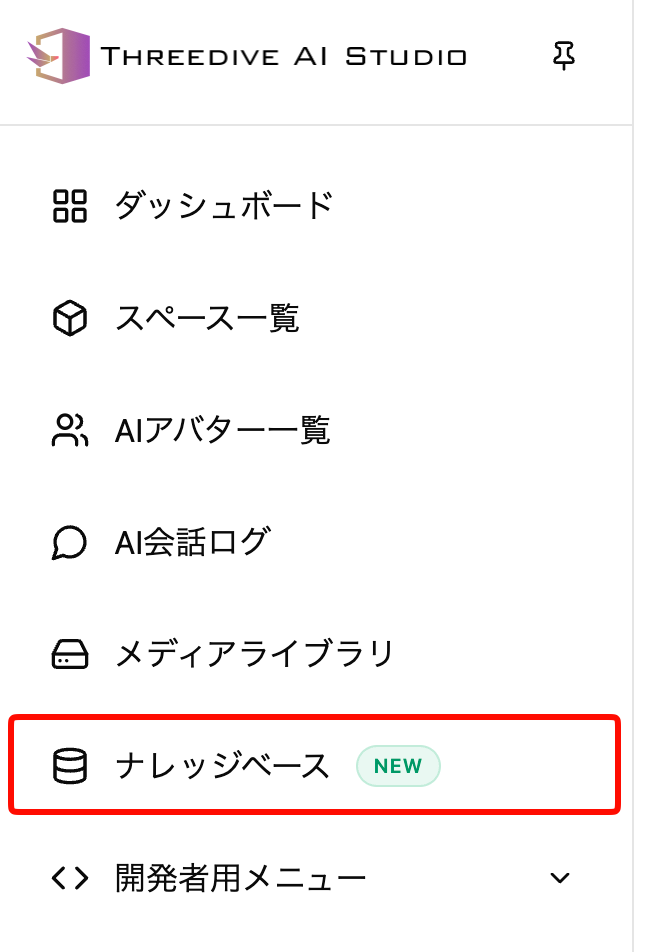
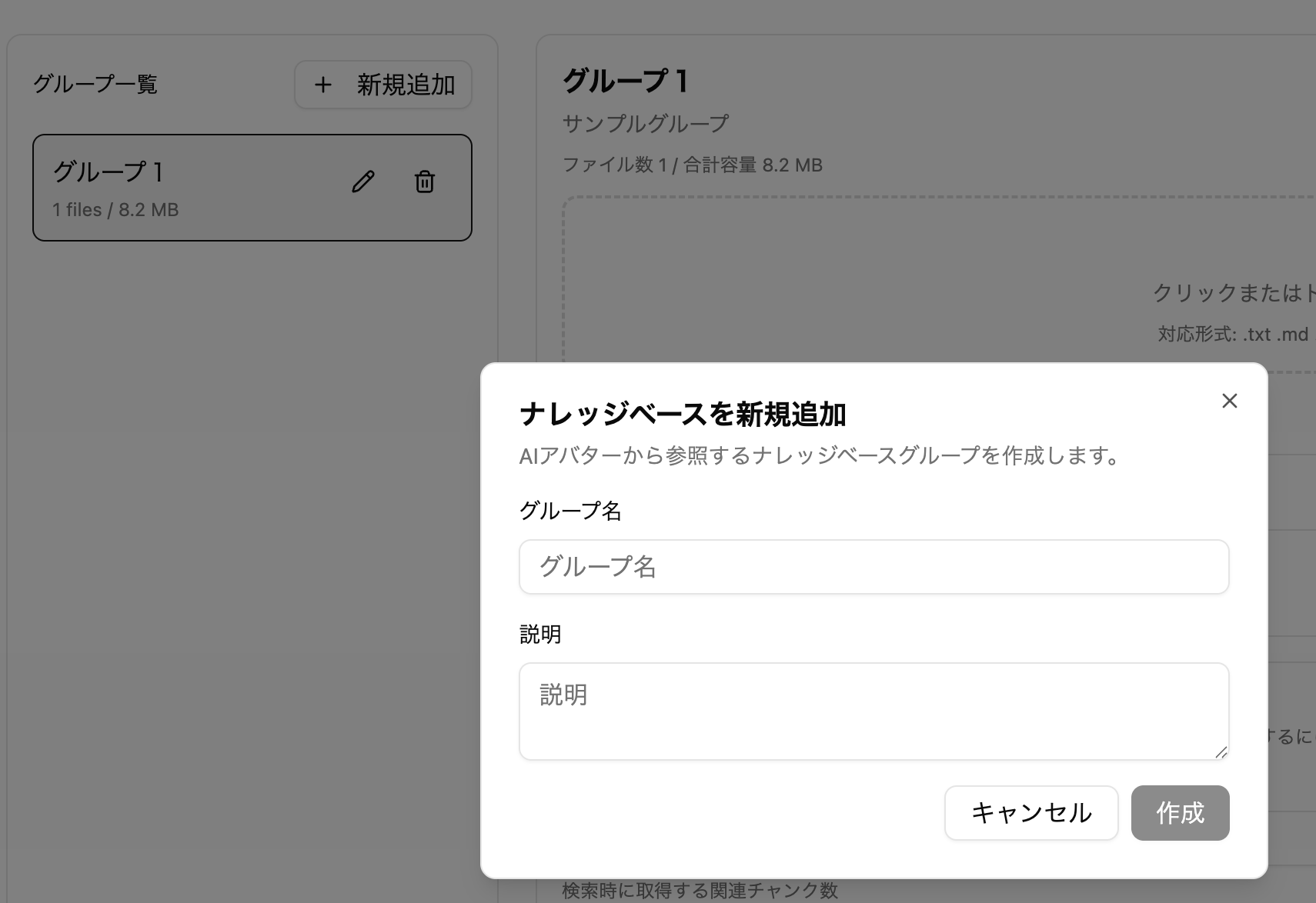
Select "Knowledge Base" from the right-side menu in Threedive AI Studio.

Create a group from New Creation.

Upload document files. Uploading documents requires 200 credits.

Wait a while after uploading until it becomes available.

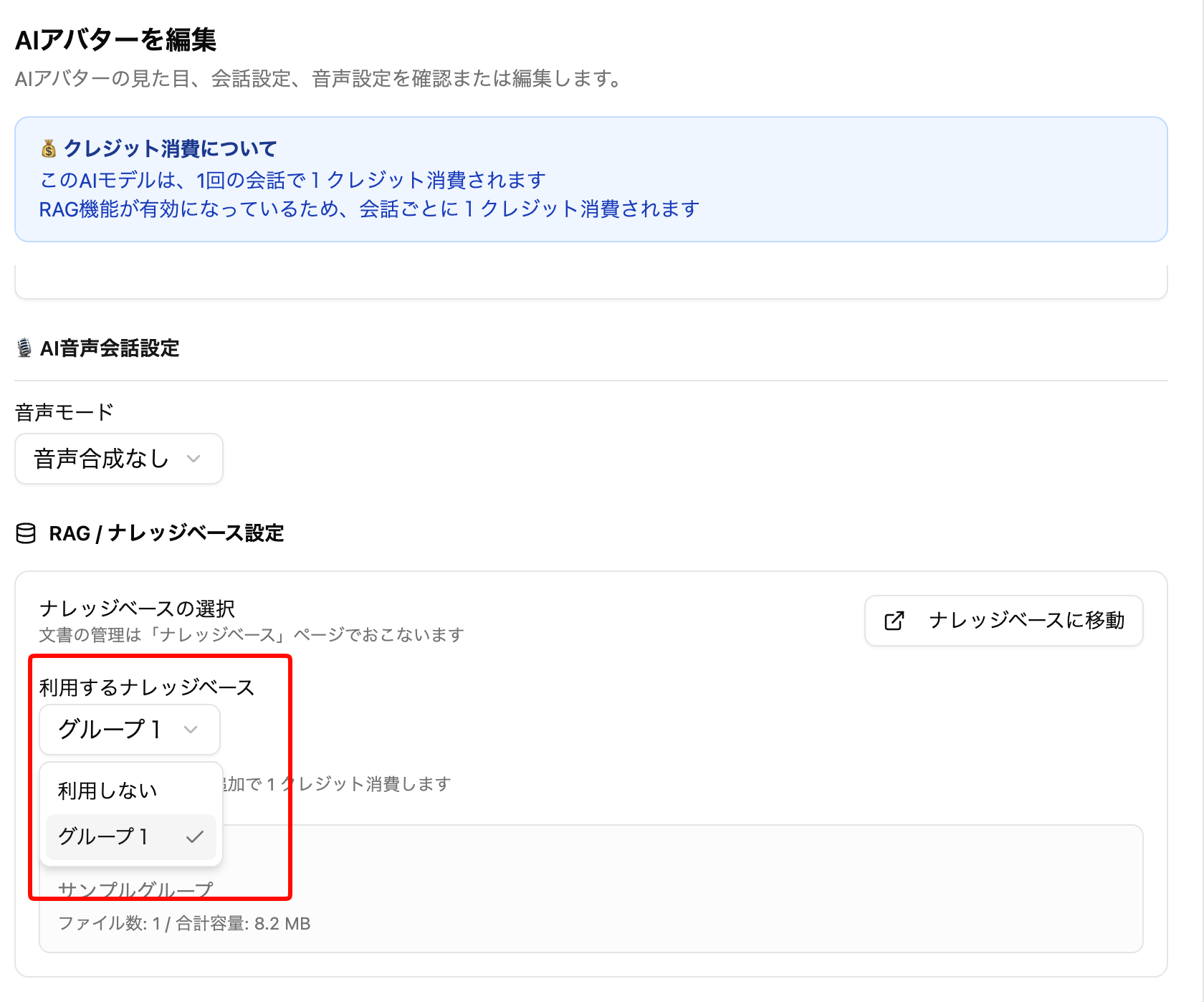
Navigate to the AI Avatar edit screen and select the group you just created in "Knowledge Base to use".

Save and you're ready. The AI will now respond based on the uploaded documents.

Language Specification for AI Chat Outputโ€‹

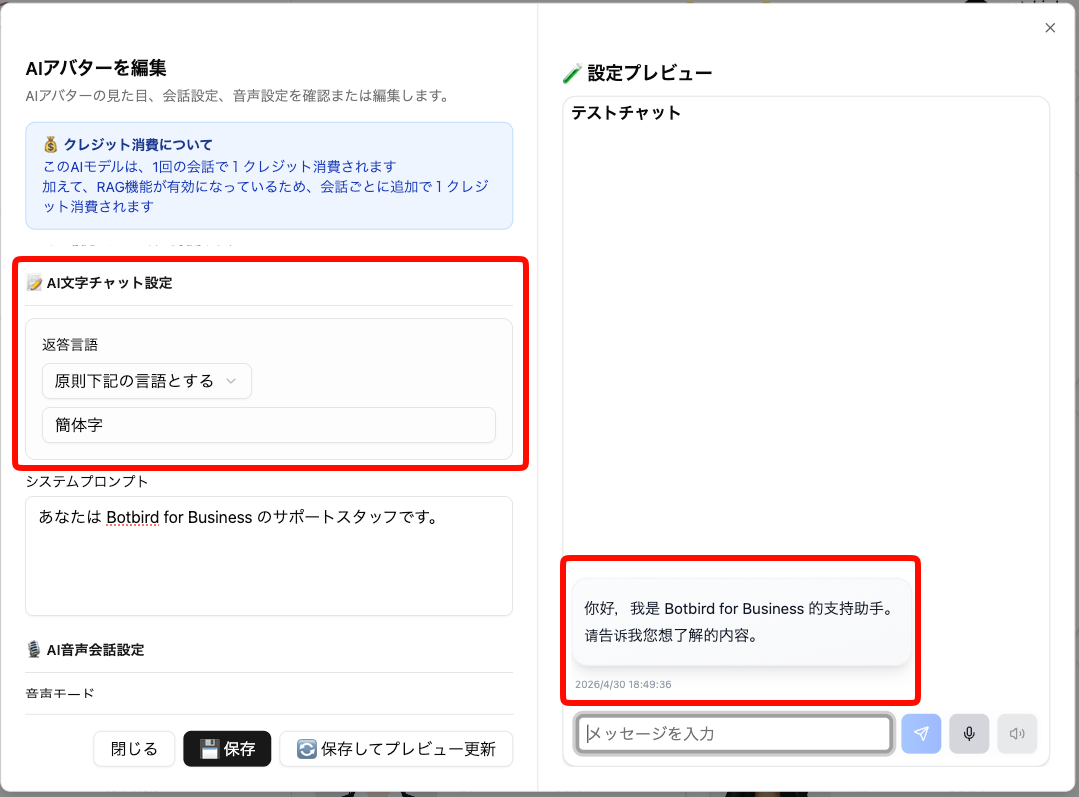
Set Edit AI Avatar > AI Text Chat Settings > Response Language to In principle use the language below. You can specify with words like "Traditional Chinese", "English", etc.

When set, the chat AI will attempt to respond in that language as much as possible.

Language Specification for AI Chat Voice Inputโ€‹

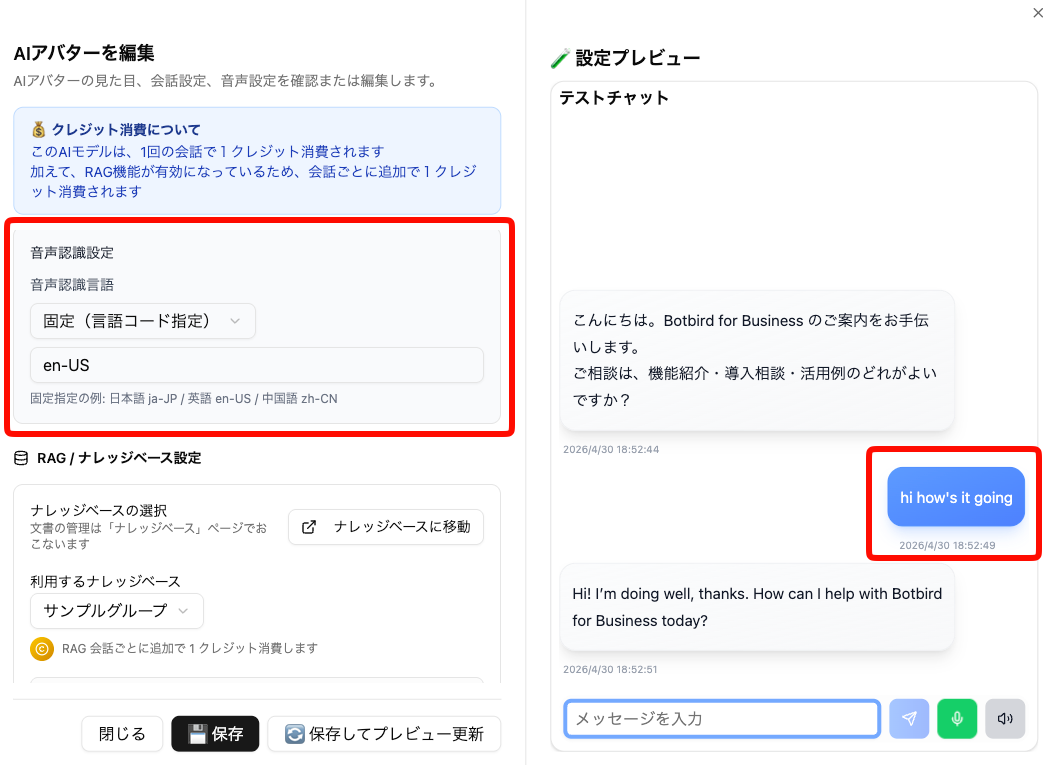
Set Edit AI Avatar > Speech Recognition Settings > Speech Recognition Language to Fixed (character code specification). You can specify in the format language code-country code, such as ja-JP, en-US, zh-CN, etc.

When set, voice recognition processing will be performed based on the specified language.

๐Ÿ”ง Adjustments and Bug Fixesโ€‹

  • When uploading images in "Automatic Space Generation by Generative AI", you can now set whether the image is a "panorama image"
    • Please use only for 360-degree panorama images (Equirectangular format) with a 1:2 aspect ratio horizontal image
  • Characters no longer run when moving with the left stick during touch operations on smartphones, etc.
  • Fixed an issue where uploading images over 6MB in "Automatic Space Creation by Generative AI (BETA)" would fail

v1.14.1

ยท One min read
Threedive AI
Development Team

๐Ÿ”ง Bug Fixesโ€‹

Fixed Voice Input Issue for AI Avatarsโ€‹

Details:

  • Fixed an issue where voice input would not be enabled when pressing the voice input button after specifying Voice Mode: No voice synthesis or Normal voice (TTS) in AI Avatar settings

v1.14.0

ยท 2 min read
Threedive AI
Development Team

๐ŸŽ‰ New Featuresโ€‹

โœจ Automatic Space Creation by Generative AI (BETA)โ€‹

The "Automatic Space Creation by Generative AI (BETA)" feature is now available when creating new Spaces!

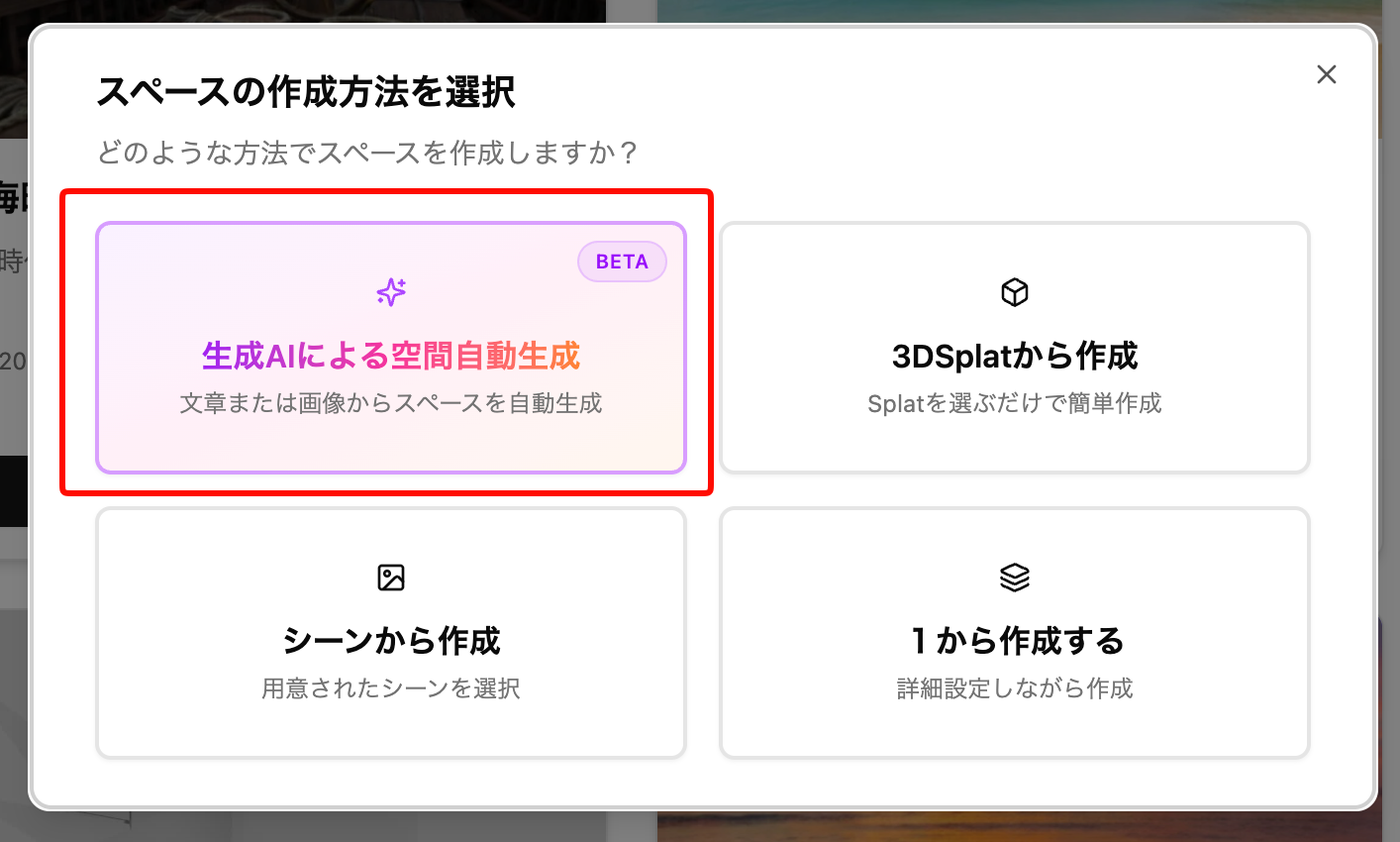
When you press the create new Space button, the following options will be displayed.

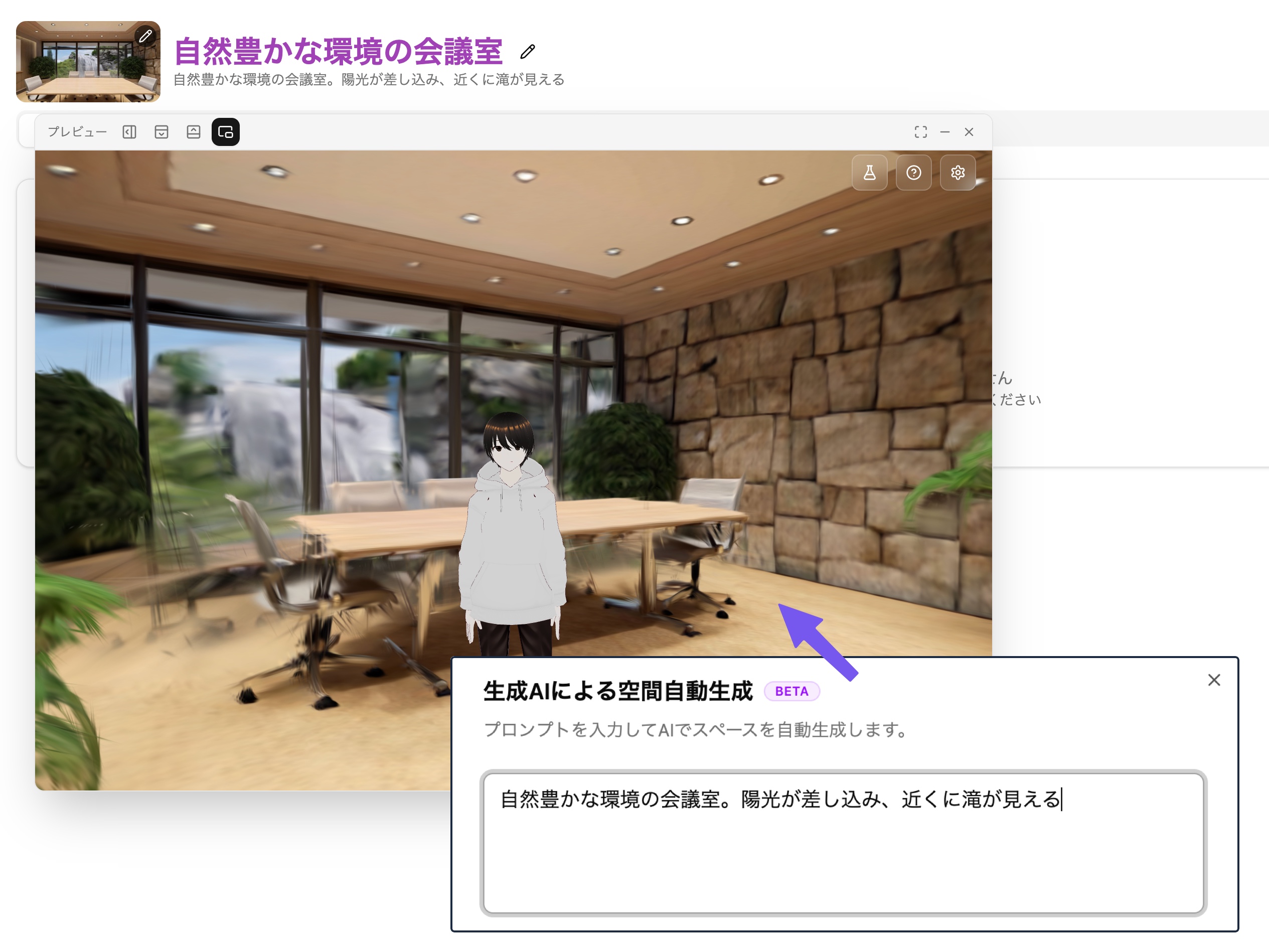
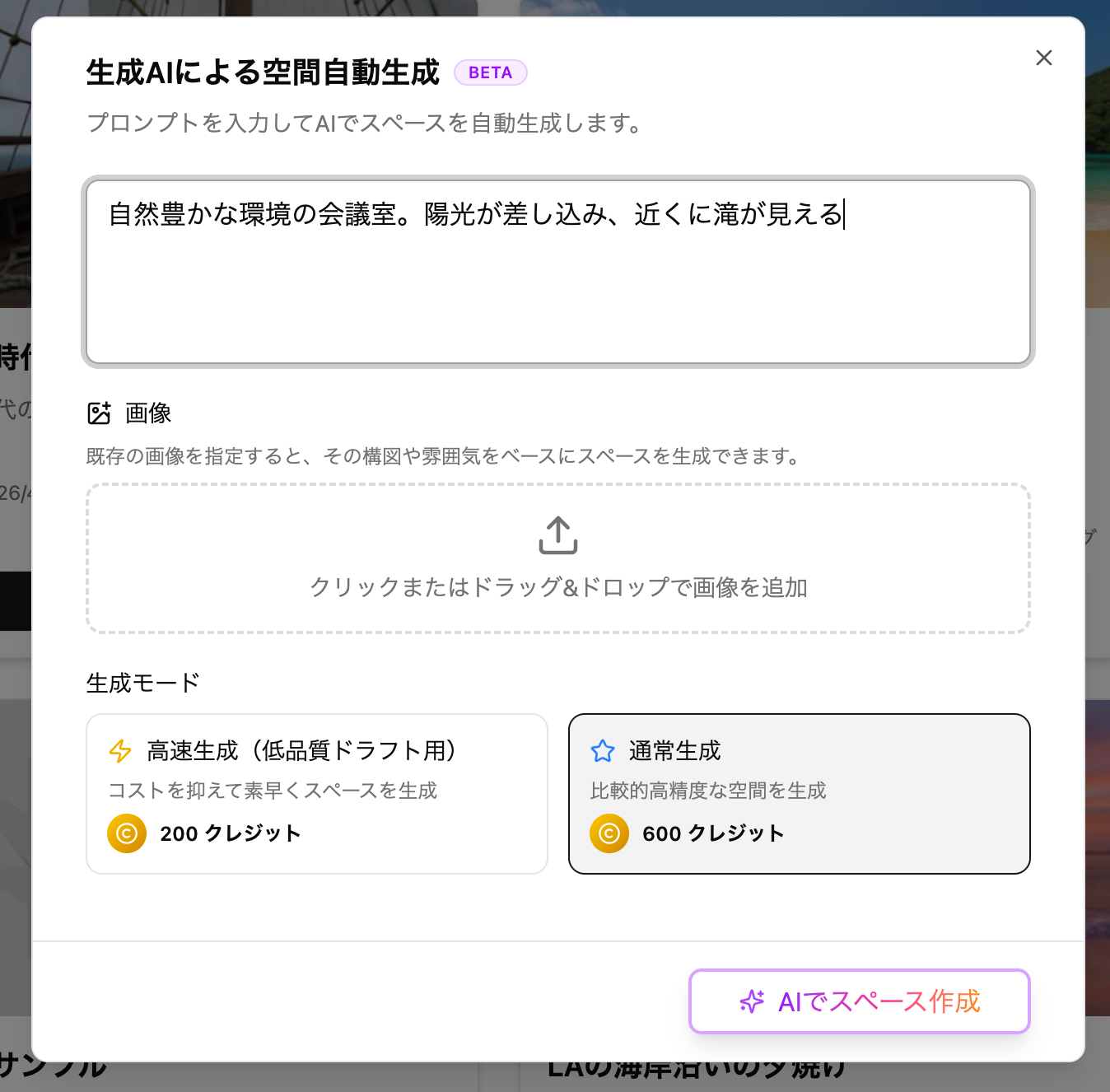
By pressing "Automatic Space Creation by Generative AI (BETA)", you can easily create a Space based on 3D Gaussian Splatting (splat) scenes generated from text or images.

TIPS

Please note that it takes some time to generate after creation execution. The time varies depending on the model and congestion, but as a guide:

  • Fast generation (for low-quality drafts) ... About 4-5 minutes
  • Normal generation ... About 7-10 minutes

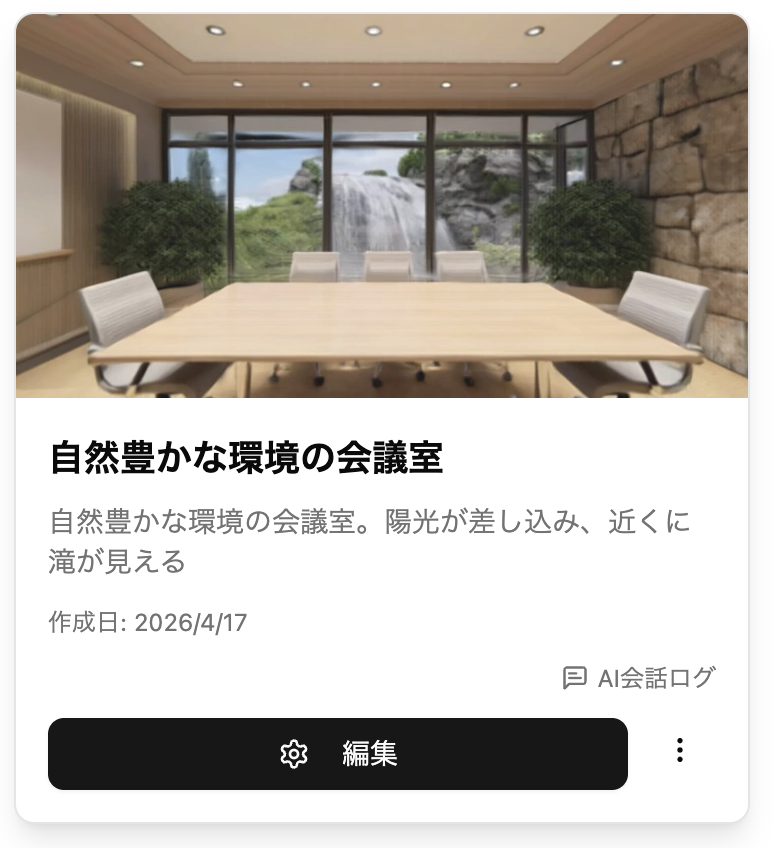
When creation is complete, the edit button will be enabled and you can preview it.

TIPS

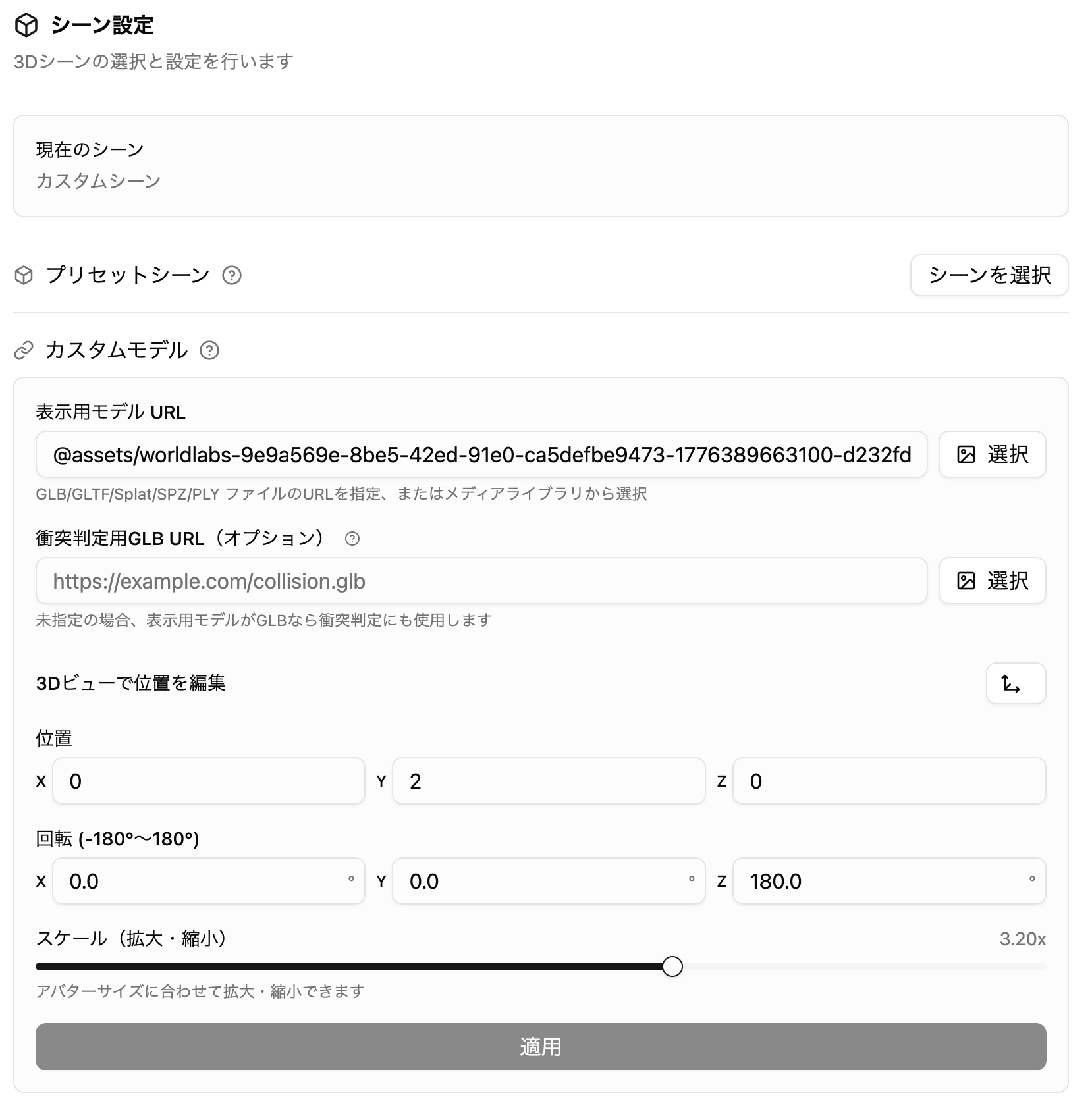
The generated splat scene can be used immediately, but the height and scale may not match the avatar. In that case, please adjust from the Advanced Settings > Scene Settings panel.

๐Ÿ”Š BGM Volume Adjustment Feature Addedโ€‹

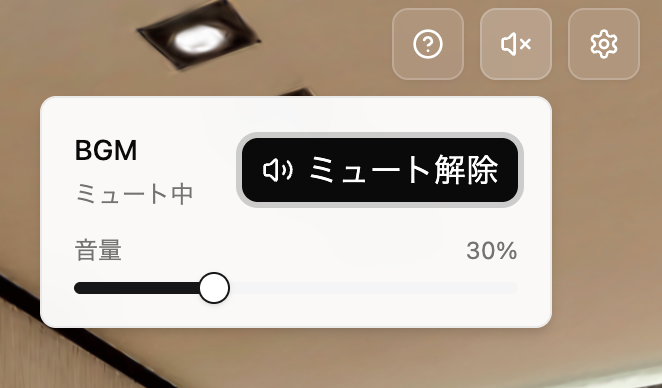
When BGM is set for a Space, you can now adjust the volume from the speaker button in the upper right.

๐Ÿ“ AI Avatar, Panel, and 3D Model Feature Enhancementsโ€‹

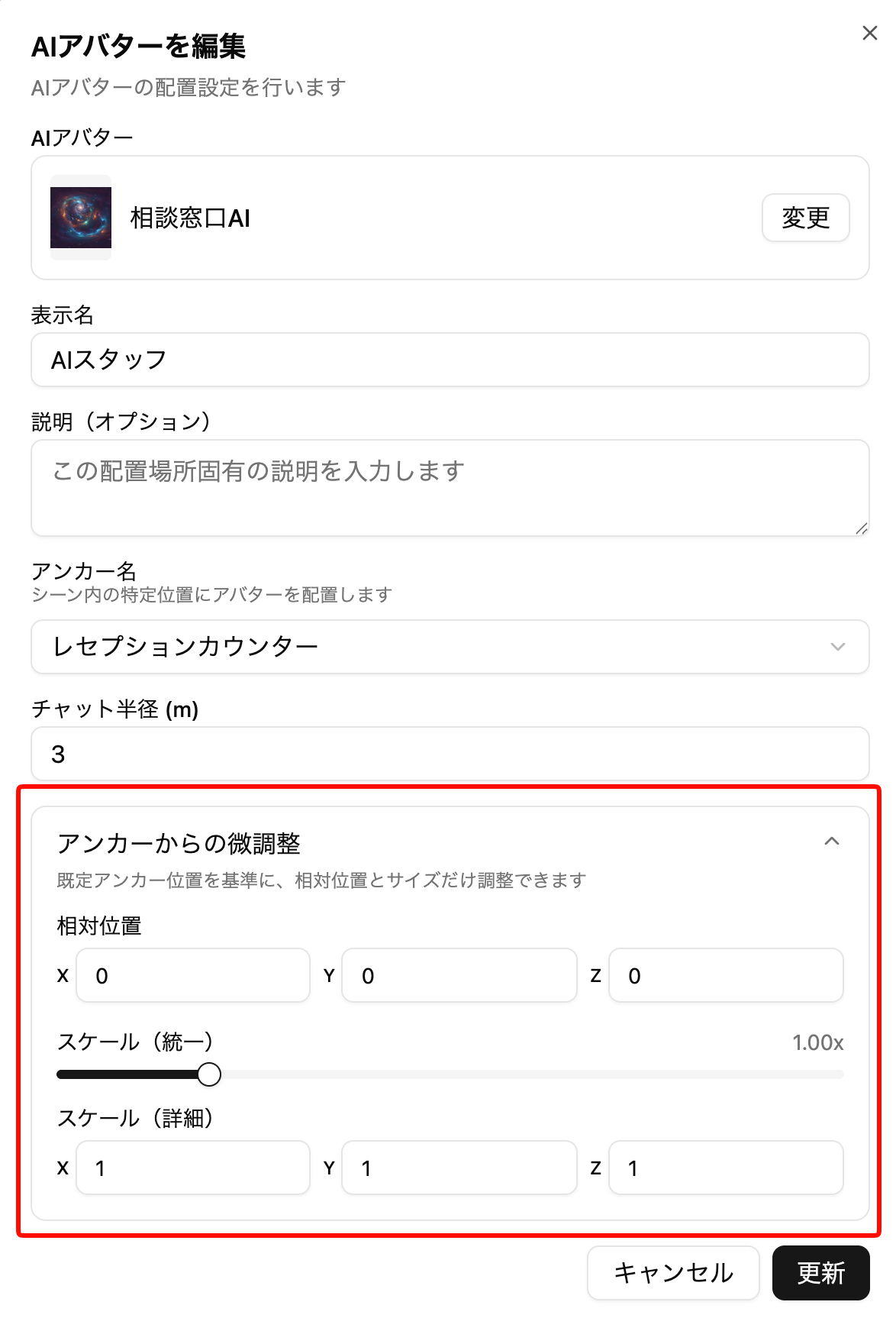
  • You can now fine-tune positions when specifying anchors

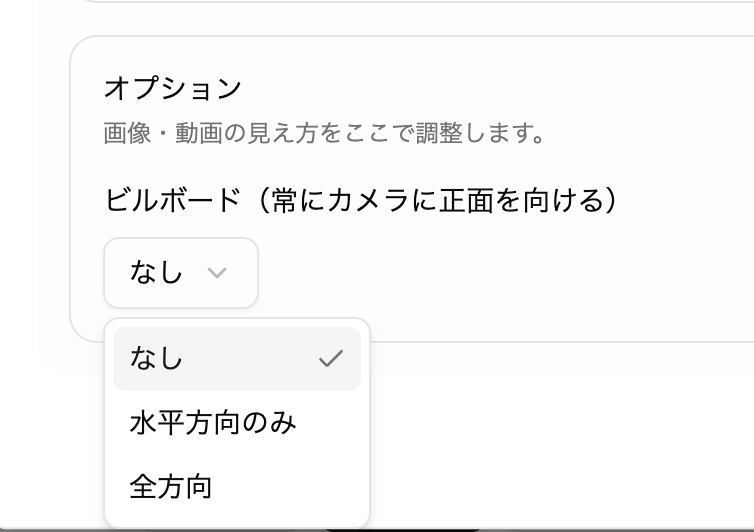
  • Billboard settings can now be configured in more detail

๐Ÿ”ง Bug Fixes/Adjustmentsโ€‹

  • Videos with transparent backgrounds now display correctly when using videos
  • Fixed an issue where VRM avatars would briefly appear in T-pose when appearing
  • Made various other minor fixes

v1.12.0

ยท One min read
Threedive AI
Development Team

๐ŸŽ‰ New Featuresโ€‹

AI Avatar Appearance Settings Enhancementโ€‹

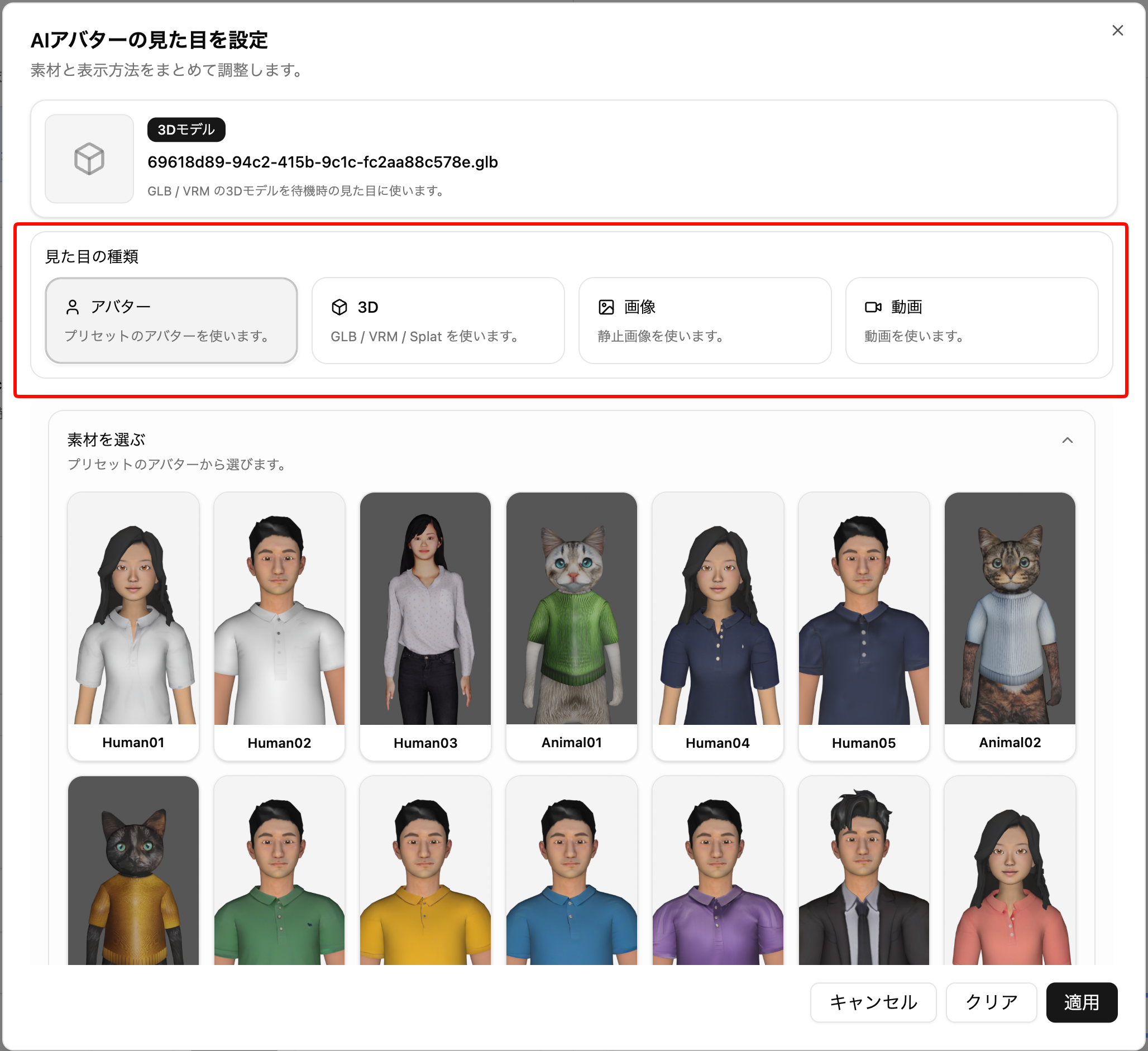
Enhanced the feature for configuring AI Avatar appearance.

  • Organized the settings dialog content
  • Video can now be selected as an avatar
    • You can use your favorite videos uploaded to the Media Library as the appearance of your avatar
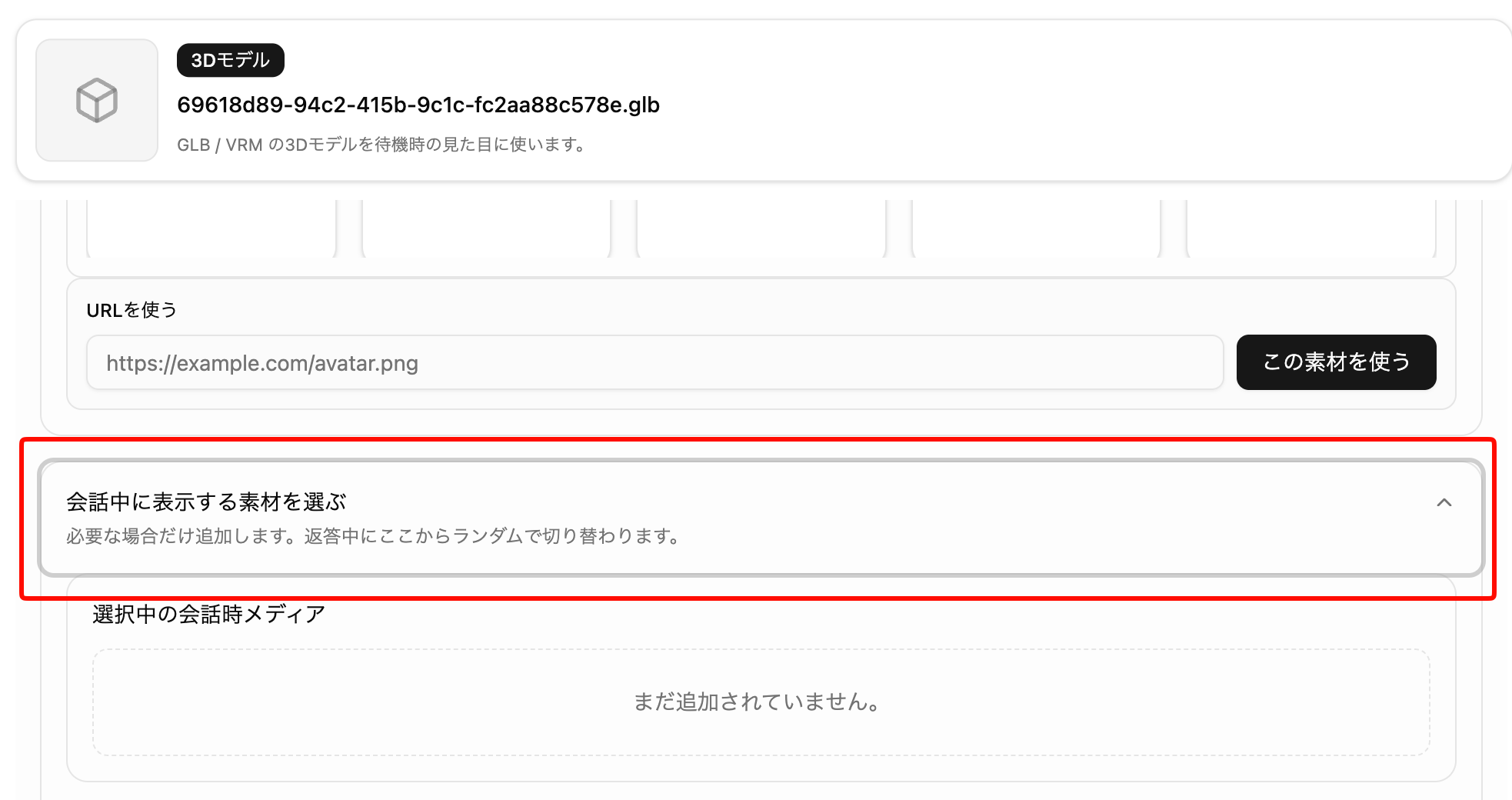
  • When using images/videos, you can now switch the appearance during conversation to a different image/video
    • If you register a different image/video in "Select material to display during conversation" at the bottom of the settings screen, the display will switch during conversation
    • By setting this, it becomes clearer to users that a conversation has started

v1.11.0

ยท One min read
Threedive AI
Development Team

๐ŸŽ‰ New Featuresโ€‹

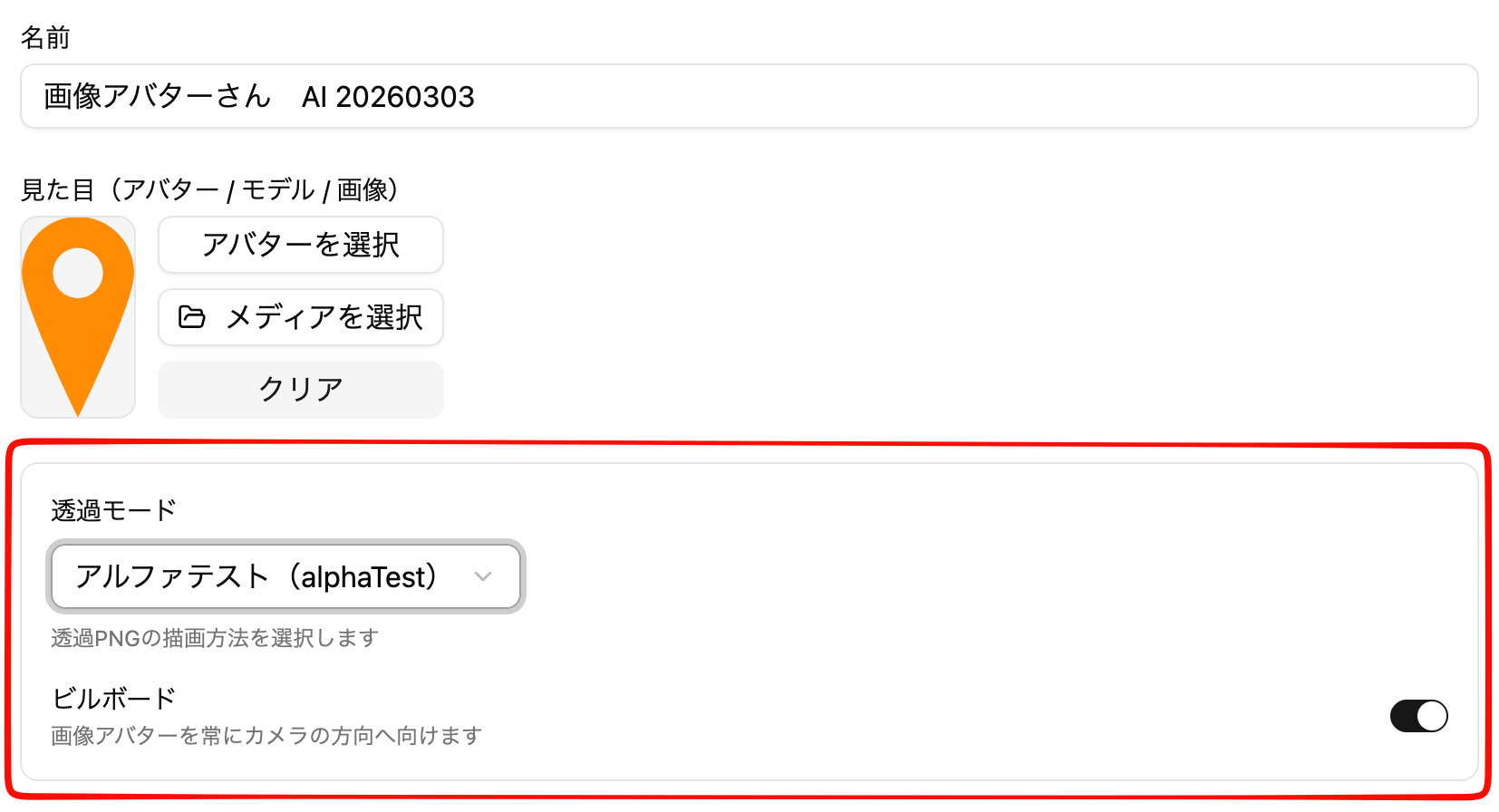
Billboard and Transparency Mode Settings Now Available When Using Images as AI Avatarsโ€‹

info

Only displayed when you select an image file from the Media Library as an AI Avatar

  • Features
    • Transparency Mode ... Sets how to handle transparency information when the image is a .png file
    • Billboard ... When enabled, the image will always face forward toward the screen (camera)

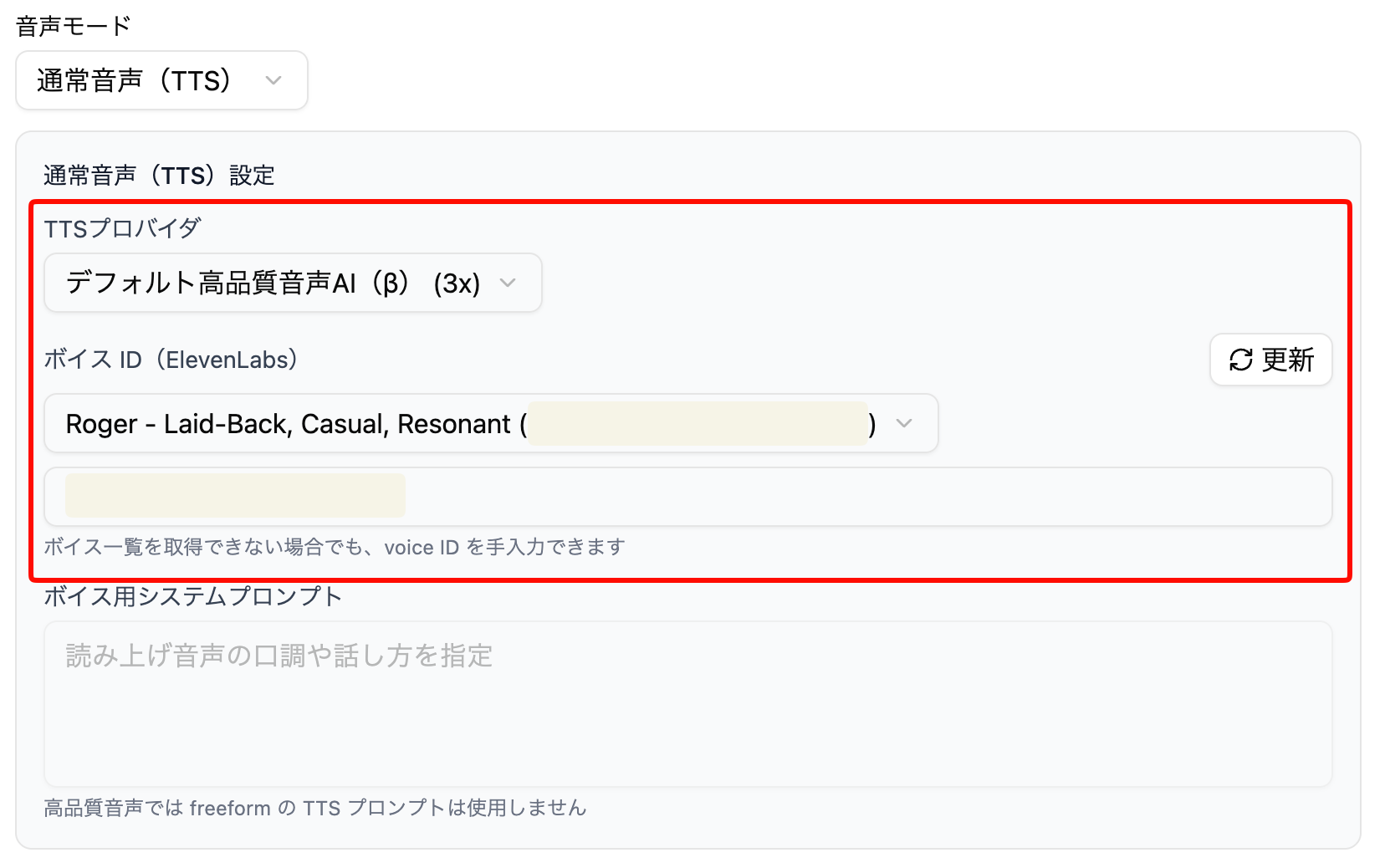
ElevenLabs High-Performance Voice Now Available for AI Voice (TTS)โ€‹

  • You can now use more natural voice synthesis

๐Ÿ”ง Bug Fixes/Adjustmentsโ€‹

  • Reviewed the visibility and operability of the AI chat window UI
  • Changed the default value of Ambient Light from 0.3 to 3.0

v1.10.0

ยท 2 min read
Threedive AI
Development Team

๐ŸŽ‰ New Featuresโ€‹

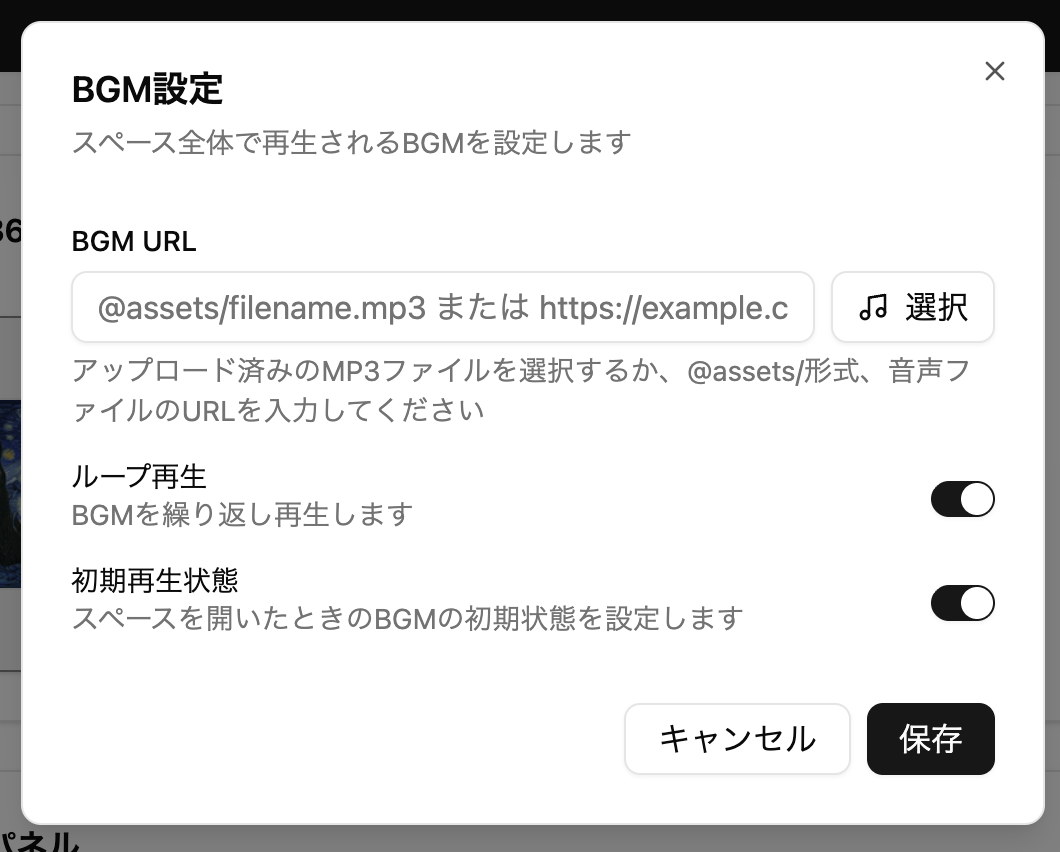
Space BGM Settings Addedโ€‹

You can now set BGM for each Space.

Configure in Space > Media Settings > BGM Settings.

Press the button to open the settings dialog.

  • You can specify the following two types of BGM:
    • Mp3 files uploaded to the Media Library
    • External URL (https://...)
Please Note

*Please ensure in advance that there are no copyright or other licensing issues when using music files.

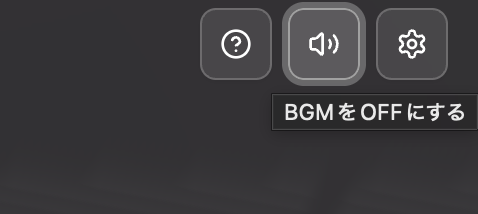
You can switch playback and stop with the speaker icon in the upper right of the Space screen.

Management Screen Name Changeโ€‹

The management screen name has been changed to "Threedive AI Studio".

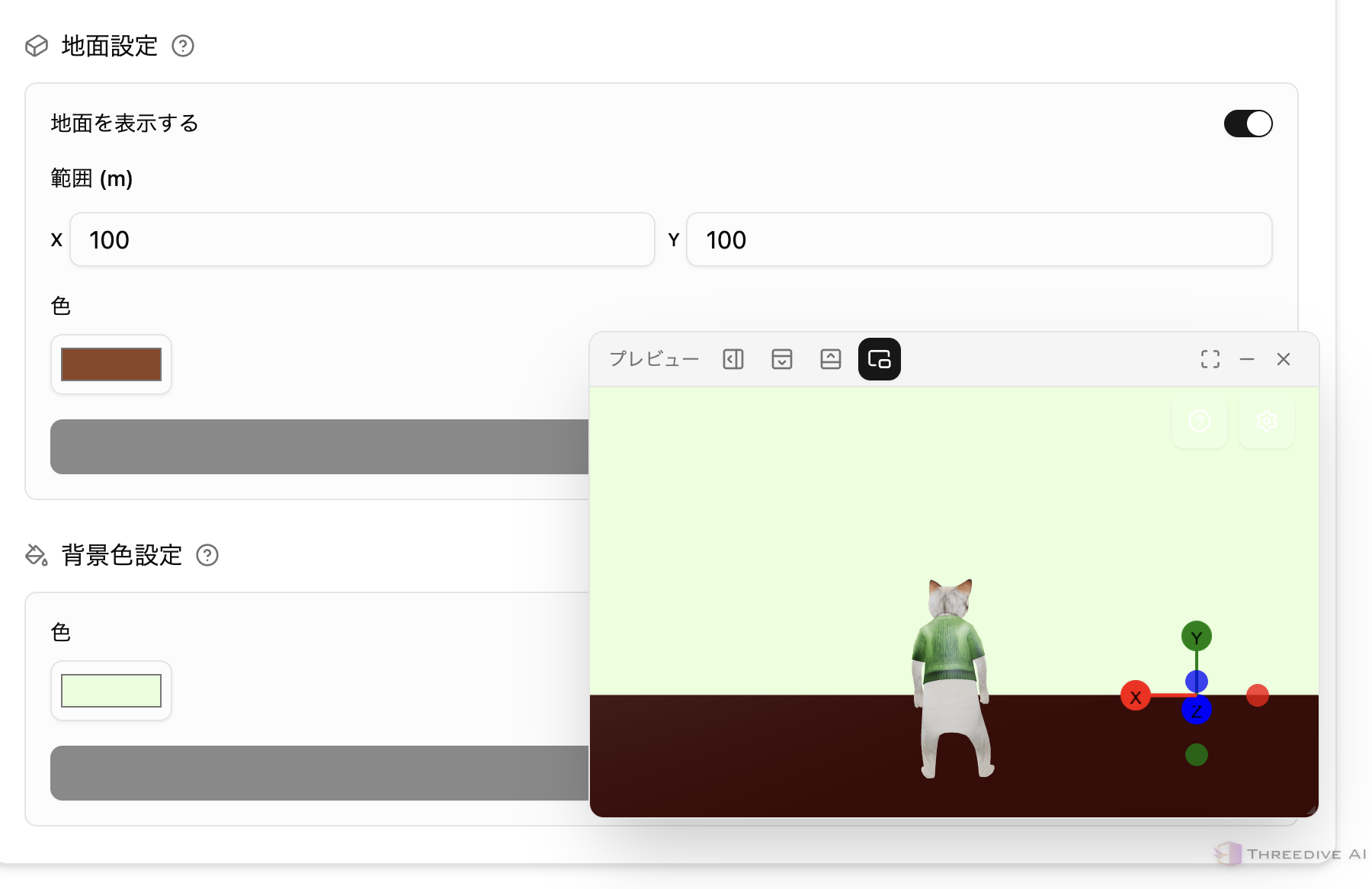
Ground Settings and Background Color Settings Addedโ€‹

Added Ground Settings and Background Color Settings to Advanced Settings > Scene Settings

Ground Settingsโ€‹

  • Adds a floor that characters can move on
  • You can change the size and color

Background Color Settingsโ€‹

  • Sets the background drawing color when a 360-degree panorama image is not set or until it is loaded

๐Ÿ”ง Bug Fixes and Improvementsโ€‹

  • Reviewed the system prompt settings for AI Avatars, making instructions easier to convey
  • Improved the accuracy of voice conversations with AI Avatars
  • Fixed an issue where Autopilot might not reach the destination AI
  • Fixed an issue where Space loading would stop at 100%
  • Changed so that the camera does not penetrate collision data and Space movement range

v1.9.0

ยท 3 min read
Threedive AI
Development Team

Overall: AI Settings & Placement Flow Improvementsโ€‹

We have comprehensively reviewed the flow from defining AI (AI Avatars) to placing them in Spaces.

Whether you create from a Space or from an AI Avatar, you can now place AI Avatars in Spaces with fewer steps than before.

๐ŸŽ‰ New Featuresโ€‹

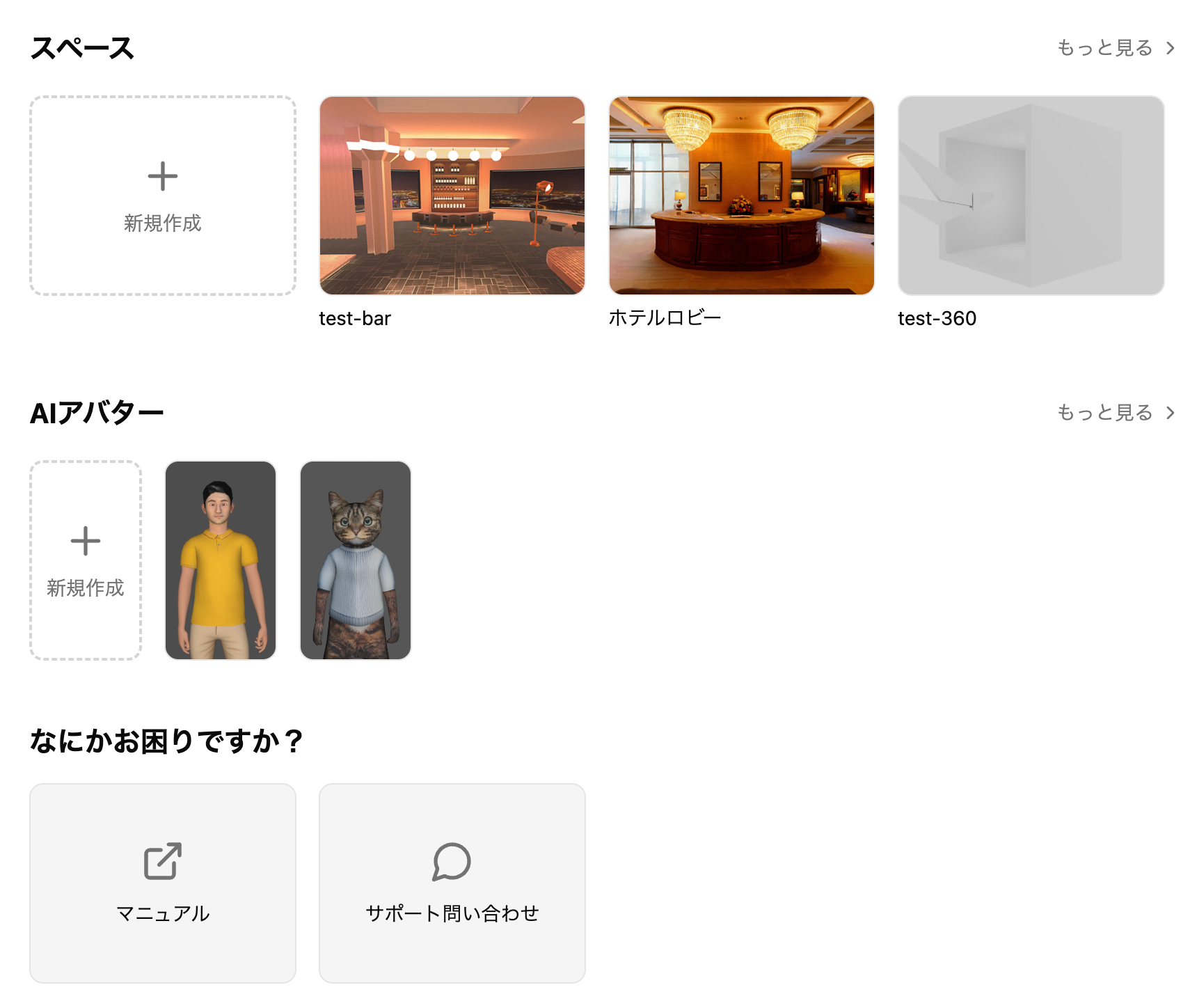
Dashboard Addedโ€‹

Added a dashboard (top page). You can now check Spaces, AI, and latest information all in one place.

AI Avatar Feature Addedโ€‹

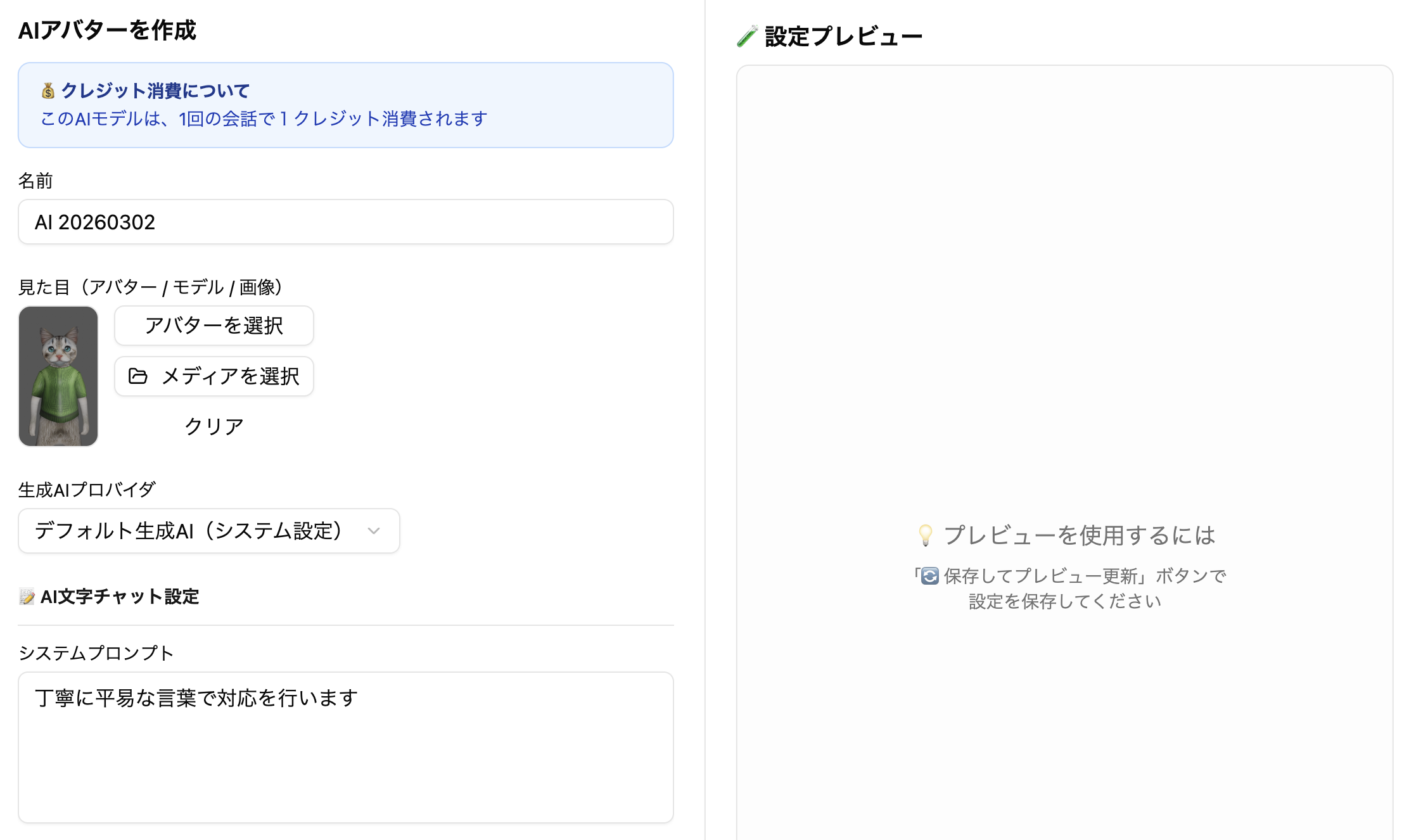
  • You can now configure the appearance on the AI configuration screen
  • The previous "AI Model Settings" page has been renamed to "AI Avatar List" page
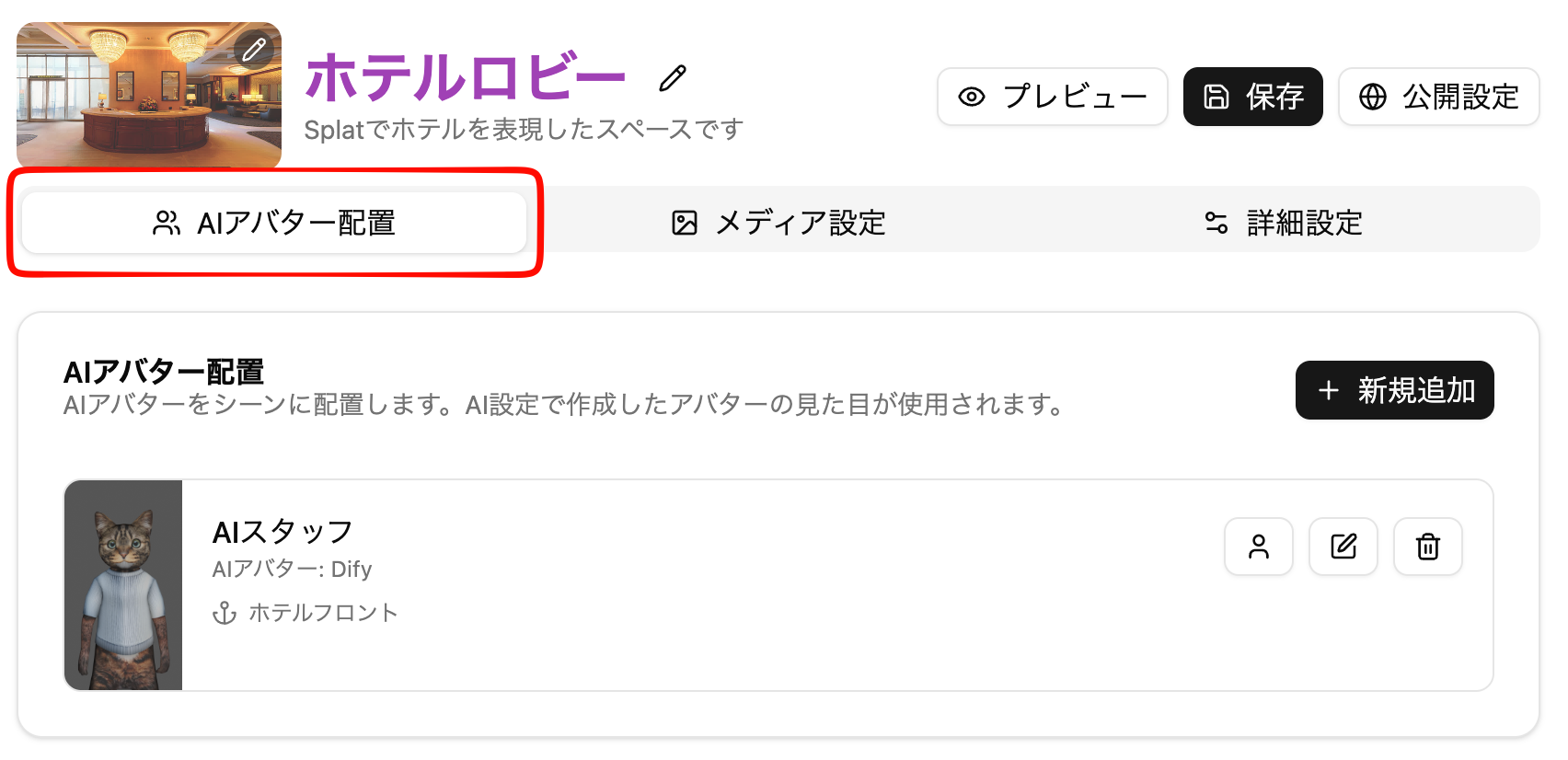
  • Placement in Spaces is done in the newly added "AI Avatar Placement" tab in the Space settings screen.
Note

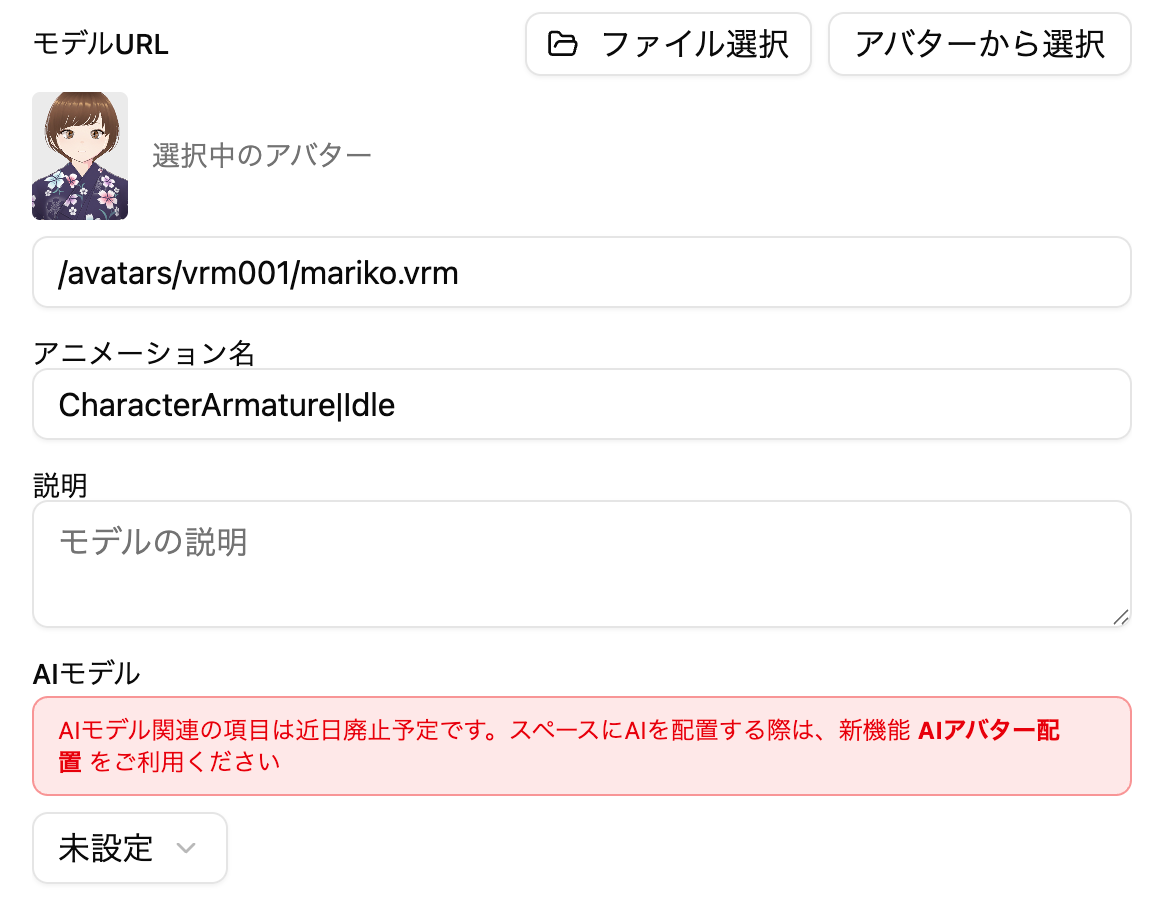
Previously, AI settings were configured on the model placement screen, but with the addition of "AI Avatar Feature", this has become a deprecated feature. Please use the "AI Avatar Feature" going forward.

VRM Avatar Supportโ€‹

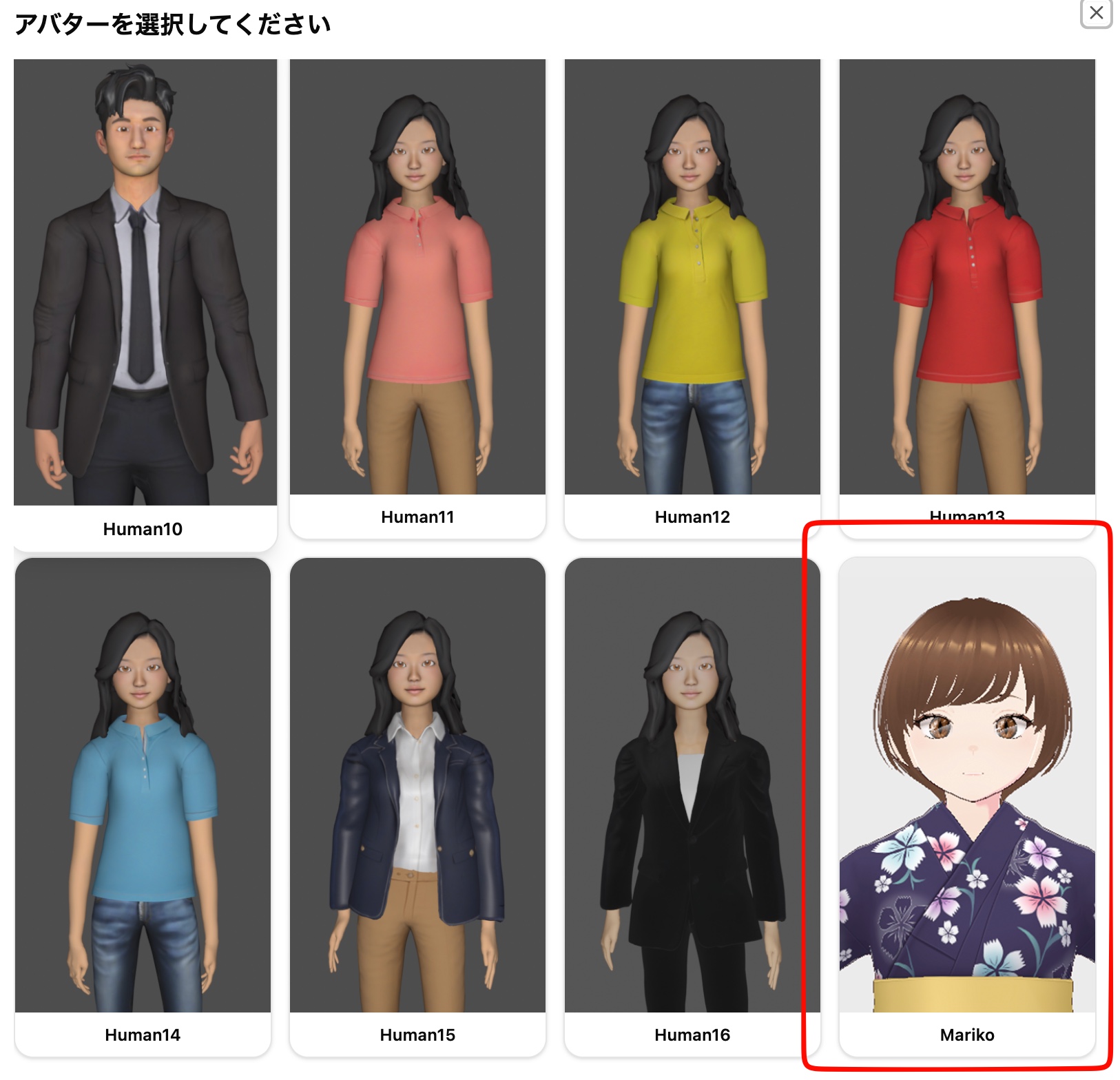
  • Added VRM format avatars as user-controllable avatars.
  • They can also be placed as AI Avatars
Note

We plan to add functionality to upload and use your favorite VRM avatars in the future.

Preview Feature Enhancementโ€‹

  • Space preview screens can now be displayed in the following layouts
    • Popup
    • Top embedded
    • Bottom embedded
    • Right-side embedded (previous)

Animated GIF Display Supportโ€‹

  • You can now display animated GIFs with the panel placement feature.

๐Ÿ”ง Bug Fixes and Improvementsโ€‹

Organized the display content of the left-side menu.

  • The link to the Subscription page has been moved to the left-side account menu
  • Terms of Use and Privacy Policy have been moved to the footer section of the menu and dashboard
  • Documentation and Contact links have been moved to the dashboard

Moved Space Basic Settings Featureโ€‹

Space name, description, and thumbnail settings that were previously in the Space Settings > Basic Settings tab have been moved to the top of the screen.

Loading Screen Changeโ€‹

  • Changed the display content and layout of the loading screen before Space display

Camera Control Improvementsโ€‹

  • Improved an issue where the camera would go around to the opposite side of obstacles