v1.8.0

ยท 2 min read
Threedive AI
Development Team

๐ŸŽ‰ New Featuresโ€‹

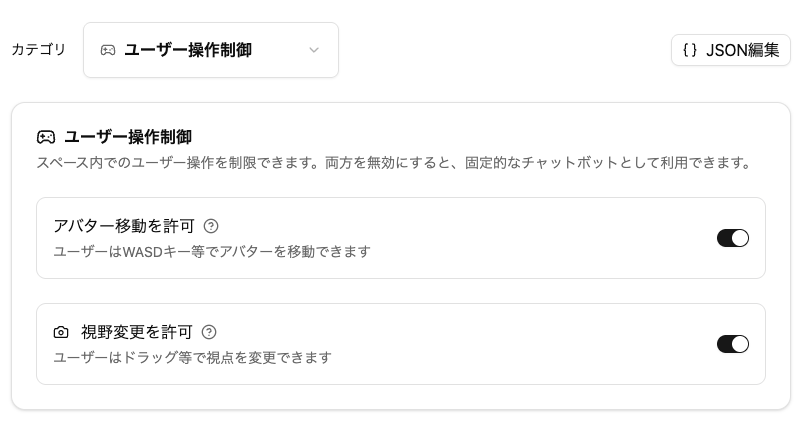
๐ŸŸข "User Operation Control" Feature Addedโ€‹

Added "User Operation Control" to each Space's settings.

You can restrict user operations within the Space.

  • Allow Avatar Movement ON (default) / OFF
  • Allow View Change ON (default) / OFF

๐ŸŸข "Conversation Session Management" Feature Added (When Using Dify)โ€‹

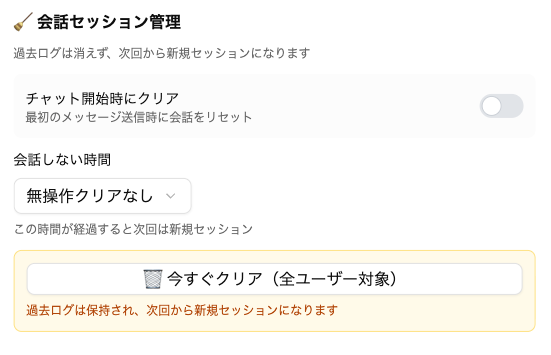
When calling Dify, you can now set how long to continue conversations from previous sessions.
info

This is displayed only when you select a setting in "AI Model Settings" with Dify connected as the "Generative AI Provider"

info

You can add "Generative AI Provider" items from "Developer Menu" > "Generative AI Provider Settings".

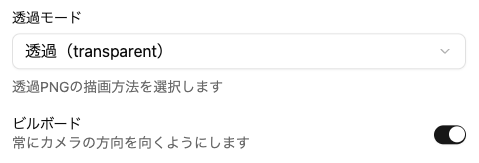
๐ŸŸข Rendering Options Added to "Panel Placement"โ€‹

  • Transparency Mode

    • You can now select from three transparency modes for panel rendering: "Default (Opaque)", "Transparent", and "Alpha Test". This allows for more precise control over the display of transparent PNGs and similar content.
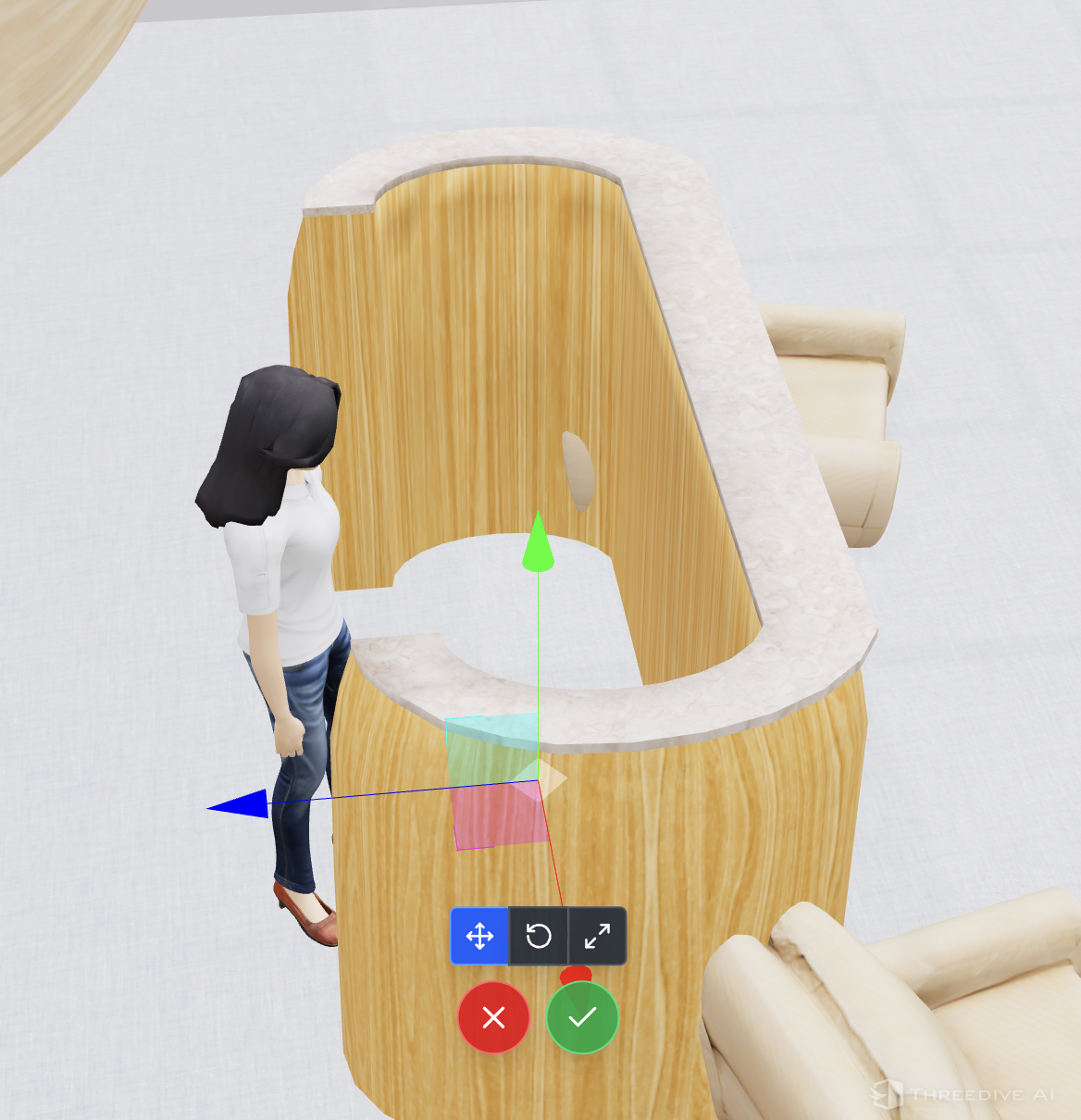
  • Billboard

    • You can now set the billboard feature to make panels always face the camera. This ensures that panels face forward from any viewing angle.

๐ŸŸข Adjusted Panel Popup Display Appearanceโ€‹

The following settings now display in a popup window style.

  • Enlarge image for display
  • Display specified URL in popup

๐Ÿ”ง Bug Fixes and Improvementsโ€‹

  • Fixed an issue where normal voice conversations (non-realtime) would not work properly in some cases
v1.7.0

ยท 2 min read
Threedive AI
Development Team

๐ŸŽ‰ New Featuresโ€‹

Multiple Methods for Creating Spacesโ€‹

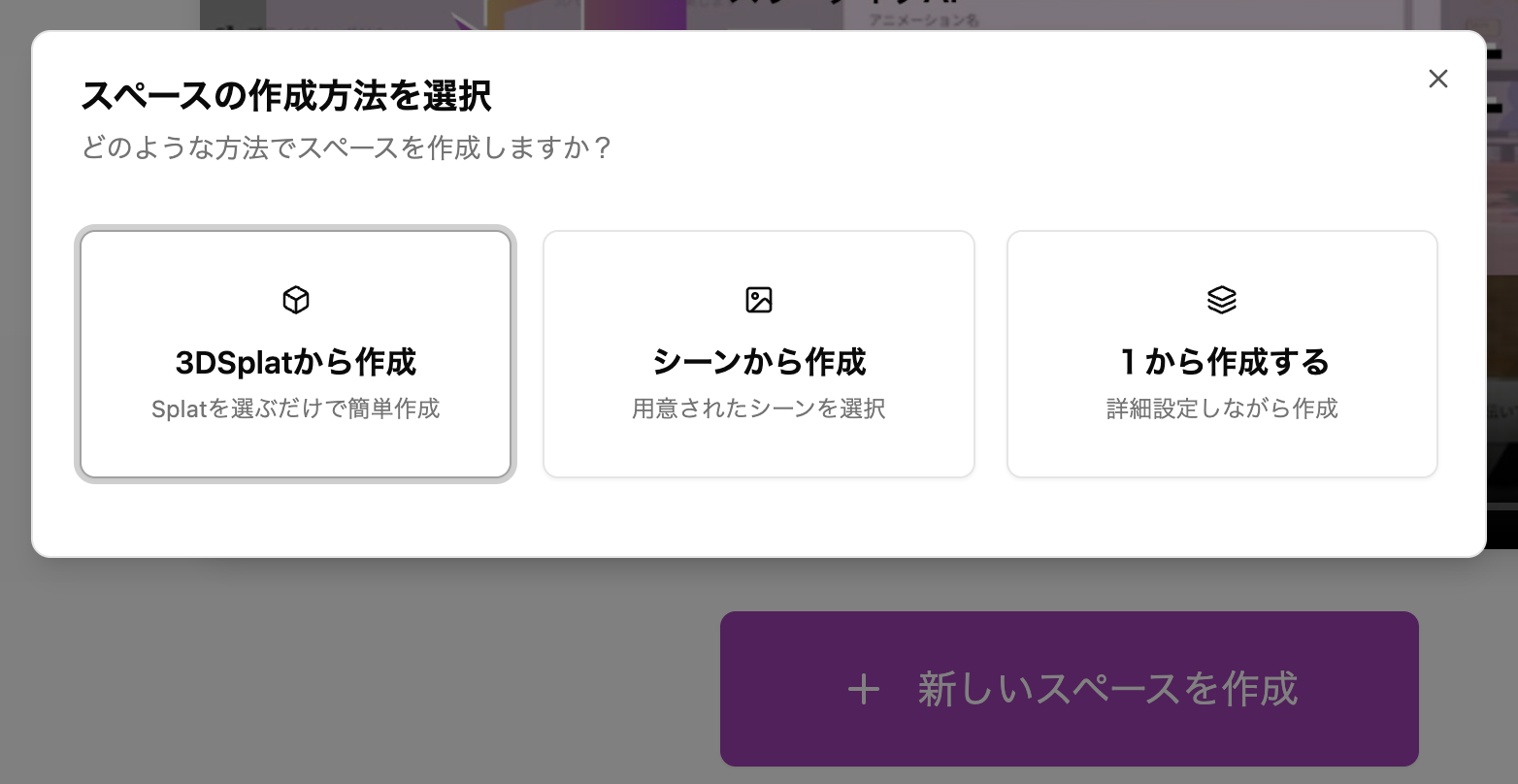
When you press the create new Space button, you can now select from the following methods:

  • Create from 3D Splat ... Create a Space by selecting a 3D Gaussian Splatting file registered in the Media Library
  • Create from Scene ... Create a Space by selecting a prepared Scene
  • Create from scratch ... Create a Space step by step as before

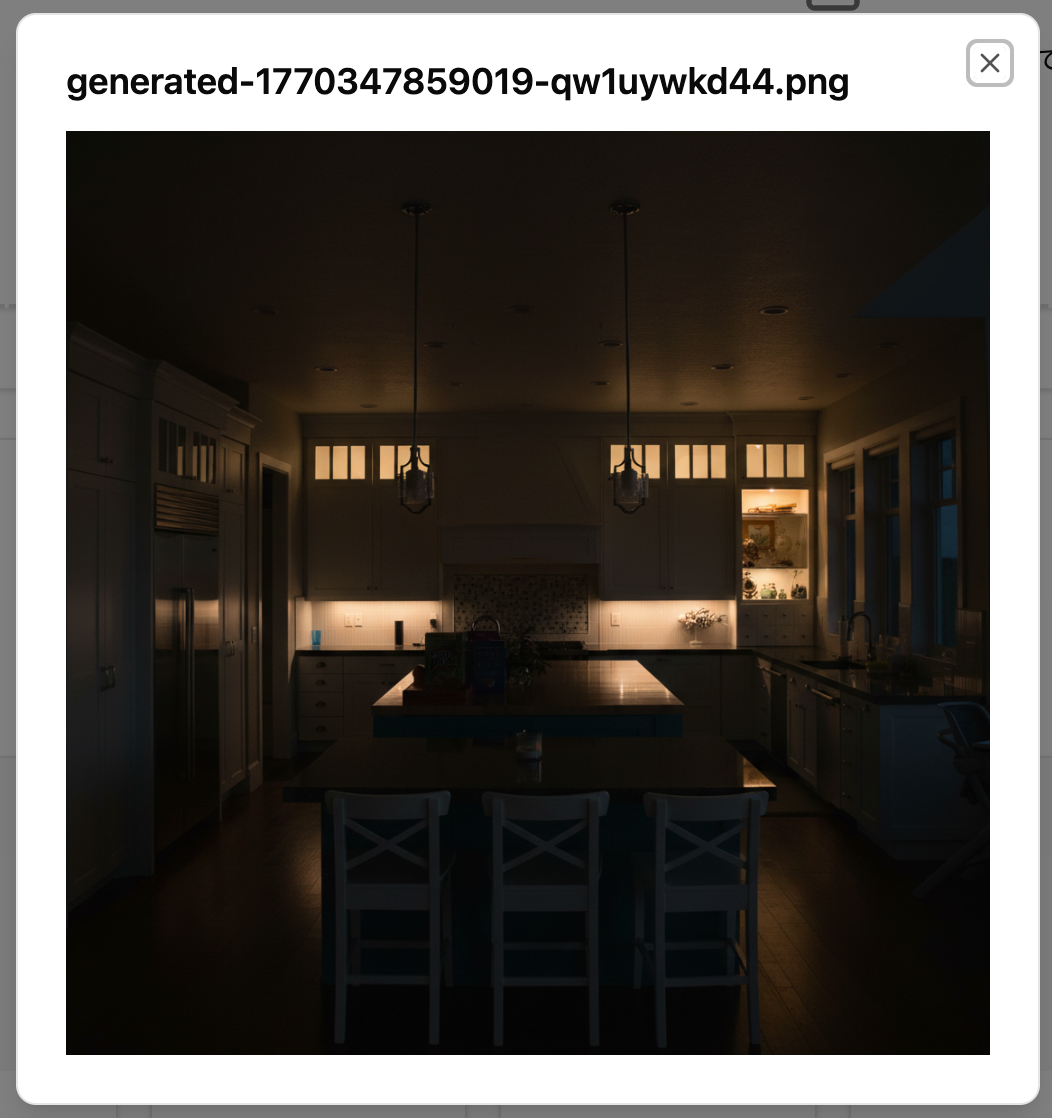
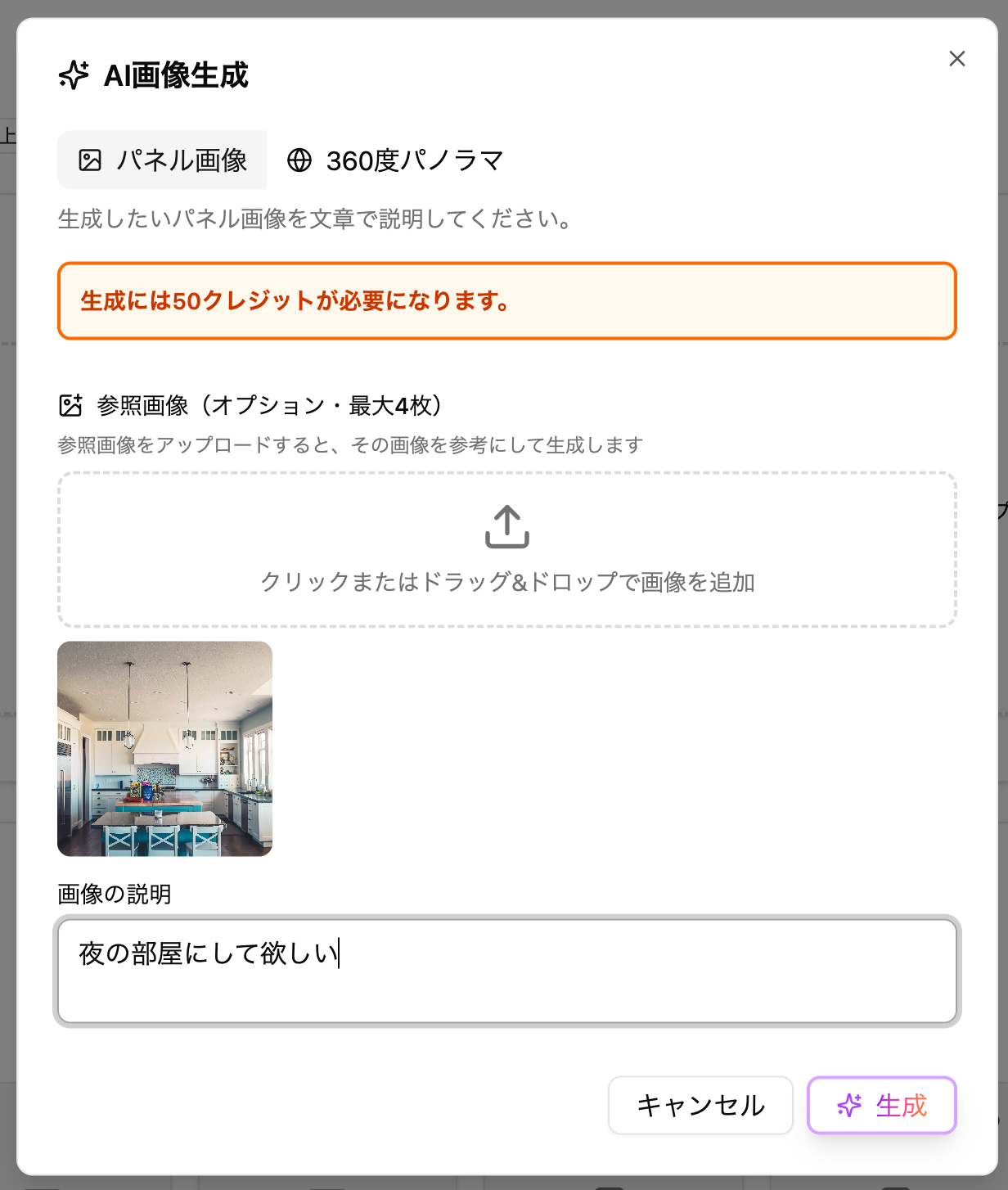
Upload Reference Images for AI Image Generationโ€‹

You can now upload reference images when generating AI images (up to 4 images).

Upload screen

Generation example

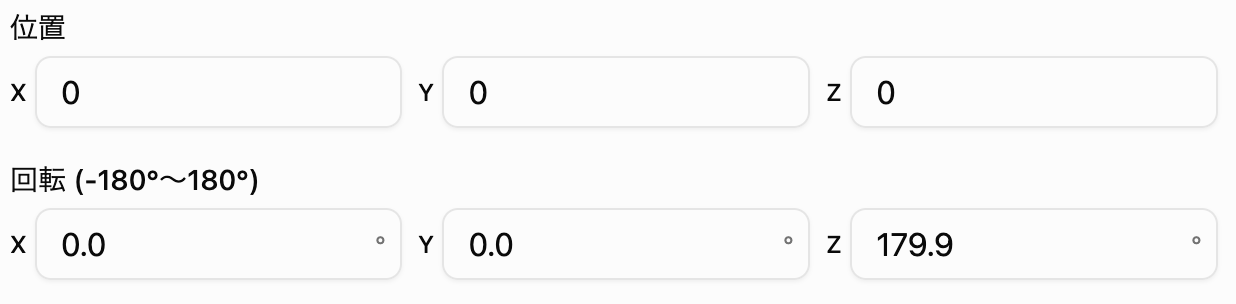
Changed "Rotation" Display from Radians to Degreesโ€‹

Angle displays in various settings have been changed from radians to degree notation (-180ยฐ to 180ยฐ).

The internal data has not changed, so existing Space settings can be used as is.

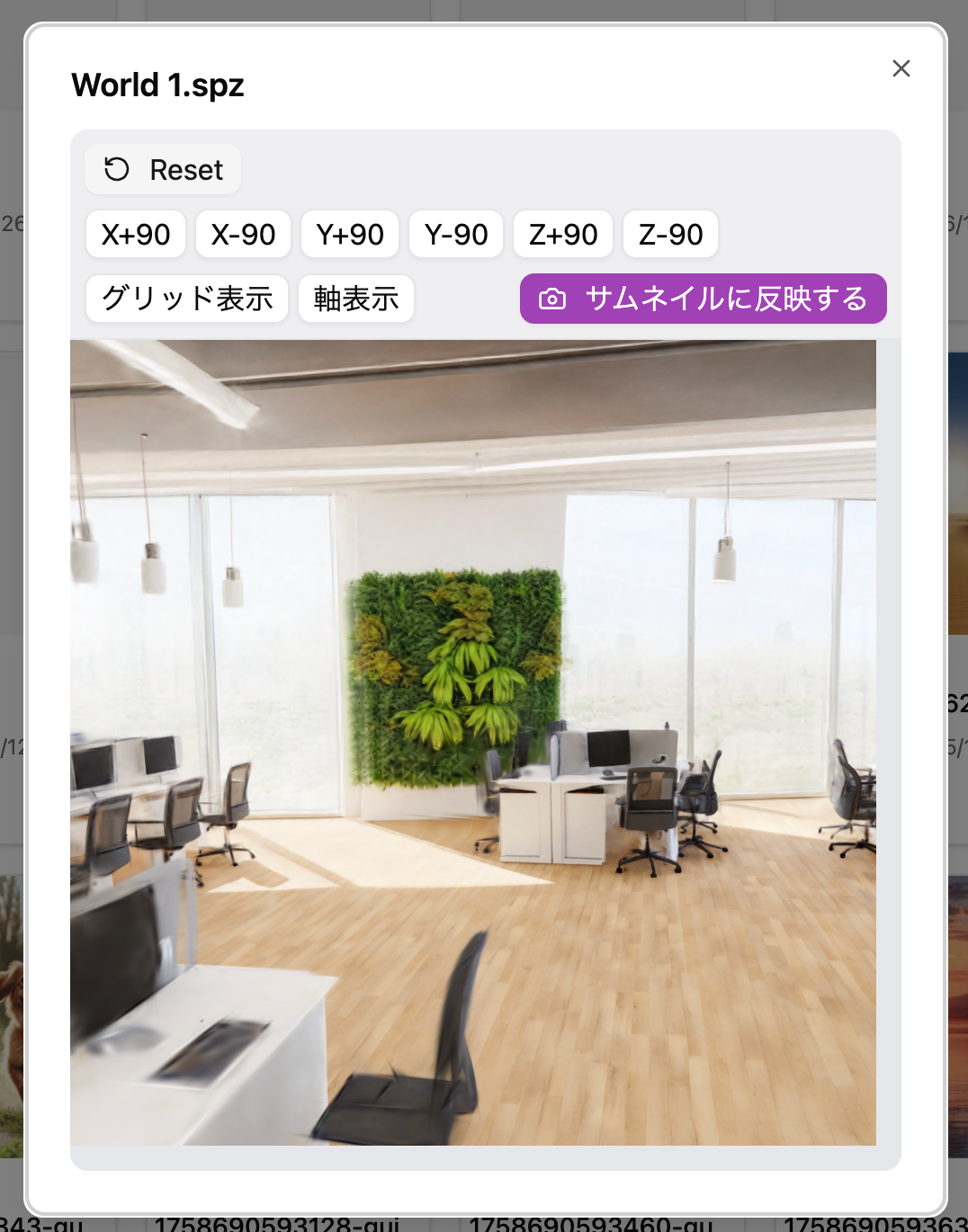
Added "Apply to Thumbnail" Button to 3D Splat Preview Screenโ€‹

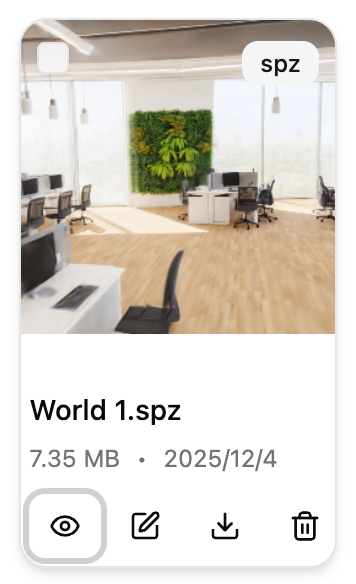
When previewing (๐Ÿ‘๏ธ) 3D Splat files in the Media Library, you can now generate thumbnail images.

Procedure

  1. Change the preview to your preferred angle and press the Apply to Thumbnail button.
  1. The 3D Splat thumbnail will be displayed in the list

Bug Fixes and Improvementsโ€‹

  • Integrated "3D Splat Placement" settings into "Model Placement"
    • Deprecated 3D Splat Placement in Space > Advanced Settings > Category
    • Please use Model Placement (and the display model URL in Scene Settings) for 3D Splat placement going forward
  • Improved screen display for smartphones for some UI elements
  • You can now set thumbnails for Spaces in formats other than png

v1.6.1

ยท One min read
Threedive AI
Development Team

The following features have been added.

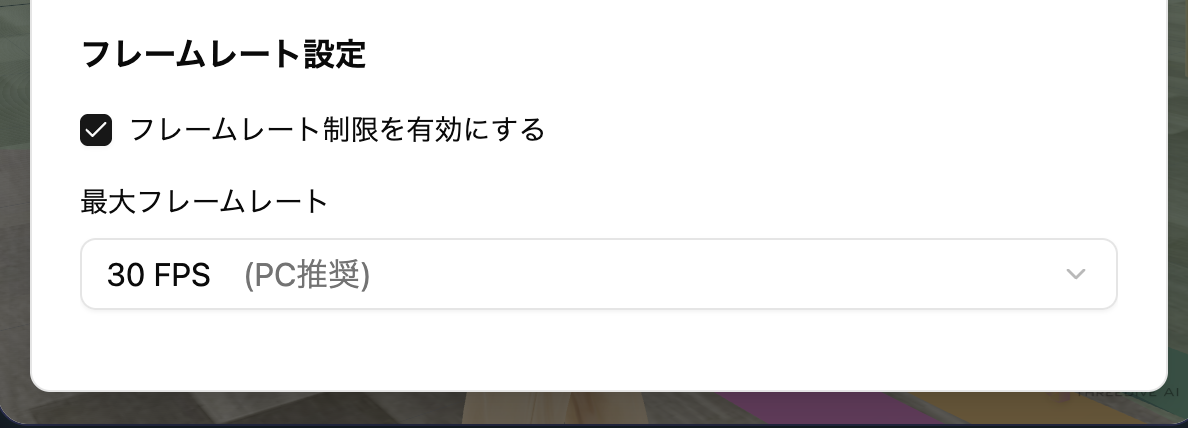
Frame Rate Limitation Featureโ€‹

How to change: Upper right โš™ button > Frame Rate Settings

The initial settings are as follows.

  • Enable frame rate limitation - On
  • Maximum frame rate - 30FPS (PC/Mac) 15FPS (iPhone/Android, etc.)
info

FPS (Frames per second) is the value of how many times per second the screen refresh processing is performed. Generally, a higher value results in smoother rendering of animations, etc.

If you experience screen stuttering or high PC load when opening a Space, try lowering the frame rate.

v1.6.0

ยท One min read
Threedive AI
Development Team

The following features have been added.

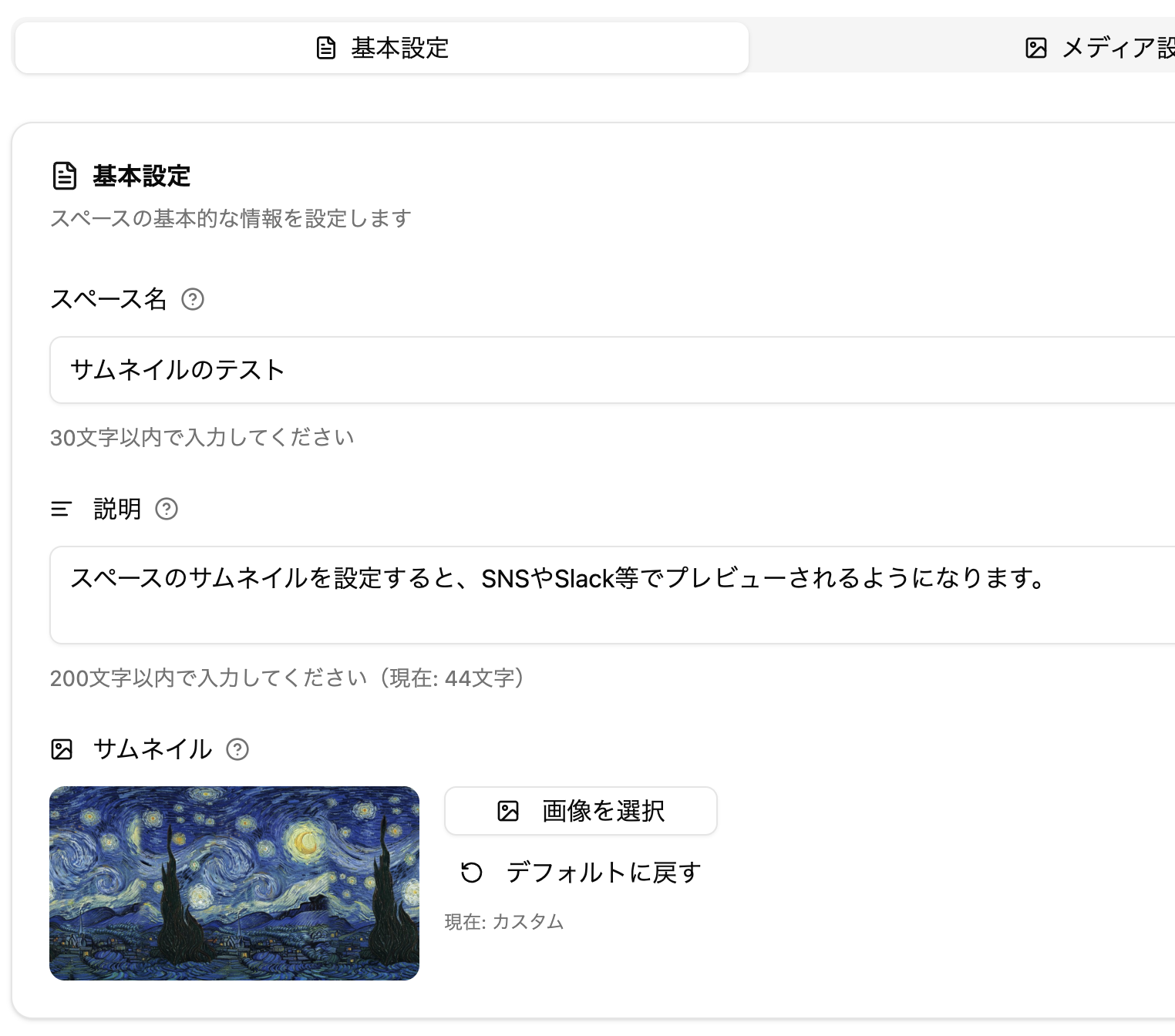
Thumbnail Settings Addedโ€‹

You can now set a thumbnail for your Space in Edit Page > Space > Basic Settings Tab.

Screenshot

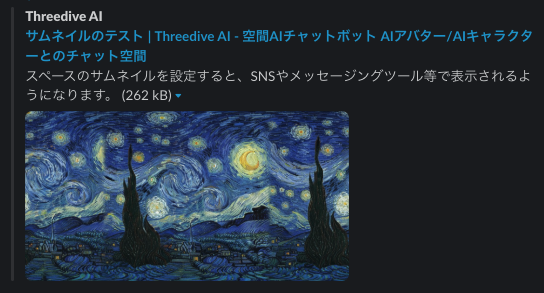
When you set a thumbnail, it will be displayed on the Space list screen and also when you share the public URL on social media or messaging tools (OGP feature).

Screenshot

Public URL Change (Shortened)โ€‹

The published URL has been shortened and is now easier to handle.

Old: https://app.threedive.ai/spaces/abcde01234 ใ€€โ†“ New: https://s.threedive.ai/abcde01234

*The old URL format remains available.

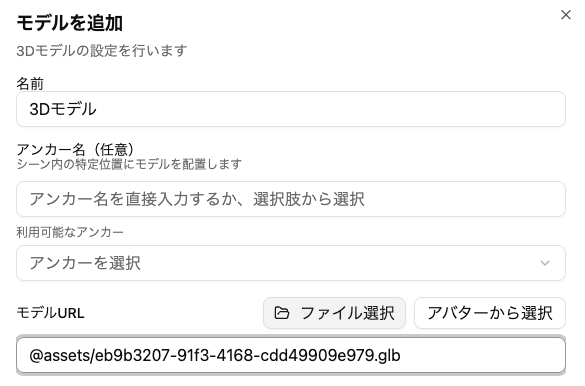
Model Placement from Media Libraryโ€‹

GLB files and 3D Gaussian Splatting files registered in the "Media Library" can now be placed using the "Model Placement" feature.

Edit screen

Preview screen

info

The maximum file size for placeable assets is 20MB.